Of course! This is an excellent question that gets to the heart of how Python works on Android. The short answer is:
You cannot run standard Python scripts directly on an Android device in the same way you run them on a desktop. Android does not have a built-in Python interpreter or a command-line terminal to run python your_script.py.
However, there are several fantastic ways to run Python code on Android, each with its own pros and cons. The "if" statement in Python works exactly the same in all these environments; the difference is in how you get your code to run and how you interact with it.
Let's break down the main methods.
Method 1: Using a Python IDE/App on your Android Device (For Coding & Learning)
This is the most direct way to "use Python on Android." You install a special app from the Google Play Store that contains a Python interpreter and an editor.
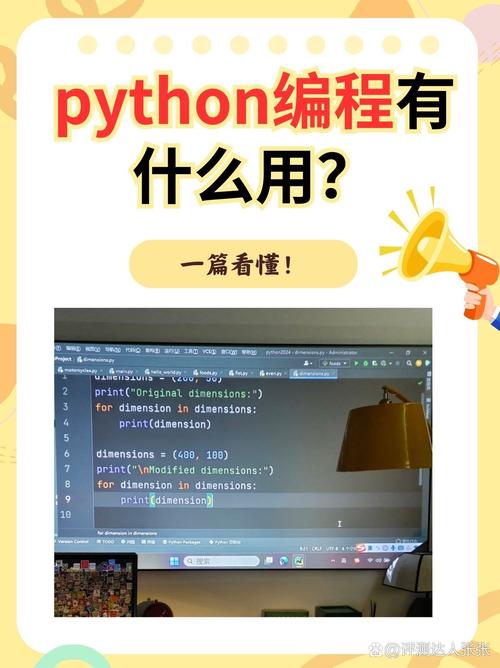
How it works: You write or paste your Python code into the app's editor and run it from within the app.
Popular Apps:
- Pydroid 3: The most popular and feature-rich option. It includes a PIP package manager, access to the filesystem, and even Matplotlib for plotting.
- QPython: Another excellent choice that includes a console, editor, and SL4A (Scripting Layer for Android) for accessing Android features like sensors and contacts.
- Acode Editor: A more general-purpose code editor that has excellent Python support with plugins for running code.
Example: Using Pydroid 3
- Install Pydroid 3 from the Google Play Store.
- Open the app and tap the "+" button to create a new file (e.g.,
main.py). - Type your Python code. Let's use an
ifstatement to check the battery level.
# This code REQUIRES the 'pyjnius' library to work on Android
# In Pydroid 3, you can install it by going to PIP, then pyjnius
from jnius import autoclass
# Get the Android Battery Manager
PythonActivity = autoclass('org.kivy.android.PythonActivity')
batteryManager = PythonActivity.mActivity.getSystemService(PythonActivity.BATTERY_SERVICE)
# Get battery level (0-100)
level = batteryManager.getIntProperty(batteryManager.BATTERY_PROPERTY_CAPACITY)
print(f"Current battery level: {level}%")
# Here is the 'if' statement in action
if level > 50:
    print("Battery is good! You're all set.")
elif level > 20:
    print("Battery is getting low. Maybe plug in soon.")
else:
    print("WARNING: Battery is critically low!")
To run this:
- You'd need to install the
pyjniuslibrary inside the Pydroid 3 app. - Tap the "Run" button in the app.
Pros:
- Great for learning, testing small snippets, and on-the-go coding.
- Feels like using a mini-computer on your phone.
Cons:
- Not for building professional, distributable Android apps.
- Access to Android features can be complex (requires
pyjniusorkivy). - Can be slower than native apps.
Method 2: Using Kivy to Build a Native Android App (For Building Apps)
This is the most powerful method for creating a real, professional Android app that you can publish on the Play Store, using Python for the logic.
How it works:
Kivy is an open-source Python library for developing multi-touch applications. You write your app's logic in Python and define its user interface (UI) using its own KV language (which is simple and XML-like). Then, you use a special tool called Buildozer to package your Python app into a native .apk file that Android can run.
Example: A Simple Kivy App with an if statement
- Install Kivy and Buildozer on your desktop computer (Windows, macOS, or Linux).
- Create a Python file,
main.py:
from kivy.app import App
from kivy.uix.button import Button
from kivy.uix.boxlayout import BoxLayout
from kivy.core.window import Window
# This 'if' statement changes the app's window size based on the platform
if Window.width > 600: # Assuming it's a tablet or desktop
    Window.size = (400, 600)
else: # Assuming it's a phone
    Window.size = (300, 500)
class MyApp(App):
    def build(self):
        # This is the main layout for our app
        layout = BoxLayout(orientation='vertical', padding=20, spacing=10)
        # Add a button
        self.button = Button(text="Click Me!", font_size=24)
        self.button.bind(on_press=self.on_button_click)
        layout.add_widget(self.button)
        return layout
    def on_button_click(self, instance):
        # This function is called when the button is clicked
        # It contains our core 'if/elif/else' logic
        current_text = instance.text
        if current_text == "Click Me!":
            instance.text = "You Clicked Me!"
            print("Button was clicked for the first time.")
        elif current_text == "You Clicked Me!":
            instance.text = "Click Again"
            print("Button was clicked a second time.")
        else:
            instance.text = "Click Me!"
            print("Button was reset.")
        print("The button text is now:", instance.text)
if __name__ == '__main__':
    MyApp().run()
-
Create a KV file (
main.kv) to define the layout:# This file is linked to MyApp in main.py # It defines the visual appearance BoxLayout: canvas.before: Rectangle: pos: self.pos size: self.size source: 'background.jpg' # Put an image in your folder -
Package it: Run
buildozer android debugin your terminal. This will take a while, downloading the Android SDK and NDK, and then it will build anapp-debug.apkfile in a.buildozerfolder. You can then install this.apkon your Android device.
Pros:
- Create true, professional, distributable Android apps.
- Write everything in Python (logic and UI).
- Cross-platform (same code can run on iOS, Windows, macOS, Linux).
Cons:
- Steep learning curve.
- Build process can be complex and slow.
- The app might be larger and slightly less performant than a native Java/Kotlin app.
Method 3: Using a Remote Interpreter (For Running Server-Side Code)
This method is for when your Python code is running on a server somewhere else, and your Android app is just a "client" that sends requests to it.
How it works:
Your Android app (built with Java/Kotlin or Flutter) makes a network request (like an HTTP GET or POST) to a web API. This API is powered by a Python backend (e.g., using Flask or Django). The Python code on the server runs the if statements and sends a response back to the Android app.
Example:
-
Python Server (using Flask):
# server.py from flask import Flask, request, jsonify app = Flask(__name__) @app.route('/check-user', methods=['POST']) def check_user(): data = request.get_json() user_name = data.get('name') # The 'if' logic runs on the SERVER if user_name == "Admin": return jsonify({"status": "granted", "message": "Welcome, master!"}) elif user_name == "Guest": return jsonify({"status": "limited", "message": "Hello, guest. You have limited access."}) else: return jsonify({"status": "denied", "message": "Unknown user. Access denied."}) if __name__ == '__main__': app.run(debug=True) -
Android App (Java/Kotlin): The Android app would have a button. When clicked, it sends a network request to
http://your-server-ip:5000/check-userwith a JSON body like{"name": "Admin"}. It then receives the JSON response and displays it in a TextView.
Pros:
- Leverages the full power of Python for complex backend logic.
- The Android app is lightweight and fast (it's just a UI).
- Highly scalable and maintainable architecture.
Cons:
- Requires a server to be running 24/7 (has costs).
- More complex setup (networking, APIs, server management).
- Not for offline-first apps unless you add significant caching logic.
Summary Table
| Method | Best For | How if Works |
Pros | Cons |
|---|---|---|---|---|
| Python IDE/App | Learning, small scripts, quick tests. | Exactly like in desktop Python. | Easy to start, great for on-the-go coding. | Not for building real apps, limited access to OS. |
| Kivy Framework | Building full, native-feeling Android apps with Python. | Exactly like in desktop Python. | Creates distributable .apk files, write everything in Python. | Steep learning curve, complex build process. |
| Remote Interpreter | Apps where Python logic runs on a server. | Exactly like in desktop Python (on the server). | Powerful backend, scalable, lightweight client app. | Requires a server, needs internet connection. |
Conclusion:
If you just want to run a Python script with an if statement on your phone, use Pydroid 3.
If you want to build a real Android app that you can share with others, use the Kivy framework.
If your app's main logic is complex and needs to be shared with other platforms (like a website), use a remote Python interpreter.