Of course! Here's a comprehensive guide to using the Docker SDK for Python, from installation to advanced usage.
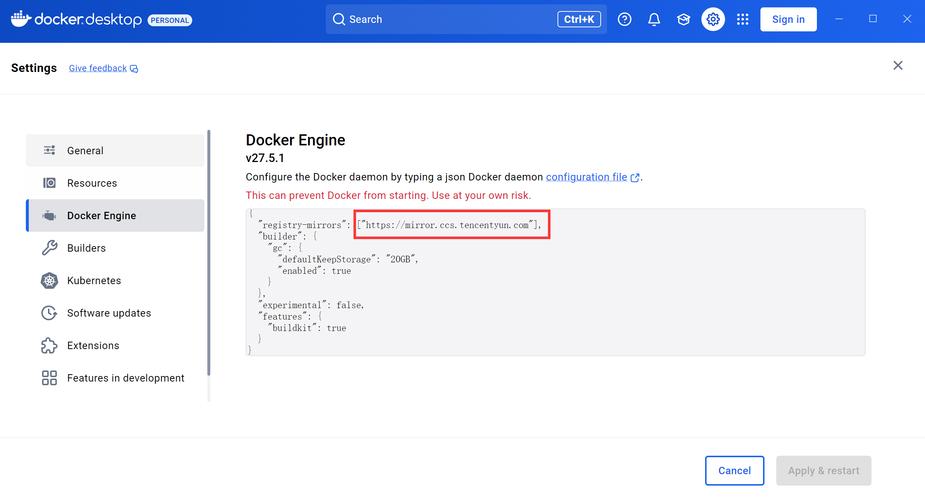
What is the Docker SDK for Python?
The Docker SDK for Python is a library that allows you to control and interact with a Docker daemon programmatically. Instead of running docker ps, docker run, etc., in your terminal, you can write Python scripts to automate these tasks.
This is incredibly powerful for:
- Automating deployments: Building images, running containers, and managing services.
- Testing: Spinning up test environments (databases, web servers) for your application, running tests, and then tearing them down.
- Development: Creating custom development tools or IDE integrations.
- Monitoring and Management: Programmatically inspecting container logs, stats, and status.
Installation
First, you need to install the library using pip.
pip install docker
Prerequisites:
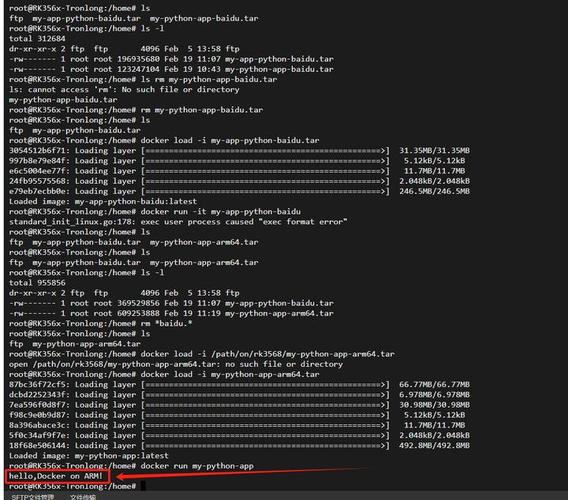
- You must have Docker installed and running on your system.
- The Docker daemon must be accessible. By default, it listens on a Unix socket at
/var/run/docker.sock. The SDK will automatically use this if it can. For remote access, you'll need to configure the Docker daemon to listen on a TCP port.
Connecting to the Docker Daemon
The primary entry point to the SDK is the docker module.
Local Connection (Default)
If Docker is running on your local machine, the connection is straightforward:
import docker
# This will connect to the default local Docker daemon
client = docker.from_env()
Remote Connection
If your Docker daemon is running on a remote server or in a VM, you need to specify the host URL.
import docker
# Connect to a Docker daemon listening on a specific host and port
client = docker.DockerClient(base_url='tcp://192.168.1.100:2375')
You can also configure TLS for secure connections.
Core Concepts: Images and Containers
Most of your interaction will revolve around two main objects: Images and Containers.
- Image: A read-only template used to create containers (e.g.,
python:3.9,nginx:latest). - Container: A runnable instance of an image. It's a lightweight, isolated process.
Working with Images
Listing Images
import docker
client = docker.from_env()
# List all local images
images = client.images.list()
for image in images:
    print(f"ID: {image.id}, Tags: {image.tags}")
Pulling an Image
If an image isn't on your local machine, you can pull it from a registry like Docker Hub.
# Pull the 'hello-world' image
image = client.images.pull('hello-world')
print(f"Pulled image with ID: {image.id}")
Building an Image from a Dockerfile
This is one of the most common tasks. Let's assume you have a Dockerfile in the current directory.
Dockerfile example:
FROM python:3.9-slim
WORKDIR /app
COPY . .
RUN pip install -r requirements.txt
CMD ["python", "app.py"]
Python script to build it:
import docker
client = docker.from_env()
# Build an image from a Dockerfile in the current directory
# 'tag' is optional but recommended
image, build_log = client.images.build(path='.', tag='my-python-app:latest')
print(f"Successfully built image with ID: {image.id}")
# You can also inspect the build log
for line in build_log:
    print(line)
Working with Containers
Running a Container
The run() method is the most versatile function. It's like the docker run command.
import docker
client = docker.from_env()
# Run a simple 'hello-world' container
# auto_remove=True will remove the container after it exits
container = client.containers.run('hello-world', auto_remove=True)
print(f"Container {container.name} has been run and removed.")
A more complex example (running a web server):
import docker
client = docker.from_env()
# Run an nginx container in detached mode (-d)
# Map port 8080 on the host to port 80 in the container (-p 8080:80)
# Give the container a name
container = client.containers.run(
    'nginx:latest',
    detach=True,          # Run in the background
    ports={'80/tcp': 8080}, # Port mapping
    name='my-web-server'
)
print(f"Container {container.name} is running with ID: {container.id}")
Listing and Inspecting Running Containers
# List all running containers
running_containers = client.containers.list()
print("--- Running Containers ---")
for container in running_containers:
    print(f"ID: {container.id[:12]}, Name: {container.name}, Status: {container.status}")
# Get a specific container by its ID or name
my_container = client.containers.get('my-web-server')
# Inspect the container (returns a dictionary)
details = my_container.attrs
print(f"\nImage used for my-web-server: {details['Config']['Image']}")
Stopping, Starting, and Removing Containers
# Get the container
my_container = client.containers.get('my-web-server')
# Stop the container
my_container.stop()
print(f"Container {my_container.name} has been stopped.")
# Start it again
my_container.start()
print(f"Container {my_container.name} has been started.")
# Remove the container
my_container.remove()
print(f"Container {my_container.name} has been removed.")
Executing Commands Inside a Running Container
This is like using docker exec.
# Let's run a new container to work with
container = client.containers.run('ubuntu:latest', 'sleep 300', detach=True, name='my-ubuntu-box')
# Execute a command inside the running container
# exec_run returns a tuple: (exit_code, output)
exit_code, output = container.exec_run('ls -l /')
print(f"Exit code: {exit_code}")
print("Output:")
print(output.decode('utf-8'))
# Clean up
container.remove()
Working with Container Logs
# Run a container that produces logs
container = client.containers.run('alpine', 'sh -c "echo Hello World; echo Goodbye World"', detach=True, name='my-logger')
# Stream the logs in real-time (like `docker logs -f`)
print("\n--- Streaming Logs ---")
for line in container.logs(stream=True, follow=True):
    print(line.strip().decode('utf-8'))
# Stop and remove
container.stop()
container.remove()
Practical Example: A Simple Test Runner
Let's create a script that spins up a database, waits for it to be ready, runs some tests, and then cleans up.
requirements.txt (for the test app):
psycopg2-binarytest_app.py:
import time
import psycopg2
import os
def test_db_connection():
    db_host = os.environ.get('DB_HOST', 'localhost')
    db_port = os.environ.get('DB_PORT', '5432')
    db_user = 'testuser'
    db_pass = 'testpass'
    db_name = 'testdb'
    retries = 5
    while retries > 0:
        try:
            conn = psycopg2.connect(
                host=db_host,
                port=db_port,
                user=db_user,
                password=db_pass,
                dbname=db_name
            )
            cur = conn.cursor()
            cur.execute("SELECT 1")
            print("✅ Database connection successful!")
            conn.close()
            return True
        except psycopg2.OperationalError as e:
            print(f"⚠️  Database not ready yet: {e}. Retrying...")
            retries -= 1
            time.sleep(2)
    print("❌ Failed to connect to the database.")
    return False
if __name__ == "__main__":
    test_db_connection()
docker-compose.yml (to easily define the db service):
version: '3.8'
services:
  postgres:
    image: postgres:13
    environment:
      POSTGRES_USER: testuser
      POSTGRES_PASSWORD: testpass
      POSTGRES_DB: testdb
    ports:
      - "5432:5432"
run_tests.py (our Python automation script):
import docker
import time
import os
import subprocess
def main():
    client = docker.from_env()
    print("🚀 Starting PostgreSQL container...")
    # We use docker-py to run the container defined in docker-compose
    # For simplicity, we'll run it directly here.
    db_container = client.containers.run(
        'postgres:13',
        detach=True,
        environment={
            'POSTGRES_USER': 'testuser',
            'POSTGRES_PASSWORD': 'testpass',
            'POSTGRES_DB': 'testdb'
        },
        name='test-db',
        ports={'5432/tcp': 5432}
    )
    print("⏳ Waiting for database to be ready...")
    # Wait for the database to initialize
    time.sleep(10) # A simple wait, in a real app you'd implement a proper health check
    print("🧪 Running Python test script...")
    # Set environment variable for the test script
    os.environ['DB_HOST'] = 'localhost'
    os.environ['DB_PORT'] = '5432'
    # Run the test script
    try:
        subprocess.run(['python', 'test_app.py'], check=True)
        print("✅ All tests passed!")
    except subprocess.CalledProcessError:
        print("❌ Tests failed!")
    finally:
        print("🧹 Cleaning up: Removing database container...")
        db_container.remove(force=True)
        print("✅ Cleanup complete.")
if __name__ == "__main__":
    main()
To run this example:
- Save the files (
requirements.txt,test_app.py,run_tests.py). - Install dependencies:
pip install -r requirements.txt. - Run the script:
python run_tests.py.
Error Handling
The SDK raises specific exceptions for different errors, which is much better than generic ones.
from docker.errors import APIError, ImageNotFound, NotFound
try:
    # Try to get a container that doesn't exist
    container = client.containers.get('non-existent-container')
    container.stop()
except NotFound:
    print("Error: The container was not found.")
except APIError as e:
    print(f"An API error occurred: {e}")
except ImageNotFound:
    print("Error: The specified image was not found.")
Resources
- Official Documentation: https://docker-py.readthedocs.io/ - This is the ultimate source of truth.
- GitHub Repository: https://github.com/docker/docker-py - For source code and issues.