Of course! Here is a comprehensive guide to using Matplotlib in Python, from the basics to more advanced customizations.
What is Matplotlib?
Matplotlib is the most popular and foundational plotting library for Python. It's designed to create static, interactive, and animated visualizations in a wide variety of formats. Think of it as the "go-to" tool for creating publication-quality figures, plots, charts, and graphs.
If you're coming from a MATLAB background, you'll feel right at home with Matplotlib's pyplot module.
Installation and Setup
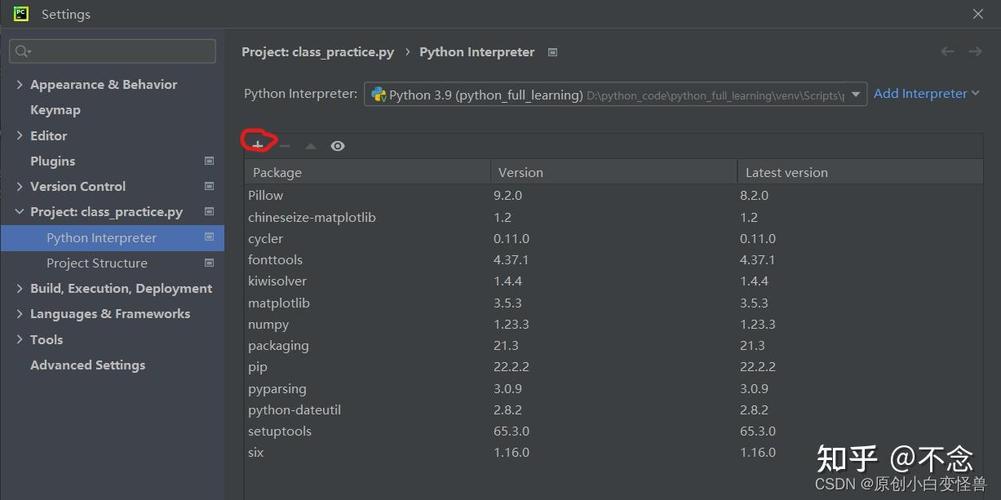
First, you need to install Matplotlib. It's highly recommended to install it within a Python virtual environment.
# Using pip
pip install matplotlib
# Using conda
conda install matplotlib
You'll almost always use Matplotlib alongside NumPy for numerical operations and Pandas for data handling.
pip install numpy pandas
The Core: pyplot and the Object-Oriented API
There are two main ways to use Matplotlib:
pyplot(State-Based) Interface: Simple and great for quick, simple plots. You call functions likeplt.plot()andplt.title(), and Matplotlib keeps track of the "current" figure and axes behind the scenes.- Object-Oriented (OO) Interface: More powerful and flexible. You explicitly create figure (
fig) and axes (ax) objects and then call methods on them (e.g.,ax.plot(),ax.set_title()). This is the recommended approach for anything beyond a simple plot.
Let's look at both.
A Simple Plot: The pyplot Way
This is the most basic example. We'll plot a sine wave.
import matplotlib.pyplot as plt
import numpy as np
# 1. Prepare the data
x = np.linspace(0, 10, 100)  # 100 evenly spaced points from 0 to 10
y = np.sin(x)
# 2. Create the plot
plt.plot(x, y)
# 3. Add labels and a title"Sine Wave")
plt.xlabel("X-axis")
plt.ylabel("Y-axis")
# 4. Display the plot
plt.show()
Output:
The Recommended Way: The Object-Oriented API
This gives you more control, especially when you have multiple plots in one figure.
import matplotlib.pyplot as plt
import numpy as np
# 1. Prepare the data
x = np.linspace(0, 10, 100)
y = np.sin(x)
# 2. Create a figure and an axes object
# fig is the whole window or page.
# ax is the subplot or plot area within the figure.
fig, ax = plt.subplots()
# 3. Plot data on the axes object
ax.plot(x, y)
# 4. Set labels and title on the axes object
ax.set_title("Sine Wave (OO Style)")
ax.set_xlabel("X-axis")
ax.set_ylabel("Y-axis")
# 5. Display the plot
plt.show()
The output is identical, but this structure is much more powerful. Let's explore why.
Common Plot Types
Matplotlib can create almost any 2D plot you can imagine.
a) Scatter Plot
Use ax.scatter().
import matplotlib.pyplot as plt
import numpy as np
# Generate some random data
np.random.seed(0)
x = np.random.rand(50)
y = np.random.rand(50)
colors = np.random.rand(50)
sizes = 1000 * np.random.rand(50)
fig, ax = plt.subplots()
scatter = ax.scatter(x, y, c=colors, s=sizes, alpha=0.6, cmap='viridis')
ax.set_title("Random Scatter Plot")
ax.set_xlabel("X values")
ax.set_ylabel("Y values")
# Add a color bar
fig.colorbar(scatter, ax=ax, label="Color Value")
plt.show()
b) Bar Chart
Use ax.bar() for vertical bars or ax.barh() for horizontal bars.
import matplotlib.pyplot as plt
categories = ['A', 'B', 'C', 'D']
values = [15, 30, 45, 10]
fig, ax = plt.subplots()
ax.bar(categories, values, color=['skyblue', 'salmon', 'lightgreen', 'gold'])
ax.set_title("Bar Chart of Categories")
ax.set_xlabel("Category")
ax.set_ylabel("Value")
plt.show()
c) Histogram
Use ax.hist() to show the distribution of a dataset.
import matplotlib.pyplot as plt
import numpy as np
# Generate data from a normal distribution
data = np.random.randn(1000)
fig, ax = plt.subplots()
ax.hist(data, bins=30, color='purple', alpha=0.7, edgecolor='black')
ax.set_title("Histogram of a Normal Distribution")
ax.set_xlabel("Value")
ax.set_ylabel("Frequency")
plt.show()
d) Pie Chart
Use ax.pie().
import matplotlib.pyplot as plt
sizes = [15, 30, 45, 10]
labels = ['A', 'B', 'C', 'D']
explode = (0, 0.1, 0, 0) # "explode" the 2nd slice
fig, ax = plt.subplots()
ax.pie(sizes, explode=explode, labels=labels, autopct='%1.1f%%',
       shadow=True, startangle=90)
# Equal aspect ratio ensures that pie is drawn as a circle.
ax.axis('equal')
ax.set_title("Pie Chart")
plt.show()
Customizing Plots
Matplotlib offers immense control over every element of a plot.
- Colors: Use named colors (
'red','blue'), hex codes ('#FF5733'), or single letters ('r','b'). - Line Styles:
ax.plot(x, y, linestyle='--')orax.plot(x, y, ls=':'). - Markers:
ax.plot(x, y, marker='o')orax.plot(x, y, marker='x'). - Linewidth and Markersize:
ax.plot(x, y, linewidth=2, markersize=8). - Text and Annotations:
ax.text(x, y, 'Important Point'),ax.annotate('Peak', xy=(x_peak, y_peak)). - Legends:
ax.plot(x, y, label='My Data')and thenax.legend().
Example:
import matplotlib.pyplot as plt
import numpy as np
x = np.linspace(0, 10, 100)
y1 = np.sin(x)
y2 = np.cos(x)
fig, ax = plt.subplots()
# Plot two lines with different styles
ax.plot(x, y1, color='blue', linestyle='--', label='Sine')
ax.plot(x, y2, color='red', linestyle='-', label='Cosine')
# Add a legend
ax.legend()
# Add a grid
ax.grid(True, linestyle=':')
# Set axis limits
ax.set_xlim(0, 10)
ax.set_ylim(-1.5, 1.5)
ax.set_title("Customized Sine and Cosine Plot")
ax.set_xlabel("X-axis")
ax.set_ylabel("Y-axis")
plt.show()
Multiple Plots in One Figure (Subplots)
You can create a grid of plots using plt.subplots().
import matplotlib.pyplot as plt
import numpy as np
# Create 2x2 grid of plots
fig, axes = plt.subplots(2, 2, figsize=(10, 8)) # figsize makes the figure larger
# --- Top Left Plot ---
ax1 = axes[0, 0]
ax1.plot(x, np.sin(x))
ax1.set_title('Sine')
# --- Top Right Plot ---
ax2 = axes[0, 1]
ax2.plot(x, np.cos(x))
ax2.set_title('Cosine')
# --- Bottom Left Plot ---
ax3 = axes[1, 0]
ax3.scatter(x, np.random.rand(100))
ax3.set_title('Scatter')
# --- Bottom Right Plot ---
ax4 = axes[1, 1]
ax4.hist(np.random.randn(1000), bins=20)
ax4.set_title('Histogram')
# Add a main title for the entire figure
fig.suptitle('A 2x2 Grid of Plots', fontsize=16)
# Adjust layout to prevent labels from overlapping
plt.tight_layout()
plt.show()
Saving Plots
You can save your figure to a file using fig.savefig(). Matplotlib can output to many formats, including PNG, PDF, SVG, and JPG.
# ... (code to create a plot) ...
# Save the figure before plt.show()
fig.savefig('my_plot.png', dpi=300, bbox_inches='tight')
# dpi: dots per inch (resolution)
# bbox_inches='tight': prevents labels from being cut off
plt.show()
Integration with Pandas
This is where Matplotlib truly shines in data analysis. Pandas DataFrames have a built-in .plot() method that uses Matplotlib in the background.
import pandas as pd
import numpy as np
import matplotlib.pyplot as plt
# Create a sample DataFrame
data = {
    'Date': pd.date_range(start='2025-01-01', periods=10),
    'Sales': np.random.randint(50, 200, size=10),
    'Profit': np.random.randint(10, 50, size=10)
}
df = pd.DataFrame(data)
df.set_index('Date', inplace=True)
print(df)
            Sales  Profit
Date
2025-01-01    195      18
2025-01-02    133      45
2025-01-03     92      28
2025-01-04    119      36
2025-01-05    184      24
2025-01-06    104      42
2025-01-07    156      31
2025-01-08     60      14
2025-01-09    109      49
2025-01-10    151      22
Now, plot it directly from the DataFrame:
# Plot all numeric columns
df.plot(figsize=(10, 6), marker='o')'Sales and Profit Over Time')
plt.ylabel('Amount ($)')
plt.grid(True)
plt.show()
# Plot a specific column as a bar chart
df['Sales'].plot(kind='bar', figsize=(10, 6), color='coral')'Total Sales per Day')
plt.ylabel('Sales ($)')
plt.xlabel('Date')
plt.xticks(rotation=45) # Rotate x-axis labels
plt.tight_layout()
plt.show()
Popular Alternatives and Enhancers
While Matplotlib is the foundation, other libraries build on top of it to provide more advanced or aesthetically pleasing plots.
- Seaborn: Built on Matplotlib, it provides a high-level interface for drawing attractive and informative statistical graphics. It works beautifully with Pandas DataFrames and automatically handles many styling aspects.
import seaborn as sns
sns.histplot(data=np.random.randn(1000), bins=30, kde=True) # kde adds a density line
plt.show()
- Plotly: Creates interactive, web-ready plots. You can hover over data points, zoom, and pan. It's excellent for dashboards and data exploration.
- Pandas Visualization: The
.plot()method in Pandas can use different backends, including Plotly, to create interactive plots directly from DataFrames.
Summary
| Feature | Description |
|---|---|
| Core Module | matplotlib.pyplot (for simple plots) |
| Recommended Style | Object-Oriented API (fig, ax = plt.subplots()) |
| Strengths | Highly customizable, great for publication-quality static plots, the foundation of the Python data viz ecosystem. |
| Weaknesses | Syntax can be verbose, default styles are a bit dated (but easily changeable). |
| Best For | Static plots, scientific publications, custom data visualizations, and as a backend for other libraries like Seaborn. |
Start with the basics of plt.plot() and quickly transition to the Object-Oriented style. It will serve you well in almost any data analysis or scientific computing task in Python.