Of course! Visual Studio is an excellent, powerful, and free environment for Python development. Here’s a comprehensive guide covering everything you need to know, from installation to advanced features.
What is Visual Studio for Python?
Visual Studio offers a rich Python development experience through its Python workload. It's not just a text editor; it's a full-featured Integrated Development Environment (IDE) that provides powerful tools to make coding, debugging, and managing Python projects faster and easier.
The key components you'll interact with are:
- Visual Studio Code (VS Code): A lightweight, cross-platform code editor. While it has great Python support, it's a separate product from the full Visual Studio IDE.
- Visual Studio (The IDE): The larger, Windows-only application. When people say "Visual Studio for Python," they usually mean this one. It has a more integrated debugger, performance profilers, and project management tools that are incredibly powerful for larger applications.
This guide will focus on the full Visual Studio IDE for Python development.
Getting Started: Installation
The first step is to install Visual Studio and select the Python components.
Step 1: Download Visual Studio Installer
Go to the official Visual Studio download page: https://visualstudio.microsoft.com/downloads/
Step 2: Run the Installer and Select the Workload
- Run the installer.
- Select the "Python development" workload. This will automatically check all the necessary components for you.
- You can also manually select individual components under "Installation details":
- Python 3.x (64-bit): The Python interpreter itself.
- Python 3.x (32-bit): Useful for compatibility with older libraries.
- Python development tools: The core language services and debugger.
- Pip: The package installer for Python.
- Windows 10/11 SDK: Needed for building some native C/C++ extensions.
- Click Install and wait for the process to complete.
The User Interface (UI) Essentials
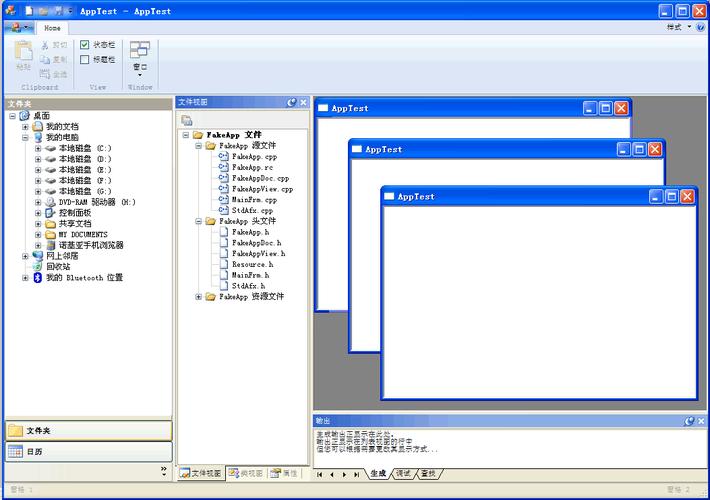
Once installed, you'll see a familiar IDE layout. Here are the key windows:
- Solution Explorer: Your project file manager. It shows all files, folders, and references (like installed libraries) in your solution. This is your main navigation tool.
- Code Editor: Where you write your Python code. It features syntax highlighting, intelligent code completion (IntelliSense), and error-checking as you type.
- Error List: Shows a list of compilation errors and warnings in your code, allowing you to jump directly to the problematic line.
- Output Window: Displays the output from build processes, test runs, and the Python interpreter.
- Properties Window: Shows properties for the selected item (e.g., a file or project), allowing you to change settings like the startup file or interpreter path.
- Python Environments Window: A crucial tool for managing your Python installations and packages. (More on this below).
Core Features and Workflow
A. Creating a New Project
- Go to
File > New > Project.... - Search for "Python" and select "Python Application".
- Give your project a name and location.
- Visual Studio creates a solution and a project, and adds a default
main.pyfile.
B. Selecting and Managing Python Environments
This is one of the most important concepts in VS for Python. An environment is an isolated space for a Python project, containing its own interpreter and packages.
- Go to the Python Environments window (usually on the right side).
- Click the dropdown to see your available environments:
- Conda Environments: For projects using Conda for package management.
- Virtual Environment: A standard Python virtual environment (
.venv). Great for keeping project dependencies separate. - Environment Path: Points to a Python installation on your system.
- Select the environment you want to use for your project. This will be used for IntelliSense, running, and debugging.
Best Practice: Always create a new virtual environment for each new project to avoid dependency conflicts.
C. Writing Code with IntelliSense
As you type, VS provides powerful assistance:
- Autocompletion: Suggests variable names, function names, and keywords.
- Parameter Hints: Shows the parameters a function expects as you type it.
- Docstring Popups: Displays the documentation for a function when you hover over it.
- Error Underlining: It underlines syntax errors and potential issues in real-time.
D. Running Your Code
You have several options:
- Green "Play" Button: Click the play button in the top toolbar to run the currently active script.
- Right-Click in Code Editor: Right-click in the editor and select "Run Python File in Terminal".
- Keyboard Shortcut: Press
Ctrl + F5to run without debugging.
The output will appear in a Python Interactive window or a terminal window integrated into the IDE.
E. Debugging (The Killer Feature)
Debugging is where Visual Studio truly shines. It allows you to step through your code line by line and inspect its state.
- Set a Breakpoint: Click in the margin to the left of the line number where you want the code to pause. A red dot will appear.
- Start Debugging: Press
F5or click the "Start Debugging" button (the green arrow with a bug icon). - Interact with the Debugger: Your code will run and stop at the breakpoint. You can now:
- Step Over (
F10): Execute the current line and move to the next. - Step Into (
F11): Dive into a function call. - Step Out (
Shift + F11): Finish executing the current function and return. - Watch Window: Add variables or expressions to watch their values change in real-time.
- Locals Window: See all variables in the current scope and their values.
- Immediate Window: Type Python commands to execute them on the fly while debugging.
- Step Over (
Advanced Features for Serious Development
A. Package Management (Pip)
You don't need to use a command line to install packages.
- In the Python Environments window, select your environment.
- You will see a "pip" search bar.
- Type the name of the package (e.g.,
requests,numpy) and click Install. VS will handle the rest.
B. Unit Testing
VS has excellent built-in support for Python unit testing frameworks like unittest, pytest, and nose.
- It automatically discovers your test files.
- You can run all tests, a specific file, or a single test from the Test Explorer window.
- It provides detailed results and allows you to debug your tests directly.
C. Performance Profiling
When your code is slow, the profiler is your best friend.
- Go to
Debug > Performance Profiler.... - Select profiling tools like CPU Usage or Memory Usage.
- Run your application with the profiler.
- After the run, you'll get a detailed report showing exactly which functions are taking the most time or memory, making optimization much easier.
D. Jupyter Notebooks
Visual Studio has first-class support for Jupyter Notebooks. You can open, edit, and run .ipynb files directly within the IDE, with full IntelliSense and debugging capabilities.
Visual Studio vs. Visual Studio Code
This is a common point of confusion.
| Feature | Visual Studio (IDE) | Visual Studio Code (Editor) |
|---|---|---|
| Type | Full-featured IDE | Lightweight, extensible Code Editor |
| Platform | Windows only | Windows, macOS, Linux |
| Python Support | Built-in, first-class | Via a free extension (Microsoft's Python extension) |
| Debugger | Integrated, powerful debugger. Excellent for stepping through code. | Good debugger, but can feel more "separate" from the editor. |
| Profiling | Built-in, integrated CPU and Memory Profiler. | Profiling is done via extensions (e.g., "Python Profiler"). |
| Project System | Robust project and solution management. | Folder-based, more lightweight. |
| Start-up Time | Slower to start. | Extremely fast to start. |
| Best For | Large applications, data science (with tools), web development (Django/Flask), C++/Python mixed projects. | Quick scripts, web development, beginners, cross-platform development. |
Conclusion: If you are on Windows and are serious about Python development, especially for larger projects or performance-critical applications, the full Visual Studio IDE is an outstanding choice. If you prefer a lighter, faster, or cross-platform tool, VS Code with the Python extension is the way to go.