Of course! The concept of a "Live Template" in Python is best understood by looking at how different tools implement it. While Python doesn't have a single, built-in "Live Template" feature like some IDEs, the functionality is provided by powerful tools integrated into your development environment.
Let's break it down from the most common and recommended approach (VS Code) to more advanced IDEs (PyCharm) and command-line tools.
The Most Common Approach: VS Code with Snippets
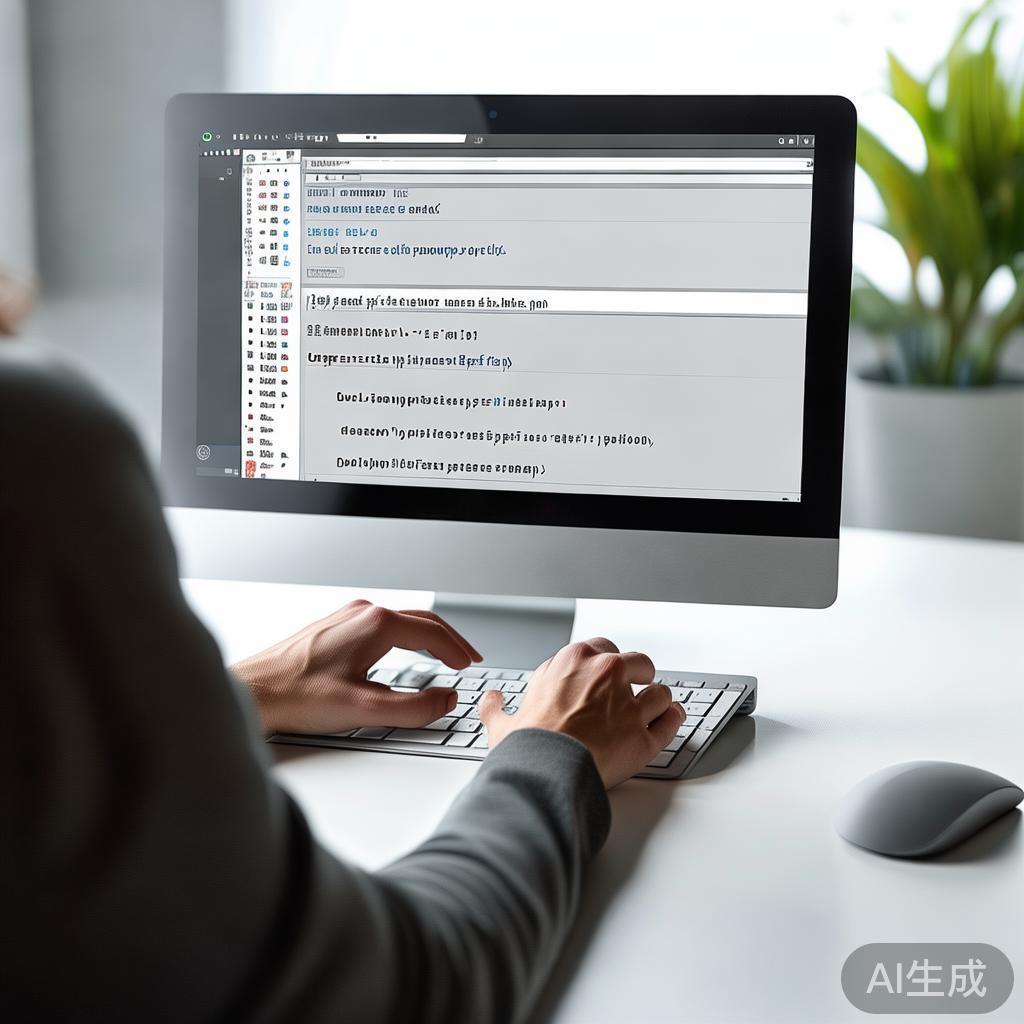
In Visual Studio Code, "Live Templates" are called Snippets. They are powerful, customizable, and a core part of the Python development experience in VS Code.
What are VS Code Snippets?
They are small, reusable pieces of code that you can insert into your file by typing a short prefix (a "trigger") and pressing Tab.
How to Use Them
- Open the Command Palette:
Ctrl+Shift+P(orCmd+Shift+Pon Mac). - Type "snippets": Select "Preferences: Configure User Snippets".
- Select
python.json: This will open the snippets file for Python.
Example: Creating a "for loop" snippet
Let's create a snippet for a standard Python for loop.
- Open your
python.jsonsnippets file. - Add the following JSON object:
{
  "For Loop": {
    "prefix": "forloop", // The trigger word you type
    "body": [
      "for ${1:i} in ${2:iterable}:",
      "\t${3:# Your code here}",
      "\t$0" // The final cursor position
    ],
    "description": "A standard Python for loop"
  }
}
How to use it:
- In a Python file, type
forloop. - Press
Tab. - The snippet will expand, and your cursor will be placed at
${1:i}. You can type the loop variable name (e.g.,item). - Press
Tabagain to jump to the next placeholder,${2:iterable}. - Press
Tabagain to jump to${3}, the comment where you write your code. - Press
Tabone last time to jump to$0, which is the final cursor position after the snippet.
Pre-installed Python Snippets in VS Code
VS Code comes with many useful Python snippets out of the box:
main: Creates aif __name__ == "__main__":block.try: Creates atry...exceptblock.fori: Creates afor i in range(...)loop.fore: Creates afor item in list:loop.def: Creates a function definition.class: Creates a class definition.
The Power-User Approach: PyCharm Live Templates
JetBrains PyCharm has a more sophisticated and integrated "Live Template" system. It's highly customizable and can even be made "context-aware."

What are PyCharm Live Templates?
They are code templates that can be expanded with Tab (or by default, Ctrl+J on Windows/Linux, Cmd+J on Mac) just like in VS Code. The key difference is the level of detail and context.
How to Use Them
- Go to File > Settings > Editor > Live Templates.
- You can browse existing templates or create your own in a custom group.
Example: Creating a "try...except" snippet in PyCharm
- Click the icon to create a new template group (e.g., "My Python").
- Select your new group and click the icon again to create a new template.
- Abbreviation:
tryex(this is your trigger). - Description: "Try...except block with a generic exception."
- Template text:
try: $SELECTION$ except Exception as e: print(f"An error occurred: {e}") $END$ - Define Variables (Optional but powerful): Click "Edit variables". Here you can define logic for each placeholder.
$SELECTION$is a special variable that captures any text you have highlighted before triggering the template.$END$is the final cursor position. - Set Context: Click "Change" to specify when this template is available. For this one, you'd select "Python".
How to use it:
- Type
tryexand pressCtrl+J. - The template expands.
- If you had highlighted a line of code before, it would automatically be placed inside the
tryblock. - Press
Tabto jump to$END$.
The Command-Line Approach: pudb (Python Debugger)
For a truly "live" coding and debugging experience, you can use a tool like pudb. It's a full-screen, console-based Python debugger that feels like a retro IDE. While not a template, it provides a live environment for code execution and inspection.
What is pudb?
pudb is a TUI (Text User Interface) debugger for Python. It allows you to step through your code, inspect variables, and see stack traces in a terminal, all in real-time.
How to Use It
- Install it:
pip install pudb
- Run your script with it:
python -m pudb your_script.py
When you run this, a full-screen interface will open in your terminal, showing you your code, a variable browser, a stack view, and other useful information. You can use keyboard shortcuts to step through your code line-by-line, which is a very "live" way of interacting with your Python code.

The Modern Approach: AI-Powered Code Completion (GitHub Copilot)
The newest evolution of "live templates" is AI-powered code completion. Tools like GitHub Copilot act as an intelligent pair programmer, suggesting entire lines or blocks of code as you type.
What is GitHub Copilot?
It's an AI tool integrated into your editor (VS Code, JetBrains, etc.) that analyzes your code and comments to suggest relevant code completions in real-time.
How to Use It
- Install the GitHub Copilot extension in your IDE.
- Sign in with your GitHub account.
- Start coding. As you type, suggestions will appear in a faded gray font.
Example: You type:
def process_data(data):
    # Filter out None values
Copilot might suggest:
def process_data(data):
    # Filter out None values
    filtered_data = [item for item in data if item is not None]
    return filtered_data
You can then press Tab to accept the suggestion or Esc to dismiss it. This is the most dynamic and context-aware "template" system available today.
Summary: Which One to Use?
| Tool | Type | Best For | Learning Curve |
|---|---|---|---|
| VS Code Snippets | Static Code Templates | Quickly inserting boilerplate code (functions, loops, classes). | Very Low |
| PyCharm Live Templates | Advanced Static Templates | Highly customizable, context-aware templates for complex patterns. | Low to Medium |
pudb |
Live Debugger/Environment | Interactive, line-by-line debugging and variable inspection in the terminal. | Low |
| GitHub Copilot | AI-Powered Completion | Generating entire functions, classes, or logic blocks based on natural language comments. | Very Low |
For most Python developers, mastering VS Code Snippets is the most practical and immediately useful skill. For those using PyCharm, exploring its Live Templates will unlock significant productivity gains. And for the cutting edge, GitHub Copilot is changing how we write code.