Of course! Here's a comprehensive guide to Java WindowBuilder, covering what it is, how to install it, how to use it, its pros and cons, and best practices.
What is Java WindowBuilder?
WindowBuilder is a powerful and popular GUI Designer for Java. It's a plugin for Integrated Development Environments (IDEs) like Eclipse and IntelliJ IDEA that allows you to create graphical user interfaces (GUIs) visually, by dragging and dropping components, rather than writing all the layout and component code by hand.
Think of it as a visual "what you see is what you get" (WYSIWYG) editor for Java Swing and JavaFX applications.
It generates the necessary Java code for you, which you can then customize and extend with your own logic.
Key Features
- Visual Design: Drag-and-drop components (buttons, labels, text fields, menus, tables, etc.) onto a design canvas.
- Code Generation: Automatically generates clean, human-readable Java code for both Swing and JavaFX.
- Dual-View Mode: Shows both the visual layout and the corresponding source code simultaneously. Changes in one view are reflected in the other.
- Multiple Layout Managers: Supports various layout managers like
BorderLayout,GridLayout,FlowLayout, and the more modern and flexibleGroupLayout(the default for Swing). - Swing and JavaFX Support: Excellent support for creating interfaces for both older Swing applications and newer JavaFX applications.
- Component Properties Editor: A panel to easily modify the properties of any selected component (e.g., text, color, font, action listeners).
How to Install WindowBuilder (for Eclipse)
The most common use of WindowBuilder is as a plugin for Eclipse. Here's a step-by-step guide:
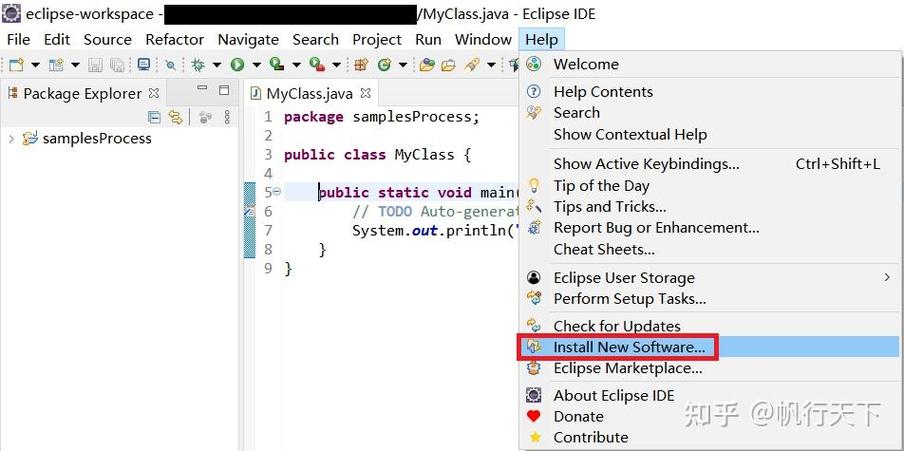
- Open the Eclipse IDE.
- Go to Help -> Eclipse Marketplace...
- In the search bar, type "WindowBuilder".
- Find "WindowBuilder Core" and "WindowBuilder Swing Designer" (and JavaFX if you need it) in the results and click Go -> Install.
- Review the installation details and click Confirm.
- Accept the license agreements and click Finish.
- Eclipse will prompt you to restart the IDE to complete the installation. Click Yes.
After restarting, you're ready to start building GUIs!
How to Use WindowBuilder: A Step-by-Step Example
Let's create a simple login window.
Step 1: Create a New Project
- Go to File -> New -> Java Project. Give it a name (e.g.,
LoginApp) and click Finish. - Right-click on your project in the "Project Explorer" and go to New -> Other....
- In the dialog, expand WindowBuilder and select Swing Designer -> Application Window. Click Next.
- Give your main class a name (e.g.,
LoginFrame) and click Finish.
WindowBuilder will open with a new, empty JFrame.
Step 2: Design the Interface
You will see a split view. On the left is the visual editor, and on the right is the source code.
-
Set the Layout: In the "Design" tab at the bottom, right-click on the frame and select Set Layout -> GroupLayout. This is a flexible layout that's easy to manage visually.
-
Add Components (Drag and Drop):
- From the "Palette" on the right (if not visible, go to Window -> Show View -> Palette), drag a JLabel onto the frame. Change its text in the "Properties" panel to "Username:".
- Drag a JTextField next to the label.
- Drag another JLabel below the first one and change its text to "Password:".
- Drag a JPasswordField next to the second label.
- Drag a JButton below the password field and change its text to "Login".
- Drag another JButton next to the "Login" button and change its text to "Cancel".
-
Arrange Components:
- Use the blue "guidelines" that appear to align your components neatly. WindowBuilder helps you snap components into place.
- Use the "Design" view's tools to add horizontal and vertical gaps between components for better spacing.
Your visual layout should now look something like this:
+-------------------------------------+
| [Username:][        Text Field      ]|
| [Password:][  Password Field  ]    |
|                                     |
| [  Login  ] [   Cancel   ]          |
+-------------------------------------+
Step 3: Add Logic (Event Handling)
Now, let's make the "Login" button do something.
- In the visual editor, right-click on the "Login" button.
- Select Add event handler -> action -> actionPerformed.
- WindowBuilder will automatically switch to the source code view and create a method stub for you.
private void jButtonLoginActionPerformed(java.awt.event.ActionEvent evt) {
    // TODO add your handling code here:
    String username = jTextFieldUsername.getText();
    String password = jPasswordFieldPassword.getText();
    if (username.equals("admin") && password.equals("password")) {
        JOptionPane.showMessageDialog(this, "Login Successful!");
    } else {
        JOptionPane.showMessageDialog(this, "Invalid Username or Password!", "Error", JOptionPane.ERROR_MESSAGE);
    }
}
You can also add an action listener to the "Cancel" button to close the window.
private void jButtonCancelActionPerformed(java.awt.event.ActionEvent evt) {
    // TODO add your handling code here:
    this.dispose(); // Closes the window
}
Step 4: Run the Application
Right-click on your LoginFrame.java file and select Run As -> Java Application. Your GUI will appear, and you can test the buttons you just programmed.
Pros and Cons of Using WindowBuilder
Pros:
- Rapid Prototyping: Extremely fast for creating the initial layout of an application.
- Increases Productivity: Saves a massive amount of time writing boilerplate layout code.
- Visual Learning: Excellent for beginners to understand how GUI components and layouts fit together.
- Code Quality: It generates clean, well-structured, and maintainable code.
- Reduces Errors: Manually writing layout code (
setBounds,add, etc.) is a common source of bugs. WindowBuilder handles this correctly.
Cons:
- Abstraction: You can become disconnected from the underlying Java Swing/JavaFX API. You might not learn how to write layouts from scratch.
- Overhead: The generated code can sometimes be more verbose than a highly optimized, manually written layout.
- Complex Layouts: For extremely complex or custom layouts, the visual editor can become cumbersome, and it might be easier to write the code by hand.
- Version Control: The generated code can be noisy in version control systems (like Git) because small visual changes can result in large code diffs.
Best Practices
- Learn the Basics First: Don't only rely on WindowBuilder. Spend some time learning how to write Swing/JavaFX layouts manually. This will help you understand what the tool is doing and solve problems when it doesn't work as expected.
- Separate Logic from Design: The code generated by WindowBuilder is for the view (the UI). Keep your business logic (e.g., database calls, calculations) in separate, dedicated classes. This follows the Model-View-Controller (MVC) pattern.
- Customize the Generated Code: Feel free to modify the code that WindowBuilder creates. For example, you can change variable names (
jTextFieldUsernametousernameField) to make them more readable. - Use Meaningful Component Names: When you add a component, immediately rename it in the "Properties" panel (e.g.,
jButton1tologinButton). This makes your code much easier to read and maintain. - Don't Fear the Code View: Regularly look at the source code. Understanding the relationship between your visual design and the generated Java code is key to becoming a proficient GUI developer.