Of course! "Android Studio Java" is the classic and still very powerful combination for building Android apps. It's the foundation upon which modern Android development is built.

Here’s a comprehensive guide covering everything from the basics to best practices.
The Big Picture: What is Android Studio and Java?
-
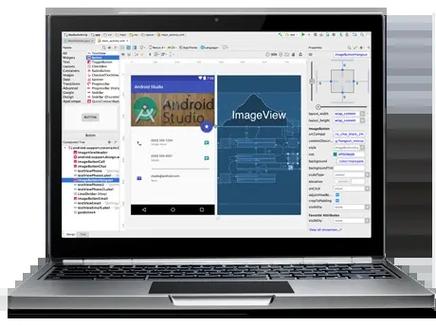
Android Studio: This is the official Integrated Development Environment (IDE) for Android app development, built by Google. It's a specialized version of JetBrains' IntelliJ IDEA. It provides all the tools you need in one place: a code editor, a visual layout editor, a powerful debugger, a build system (Gradle), and a performance profiler.
-
Java: This is a high-level, class-based, object-oriented programming language. For many years, it was the primary and official language for writing Android apps. Even with the rise of Kotlin, Java remains extremely important because:
- Millions of existing apps are written in Java.
- The entire Android framework (the APIs you use) is built on Java.
- It's a fantastic language to learn for general-purpose programming.
Think of it like this: Android Studio is your workshop, and Java is your primary set of tools and materials.
Setting Up Your Environment
Before you write a single line of code, you need to set up your development environment.
Step 1: Install Java Development Kit (JDK)
Android apps are written in Java, but they run on a special virtual machine called the Android Runtime (ART). To compile your Java code into a format ART can understand, you need the JDK.
- Recommendation: Install the LTS (Long-Term Support) version, which is currently JDK 11 or JDK 17. Oracle's official version is fine, but many developers prefer OpenJDK distributions like Amazon Corretto or Adoptium Eclipse Temurin.
- How to check: After installing, open your terminal or command prompt and type
java -versionandjavac -version. You should see the version you installed.
Step 2: Install Android Studio
- Go to the official Android Studio download page.
- Download the version for your operating system (Windows, macOS, or Linux).
- Run the installer and follow the on-screen instructions. It's a standard installation process.
Step 3: Configure Android Studio
The first time you launch Android Studio, it will guide you through some setup:
- Import Settings: Choose "Do not import settings".
- Install Type: Choose "Standard" installation. This includes the Android SDK, Android Device Emulator, and most performance tools.
- Android SDK: It will download the latest SDK and system images. This can take a while. Make sure you have an internet connection.
Once it's done, you'll see the Welcome to Android Studio screen. You're ready to start!
Your First Android Project: "Hello World"
Let's create a simple project to see how everything fits together.
- Click "New Project" on the welcome screen.
- Choose a template. For now, select "Empty Views Activity" and click Next.
- Configure your project:
- Name:
MyFirstApp - Package name: This is a unique identifier for your app on the Play Store (e.g.,
com.example.myfirstapp). Android Studio will suggest one. - Save location: Choose where to save your project.
- Language: Select Java.
- Minimum SDK: Choose an API level. A good starting point is API 24 (Android 7.0), which covers over 95% of devices.
- Name:
- Click "Finish". Android Studio will now build your project. This can take a minute or two.
You'll see a window with two main files visible:
app/src/main/java/com/example/myfirstapp/MainActivity.java
This is the heart of your app's first screen. It's a Java class that contains the logic.
package com.example.myfirstapp;
import androidx.appcompat.app.AppCompatActivity;
import android.os.Bundle;
import android.widget.TextView; // We will use this
public class MainActivity extends AppCompatActivity {
    @Override
    protected void onCreate(Bundle savedInstanceState) {
        super.onCreate(savedInstanceState);
        // This line connects your Java code to the layout file (activity_main.xml)
        setContentView(R.layout.activity_main);
    }
}
app/src/main/res/layout/activity_main.xml
This is an XML file that defines the user interface (UI) for your screen. It's like a blueprint.
<?xml version="1.0" encoding="utf-8"?>
<androidx.constraintlayout.widget.ConstraintLayout xmlns:android="http://schemas.android.com/apk/res/android"
    xmlns:app="http://schemas.android.com/apk/res-auto"
    xmlns:tools="http://schemas.android.com/tools"
    android:layout_width="match_parent"
    android:layout_height="match_parent"
    tools:context=".MainActivity">
    <TextView
        android:layout_width="wrap_content"
        android:layout_height="wrap_content"
        android:text="Hello World!"
        app:layout_constraintBottom_toBottomOf="parent"
        app:layout_constraintLeft_toLeftOf="parent"
        app:layout_constraintRight_toRightOf="parent"
        app:layout_constraintTop_toTopOf="parent" />
</androidx.constraintlayout.widget.ConstraintLayout>
How to Run Your App:
- Connect an Android device to your computer via USB (with "USB Debugging" enabled in Developer Options).
- OR, Click the green 'play' icon (▶) in the toolbar and select an emulator (a virtual Android device). If you don't have one, Android Studio can help you create one.
- The app will build and install on your chosen device, and you'll see "Hello World!" on the screen. Congratulations!
Core Concepts of Android Development with Java
To build real apps, you need to understand these fundamental concepts:
a) The Activity
An Activity is a single, focused screen in an application. MainActivity.java is your app's main entry point. A typical app has multiple Activities (e.g., a login screen, a settings screen, a profile screen).
b) The Layout (XML)
The layout file (activity_main.xml) defines what the user sees. It's a hierarchy of UI widgets (called Views and ViewGroups), like TextView (for text), Button (for a button), and ImageView (for an image).
c) Connecting Java and XML: The R Class
The line setContentView(R.layout.activity_main) is crucial.
- When you build your app, Android Studio scans all your resource files (layouts, images, strings) and generates a special Java class called
R(for "Resource"). R.layout.activity_mainis a reference to the compiled version of youractivity_main.xmlfile.setContentView()takes this reference and inflates it—meaning it turns the XML blueprint into actual UI components that are drawn on the screen.
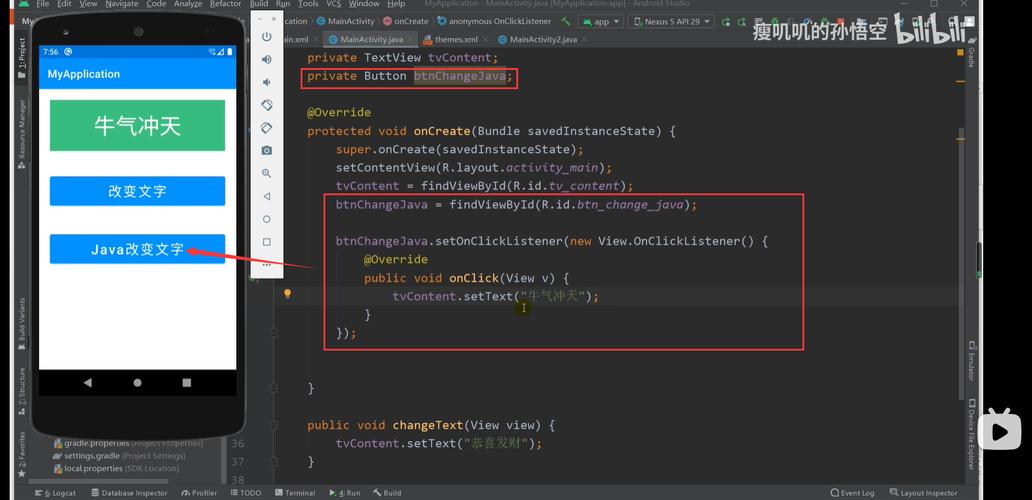
d) Event Handling: Making Buttons Work
The most common task is making a button do something when you click it.
-
Add a Button to your XML (
activity_main.xml):<Button android:id="@+id/my_button" android:layout_width="wrap_content" android:layout_height="wrap_content" android:text="Click Me" app:layout_constraintTop_toBottomOf="@id/hello_world_text" />android:id="@+id/my_button"gives this button a unique name so we can find it in our Java code.
-
Write the Java code in
MainActivity.javato handle the click:package com.example.myfirstapp; import ... import android.widget.Button; // Import the Button class import android.widget.Toast; // Import the Toast class for feedback public class MainActivity extends AppCompatActivity { @Override protected void onCreate(Bundle savedInstanceState) { super.onCreate(savedInstanceState); setContentView(R.layout.activity_main); // 1. Find the button in the layout using its ID Button myButton = findViewById(R.id.my_button); // 2. Set an OnClickListener on the button myButton.setOnClickListener(new View.OnClickListener() { @Override public void onClick(View v) { // This code runs when the button is clicked Toast.makeText(MainActivity.this, "Button Clicked!", Toast.LENGTH_SHORT).show(); } }); } }Now, when you run the app and click the "Click Me" button, a small pop-up message ("Button Clicked!") will appear.
Modern Best Practices and the Future
While Java is fully supported, it's important to know the current landscape of Android development.
-
Kotlin is Now the Official Language: In 2025, Google announced that Kotlin is now the preferred language for Android development.
- Why? Kotlin is more concise, safer (reduces common bugs like null pointer exceptions), and 100% interoperable with Java. You can call Java code from Kotlin and vice-versa.
- What this means for you: Learning Java is still an excellent and valuable skill. It gives you a deep understanding of the Android framework. Many teams work with both languages. However, for any new project, you should strongly consider using Kotlin.
-
Modern UI Tool: Jetpack Compose: The traditional way of building UIs with XML is called "Views" or "XML Layouts". Google has introduced a new, modern toolkit called Jetpack Compose.
- What it is: Compose lets you build your UIs directly in your Kotlin (or Java) code using a declarative syntax. No more separate XML files.
- What this means: This is the future of UIs on Android. While you can learn Views first (which is still essential), be aware that Compose is the direction the platform is heading.
Summary and Learning Path
- Start with Java and XML Views: This is the most common way existing apps are built and the best way to learn the fundamentals of the Android framework.
- Master the Core Concepts: Activities, Layouts, Intents (for navigation), and basic data handling.
- Learn About Other Key Components: Once you're comfortable with Activities, learn about
Fragments(reusable UI components),RecyclerView(for displaying lists), andViewModel(for managing UI-related data). - Transition to Kotlin: Once you are comfortable with Java concepts, start learning Kotlin. Its syntax is cleaner and will make you a more productive Android developer.
- Explore Jetpack Compose: After getting a handle on Kotlin, dive into Jetpack Compose to build the next generation of beautiful and dynamic UIs.