Of course! The term "print document" in Python can mean a few different things. I'll cover the most common scenarios, from the simplest to the most powerful and flexible.

Summary of Options
| Method | Best For | Key Features |
|---|---|---|
print() |
Debugging, console output, simple text. | The built-in, universal way to send data to the console. |
reportlab |
Generating complex PDFs (invoices, reports). | Full control over layout, graphics, and fonts. |
fpdf2 |
Generating PDFs with HTML/CSS-like simplicity. | Easier for simple layouts, supports HTML. |
matplotlib |
Plotting charts and graphs in a document. | The standard for scientific and data visualization. |
win32api |
Printing a physical document on Windows. | Directly sends a file to the default printer. |
The Basic print() Function (Console Output)
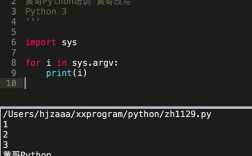
This is the most fundamental "print" command in Python. It sends text or data to your terminal or console window. It's essential for debugging and simple scripts.
How it works: You simply pass the object you want to print to the function.
# Printing a simple string
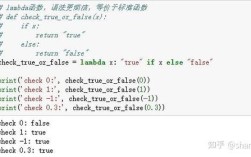
print("Hello, World!")
# Printing a variable
name = "Alice"
age = 30
print(f"User's name is {name} and she is {age} years old.")
# Printing multiple items (separated by a space by default)
print("The value of pi is approximately", 3.14159)
# Printing to a file (a form of "document" output)
with open("my_document.txt", "w") as f:
    print("This line will be written to a file.", file=f)
    print("So will this one.", file=f)
print("Check the 'my_document.txt' file.")
When to use it:
- For debugging your code.
- For creating simple text-based scripts.
- When you don't need a formatted document like a PDF.
Generating a PDF Document (The Most Common Request)
To create a PDF file, you need a third-party library. Two of the most popular are reportlab and fpdf2.

Option A: reportlab (Powerful and Feature-Rich)
reportlab gives you pixel-perfect control over your PDF, similar to using a graphics library. It's excellent for complex reports, invoices, and certificates.
Installation:
pip install reportlab
Example: Creating a Simple PDF
This code creates a PDF named report.pdf with some text and a simple shape.

from reportlab.pdfgen import canvas
from reportlab.lib.pagesizes import letter, A4
from reportlab.lib.units import inch
# --- Setup ---
# Create a canvas object, specifying the filename and page size
# page_size=letter is for US Letter, A4 is for international standard
c = canvas.Canvas("report.pdf", pagesize=A4)
width, height = A4
# --- Content ---
# Move the cursor to a position (x, y) and draw text
# Note: (0,0) is at the BOTTOM-LEFT corner of the page
c.setFont("Helvetica-Bold", 24)
c.drawString(inch, height - inch, "My First PDF Report")
c.setFont("Helvetica", 12)
c.drawString(inch, height - 2 * inch, "This was generated using Python and Reportlab.")
c.drawString(inch, height - 2.5 * inch, "It's great for creating professional documents.")
# Draw a line
c.line(inch, height - 3 * inch, width - inch, height - 3 * inch)
# Draw a rectangle
c.rect(inch, height - 4 * inch, 2 * inch, 1 * inch, fill=0) # fill=0 means no fill
# --- Finalize ---
# Save the canvas to the file
c.save()
print("PDF 'report.pdf' created successfully.")
Option B: fpdf2 (Simpler, HTML-like Syntax)
fpdf2 is often easier for beginners. You can think of it as writing a simple document with commands like cell() for a block of text or multi_cell() for text that wraps. It also supports basic HTML tags.
Installation:
pip install fpdf2
Example: Creating a Simple PDF
This code creates a PDF named simple_report.pdf.
from fpdf import FPDF
# --- Setup ---
# Create a PDF object. Orientation can be 'P' (Portrait) or 'L' (Landscape)
# Unit can be 'mm', 'cm', 'in', or 'pt'
pdf = FPDF(orientation='P', unit='mm', format='A4')
pdf.add_page()
# --- Content ---
# Add a font (you can also use built-in ones like 'Arial', 'Helvetica', 'Times')
# You need to provide the font files if you use a custom one.
# pdf.add_font('DejaVu', '', 'DejaVuSansCondensed.ttf', uni=True)
# pdf.set_font('DejaVu', size=16)
# Use a standard font
pdf.set_font('Arial', 'B', 16) # Font family, style (B=Bold), size
pdf.cell(0, 10, 'PDF Title', ln=True, align='C') # 0 = width of full page, ln=True = new line after
pdf.set_font('Arial', size=12)
pdf.ln(10) # Add a new line (vertical space)
# Add a paragraph using multi_cell for text wrapping
text = (
    "This is a paragraph created with the multi_cell method. "
    "As you can see, it automatically wraps the text to fit within the cell width. "
    "This is very useful for adding longer descriptions to your documents."
)
pdf.multi_cell(0, 10, text) # 0 = width of full page, 10 = line height
# --- Finalize ---
pdf.output("simple_report.pdf")
print("PDF 'simple_report.pdf' created successfully.")
Printing a Chart or Graph to a Document
Often, a document isn't just text—it's a visualization. matplotlib is the standard for plotting in Python and can easily save plots as images to be embedded in PDFs.
Installation:
pip install matplotlib
Example: Creating a Chart and Saving it as an Image
import matplotlib.pyplot as plt
# Sample data
categories = ['Apples', 'Bananas', 'Cherries', 'Dates']
values = [25, 30, 15, 40]
# Create a bar chart
plt.figure(figsize=(8, 5)) # Set the figure size
plt.bar(categories, values, color=['red', 'yellow', 'red', 'brown'])
# Add labels and title
plt.xlabel('Fruit')
plt.ylabel('Quantity')'Fruit Inventory Chart')
# Save the plot as a PNG image file
# The bbox_inches='tight' argument prevents labels from being cut off
plt.savefig('fruit_chart.png', bbox_inches='tight')
# Close the plot to free up memory
plt.close()
print("Chart 'fruit_chart.png' created successfully.")
You can then use the fruit_chart.png file in your reportlab or fpdf2 document by drawing the image on the canvas.
Physically Printing a Document (Windows Only)
If you want to send a file directly to the default printer on a Windows machine, you can use the win32api library. This is for sending a file to the printer, not for generating a document from scratch.
Installation:
pip install pywin32
Example: Printing a Text File
import win32api
import win32print
import os
# The file you want to print
file_to_print = "my_document.txt" # This is the file from the first example
# Get the default printer
try:
    default_printer = win32print.GetDefaultPrinter()
    print(f"Using default printer: {default_printer}")
    # Open the file in binary read mode
    with open(file_to_print, "rb") as f:
        # Get a handle to the printer
        hprinter = win32print.OpenPrinter(default_printer)
        # Start a print job
        job_info = {
            "pDocName": "My Python Document",
            "pOutputFile": None, # Print directly to the printer
            "pDatatype": "RAW" # Important for text files
        }
        job_id = win32print.StartDocPrinter(hprinter, 1, job_info)
        # Start the page
        win32print.StartPagePrinter(hprinter)
        # Write the file content directly to the printer
        win32api.WritePrinter(hprinter, f.read())
        # End the page and the print job
        win32print.EndPagePrinter(hprinter)
        win32print.EndDocPrinter(hprinter)
        # Close the printer handle
win32print.ClosePrinter(h