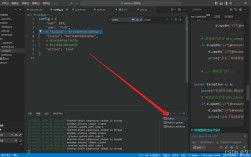
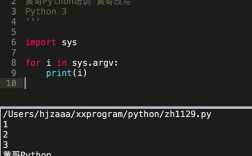
Of course! Using Python with Sublime Text is a very popular and powerful combination. It's a lightweight, fast, and highly customizable code editor that's excellent for Python development.

Here’s a comprehensive guide covering everything from setup to advanced tips.
Why Use Sublime Text for Python?
- Speed: Sublime Text is incredibly fast, even with large files and projects.
- Lightweight: It's less resource-intensive than full IDEs like PyCharm or VS Code, making it great for older machines or quick edits.
- Customization: Nearly everything can be customized—from keybindings and menus to syntax highlighting and behavior—using simple JSON and Python scripts.
- Goto Anything: The
Ctrl+P(orCmd+Pon Mac) command is legendary. It lets you instantly open any file in your project by typing its name. - Multiple Cursors & Selections: Easily edit multiple lines of code at once, a huge time-saver.
- Powerful Package Ecosystem: A rich set of community-built packages (plugins) extends its functionality to rival full IDEs.
Installation and Setup
Step 1: Install Sublime Text
- Go to the official Sublime Text website.
- Download and install the version for your operating system (Windows, macOS, or Linux).
Step 2: Install the Python Package
The "Python Package" is a plugin that provides language features like linting, code formatting, and auto-completion.
- Open the Command Palette: Press
Ctrl+Shift+P(orCmd+Shift+Pon Mac). - Type
Install Packageand select it. - Wait for the package list to load (it might take a moment the first time).
- Type
Pythonand select the one by Sublime HQ Pty Ltd. This is the official and most recommended package.
Step 3: Install a Linter (Highly Recommended)
A linter analyzes your code for potential errors, style issues, and bugs. The most popular linter for Python is Flake8.
- Install the
Linterpackage via the Command Palette (Ctrl+Shift+P->Install Package->Linter). - Install Flake8 using pip (Python's package installer). Open your system's terminal or command prompt and run:
pip install flake8
- Configure Sublime Text to use Flake8:
- Go to
Preferences > Settings(or use the shortcutCtrl+,). - In the user settings file (the one on the right), add or modify the following line:
{ "linters": { "flake8": { "executable": "flake8", "args": ["--max-line-length=88"] } } } - Now, when you save a Python file (
Ctrl+S), Sublime Text will automatically run Flake8 and show you any issues in the status bar and with red squiggly lines in the code.
- Go to
Essential Packages for Python Development
The real power of Sublime Text comes from its packages. Here are the must-haves for a great Python experience.

| Package Name | What it Does | How to Install |
|---|---|---|
| Anaconda | The ultimate Python package. It combines linters, auto-completion, code formatting, and a powerful Python console. It can replace the Python and Linter packages. |
Ctrl+Shift+P -> Install Package -> Anaconda |
| SublimeLinter | The core plugin that runs linters (like Flake8) and displays errors. Often installed as a dependency for other linters. | Ctrl+Shift+P -> Install Package -> SublimeLinter |
| Linter-flake8 | The Flake8 linter plugin for SublimeLinter. | Ctrl+Shift+P -> Install Package -> Linter-flake8 |
| GitGutter | Shows git diff markers in the gutter (the bar on the left) of your editor. You can see added, modified, and deleted lines at a glance. | Ctrl+Shift+P -> Install Package -> GitGutter |
| Package Control | You already have this! This is the most important package. It's the package manager for Sublime Text. It's installed by default in recent versions. | - |
| DocBlockr | Helps you write better docstrings. It auto-generates them based on your function's arguments and lets you navigate between them easily. | Ctrl+Shift+P -> Install Package -> DocBlockr |
| SublimeREPL | Run Python code or an interactive shell inside Sublime Text. Great for quick tests without leaving the editor. | Ctrl+Shift+P -> Install Package -> SublimeREPL |
Running Python Code
There are two main ways to run your Python scripts.
Method 1: Using the Build System (Recommended)
Sublime Text has a built-in build system for Python.
- Save your file with a
.pyextension (e.g.,hello.py). - Write your code:
print("Hello from Sublime Text!") name = "Developer" print(f"Hello, {name}!") - Run it by pressing
Ctrl+B(orCmd+Bon Mac).
The output will appear in a new "output" panel at the bottom of the screen.
Troubleshooting: If you get an error like python: command not found, Sublime Text can't find your Python interpreter. You can fix this by telling it the path.

- Go to
Tools > Build System > New Build System... - A new file will open. Replace the contents with this:
{ "cmd": ["C:/Python39/python.exe", "-u", "$file"], "file_regex": "^[ ]*File \"(...*?)\", line ([0-9]*)", "selector": "source.python" }- Important: Change
"C:/Python39/python.exe"to the actual path of your Python executable. On Windows, it might beC:\Users\YourUser\AppData\Local\Programs\Python\Python39\python.exe. On Mac/Linux, it's often/usr/bin/python3or/usr/bin/python.
- Important: Change
- Save the file as
Python.sublime-buildin the default location. - Now, go to
Tools > Build Systemand select your newPythonbuild system.
Method 2: Using SublimeREPL
- Install the
SublimeREPLpackage. - Open your Python file.
- Open the Command Palette (
Ctrl+Shift+P). - Type
SublimeREPL: Python - RUN current fileand press Enter. - A new interactive terminal will open at the bottom of the screen, and your script will run in it.
Useful Tips and Tricks
- Go to Definition: With the
Anacondapackage installed,Ctrl+Click(orCmd+Click) on a function or variable to jump to its definition. - Multiple Cursors: Hold
Ctrland click to place multiple cursors. Or, select a word withCtrl+D, then continue pressingCtrl+Dto select the next occurrence. - Column Selection: Hold
Shift+Altand drag your mouse to select a vertical block of text. - Command Palette is Your Best Friend: Almost every action can be accessed via
Ctrl+Shift+P. Don't try to memorize all the menus. - Snippets: Create your own code snippets for things you type often (like
forloops,if __name__ == "__main__":, etc.). Go toTools > Developer > New Snippet...to get started. - Customize Theme and Color Scheme: Go to
Preferences > Color SchemeorPreferences > Themeto change the look and feel. There are thousands available via Package Control.
Sublime Text vs. VS Code
This is a common comparison. Here's a quick breakdown to help you choose.
| Feature | Sublime Text | VS Code |
|---|---|---|
| Performance | Blazingly fast. Almost instant startup and editing. | Very fast, but can be slower with very large workspaces due to its heavier feature set. |
| Customization | Extensive, but requires editing JSON files and writing Python plugins. | Extensive, but often done through a graphical UI and a rich marketplace of extensions. |
| Integrated Terminal | Good, but not as deeply integrated as VS Code. | Excellent. The terminal is a first-class citizen, easily accessible and manageable. |
| Debugging | Possible via plugins, but can be complex to set up. | Excellent. A fully-featured, integrated debugger is out of the box. |
| Learning Curve | Steeper. You need to learn the keybindings and configuration system. | Gentler. The UI is familiar to many, and the extension system is easy to use. |
| Price | Free to evaluate, but requires a license for continued use (you can still use it without a license, but a pop-up appears occasionally). | Free and open-source. |
Conclusion:
- Choose Sublime Text if: You prioritize raw speed, a minimal interface, and love to tinker and customize your tools from the ground up. It's a "programmer's editor" in the purest sense.
- Choose VS Code if: You want a more "out-of-the-box" experience with excellent built-in features like a debugger, integrated terminal, and a massive extension library with easy-to-use graphical configuration.