Of course! Here is a comprehensive overview of using Komodo IDE for Python development, covering its features, pros and cons, and how to get started.
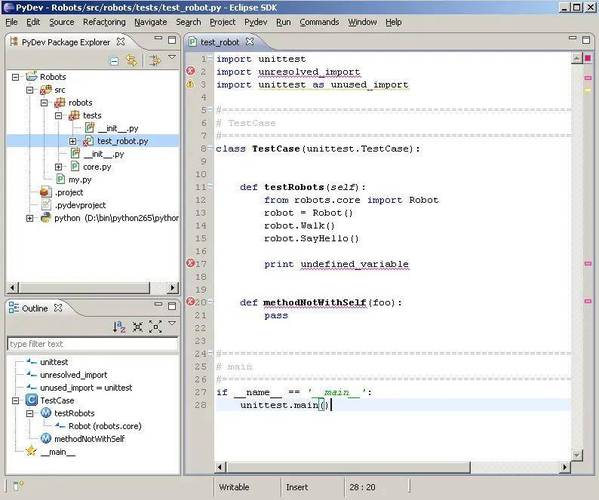
Komodo IDE for Python: An In-Depth Guide
Komodo IDE is a powerful, cross-platform integrated development environment (IDE) originally developed by ActiveState. It's designed to be a robust tool for a wide range of programming languages, with Python being one of its most supported and mature integrations.
While its development has shifted (more on that later), it remains a capable and feature-rich choice for many Python developers.
Key Features for Python Development
Komodo IDE offers a suite of features that make Python programming more efficient and manageable.
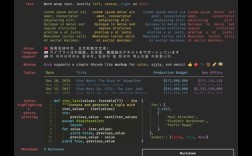
Intelligent Code Editor
- Syntax Highlighting: Excellent, customizable syntax highlighting for Python 2 and 3.
- Code Folding: Allows you to collapse and expand blocks of code (functions, classes, loops) to focus on the relevant parts.
- Bracket Matching: Visually highlights matching parentheses, braces, and brackets.
- Indentation Guides: Visual guides to help you maintain clean and consistent code structure.
Powerful Code Intelligence (Autocompletion & Calltips)
This is one of Komodo's strongest selling points. It provides real-time, context-aware assistance.
- Autocompletion: As you type, Komodo suggests function names, variable names, class methods, and keywords from your current file, imported modules, and installed libraries.
- Calltips: When you type an opening parenthesis after a function, a tooltip appears showing the function's signature (parameters and their types).
- Go to Definition: Right-click on a function, class, or variable and select "Go to Definition" to jump directly to where it's declared.
- Find Usages: Quickly find all the places a particular function or variable is used throughout your project.
Integrated Debugger
A graphical debugger is essential for finding and fixing bugs.
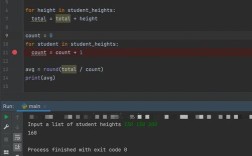
- Breakpoints: Set breakpoints by clicking in the margin next to a line number. Code execution will pause at these points.
- Variable Inspection: When paused, you can inspect the current values of all variables in the "Variables" pane.
- Call Stack: View the current call stack to understand the path of execution that led to the breakpoint.
- Step Through Code: Execute your code line-by-line (Step Over, Step Into, Step Out) to follow the program's flow.
Project Management
Komodo is designed to handle multi-file projects seamlessly.
- Project Explorer: A dedicated pane to browse your project's file and directory structure.
- Virtual Environments: You can easily associate your project with a specific Python virtual environment (e.g.,
venv,conda). This ensures that Komodo uses the correct interpreter, packages, and libraries for that project. - Customization: You can customize project settings, such as the Python interpreter, run/debug commands, and environment variables.
Built-in Terminal
Komodo includes a fully functional terminal within the IDE. This is incredibly convenient as you don't have to switch between your editor and a separate terminal window to run scripts, manage virtual environments (pip, conda), or use Git.
Testing Integration
Komodo has strong support for Python testing frameworks.
- Test Runner: Integrated test runners for
unittest,pytest, andnose. - One-Click Execution: You can run all tests in a file or suite, or just a single test, directly from the editor.
- Results View: See test results, failures, and errors in a dedicated pane, with clickable links to jump to the failing code.
Other Notable Features
- Code Snippets: Create and use custom code snippets to quickly insert frequently used code blocks.
- Multi-Cursor Editing: Edit multiple lines of code simultaneously by holding
Ctrl(orCmdon macOS) and clicking. - Macros: Record and playback sequences of actions to automate repetitive tasks.
- Version Control (SCM): Basic integration with version control systems like Git, SVN, and Mercurial.
- Remote Development: While not as seamless as some modern competitors, it has support for editing files on remote servers via FTP/SFTP.
Pros and Cons
Pros (+)
- Cross-Platform: Works flawlessly on Windows, macOS, and Linux.
- Lightweight: Generally faster and less resource-intensive than giants like PyCharm or VS Code.
- Mature and Stable: It's been around for a long time, so it's a very stable and polished product.
- Excellent Code Intelligence: The autocompletion and calltips are fast, accurate, and highly configurable.
- All-in-One Package: It bundles a powerful editor, debugger, terminal, and test runner into a single application without needing a lot of plugins.
- Free for Non-Commercial Use: This is a huge advantage for students, hobbyists, and open-source contributors.
Cons (-)
- Development Status (The Big One): ActiveState has officially ended-of-lifed Komodo IDE. This means there are no new features, bug fixes, or security updates. While the current version is stable, it will not keep up with new Python versions or OS updates in the long run.
- User Interface (UI): The UI can feel a bit dated and less "modern" compared to contemporary IDEs like VS Code.
- Plugin Ecosystem: It has a built-in extension manager, but the ecosystem is much smaller and less active than VS Code's.
- Cost for Commercial Use: A commercial license is required for professional use, which can be a significant expense compared to free alternatives.
How to Get Started (Quick Guide)
- Download: Go to the Komodo IDE website and download the version for your operating system.
- Install: Run the installer. The process is straightforward.
- First Launch & Configuration:
- When you first open Komodo, it will ask you to configure your Python interpreter. Go to
Edit->Preferences->Languages->Python. - Click "Add" and browse to your Python executable (e.g.,
python.exeon Windows or/usr/bin/python3on Linux/macOS). You can also select it from a dropdown if it's in your system's PATH. - If you have a virtual environment, you can point Komodo to its specific Python interpreter (e.g.,
myenv/bin/python) to use its isolated packages.
- When you first open Komodo, it will ask you to configure your Python interpreter. Go to
- Create a Project:
- Go to
Project->New Project. - Give your project a name and select a location.
- In the project settings, ensure the correct Python interpreter is selected.
- Go to
- Start Coding:
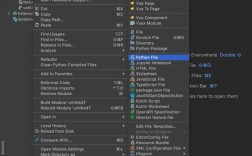
- Create a new Python file (
File->New->Python File). - Write some code. You'll notice the autocompletion and syntax highlighting in action.
- Create a new Python file (
- Run Your Code:
- Right-click in the editor and select "Run" or use the green "play" button in the toolbar. The output will appear in the "Output" pane.
- To debug, set a breakpoint and click the "bug" icon or press
F5.
Komodo IDE vs. The Competition
| Feature | Komodo IDE | PyCharm Community | VS Code |
|---|---|---|---|
| License | Free (Non-Commercial), Paid (Commercial) | Free (Community), Paid (Professional) | Free |
| Python Support | Excellent, mature, built-in | Excellent, the gold standard | Excellent, via extensions (Pylance, etc.) |
| Code Intelligence | Very good, fast, and reliable | Best-in-class | Best-in-class (with Pylance) |
| Debugger | Excellent, graphical | Excellent, graphical | Excellent, graphical |
| Terminal | Integrated | Integrated | Integrated |
| UI/UX | Can feel dated | Modern, polished | Modern, highly customizable |
| Plugin Ecosystem | Small, limited | Large (JetBrains Marketplace) | Massive (VS Code Marketplace) |
| Updates | Stopped (EOL) | Actively developed | Actively developed |
| Best For | Users who want a lightweight, all-in-one IDE and are okay with no future updates. | Serious professional Python development and large web frameworks (Django, Flask). | Versatility, customizability, and a massive extension ecosystem for any language. |
Final Verdict
Is Komodo IDE a good choice for Python in 2025 and beyond?
- For learning, hobbyists, or non-commercial projects: Yes, it's an excellent and free option. It's lightweight, fast, and has all the core features you need to learn and write Python effectively.
- For professional/commercial work: It is strongly discouraged. The fact that it is end-of-life is a major risk. You will miss out on critical security patches, compatibility with new Python versions, and modern tooling. You would be better served by free and actively maintained alternatives like PyCharm Community Edition or Visual Studio Code.
In short, Komodo IDE is a solid, capable IDE with a rich history. However, its end-of-life status makes it a "use at your own risk" proposition for any serious, long-term development. It's a great piece of software, but the software world has moved on.