Of course! Scraping PDF files with Scrapy is a common and powerful task. It's not as straightforward as scraping HTML pages because you can't use CSS selectors or XPath directly on the PDF's content.
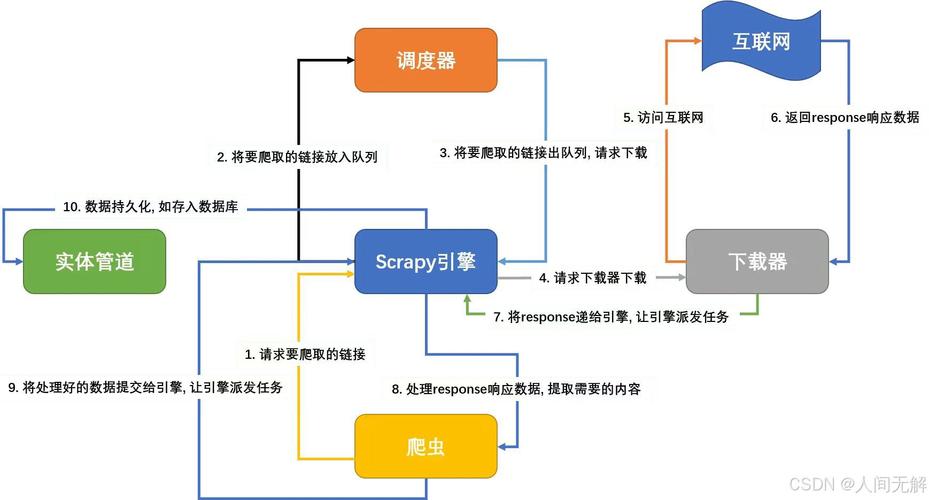
The process involves two main steps:
- Scrape the HTML page to find the links (URLs) to the PDF files you want to download.
- Download the PDF files using Scrapy's built-in download mechanisms and then parse the text content from them.
Here’s a complete guide, from a simple example to a more robust, production-ready solution.
The Core Concept: Middleware and Pipeline
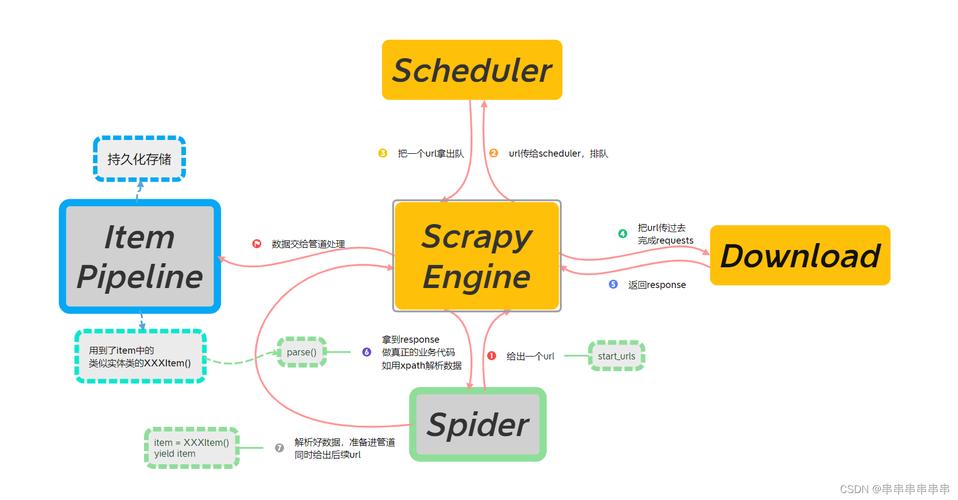
To handle PDFs, you'll primarily use two Scrapy components:
-
FilesPipeline(orImagesPipeline): This is the easiest way to download files. You just yield ascrapy.Requestwith ameta={'file_urls': [pdf_url]}tag, and the pipeline will automatically download the file and save it to a directory (e.g.,files/pdfs/). (图片来源网络,侵删)
 -
Custom Middleware: To extract text from the PDF, you need to process it after it's downloaded. The best place to do this is in a custom Downloader Middleware. This middleware will intercept the response after the
FilesPipelinehas downloaded the PDF, then use a library likePyPDF2orpdfplumberto read the text, and finally pass the extracted text along to your spider for parsing.
Step 1: Project Setup
First, make sure you have the necessary libraries installed.
# Install Scrapy
pip install scrapy
# Install a PDF parsing library
# pdfplumber is excellent as it's good at preserving layout
pip install pdfplumber
# Alternative: PyPDF2
# pip install PyPDF2
Now, create a new Scrapy project:
scrapy startproject pdf_scraper
cd pdf_scraper
Step 2: The Spider
The spider's job is to find the links to the PDFs on the initial HTML page. It will then yield a request for each PDF, telling Scrapy to download it.
Let's imagine we're scraping a site like http://example.com/reports where links to PDFs look like this:
<a href="/files/annual_report_2025.pdf">Annual Report 2025</a>
Here's what the spider (pdf_scraper/spiders/pdf_spider.py) would look like:
import scrapy
import os
class PdfSpider(scrapy.Spider):
    name = 'pdf_spider'
    # A list of URLs to start scraping from
    start_urls = ['http://example.com/reports'] # Replace with a real URL
    def parse(self, response):
        self.logger.info(f"Scraping page: {response.url}")
        # Find all links that end with .pdf
        # You might need to adjust this selector based on the website's structure
        pdf_links = response.css('a[href$=".pdf"]::attr(href)').getall()
        if not pdf_links:
            self.logger.warning(f"No PDF links found on {response.url}")
            return
        base_url = response.url.split('/')[0] + '//' + response.url.split('/')[2]
        for pdf_url in pdf_links:
            # Handle relative URLs
            if pdf_url.startswith('/'):
                pdf_url = base_url + pdf_url
            elif not pdf_url.startswith('http'):
                pdf_url = base_url + '/' + pdf_url
            # This is the key part:
            # We yield a request to download the PDF.
            # The 'files' pipeline will handle the download.
            # We pass the original URL in 'meta' to identify the file later.
            yield {
                'file_urls': [pdf_url],
                'source_url': response.url, # To know where we found the PDF
                'file_name': os.path.basename(pdf_url) # A suggested name
            }
Step 3: The Custom Middleware for PDF Parsing
This is where the magic happens. We'll create a middleware that gets the file path from the FilesPipeline and then uses pdfplumber to extract the text.
- Create the middleware file:
pdf_scraper/middlewares.py
import pdfplumber
import scrapy
from scrapy.exceptions import NotConfigured
from scrapy.utils.python import to_bytes
class PdfParsingMiddleware:
    def __init__(self, settings):
        # Check if the middleware is enabled
        if not settings.getbool('PDF_PARSING_ENABLED'):
            raise NotConfigured
        self.output_dir = settings.get('PDF_OUTPUT_DIR', 'pdf_texts')
    @classmethod
    def from_crawler(cls, crawler):
        # This method is used by Scrapy to create your instances
        return cls(crawler.settings)
    def process_response(self, request, response, spider):
        # We only want to process responses from the FilesPipeline
        # These responses have a 'file' key in their meta
        if 'file' not in request.meta:
            return response
        # Get the absolute path to the downloaded file
        file_path = request.meta['file']['path']
        absolute_path = os.path.join(spider.settings.get('FILES_STORE'), file_path)
        spider.logger.info(f"Parsing PDF: {absolute_path}")
        try:
            # Use pdfplumber to open and read the PDF
            with pdfplumber.open(absolute_path) as pdf:
                full_text = ""
                for page in pdf.pages:
                    # Extract text from each page. You can adjust this for tables, etc.
                    full_text += page.extract_text() + "\n\n"
            # Attach the extracted text to the response's meta
            # This text will be available in your spider's parse method
            response.meta['pdf_text'] = full_text
            response.meta['pdf_filename'] = request.meta.get('file_name', 'unknown.pdf')
        except Exception as e:
            spider.logger.error(f"Failed to parse PDF {absolute_path}: {e}")
            response.meta['pdf_text'] = None
        return response # Return the modified response
Note: You'll need to add import os to the top of middlewares.py.
Step 4: Configure settings.py
Now, you need to tell Scrapy to use your new middleware and the FilesPipeline.
- Enable the Pipelines and Middleware: Open
pdf_scraper/settings.pyand make these changes:
# Enable and configure the files pipeline
ITEM_PIPELINES = {
   'pdf_scraper.pipelines.PdfScraperPipeline': 300,
}
# --- IMPORTANT ---
# This setting tells Scrapy to use the FilesPipeline for items
# that have a 'file_urls' key.
FILES_STORE = 'downloaded_files' # Where to store the downloaded PDFs
FILES_URLS_FIELD = 'file_urls'
FILES_RESULT_FIELD = 'files' # The pipeline will store download info here
# --- PDF PARSING ---
# Enable our custom middleware
PDF_PARSING_ENABLED = True
# Optional: Set a directory to save the extracted text files
PDF_OUTPUT_DIR = 'extracted_texts'
# Add the custom middleware to the downloader middleware list
# The number determines the order. 543 is a good spot after the download is done.
DOWNLOADER_MIDDLEWARES = {
   'scrapy.downloadermiddlewares.file.FileDownloadMiddleware': 1, # Default
   'pdf_scraper.middlewares.PdfParsingMiddleware': 543, # Our custom one
}
Step 5: The Pipeline (Optional but Recommended)
The FilesPipeline already handles downloading. However, you might want a pipeline to process the results of that download and save the extracted text to a file.
- Modify the Pipeline: Open
pdf_scraper/pipelines.py.
import os
import json
class PdfScraperPipeline:
    def process_item(self, item, spider):
        # The item now contains the pdf_text from our middleware
        pdf_text = item.get('pdf_text')
        pdf_filename = item.get('pdf_filename')
        if pdf_text:
            # Create the output directory if it doesn't exist
            output_dir = spider.settings.get('PDF_OUTPUT_DIR', 'extracted_texts')
            os.makedirs(output_dir, exist_ok=True)
            # Save the text to a .txt file
            text_file_path = os.path.join(output_dir, pdf_filename.replace('.pdf', '.txt'))
            with open(text_file_path, 'w', encoding='utf-8') as f:
                f.write(pdf_text)
            spider.logger.info(f"Saved extracted text to {text_file_path}")
        # You can also yield the item with all its data
        # return item
Step 6: Run the Spider
You're all set! Run the spider from your project's root directory.
scrapy crawl pdf_spider
What will happen:
- Scrapy will start on
http://example.com/reports. - The
PdfSpiderwill find all PDF links and yield items withfile_urls. - The
FilesPipelinewill see these items, download the PDFs into thedownloaded_files/directory, and add download info to thefileskey of the item. - The
PdfParsingMiddlewarewill intercept the response for each downloaded file, usepdfplumberto extract the text, and add it to thepdf_textkey in the item'smeta. - Finally, the
PdfScraperPipelinewill receive the item, take thepdf_textfrommeta, and save it as a.txtfile in theextracted_texts/directory.
Your project directory will look something like this:
pdf_scraper/
├── extracted_texts/
│   ├── annual_report_2025.txt
│   └── q4_results.pdf.txt
├── downloaded_files/
│   └── full/path/to/annual_report_2025.pdf
├── pdf_scraper/
│   ├── items.py
│   ├── middlewares.py
│   ├── pipelines.py
│   ├── settings.py
│   └── spiders/
│       └── pdf_spider.py
└── scrapy.cfg
Alternative (Simpler) Method: Using scrapy-spiderdownloader
If your only goal is to download PDFs (and not parse their content), you can simplify the process significantly by using a library like scrapy-spiderdownloader. It allows you to force Scrapy to download any file type, not just images.
-
Install it:
pip install scrapy-spiderdownloader
-
Modify
settings.py:# settings.py SPIDER_MIDDLEWARES = { 'spiderdownloader.SpiderDownloaderMiddleware': 543, } -
Simplify your Spider: Your spider just needs to yield a
Requestwith adont_filter=Trueargument to ensure all requests are processed by the downloader middleware.# pdf_spider.py import scrapy class PdfSpider(scrapy.Spider): name = 'pdf_spider_simple' start_urls = ['http://example.com/reports'] def parse(self, response): pdf_links = response.css('a[href$=".pdf"]::attr(href)').getall() for pdf_url in pdf_links: yield scrapy.Request( url=pdf_url, callback=self.parse_pdf, dont_filter=True # Important! ) def parse_pdf(self, response): # This callback will receive the downloaded file content in response.body # You can save it manually filename = response.url.split('/')[-1] with open(f"downloads/{filename}", 'wb') as f: f.write(response.body) self.logger.info(f"Saved file {filename}")
This simpler method is great if you just want the raw PDF files and don't need to programmatically extract their text content.