Of course! This is a very common and powerful workflow in data analysis and automation. Connecting Python to a MySQL database to fetch data and then writing that data to an Excel file is a fantastic way to automate reporting and data processing.
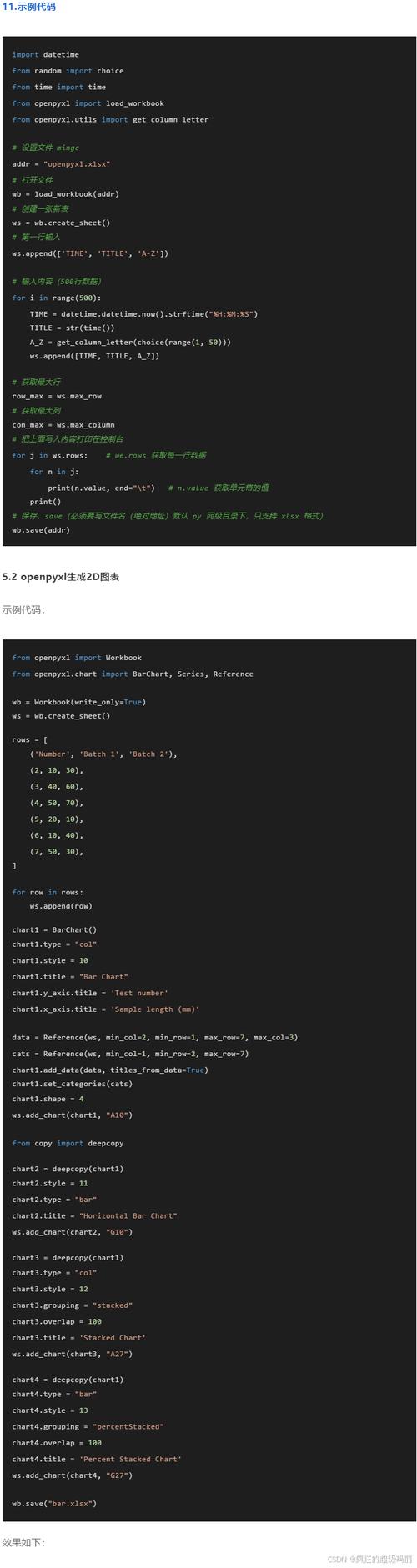
Here’s a complete guide covering the concepts, tools, and step-by-step code examples.
The Big Picture
The process generally follows these steps:
- Connect Python to MySQL: Use a library like
mysql-connector-pythonto establish a connection to your database. - Execute a Query: Write an SQL query (e.g.,
SELECT * FROM sales WHERE date > '2025-01-01') and execute it. - Fetch the Data: Retrieve the results of the query from the database into your Python script.
- Connect Python to Excel: Use a library like
pandasoropenpyxlto create a new Excel file. - Write Data to Excel: Take the data fetched from MySQL and write it into the Excel file, often into a specific worksheet.
- Close Connections: Properly close the database connection and save the Excel file.
Step 1: Prerequisites & Installation
First, you need to install the necessary Python libraries. Open your terminal or command prompt and run:
# For connecting to MySQL
pip install mysql-connector-python
# For reading and writing Excel files (pandas is highly recommended)
pip install pandas
pip install openpyxl  # This is the engine pandas uses for .xlsx files
You also need to have your MySQL database credentials ready:
- Hostname (e.g.,
localhostor an IP address) - Username
- Password
- Database Name
Step 2: The Easiest & Most Powerful Method (Using Pandas)
This is the most common and recommended approach. The pandas library is built for data manipulation and has built-in functions that simplify the entire process.
Full Code Example
import mysql.connector
import pandas as pd
# --- 1. Database Connection Details ---
db_config = {
    'host': 'localhost',
    'user': 'your_username',
    'password': 'your_password',
    'database': 'your_database_name'
}
# --- 2. SQL Query ---
# This query selects all columns from the 'employees' table where the hire date is after 2025-01-01
sql_query = "SELECT * FROM employees WHERE hire_date > '2025-01-01'"
try:
    # --- 3. Connect to MySQL and Fetch Data into a DataFrame ---
    # The `read_sql_query` function handles the connection, query execution, and data fetching
    df = pd.read_sql_query(sql_query, mysql.connector.connect(**db_config))
    # --- 4. (Optional) Inspect the Data ---
    print("Successfully fetched data from MySQL.")
    print(f"Shape of the DataFrame: {df.shape}")  # (rows, columns)
    print("\nFirst 5 rows of the data:")
    print(df.head())
    # --- 5. Write the DataFrame to an Excel File ---
    excel_filename = 'new_employees_report.xlsx'
    df.to_excel(excel_filename, sheet_name='New Hires', index=False) # index=False prevents writing the DataFrame index as a column
    print(f"\nData successfully written to {excel_filename}")
except mysql.connector.Error as err:
    print(f"Error connecting to MySQL or executing query: {err}")
except Exception as e:
    print(f"An unexpected error occurred: {e}")
Breakdown of the Pandas Method
- Import Libraries: We import
mysql.connectorandpandas. - Connection Details: A dictionary
db_configholds your database credentials. This is cleaner than passing them as separate arguments. - SQL Query: Define the query you want to run. You can make this as complex as you need (with
JOINs,GROUP BY, etc.). pd.read_sql_query(): This is the magic function.- It takes your SQL query as the first argument.
- The second argument is a live connection to the database, which we create on the fly with
mysql.connector.connect(**db_config). - It executes the query, fetches all the results, and automatically loads them into a pandas DataFrame (
df).
- Inspect Data: It's always a good idea to check your data.
df.head()shows the first 5 rows. df.to_excel(): This pandas method writes the DataFrame to an Excel file.excel_filename: The name of the output file.sheet_name='New Hires': Specifies the name of the worksheet in the Excel file.index=False: This is very important! By default, pandas writes the DataFrame's index (0, 1, 2, ...) as the first column in Excel. You almost always want to disable this.
Step 3: The Manual Method (Using mysql-connector-python and openpyxl)
This method gives you more control if you don't want to use pandas or need to perform complex data manipulations before writing to Excel. It involves more steps.
Full Code Example
import mysql.connector
from openpyxl import Workbook
# --- 1. Database Connection Details ---
db_config = {
    'host': 'localhost',
    'user': 'your_username',
    'password': 'your_password',
    'database': 'your_database_name'
}
# --- 2. SQL Query ---
sql_query = "SELECT employee_id, first_name, last_name, hire_date FROM employees"
try:
    # --- 3. Connect to MySQL ---
    connection = mysql.connector.connect(**db_config)
    cursor = connection.cursor()
    # --- 4. Execute the Query ---
    cursor.execute(sql_query)
    # --- 5. Fetch All the Data ---
    # fetchall() retrieves all rows from the last executed statement
    data_from_db = cursor.fetchall()
    # Get column names from the cursor description
    column_names = [desc[0] for desc in cursor.description]
    # --- 6. Create a New Excel Workbook and Select the Active Sheet ---
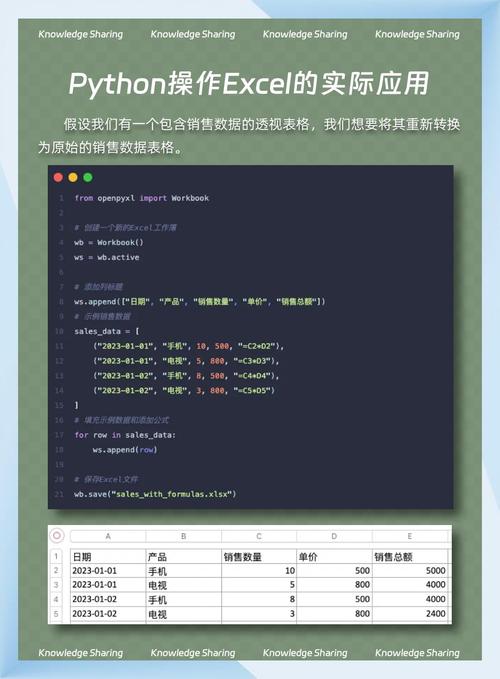
    wb = Workbook()
    ws = wb.active
    ws.title = "Employee Data"
    # --- 7. Write Column Headers to the Excel Sheet ---
    # The first row (row 1) will contain our column names
    for col_num, column_title in enumerate(column_names, 1):
        ws.cell(row=1, column=col_num, value=column_title)
    # --- 8. Write Data Rows to the Excel Sheet ---
    # Start writing data from the second row (row 2)
    for row_num, row_data in enumerate(data_from_db, 2):
        for col_num, cell_value in enumerate(row_data, 1):
            ws.cell(row=row_num, column=col_num, value=cell_value)
    # --- 9. Save the Workbook ---
    excel_filename = 'employees_manual_report.xlsx'
    wb.save(excel_filename)
    print(f"Data successfully written to {excel_filename}")
except mysql.connector.Error as err:
    print(f"Error connecting to MySQL or executing query: {err}")
except Exception as e:
    print(f"An unexpected error occurred: {e}")
finally:
    # --- 10. Close the Cursor and Connection ---
    if 'connection' in locals() and connection.is_connected():
        cursor.close()
        connection.close()
        print("MySQL connection is closed.")
Breakdown of the Manual Method
- Connect and Execute: We manually create a connection and a
cursorobject. The cursor is what executes the query. - Fetch Data:
cursor.fetchall()gets all the rows returned by the query. We also grab the column names fromcursor.description. - Create Excel File: We create a new
Workbookobject and get its active sheet (ws). - Write Headers: We loop through the
column_nameslist and write each one to the first row of the Excel sheet. - Write Data: We loop through the
data_from_dblist. For each row of data, we loop through its cells and write them to the corresponding row and column in the Excel sheet. - Save and Close:
wb.save()writes the file to disk. Thefinallyblock ensures that the database connection is always closed, even if an error occurs. This is crucial for preventing resource leaks.
Summary: Pandas vs. Manual Method
| Feature | Pandas Method (pd.read_sql_query) |
Manual Method (mysql-connector + openpyxl) |
|---|---|---|
| Ease of Use | Excellent. A single line of code fetches and structures the data. | Complex. Requires manual loops and cell-by-cell writing. |
| Performance | Very good for most datasets. Handles data in memory efficiently. | Can be slower for very large datasets due to manual cell writing. |
| Data Handling | Superior. Data is immediately in a powerful DataFrame for analysis, filtering, or transformation. | Data is in a simple list of tuples, requiring more manual processing. |
| Flexibility | Less direct control over Excel formatting (e.g., cell colors, fonts). | Full control. You can customize every aspect of the Excel file. |
| Recommendation | Highly recommended for 95% of use cases. Best for data analysis and reporting. | Use only if you need fine-grained control over Excel output or cannot use pandas. |
For almost everyone, start with the Pandas method. It's faster, more robust, and makes the data much easier to work with once it's in Python.