Of course! Using Qt Designer with Python is one of the most popular and efficient ways to create graphical user interfaces (GUIs). It allows you to design your application's layout visually and then write the Python logic to connect it to your backend code.
Here’s a comprehensive guide covering everything from the basics to best practices.
The Core Concept: The Three-Step Process
The workflow is beautifully simple and separates design from logic:
- Design: Use the Qt Designer application to create a
.uifile (an XML description of your UI). - Convert: Use a command-line tool (
pyuic6) to convert the.uifile into a Python file (.py). - Integrate: Import the generated Python file into your main application script and add your logic (e.g., connecting buttons to functions).
Step 1: Installation
First, you need to install the necessary libraries. The standard is PyQt6 or PySide6. They are nearly identical in syntax, with PySide6 being the official, open-source version from The Qt Company.
# For PyQt6
pip install PyQt6
# For PySide6 (Recommended)
pip install PySide6
PySide6 conveniently comes with the pyside6-uic tool, which is the same as pyuic6.
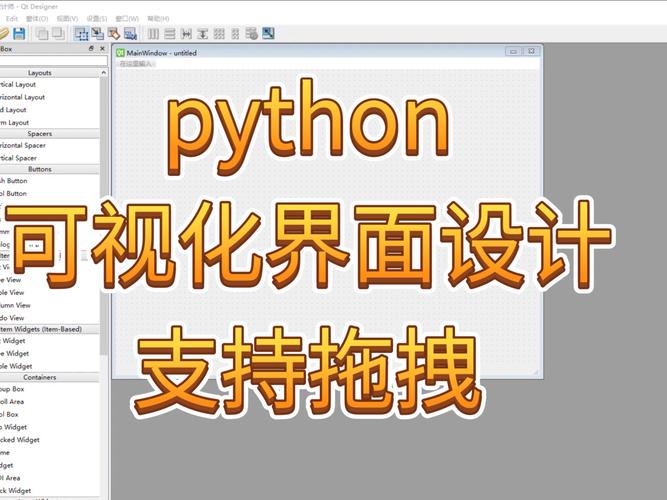
Step 2: Designing the UI with Qt Designer
-
Launch Qt Designer:
- From the command line:
pyside6-designer(orpyqt6-designer). - From the start menu: If you installed via a package manager, it might be available as "Qt Designer".
- From the command line:
-
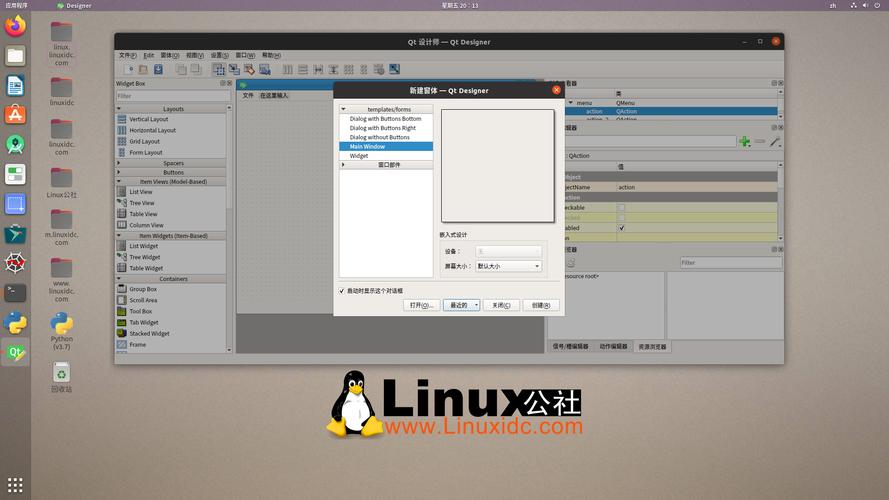
Create a New Form:
- When Qt Designer opens, you'll see a "New Form" dialog.
- Choose "Main Window" for a classic application with menus, a toolbar, and a status bar.
- Click "Create".
-
Build Your Interface:
- The Widget Box on the left contains all the UI components (Buttons, Labels, Line Edits, etc.).
- Drag and drop components onto your form.
- Use the Property Editor on the right to change properties (like object names, text, sizes). The most important property is
objectName, as you'll use this to refer to the widget in Python. - Use the Layout tools (on the top toolbar) to arrange your widgets. This is crucial for creating responsive interfaces that resize correctly.
-
Save the File:
 (图片来源网络,侵删)
- Go to
File > Save As...and save your file asmainwindow.ui. This is the XML representation of your design.
- Go to
Step 3: Converting the .ui File to a Python Module
Now, you need to turn your mainwindow.ui file into a Python file that you can import.
Open your terminal or command prompt and run the following command:
# For PySide6
pyside6-uic mainwindow.ui -o ui_mainwindow.py
# For PyQt6
pyuic6 mainwindow.ui -o ui_mainwindow.py
mainwindow.ui: Your input design file.-o ui_mainwindow.py: The output Python file. It's a common convention to prefix it withui_.
The generated ui_mainwindow.py file will contain a class named Ui_MainWindow. This class has a setupUi method that, when called, builds the entire UI from your design.
Step 4: Integrating the UI into Your Python Application
This is where you connect your UI to your application's logic. Create a new Python file, for example, app.py.
The key is to create a custom class that inherits from both QMainWindow (the main window type you designed) and Ui_MainWindow (the class generated from your .ui file).
Here is a complete, well-commented example.
app.py
import sys
from PySide6.QtWidgets import QApplication, QMainWindow, QMessageBox
# For PyQt6, use: from PyQt6.QtWidgets import QApplication, QMainWindow, QMessageBox
# Import the UI class from the generated Python file
from ui_mainwindow import Ui_MainWindow
class MainWindow(QMainWindow, Ui_MainWindow):
    def __init__(self):
        # Call the constructors of both parent classes
        super().__init__()
        # This method sets up all the UI elements from the .ui file
        self.setupUi(self)
        # --- Connect signals (from UI) to slots (your Python methods) ---
        self.pushButton.clicked.connect(self.on_button_click)
        self.actionExit.triggered.connect(self.close)
    def on_button_click(self):
        """This method is called when the pushButton is clicked."""
        # Get the text from the lineEdit
        name = self.lineEdit.text()
        # Show a message box
        if name:
            QMessageBox.information(self, "Hello!", f"Hello, {name}!")
        else:
            QMessageBox.warning(self, "Input Error", "Please enter a name.")
if __name__ == "__main__":
    # Create the application instance
    app = QApplication(sys.argv)
    # Create an instance of our MainWindow
    window = MainWindow()
    # Show the window
    window.show()
    # Start the application's event loop
    sys.exit(app.exec())
Explanation of app.py:
from ui_mainwindow import Ui_MainWindow: Imports the class that defines your UI.class MainWindow(QMainWindow, Ui_MainWindow):: This is the magic. Your new class inherits from bothQMainWindow(which provides the window frame, menus, etc.) andUi_MainWindow(which provides all the widgets you designed).self.setupUi(self): This is the crucial line from the generated code. It takes the UI definition and builds it inside theselfobject (ourMainWindowinstance).self.pushButton.clicked.connect(self.on_button_click): This is signal and slot.- Signal:
self.pushButton.clickedis an event that the button emits when it's clicked. - Slot:
self.on_button_clickis the Python method we want to execute when the signal is emitted. - The
.connect()method links them together.
- Signal:
self.lineEdit.text(): This is how you access a widget's properties. We set theobjectNameof the line edit tolineEditin Qt Designer, so we can access it directly in Python.QMessageBox.information(...): A simple way to show pop-up dialogs to the user.
Advanced: Loading .ui Files at Runtime (Recommended for Development)
Converting the .ui file to a .py file every time you make a design change is tedious. A better approach is to load the .ui file directly at runtime. This way, you can modify the .ui file and immediately run your Python script to see the changes without needing to re-convert.
You'll need the uic module for this.
app_runtime.py
import sys
from PySide6.QtWidgets import QApplication, QMainWindow, QMessageBox
# For PyQt6, use: from PyQt6.QtWidgets import QApplication, QMainWindow, QMessageBox
from PySide6 import uic
# For PyQt6, use: from PyQt6 import uic
class MainWindow(QMainWindow):
    def __init__(self):
        super().__init__()
        # Load the UI file directly
        uic.loadUi("mainwindow.ui", self)
        # --- Connect signals to slots ---
        self.pushButton.clicked.connect(self.on_button_click)
        self.actionExit.triggered.connect(self.close)
    def on_button_click(self):
        """This method is called when the pushButton is clicked."""
        name = self.lineEdit.text()
        if name:
            QMessageBox.information(self, "Hello!", f"Hello, {name}!")
        else:
            QMessageBox.warning(self, "Input Error", "Please enter a name.")
if __name__ == "__main__":
    app = QApplication(sys.argv)
    window = MainWindow()
    window.show()
    sys.exit(app.exec())
Key Difference:
uic.loadUi("mainwindow.ui", self)replaces thefrom ui_mainwindow import ...andself.setupUi(self)lines. It loads the UI from the XML file and applies it to theselfobject.
This runtime loading approach is highly recommended for development workflows. You only need to use the pyside6-uic command when you are ready to distribute your application and want to avoid shipping the separate .ui file.
Best Practices and Tips
- Naming Convention: Always set a meaningful
objectNamefor every widget you plan to interact with in Python (e.g.,pushButton,lineEdit,listWidget). - Use Layouts: Always use layouts (QVBoxLayout, QHBoxLayout, etc.) instead of hard-coding widget positions and sizes. This makes your UI responsive.
- Separate Logic: Keep your UI definition (
.uifile) and your application logic (.pyfiles) as separate as possible. This makes your code much easier to maintain. - Styling: Use Qt Designer's Style Sheet editor (right-click a widget -> "Change Style Sheet...") to apply CSS-like styling to your widgets. It's a powerful way to change colors, fonts, and borders.
- Custom Widgets: You can create your own custom widgets in Python and then promote them in Qt Designer. This allows you to design complex, reusable components visually.