Of course. Using Selenium with Python to control Internet Explorer (IE) is a topic that comes up less frequently these days due to the browser's decline, but it's still necessary for legacy application testing.
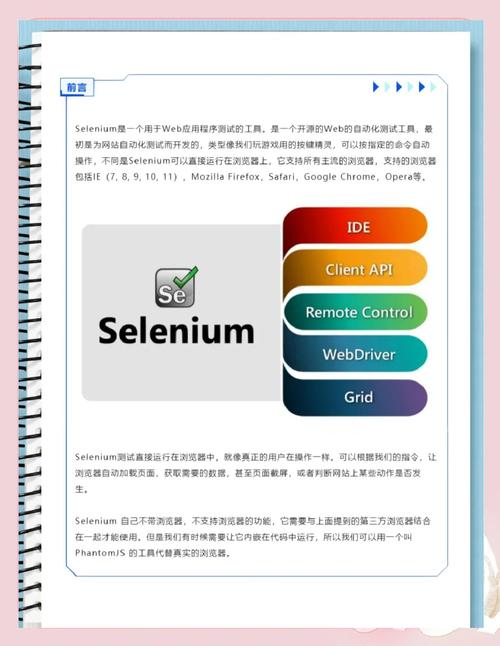
Here’s a comprehensive guide covering the setup, common pitfalls, and best practices.
⚠️ Important Prerequisite: Internet Explorer is Deprecated
First and foremost, you must be aware that Microsoft has officially deprecated and retired Internet Explorer. It is no longer supported and is being replaced by the Microsoft Edge browser (which is now based on the same Chromium engine as Google Chrome).
Strong Recommendation: Whenever possible, use Selenium with Microsoft Edge instead. It's faster, more reliable, and actively supported. The Selenium code for Edge is almost identical to the code for Chrome.
However, if you absolutely must test on IE, here is how to proceed.

Step 1: System Requirements for Internet Explorer
Before you start, ensure your system meets the following criteria:
- Internet Explorer: You must have Internet Explorer installed on the machine where the tests will run. The version of the
seleniumlibrary you use should correspond to the version of IE you are targeting (e.g.,selenium4.x works best with IE 11). - Windows OS: Selenium WebDriver for IE only runs on Windows.
- Selenium Library: Install the latest Selenium library.
- IE Driver Server: This is the executable that acts as a bridge between your script and the IE browser.
Step 2: Installation
Install the Selenium Library
Open your terminal or command prompt and run:
pip install selenium
Download the IE Driver Server (IEDriverServer)
This is the most critical step. The driver is not included with the Selenium library.
- Go to the official Selenium downloads page: https://www.selenium.dev/downloads/
- Scroll down to the "Browser Drivers" section.
- Click on the link for "Internet Explorer Driver".
- You will be redirected to the GitHub Releases page for the Selenium IEDriverServer.
- Download the latest
IEDriverServer_x.x.x.zipfile for your system (it will be a 32-bit or 64-bit.exe). - Extract the
IEDriverServer.exefile from the zip archive.
3: Place the IEDriverServer.exe in a Known Location
You have two main options:
Option A (Recommended): Add it to your System PATH
This is the easiest method. Add the folder where you extracted IEDriverServer.exe to your system's PATH environment variable. This allows your script to find the driver without specifying its full path.
Option B: Specify the Path in Your Code You can explicitly tell Selenium where to find the driver file in your Python script. This is useful if you can't modify the system PATH.
Step 3: Python Code Example
Here is a basic script to open a webpage, interact with an element, and close the browser.
from selenium import webdriver
from selenium.webdriver.common.by import By
from selenium.webdriver.ie.options import Options as IeOptions
from selenium.common.exceptions import WebDriverException
import time
# --- IE Specific Configuration ---
# It's highly recommended to use these options to avoid common issues.
ie_options = IeOptions()
# 1. Ensure the browser opens in a new process each time. This is crucial for stability.
ie_options.force_create_process_api = True
# 2. Ignore zoom level issues. IE can be sensitive to the zoom level being at 100%.
ie_options.ignore_zoom_level = True
# 3. Set the "Protected Mode" check. For IE 11, it's best to have this set to a consistent value.
#    If you have zones with different settings, you may need to disable this check.
#    ie_options.introduce_flakiness_by_ignoring_security_domains = True # Use with caution!
# 4. Set the browser executable path (optional if in PATH)
# ie_options.binary_location = "C:\\Program Files\\Internet Explorer\\iexplore.exe"
# --- Initialize the WebDriver ---
try:
    # Pass the options to the webdriver
    driver = webdriver.Ie(options=ie_options)
    # Maximize the browser window
    driver.maximize_window()
    print("Successfully launched Internet Explorer.")
    # Navigate to a website
    driver.get("https://www.bing.com")
    print(f"Navigated to: {driver.title}")
    # Find an element and interact with it
    search_box = driver.find_element(By.NAME, "q")
    search_box.send_keys("Selenium with Python IE")
    search_box.submit()
    # Wait for a few seconds to see the results
    time.sleep(5)
    print(f"Search page title is: {driver.title}")
except WebDriverException as e:
    print(f"An error occurred: {e}")
    print("Please ensure:")
    print("1. Internet Explorer is installed.")
    print("2. IEDriverServer.exe is downloaded and in your PATH or the correct path is specified.")
    print("3. You are running this script on a Windows machine.")
finally:
    # Close the browser
    if 'driver' in locals():
        driver.quit()
        print("Browser closed.")
Step 4: Common Problems and Solutions
IE is notoriously finicky. Here are the most common issues you will face and how to fix them.
Problem 1: WebDriverException: Message: Unexpected error launching Internet Explorer.
This is a generic error. Check the following:
- Zoom Level: Ensure IE's zoom level is set to 100%. Selenium cannot reliably control the browser if the zoom is different. Go to
View > Zoomin IE. - Protected Mode: Protected Mode must be set to the same value for all zones (Internet, Local intranet, Trusted sites, Restricted sites). You can check this in
Internet Options > Security. It's often easiest to set them all to "On" or all to "Off". If you set them all to "Off", you can use the optionie_options.introduce_flakiness_by_ignoring_security_domains = Truein your script. - Enable Protected Mode: If you have trouble with Protected Mode settings, try enabling it for all zones and using this option:
ie_options.introduce_flakiness_by_ignoring_security_domains = True
Problem 2: WebDriverException: Message: The path to the driver executable must be set...
This means Selenium cannot find IEDriverServer.exe.
- Solution: Make sure you have downloaded the driver and placed it in a folder that is in your system's PATH environment variable. If you can't do that, specify the path when creating the options object:
import os
driver_path = os.path.abspath("path/to/your/folder/IEDriverServer.exe")
ie_options.executable_path = driver_path # Note: This is deprecated in Selenium 4, but often still works.
# OR, the modern way (though less common for IE):
# service = webdriver.ie.service.Service(executable_path=driver_path)
# driver = webdriver.Ie(service=service, options=ie_options)
Problem 3: ElementNotInteractableException: Message: Element is not currently visible and so may not be interacted with
This happens when an element is on the page but is hidden, behind another element, or off-screen.
-
Solution: Add explicit waits instead of
time.sleep(). This tells Selenium to wait until an element is visible before trying to interact with it.from selenium.webdriver.support.ui import WebDriverWait from selenium.webdriver.support import expected_conditions as EC # ... inside your try block ... driver.get("https://www.example.com/login") # Wait up to 10 seconds for the username input to be visible username = WebDriverWait(driver, 10).until( EC.visibility_of_element_located((By.ID, "username")) ) username.send_keys("my_user")
The Modern Alternative: Use Microsoft Edge
As mentioned, using Edge is the recommended path forward. The code is nearly identical, and it's far more stable.
Install Microsoft Edge.
Make sure you have the correct Edge Driver. Selenium Manager in selenium 4.6.0+ will typically handle this for you automatically, but you can also download it manually from the Microsoft Edge Developer site.
Python Code for Edge:
from selenium import webdriver
from selenium.webdriver.edge.service import Service as EdgeService
from selenium.webdriver.common.by import By
from selenium.webdriver.support.ui import WebDriverWait
from selenium.webdriver.support import expected_conditions as EC
# Selenium Manager will automatically download and manage the driver for you.
# No need to set executable_path if you have a recent version of Selenium.
driver = webdriver.Edge()
try:
    driver.maximize_window()
    driver.get("https://www.bing.com")
    # This wait is still a good practice
    search_box = WebDriverWait(driver, 10).until(
        EC.visibility_of_element_located((By.NAME, "q"))
    )
    search_box.send_keys("Selenium with Edge")
    search_box.submit()
    print(f"Page title after search: {driver.title}")
finally:
    driver.quit()
Summary
| Feature | Internet Explorer (IE) | Microsoft Edge (Recommended) |
|---|---|---|
| Status | Deprecated, Retired, Unreliable | Actively Developed & Supported |
| WebDriver | IEDriverServer.exe |
msedgedriver.exe (Chromium-based) |
| Reliability | Low. Prone to flakiness, zoom issues, and security zone problems. | High. Behaves like any other modern browser (Chrome). |
| Setup Complexity | High. Requires manual driver download and specific configuration options. | Low. Selenium Manager can handle driver downloads automatically. |
| Code | driver = webdriver.Ie(options=ie_options) |
driver = webdriver.Edge() |
| Use Case | Only for legacy applications that absolutely cannot be run on any other browser. | All modern web application testing. |