Of course! Here is a comprehensive guide to using Flask-Admin, a popular and powerful extension for the Flask web framework that allows you to create a beautiful and functional admin interface for your application with minimal code.
What is Flask-Admin?
Flask-Admin is an extension that provides a generic interface for managing your data models. Instead of writing a lot of boilerplate code for Create, Read, Update, and Delete (CRUD) operations, Flask-Admin gives you a ready-made admin panel.
Key features:
- Automatic Interface: It introspects your SQLAlchemy (or other ORM) models and automatically generates forms and views.
- Customizable: You have full control over the admin panel's appearance and behavior.
- Modular: It's built with a modular system of "views," so you can easily add or remove sections.
- Extensible: You can create custom views, forms, and templates to fit your specific needs.
Step-by-Step Guide to Setting Up Flask-Admin
Let's build a simple blog application with an admin panel to manage posts and categories.
Step 1: Project Setup
First, set up your project directory and a virtual environment.
mkdir flask_admin_demo
cd flask_admin_demo
python -m venv venv
source venv/bin/activate  # On Windows: venv\Scripts\activate
Step 2: Install Dependencies
We'll need Flask, Flask-SQLAlchemy for our database, and Flask-Admin itself.
pip install Flask Flask-SQLAlchemy Flask-Admin
Step 3: Create the Basic Flask App with SQLAlchemy
Create a file named app.py. This will be our main application file.
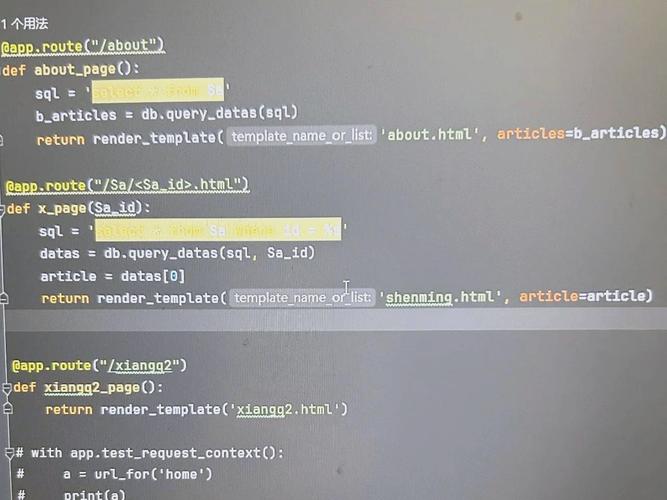
# app.py
from flask import Flask
from flask_sqlalchemy import SQLAlchemy
# Create the Flask application
app = Flask(__name__)
# Configure the database
# We are using SQLite for simplicity
app.config['SQLALCHEMY_DATABASE_URI'] = 'sqlite:///blog.db'
app.config['SQLALCHEMY_TRACK_MODIFICATIONS'] = False
# Initialize the database
db = SQLAlchemy(app)
# --- Define the Models ---
# Association table for many-to-many relationship between posts and tags
post_tags = db.Table('post_tags',
    db.Column('post_id', db.Integer, db.ForeignKey('post.id'), primary_key=True),
    db.Column('tag_id', db.Integer, db.ForeignKey('tag.id'), primary_key=True)
)
class Post(db.Model):
    id = db.Column(db.Integer, primary_key=True)= db.Column(db.String(100), nullable=False)
    content = db.Column(db.Text, nullable=False)
    author = db.Column(db.String(50), nullable=False)
    # Relationship to Category (one-to-many)
    category_id = db.Column(db.Integer, db.ForeignKey('category.id'))
    category = db.relationship('Category', back_populates='posts')
    # Relationship to Tag (many-to-many)
    tags = db.relationship('Tag', secondary=post_tags, back_populates='posts')
    def __repr__(self):
        return f'<Post {self.title}>'
class Category(db.Model):
    id = db.Column(db.Integer, primary_key=True)
    name = db.Column(db.String(50), unique=True, nullable=False)
    # Relationship back to Post
    posts = db.relationship('Post', back_populates='category')
    def __repr__(self):
        return f'<Category {self.name}>'
class Tag(db.Model):
    id = db.Column(db.Integer, primary_key=True)
    name = db.Column(db.String(50), unique=True, nullable=False)
    # Relationship back to Post
    posts = db.relationship('Post', secondary=post_tags, back_populates='tags')
    def __repr__(self):
        return f'<Tag {self.name}>'
# This is the part where we will add Flask-Admin
# We will come back to this after setting up the database.
Step 4: Integrate Flask-Admin
Now, let's add the admin interface. We'll create a new admin instance and register our models with it.
Modify app.py to include the Flask-Admin setup:
# app.py (continued from above)
from flask_admin import Admin
from flask_admin.contrib.sqla import ModelView
# ... (keep the Flask app, db, and model definitions from above) ...
# --- Create the Admin Interface ---
# Create an admin interface object
# The 'name' will be displayed in the admin panel's title bar
# The 'url' is the base path for the admin interface
admin = Admin(app, name='Blog Admin', template_mode='bootstrap3', url='/admin')
# Add the models to the admin interface
# We can customize how each model is displayed
admin.add_view(ModelView(Post, db.session))
admin.add_view(ModelView(Category, db.session))
admin.add_view(ModelView(Tag, db.session))
# --- Run the App ---
# This is a simple way to create the database tables
# In a real app, you would use a proper migration tool like Flask-Migrate
@app.before_first_request
def create_tables():
    db.create_all()
if __name__ == '__main__':
    app.run(debug=True)
Explanation:
from flask_admin import Admin: Imports the mainAdminclass.from flask_admin.contrib.sqla import ModelView: Imports theModelView, which is the pre-built view for SQLAlchemy models.admin = Admin(...): Creates the admin instance.template_mode='bootstrap3'makes it look clean and modern.admin.add_view(ModelView(Post, db.session)): This is the magic line. It tells Flask-Admin to create a full CRUD interface for thePostmodel, using thedb.sessionto interact with the database.
Step 5: Run the Application
Now, run your app.py:
python app.py
You should see output indicating the server is running, usually on http://127.0.0.1:5000.
Step 6: Use the Admin Interface
- Open your web browser and navigate to
http://127.0.0.1:5000/admin. - You will be greeted with a login screen. Since we didn't configure authentication, it's wide open. Just click the "Log In" button.
- You will now see the admin dashboard with links to your models: Posts, Categories, and Tags.
- Click on "Posts". You can now:
- List: View all existing posts.
- Create: Add a new post by clicking the "+ Create" button.
- Edit: Click the "Edit" icon on any post to modify it.
- Delete: Click the "Delete" icon to remove a post.
You have a fully functional admin panel for your data models!
Customizing the Admin Interface
Flask-Admin is highly customizable. Let's improve our ModelViews.
Customizing Columns in the List View
You can control which columns are displayed in the list view and their order.
# In app.py, modify the ModelView for Post
class PostModelView(ModelView):
    # Columns to display in the list view
    column_list = ('title', 'author', 'category', 'tags')
    # Set column labels
    column_labels = {'title': 'Post Title', 'author': 'Author Name'}
    # Make the 'title' column a clickable link to the edit view
    column_sortable_list = ('title', 'author')
# ... and update the admin.add_view line ...
admin.add_view(PostModelView(Post, db.session, name='Blog Posts'))
Adding Search Functionality
Enable a search bar to filter items.
class PostModelView(ModelView):
    # ... (other customizations) ...
    # Enable a search bar. Searches in the 'title' and 'content' fields.
    column_searchable_list = ('title', 'content')
Adding Filtering (Filters)
Add filters to the sidebar to help narrow down the list.
class PostModelView(ModelView):
    # ... (other customizations) ...
    # Add a filter for the category
    column_filters = ('category', 'author')
Customizing Forms
You can change the order of form fields or add custom widgets.
from wtforms import TextAreaField
class PostModelView(ModelView):
    form_columns = ('title', 'author', 'category', 'tags', 'content')
    # Override a field's widget
    form_overrides = {
        'content': TextAreaField
    }
Adding Custom Actions
Create buttons that perform custom actions on selected items.
class PostModelView(ModelView):
    # ... (other customizations) ...
    # Add a custom action button
    action_disallowed_list = ['delete'] # Example of disallowing an action
    def on_change_form(self, form, model):
        # This is an example of hooking into a form event
        # You could add a custom validation here
        pass
    # A simple custom action to mark posts as "Featured"
    def action_set_featured(self, ids):
        try:
            self.session.query(Post).filter(Post.id.in_(ids)).update({'featured': True})
            self.session.commit()
            flash(f'{len(ids)} posts have been featured.', 'success')
        except Exception as e:
            flash(f'An error occurred: {e}', 'error')
        return redirect('.admin/post/')
    # Define the custom action
    actions = ['action_set_featured']
# Note: You would need to add a 'featured' boolean column to your Post model for this to work.
Adding Security (Authentication)
The default admin panel is not secure. You should protect it with a login. Flask-Admin makes this easy.
# In app.py
from flask_login import LoginManager, UserMixin, login_user, logout_user, login_required, current_user
# ... (keep existing imports) ...
# --- Setup Flask-Login for Authentication ---
# Add a User model for login
class User(UserMixin, db.Model):
    id = db.Column(db.Integer, primary_key=True)
    username = db.Column(db.String(80), unique=True, nullable=False)
    password = db.Column(db.String(120), nullable=False)
    def __repr__(self):
        return f'<User {self.username}>'
login_manager = LoginManager()
login_manager.init_app(app)
login_manager.login_view = 'admin.login' # Redirect to login if not authenticated
@login_manager.user_loader
def load_user(user_id):
    return User.query.get(int(user_id))
# --- Secure the Admin Interface ---
# Create a custom view that requires login
class MyAdminIndexView(AdminIndexView):
    @login_required
    def is_accessible(self):
        return True
    def inaccessible_callback(self, name, **kwargs):
        return redirect(url_for('login', next=request.url))
# Update the admin instance to use our secure index view
admin = Admin(app, index_view=MyAdminIndexView(), name='Blog Admin', template_mode='bootstrap3', url='/admin')
# ... (rest of the code) ...
# Add a simple login route
@app.route('/login', methods=['GET', 'POST'])
def login():
    if request.method == 'POST':
        user = User.query.filter_by(username=request.form['username']).first()
        if user and user.password == request.form['password']: # WARNING: Insecure! Use hashing!
            login_user(user)
            return redirect(request.args.get('next') or url_for('admin.index'))
        flash('Invalid username or password')
    return render_template('login.html')
# You'll need to create a 'login.html' template in a 'templates' folder.
Security Warning: The example above uses plain-text passwords for simplicity. In a real application, you must hash passwords using a library like werkzeug.security (which comes with Flask) or bcrypt.
Best Practices and Advanced Topics
- Use Flask-Migrate: For database schema changes, don't manually edit
db.create_all(). Use Flask-Migrate (Alembic integration) to handle migrations properly. - Modularize Your App: For larger applications, don't put everything in
app.py. Organize your models and admin views into separate blueprints or modules. - Customize Templates: If the default templates aren't enough, you can override them by creating a
templates/admindirectory in your project and copying the templates fromflask_admin/templatesto modify them. - Explore Other View Types: Flask-Admin isn't just for models. You can create:
FileAdmin: For managing file uploads.BaseView: For completely custom pages with your own logic and templates.AjaxModelLoader: For loading model data asynchronously.