Of course! Here's a comprehensive guide on how to use QCustomPlot with Python.
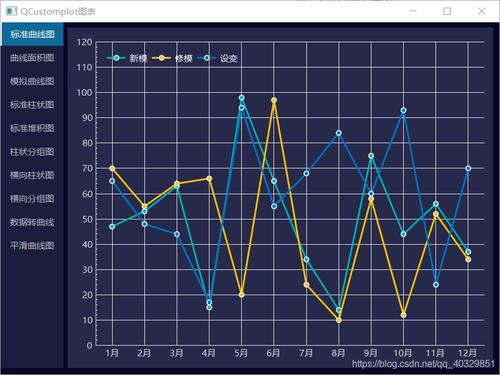
What is QCustomPlot?
QCustomPlot is a Qt-based C++ widget for plotting data. It's highly praised for its performance, extensive features, and clean look. It's not a standard part of Qt, so you need to integrate it yourself.
The key to using it in Python is a wrapper library that allows you to call the C++ code from Python. The most popular and well-maintained wrapper for this is pyqtgraph.
Wait, pyqtgraph? Isn't that a different library?
Yes, but pyqtgraph is heavily inspired by QCustomPlot and uses the same underlying rendering concepts (OpenGL for performance). It was created to bring the high-performance, feature-rich plotting of QCustomPlot to the Python ecosystem. For all practical purposes, pyqtgraph is the Python equivalent of QCustomPlot.
Option 1: The Recommended Path - Using pyqtgraph
This is the easiest, most Pythonic, and actively maintained way to get QCustomPlot-like functionality.
Installation
First, you need to install pyqtgraph. It requires PyQt or PySide.
# Using pip
pip install pyqtgraph
A Simple Example: Plotting a Sine Wave
This example shows how to create a window, add a plot, and plot a simple sine curve.
import sys
import numpy as np
import pyqtgraph as pg
from PyQt5 import QtWidgets
# --- 1. Create the Application and Window ---
app = QtWidgets.QApplication(sys.argv)
window = QtWidgets.QMainWindow()
window.setWindowTitle('pyqtgraph Sine Wave Example')
window.resize(800, 600)
# --- 2. Create the Plot Widget ---
# The PlotWidget is a pre-configured QWidget with a single plot area
plot_widget = pg.PlotWidget()
window.setCentralWidget(plot_widget)
# --- 3. Plot the Data ---
# Generate data
x = np.linspace(0, 2 * np.pi, 1000)
y = np.sin(x)
# Create a PlotDataItem and add it to the plot widget
# You can style the plot with arguments like pen, brush, symbol, etc.
curve = plot_widget.plot(x, y, pen=pg.mkPen(color='b', width=2), name="Sine Wave")
# --- 4. Add Labels and a Legend ---
plot_widget.setTitle("Sine and Cosine Waves")
plot_widget.setLabel('left', 'Amplitude', 'V')
plot_widget.setLabel('bottom', 'Time', 's')
plot_widget.addLegend()
# --- 5. Add Another Curve ---
y2 = np.cos(x)
curve2 = plot_widget.plot(x, y2, pen=pg.mkPen(color='r', width=2), name="Cosine Wave")
# --- 6. Show the Window and Run the App ---
window.show()
sys.exit(app.exec_())
Key Features of pyqtgraph
- Plot Data: Use
plot_widget.plot(x, y, ...)to create line plots. - Scatter Plots: Use
plot_widget.plot(x, y, symbol='o', ...)for scatter plots. - Images: Use
pg.ImageItem()to display NumPy arrays as images. - Items and Overlays: You can add
pg.BarGraphItem,pg.ArrowItem,pg.TextItem, etc., to the plot. - Interactive Features: Pan, zoom, auto-scale, and context menus are built-in.
- Performance: Excellent for plotting large amounts of data due to its underlying OpenGL rendering.
More Advanced Example: Real-Time Plotting
A common use case is plotting data that updates in real-time. The key is to not recreate the plot item on every update. Instead, update the data of the existing item.
import sys
import numpy as np
import pyqtgraph as pg
from PyQt5 import QtWidgets
app = QtWidgets.QApplication(sys.argv)
window = QtWidgets.QMainWindow()
window.setWindowTitle('Real-Time Plot')
window.resize(800, 600)
plot_widget = pg.PlotWidget()
window.setCentralWidget(plot_widget)
# Set up the plot
plot_widget.setTitle("Real-Time Data")
plot_widget.setLabel('left', 'Value')
plot_widget.setLabel('bottom', 'Time')
plot_widget.showGrid(x=True, y=True)
# Create a plot curve
curve = plot_widget.plot(pen='y')
# Set up the data
n_data_points = 500
x_data = np.arange(n_data_points)
y_data = np.zeros(n_data_points)
# Use a QTimer to update the plot
timer = pg.QtCore.QTimer()
timer.timeout.connect(update_plot)
timer.start(50)  # Update every 50 ms
def update_plot():
    # Shift data to the left
    y_data[:-1] = y_data[1:]
    # Add new data point
    y_data[-1] = np.random.random()
    # Update the plot data
    curve.setData(x_data, y_data)
window.show()
sys.exit(app.exec_())
Option 2: The "Hardcore" Path - Using qcustomplot C++ Extension
This involves compiling the QCustomPlot C++ library as a Python extension. This is not recommended for most users due to its complexity, but it's possible if you absolutely need the original C++ API.
Prerequisites
- A C++ compiler (like g++ on Linux or MSVC on Windows).
- CMake.
- PyQt or PySi开发者工具 (e.g.,
pyqt5-devorpython3-pyside2-devon Linux).
Steps
-
Get QCustomPlot: Download the latest version of QCustomPlot from its official website. You'll get a
.zipfile containingqcustomplot.hand some examples. -
Create a Wrapper: You need to write a small C++ wrapper that inherits from
QCustomPlotand exposes its methods to Python using theSIP(used by PyQt) orPyBind11(more modern) bindings.Example using SIP (
qcustomplot.sip):// qcustomplot.sip %Module QCustomPlot %Import QtWidgets/QtWidgets.sip class QCustomPlot : public QWidget { public: QCustomPlot(QWidget *parent = 0); void addGraph(); void graph(int index)->QCPGraph*; void xAxis->setRange(double lower, double upper); void yAxis->setRange(double lower, double upper); void replot(); void plotData(QCPGraph* graph, const QVector<double>& x, const QVector<double>& y); };Note: This is a simplified example. A full wrapper would be much more extensive.
-
Build the Extension: You need to create a
setup.pyfile that tells CMake how to compile the C++ code and link it against Python and Qt. -
Compile and Install: Run the build process. This is the most error-prone step and varies greatly depending on your operating system and toolchain.
Due to the complexity, this path is typically only taken by developers who have a very specific need that pyqtgraph cannot fulfill and are comfortable with C++ build systems.
Comparison: pyqtgraph vs. Native C++ QCustomPlot Extension
| Feature | pyqtgraph (Recommended) |
Native C++ QCustomPyt Extension |
|---|---|---|
| Ease of Use | Very Easy. Just pip install. |
Very Difficult. Requires C++ compilation skills. |
| Performance | Excellent. Uses OpenGL. | Excellent. Uses Qt's native painter. |
| API | Pythonic, numpy-friendly. |
Original C++ API, wrapped via SIP/PyBind11. |
| Features | Very close to QCustomPlot, some unique Python features. | The full, original QCustomPlot feature set. |
| Maintenance | Active. Regularly updated. | Inactive. You maintain it yourself. |
| Community | Large and active Python/PyQt community. | Small niche community. |
Conclusion and Final Recommendation
For 99% of Python users, the answer is use pyqtgraph.
It provides the high-performance, flexible plotting capabilities you're looking for in a QCustomPlot-style widget, but with the simplicity and convenience of a pure Python library. The installation is trivial, the API is intuitive for Python developers, and it's actively maintained.
Only consider compiling the native C++ QCustomPyt extension if you encounter a specific feature or performance limitation in pyqtgraph that absolutely cannot be worked around.