Of course! This is a very common point of confusion for Python users working with Excel files. Here’s a detailed breakdown of openpyxl and xlrd, their differences, and when to use each.
The Short Answer (TL;DR)
| Feature | openpyxl |
xlrd |
|---|---|---|
| Primary Purpose | Read, Write, and Manipulate .xlsx and .xlsm files. |
Read .xls and .xlsx files. |
| File Format | Modern Excel format (.xlsx, since Excel 2007). |
Legacy Excel format (.xls) and modern (.xlsx). |
| Writing | Yes, it's a full-featured library for creating and modifying files. | No, it is read-only. |
| Development | Actively maintained. The recommended choice for new projects. | Largely unmaintained. Its .xlsx support is a wrapper and can be buggy. |
| Recommendation | Use openpyxl for almost everything. |
Only use xlrd if you have a legacy .xls file you must read. |
Detailed Comparison
openpyxl
openpyxl is a comprehensive library for working with Excel 2010+ files (.xlsx and .xlsm). It's the de-facto standard in the Python community for modern Excel files.
Key Strengths:
- Full Read/Write Support: You can not only read data from existing spreadsheets but also create new ones, modify cell values, add charts, insert images, change formatting, and much more.
- Actively Maintained: It's a robust and well-supported library.
- Modern Format: It's designed specifically for the
.xlsxformat, which is the current standard.
Common Use Cases for openpyxl:
- Generating a report from a database and saving it as an Excel file.
- Reading data from an Excel file, processing it in Python, and saving the results back to the same or a new file.
- Automating the creation of formatted invoices or templates.
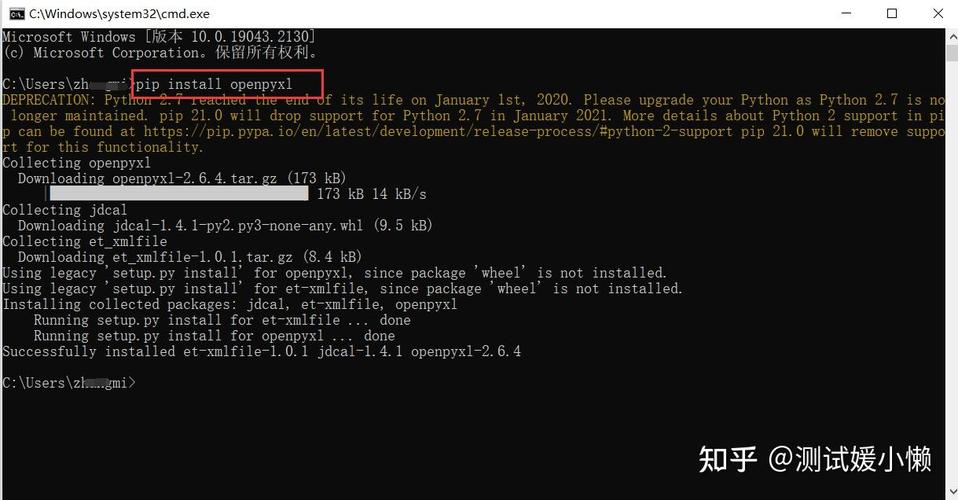
Installation:

pip install openpyxl
Simple openpyxl Example (Reading and Writing):
import openpyxl
# --- READING from an .xlsx file ---
# Load the workbook
try:
    # The read_only=True is much faster for reading large files
    workbook = openpyxl.load_workbook('sample.xlsx', read_only=True)
    sheet = workbook.active
    print("--- Reading Data ---")
    # Read data from cell A1
    value_a1 = sheet['A1'].value
    print(f"Value in A1: {value_a1}")
    # Iterate through rows
    for row in sheet.iter_rows(min_row=2, values_only=True): # Start from row 2
        print(f"Row data: {row}")
    workbook.close() # Important to close when using read_only=True
except FileNotFoundError:
    print("sample.xlsx not found. Creating a new one...")
# --- WRITING to an .xlsx file ---
# Create a new workbook
workbook_to_save = openpyxl.Workbook()
sheet_to_save = workbook_to_save.active
sheet_to_save.title = "New Data"
# Write data to cells
sheet_to_save['A1'] = 'Product'
sheet_to_save['B1'] = 'Quantity'
sheet_to_save['A2'] = 'Apple'
sheet_to_save['B2'] = 150
sheet_to_save['A3'] = 'Banana'
sheet_to_save['B3'] = 200
# Save the workbook
workbook_to_save.save('new_report.xlsx')
print("\n--- Writing Data ---")
print("Successfully created new_report.xlsx")
xlrd
xlrd is an older library that was the go-to for reading .xls files (the Excel format used before 2007). It also has some support for reading .xlsx files, but this support is limited and relies on an external library, xlrd.xlsx.
Key Strengths:
- Legacy
.xlsSupport: It is one of the best and most reliable libraries for reading old.xlsfiles. - Speed: For reading very large
.xlsfiles, it can be very fast.
Key Weaknesses:
- Read-Only: You cannot write or modify files with
xlrd. - Largely Unmaintained: The project has seen little development in recent years.
- Poor
.xlsxSupport: Its.xlsxcapabilities are a basic wrapper and do not support many modern features. It often fails on complex.xlsxfiles. The official documentation even warns against using it for.xlsxfiles.
Common Use Cases for xlrd:
- You have a large archive of old
.xlsfiles that you need to read data from. - You are maintaining an old codebase that already uses
xlrd.
Installation:
pip install xlrd
Simple xlrd Example (Reading only):
import xlrd
# --- READING from an .xls file ---
try:
    # Open the workbook
    workbook = xlrd.open_workbook('legacy_data.xls')
    # Get the first sheet by index
    sheet = workbook.sheet_by_index(0)
    print("--- Reading from legacy_data.xls ---")
    # Get value from cell A1 (note: 0-indexed)
    value_a1 = sheet.cell_value(0, 0)
    print(f"Value in A1: {value_a1}")
    # Iterate through rows
    print("\n--- Row Data ---")
    for row_idx in range(1, sheet.nrows): # Start from row 1 (skip header)
        # Get a list of cell values for the current row
        row_data = sheet.row_values(row_idx)
        print(f"Row {row_idx + 1}: {row_data}")
except FileNotFoundError:
    print("legacy_data.xls not found.")
When to Use Which? A Decision Guide
| Your Goal | Recommended Library | Why? |
|---|---|---|
Read or write a .xlsx file. |
openpyxl |
It's the modern, actively maintained, and full-featured standard. |
Read a legacy .xls file. |
xlrd |
It's the most reliable library for the old .xls format. |
Read an unknown file type (.xls or .xlsx). |
Try openpyxl first. |
If it fails with an error about the format, then switch to xlrd. |
| Create a new Excel file from scratch. | openpyxl |
xlrd cannot write files. |
| Modify an existing Excel file. | openpyxl |
xlrd cannot modify files. |
The Modern Alternative: pandas
For most data analysis tasks, you won't use openpyxl or xlrd directly. Instead, you'll use the pandas library, which uses them "under the hood" as engines.
pandas provides a much simpler, high-level interface for reading data from Excel files directly into a DataFrame.
Installation:
pip install pandas openpyxl xlrd
(You need openpyxl and xlrd installed as dependencies for pandas to read .xlsx and .xls files respectively.)
Simple pandas Example:
import pandas as pd
# Read an .xlsx file into a DataFrame
# pandas will automatically use the openpyxl engine
try:
    df_xlsx = pd.read_excel('sample.xlsx', engine='openpyxl')
    print("--- DataFrame from sample.xlsx ---")
    print(df_xlsx)
except FileNotFoundError:
    print("\nsample.xlsx not found.")
# Read an .xls file into a DataFrame
# pandas will automatically use the xlrd engine
try:
    df_xls = pd.read_excel('legacy_data.xls', engine='xlrd')
    print("\n--- DataFrame from legacy_data.xls ---")
    print(df_xls)
except FileNotFoundError:
    print("legacy_data.xls not found.")
# Write a DataFrame to an .xlsx file
new_df = pd.DataFrame({
    'Name': ['Alice', 'Bob', 'Charlie'],
    'Score': [95, 88, 76]
})
new_df.to_excel('pandas_output.xlsx', index=False)
print("\n--- Writing DataFrame with pandas ---")
print("Successfully created pandas_output.xlsx")
Final Recommendation
- For any new project, start with
pandasif your goal is data analysis and manipulation. It's the easiest and most common way to work with Excel data in Python. - If you need fine-grained control over the Excel file (like setting specific cell formats, adding charts, or manipulating worksheets in a way
pandasdoesn't support), useopenpyxldirectly. - Only pull in
xlrdif you have a specific