Of course! Let's dive deep into Python Selenium Grid. This is a fundamental concept for anyone looking to scale up their web automation testing.
What is Selenium Grid?
Think of Selenium Grid as a "smart proxy" or a "hub" for your Selenium tests. Its primary purpose is to run your tests on multiple machines and browsers simultaneously, dramatically reducing the execution time of your test suites.
Here's the core idea:
- You have one central point of control: This is called the Hub.
- You have one or more machines that actually run the tests: These are called Nodes.
- You write your test code once, pointing it to the Hub.
- The Hub receives your test request, looks at its available Nodes, and intelligently routes your test to a Node that matches your requirements (e.g., a Node running Chrome on Windows).
Why Use Selenium Grid? (The Benefits)
- Parallel Execution: This is the biggest win. Instead of running 50 tests sequentially (which could take an hour), you can run them in parallel across 5 machines, cutting the time down to ~12 minutes.
- Cross-Browser Testing: You can easily test your web application on different browsers (Chrome, Firefox, Safari, Edge) and different versions of those browsers simultaneously, all from a single test script.
- Cross-Platform Testing: You can run tests on different operating systems (Windows, macOS, Linux) at the same time.
- Distributed Execution: You can distribute your tests across geographically different machines, which is useful for testing localized versions of a website or for running tests in a cloud environment.
- Centralized Management: You manage all your test execution from one place (the Hub).
How Selenium Grid Works: The Architecture
The architecture is simple and consists of two main components:
The Hub
- What it is: The central server that receives all test requests from your test scripts.
- What it does:
- Listens for incoming test connections.
- Maintains a list of all registered Nodes and their capabilities (e.g., "I can run Chrome on macOS," "I can run Firefox on Windows 10").
- Receives a test request with desired capabilities (e.g., "I need a browser with Chrome, version 90+").
- Finds a matching Node and assigns the test to it.
- Reports back the test status to the client.
The Node
- What it is: A machine (physical or virtual) that has one or more browsers installed and configured to run tests.
- What it does:
- Registers itself with the Hub, telling the Hub what browsers and configurations it can handle.
- Receives test assignments from the Hub.
- Launches the specified browser and executes the test commands sent from your script.
- Streams back the test results (logs, screenshots, video) to the Hub.
Data Flow:
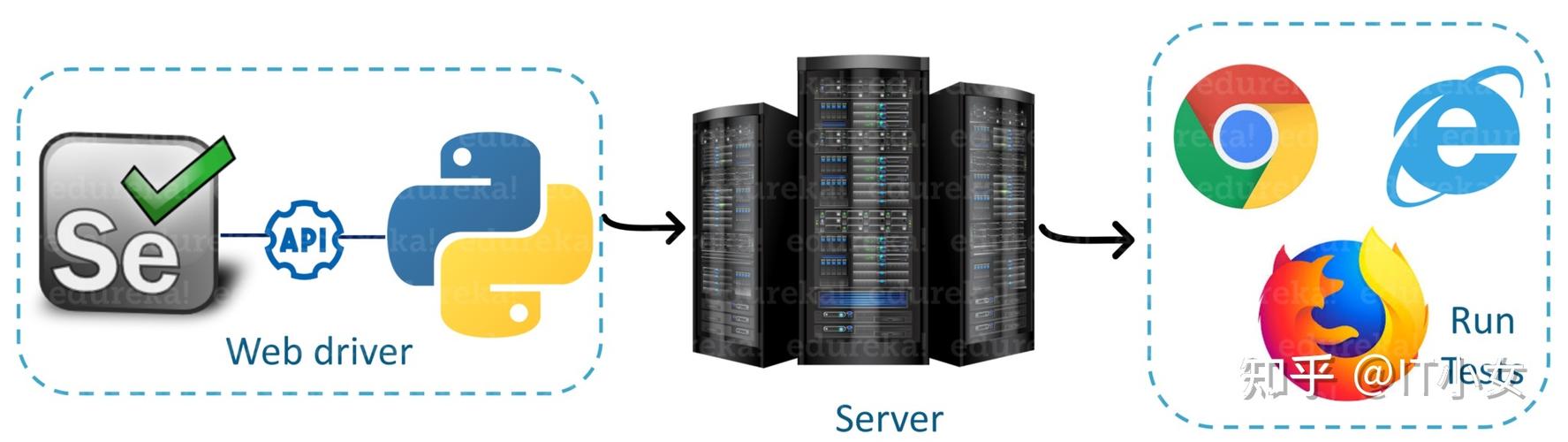
- Your Python test script sends a request to the Hub.
- The Hub finds an available Node that matches the test's requirements.
- The Hub forwards the test commands to the Node.
- The Node executes the commands on the specified browser.
- The Node sends the results back to the Hub.
- The Hub makes the results available to your test script.
Practical Example: Setting up and Using Selenium Grid
Let's walk through a complete, step-by-step example.
Prerequisites
- Python and Selenium: You have Python installed and the
seleniumlibrary.pip install selenium
- Java Development Kit (JDK): Selenium Grid is a Java-based application. You need JDK 8 or higher installed and the
JAVA_HOMEenvironment variable set. - Selenium Standalone Server: This is the single
.jarfile that can act as both a Hub and a Node. Download it from the official Selenium website.
Step 1: Start the Hub
Open a terminal/command prompt and run the following command. This will start the Hub in the background, defaulting to port 4444.
java -jar selenium-server-standalone-4.X.X.jar hub
You should see output indicating the Hub is running. You can now access the Grid console in your browser at http://localhost:4444. You'll see a page with a "Register" button, indicating the Hub is waiting for Nodes.
Step 2: Start a Node (or Two!)
Now, open a new terminal/command prompt. This machine will act as a Node. We will register it with the Hub we just started.
Let's start a Node that can run:
- Chrome
- Firefox
- Microsoft Edge
java -jar selenium-server-standalone-4.X.X.jar node --detect-drivers true --port 5555
--detect-drivers true: This tells the Node to automatically look for and use common browsers (Chrome, Firefox, Edge) installed on the machine.--port 5555: Specifies the port this Node will listen on. This is optional but good practice if you run multiple Nodes on the same machine.
Now, refresh your Grid console (http://localhost:4444). You should see your new Node registered with its available browsers.
Step 3: Write the Python Test Script
This is where the magic happens. You'll write a single Python script that tells the Hub where to run the tests. The Hub will handle the distribution.
We'll use unittest for structure and the options parameter to specify which browser we want.
# test_grid_example.py
import unittest
from selenium import webdriver
from selenium.webdriver.common.by import By
from selenium.webdriver.chrome.options import Options as ChromeOptions
from selenium.webdriver.firefox.options import Options as FirefoxOptions
from selenium.webdriver.edge.options import Options as EdgeOptions
# This is the URL of our Selenium Hub
HUB_URL = "http://localhost:4444/wd/hub"
class TestGrid(unittest.TestCase):
    def setUp(self):
        """This method is called before each test."""
        # We will define the browser in the test methods
        self.driver = None
    def test_chrome(self):
        """Test on Chrome browser."""
        # 1. Define the desired capabilities for Chrome
        chrome_options = ChromeOptions()
        # You can add more options here if needed
        # chrome_options.add_argument("--headless") # Run in headless mode
        # 2. Connect to the Grid and request a Chrome session
        self.driver = webdriver.Remote(
            command_executor=HUB_URL,
            options=chrome_options
        )
        self.driver.get("https://www.google.com")
        print(f"\nRunning on {self.driver.name}: Title is {self.driver.title}")
        self.assertIn("Google", self.driver.title)
        self.driver.quit()
    def test_firefox(self):
        """Test on Firefox browser."""
        # 1. Define the desired capabilities for Firefox
        firefox_options = FirefoxOptions()
        # firefox_options.add_argument("--headless")
        # 2. Connect to the Grid and request a Firefox session
        self.driver = webdriver.Remote(
            command_executor=HUB_URL,
            options=firefox_options
        )
        self.driver.get("https://www.google.com")
        print(f"\nRunning on {self.driver.name}: Title is {self.driver.title}")
        self.assertIn("Google", self.driver.title)
        self.driver.quit()
    def test_edge(self):
        """Test on Edge browser."""
        # 1. Define the desired capabilities for Edge
        edge_options = EdgeOptions()
        # 2. Connect to the Grid and request an Edge session
        self.driver = webdriver.Remote(
            command_executor=HUB_URL,
            options=edge_options
        )
        self.driver.get("https://www.google.com")
        print(f"\nRunning on {self.driver.name}: Title is {self.driver.title}")
        self.assertIn("Google", self.driver.title)
        self.driver.quit()
if __name__ == "__main__":
    unittest.main()
Step 4: Run the Test
Now, run your Python script from your terminal.
python test_grid_example.py
What will happen?
test_chromewill run first. The Hub will see the request and assign it to your Node. A Chrome browser will launch and perform the test.test_firefoxwill run next (or in parallel if you configureunittestto do so). The Hub will assign it to the same Node. A Firefox browser will launch.test_edgewill run last. The Hub will assign it, and an Edge browser will launch.
You will see output in your terminal showing the tests running on different browsers, all orchestrated by the Hub.
Advanced: Using a browser_name Capability
Instead of creating separate options objects, you can often just pass the browser_name directly in the options object. This is the more modern approach in Selenium 4.
from selenium import webdriver