Of course! This is a very popular question. The short answer is: You can't run Python directly on an iPhone in the same way you run it on a Mac or PC. The standard Python interpreter is not available in the App Store because it would violate Apple's sandboxing rules.
However, there are several excellent workarounds that let you write, run, and even develop full Python projects on your iPhone. Here’s a breakdown of the best methods, from simplest to most powerful.
Summary Table
| Method | Best For | Pros | Cons |
|---|---|---|---|
| Code Editors with Runners | Quick scripts, data analysis, learning | Easy to use, familiar interface, good for small tasks | Limited to pre-installed packages, not for large projects |
| Terminals & SSH | Server administration, remote development | Full control, access to powerful remote machines, text-based | Requires a remote server, command-line only, steep learning curve |
| Web Apps | Simple scripts, specific tools | Access to powerful libraries, runs in a browser | Requires internet, dependent on the app's server |
| iOS App Development | Building standalone Python apps for iOS | Can create distributable .ipa files, uses native UI | Complex setup, requires a Mac, limited by Pythonista's API |
Method 1: Code Editors with a "Run" Button (Easiest)
These are apps from the App Store that provide a code editor and a built-in Python interpreter. You write your code and tap a "Run" button to execute it.
Popular Apps:
- Pythonista 3: The gold standard for Python on iOS. It's a full-fledged Python 3 environment with a great editor, console, and graphics capabilities. It's a paid app, but worth every penny for serious mobile scripting.
- Pyto: Another excellent, powerful Python 3 interpreter. It has a clean interface, supports external keyboards, and can run scripts from files. Also a paid app.
- a-Shell: More of a terminal emulator that includes a Python interpreter. It's great for command-line scripting and interacting with the iOS filesystem. The free version is quite capable.
Example in Pythonista:
-
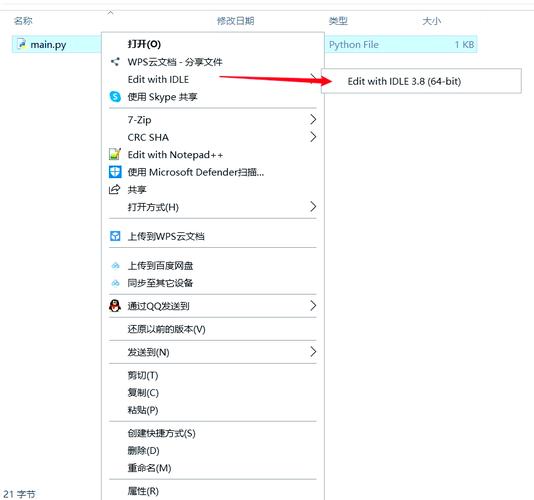
Open Pythonista.
-
Tap the to create a new script.
-
Write a simple script:
import datetime name = "iPhone User" current_time = datetime.datetime.now().strftime("%H:%M") print(f"Hello, {name}!") print(f"The current time is {current_time}.") -
Tap the "Run" button (the play icon) in the top right.
 (图片来源网络,侵删)
Output:
Hello, iPhone User!
The current time is 14:30.
Limitation: These apps have their own sandboxed environments. You can only use the Python packages that come pre-installed or that can be installed within their limited system (e.g., via pip if they support it). You can't install complex packages like TensorFlow or Pandas easily.
Method 2: Using a Terminal & SSH (Most Powerful)
This is the favorite method for developers. You run Python on a more powerful machine (like a Raspberry Pi, a cloud server, or even another computer on your home network) and access it securely from your iPhone using a terminal app.
How it works:
- Set up a machine (a Raspberry Pi is perfect for this) with a standard Linux OS and Python.
- Install an SSH server on that machine (it's usually on by default on Raspberry Pi OS).
- On your iPhone, install a terminal app that supports SSH.
Apps you'll need:
- For the iPhone: Blink Shell (paid, highly recommended) or a-Shell (has SSH capabilities).
- For the Server: Any Linux machine (Raspberry Pi, cloud VPS, etc.).
Workflow:
- Open your terminal app on the iPhone (e.g., Blink Shell).
- Create a new connection to your remote server using its IP address and your login credentials.
- You now have a command line on your server.
- You can use
vimornanoto edit Python files directly on the server, orscpto transfer files from your iPhone to the server. - Run your scripts as you normally would:
python3 my_script.py.
Why this is great:
- Full Power: You have access to the entire Python ecosystem. You can install any package with
pip. - Performance: The heavy lifting is done by the server, not your iPhone.
- Real Development: This is how you would do real, serious Python development on the go.
Method 3: Web-Based Python Environments
If you don't want to install anything on your iPhone or a server, you can use a web-based Python interpreter.
How it works: You go to a website in Safari (or another browser) that provides a Python coding environment. You write and run your code in the browser, and the code is executed on the website's servers.
Popular Websites:
- Google Colab: The most popular choice, especially for data science. It gives you a free Jupyter Notebook environment with access to a GPU, which is perfect for machine learning tasks.
- Replit: A fantastic online IDE that supports dozens of languages, including Python. It's great for general-purpose coding and even has collaboration features.
- OnlineGDB: A simpler, no-frills online compiler and interpreter.
Workflow:
- Open Safari on your iPhone.
- Go to
colab.research.google.comorreplit.com. - Create a new Python file or notebook.
- Write your code and click the "Run" button.
Pros:
- No installation required.
- Often includes powerful libraries (like
Pandas,NumPy,Matplotlibon Colab). - Easy to share your code via a link.
Cons:
- Requires an internet connection.
- You are dependent on the service's availability and performance.
- Not suitable for offline work.
Method 4: Building iOS Apps with Python (Advanced)
This is a different approach. Instead of just running a script, you use a special environment to build a standalone iOS app whose core logic is written in Python.
The Key Player:
- Pythonista: This app is unique. Not only can you run scripts, but it also includes a powerful UI framework. You can build interactive apps with buttons, tables, and graphics that run entirely within Pythonista. You can even share these apps with other Pythonista users.
For True Native Apps:
To create a distributable .ipa file that anyone can install on their iPhone (not just those with Pythonista), you need to use a bridge like BeeWare or Kivy. However, this is a very advanced process that requires a Mac and Apple's developer tools to package the app. It's not something you can do directly on an iPhone.
Conclusion: Which one should you choose?
- For quick calculations, small automation, or learning: Use Pythonista or Pyto.
- For serious development, data science, or server management: Use a Terminal app with SSH to a remote server.
- For trying out code online, especially for data science: Use Google Colab.
- For building interactive apps that run on your own iPhone: Use Pythonista's built-in UI tools.