Of course! Working with spreadsheets in Python is a very common and powerful task. It allows you to automate data entry, perform complex analysis, and generate reports programmatically.
Here's a comprehensive guide covering the most popular libraries, with clear examples for each.
The Big Three Libraries
For most spreadsheet tasks in Python, you'll use one of these three libraries:
pandas: The king of data analysis. It's perfect for reading, manipulating, and analyzing tabular data (which is exactly what a spreadsheet is). It's the most popular choice for data science and analytics.openpyxl: The best library for reading from and writing to.xlsx(Excel) files. It's excellent for tasks like modifying existing workbooks, styling cells, and adding charts.xlwings: The bridge between Python and a running instance of Microsoft Excel. It allows you to automate Excel directly—read and write data, run macros, and even use Excel as a GUI for your Python scripts.
pandas - The Data Analysis Workhorse
pandas is designed to handle data in memory, making it incredibly fast for analysis. You typically load a sheet into a DataFrame, work with it, and then save it back.
Installation:
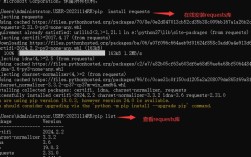
pip install pandas openpyxl
(Note: openpyxl is the default engine for reading .xlsx files in modern pandas.)
Core pandas Examples
a) Reading a Spreadsheet
import pandas as pd
# Read a specific sheet from an Excel file into a DataFrame
# The 'sheet_name' can be the sheet's name or its index (0 for the first sheet)
df = pd.read_excel('my_data.xlsx', sheet_name='Sheet1')
# Display the first 5 rows
print("First 5 rows:")
print(df.head())
# Get basic information about the DataFrame
print("\nDataFrame Info:")
df.info()
b) Writing to a Spreadsheet
import pandas as pd
# Create a sample DataFrame
data = {
    'Name': ['Alice', 'Bob', 'Charlie'],
    'Age': [25, 30, 35],
    'City': ['New York', 'Los Angeles', 'Chicago']
}
df_to_save = pd.DataFrame(data)
# Save the DataFrame to a new Excel file
# 'index=False' prevents pandas from writing the DataFrame index as a column
df_to_save.to_excel('new_data.xlsx', sheet_name='Employees', index=False)
print("DataFrame saved to new_data.xlsx")
c) Modifying Data and Saving to a New Sheet
import pandas as pd
# Read the original data
df = pd.read_excel('my_data.xlsx', sheet_name='Sheet1')
# Perform some data manipulation
# Add a new column
df['Bonus'] = df['Salary'] * 0.10 # Assuming there's a 'Salary' column
# Filter for employees over 30
senior_employees = df[df['Age'] > 30]
# Save the modified data to a NEW sheet in the SAME Excel file
with pd.ExcelWriter('my_data.xlsx', engine='openpyxl', mode='a') as writer:
    # 'mode=a' means append to the file
    senior_employees.to_excel(writer, sheet_name='Senior Employees', index=False)
print("Senior employees saved to a new sheet in my_data.xlsx")
openpyxl - The Excel File Manipulator
openpyxl gives you fine-grained control over the Excel file itself. You can access individual cells, apply styles, merge cells, and insert charts.
Installation:
pip install openpyxl
Core openpyxl Examples
a) Reading Data from Specific Cells
from openpyxl import load_workbook
# Load an existing workbook
wb = load_workbook('my_data.xlsx')
# Select a specific sheet
sheet = wb['Sheet1']
# Read a value from a specific cell (e.g., A1)
cell_value = sheet['A1'].value
print(f"Value in cell A1: {cell_value}")
# You can also use row/column notation
another_cell_value = sheet.cell(row=1, column=2).value
print(f"Value in cell B1: {another_cell_value}")
# Close the workbook
wb.close()
b) Writing Data and Styling Cells
from openpyxl import Workbook
from openpyxl.styles import Font, PatternFill
# Create a new workbook
wb = Workbook()
ws = wb.active= "Styled Report"
# Write headers and apply bold font
headers = ['Product', 'Sales', 'Region']
ws.append(headers)
for cell in ws[1]:
    cell.font = Font(bold=True)
    cell.fill = PatternFill(start_color="FFFF00", end_color="FFFF00", fill_type="solid")
# Write some data
data = [['Laptop', 1200, 'North'], ['Mouse', 25, 'South'], ['Keyboard', 75, 'East']]
for row in data:
    ws.append(row)
# Save the file
wb.save('styled_report.xlsx')
print("Styled report created.")
xlwings - The Excel Automation Bridge
xlwings is unique because it interacts with a live Excel instance. This is perfect for tasks where you need Excel's calculation engine (VLOOKUP, PivotTables) or want to use Excel as a front-end for your Python script.
Installation:
pip install xlwings
(Note: This requires Microsoft Excel to be installed on your system.)
Core xlwings Examples
a) Reading and Writing Data
import xlwings as xw
# You can run this code from a Python script or directly in the xlwings VBA editor in Excel
# Method 1: Connect to a specific workbook
wb = xw.Book('my_data.xlsx') # Opens or connects to the workbook
sht = wb.sheets['Sheet1']
# Read data from a range
data_range = sht.range('A1:C10').value
print("Data from A1:C10:")
print(data_range)
# Write data to a range
new_data = [[1, 'One'], [2, 'Two'], [3, 'Three']]
sht.range('E1').value = new_data # Starts writing at E1
# Save and close the workbook
wb.save()
wb.close()
# Method 2: Quick app-level interaction (without a specific Book object)
# This will create a new Excel instance if one isn't running.
xw.Range('A1').value = 'Hello from xlwings!'
xw.Range('B1').value = [1, 2, 3, 4, 5]
b) Running a VBA Macro from Python
import xlwings as xw
# Connect to the workbook that contains the VBA macro
wb = xw.Book('my_data_with_macros.xlsm') # Note the .xlsm extension for macros
# Run the VBA macro named 'MyMacro'
# The macro must be in a VBA module in the workbook
wb.api.Application.Run('MyMacro')
print("VBA macro 'MyMacro' has been executed.")
wb.save()
wb.close()
Comparison Table: Which Library to Use?
| Feature | pandas |
openpyxl |
xlwings |
|---|---|---|---|
| Primary Use | Data analysis, manipulation, cleaning. | Reading/writing .xlsx files, styling, formulas. |
Automating a live Excel instance. |
| File Format | .xlsx, .csv, .json, etc. (many formats). |
Primarily .xlsx (.xlsm for macros). |
Works with any file Excel can open. |
| Performance | Excellent for in-memory operations. | Good for file I/O, but slower for large data sets. | Depends on Excel's performance. |
| Excel as GUI | No. It's a library, not an interface. | No. It's a library, not an interface. | Yes. Excel acts as the user interface. |
| Complex Styling | Limited. | Excellent. Full control over fonts, colors, borders, etc. | Good, but often easier with openpyxl for static styles. |
| Macros | No. | No. | Yes. Can run VBA macros from Python. |
| Learning Curve | Moderate (concepts like DataFrames, Series). | Easy for basic tasks, complex for advanced features. | Easy if you know Excel. |
Summary and Recommendation
- For data analysis and reporting: Start with
pandas. It's the standard for a reason. Useopenpyxlas the engine if you need to save your results as a styled Excel file. - For modifying existing Excel files, adding styles, or creating templates: Use
openpyxl. It gives you the most direct control over the file structure. - For automating Excel tasks, integrating with VBA, or using Excel as a GUI for your Python scripts: Use
xlwings. It's the most powerful tool for true Excel automation.