Of course! Saving images with the Python Pillow library (a friendly fork of PIL) is a fundamental task. The primary function for this is Image.save().
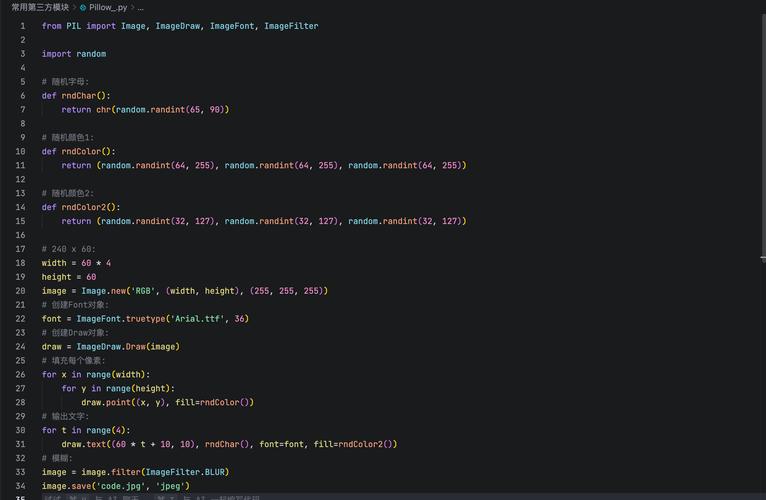
Here’s a comprehensive guide covering the basics, different formats, advanced options, and common use cases.
The Basic Syntax
The core of saving an image is the save() method of a PIL.Image object.
from PIL import Image
# Assuming 'image_object' is an instance of PIL.Image
image_object.save(filename, format, **options)
filename(string): The path (including the extension) where you want to save the image.- e.g.,
"my_image.png","output.jpg","C:/Users/You/Pictures/photo.webp"
- e.g.,
format(string, optional): The image format (e.g.,"JPEG","PNG"). If omitted, Pillow will try to guess it from the file extension.**options(keyword arguments): Additional settings specific to the chosen format (e.g., quality for JPEG).
Example 1: Saving a New Image
Let's start by creating a simple image and saving it in different formats.
from PIL import Image
import os
# Create a new RGB image (500x300) with a red background
img = Image.new('RGB', (500, 300), color='red')
# --- Save as PNG (lossless compression) ---
# The '.png' extension is enough to specify the format.
img.save('red_image.png')
print("Saved red_image.png")
# --- Save as JPEG (lossy compression) ---
# You can specify the format explicitly or just use the '.jpg' extension.
# Note: JPEG does not support transparency, so the 'red' color is fine.
img.save('red_image.jpg', format='JPEG')
print("Saved red_image.jpg")
# --- Save as a WebP (modern format) ---
img.save('red_image.webp')
print("Saved red_image.webp")
# Check if the files were created
print("\nFiles in current directory:")
for file in os.listdir('.'):
    if file.startswith('red_image'):
        print(f"- {file}")
Example 2: Loading, Modifying, and Saving an Image
This is a very common workflow.

from PIL import Image, ImageFilter
# 1. Load an existing image
# Make sure you have an image named 'input.jpg' in the same directory,
# or provide the full path to your image.
try:
    original_image = Image.open('input.jpg')
except FileNotFoundError:
    # Create a dummy image if 'input.jpg' doesn't exist for demonstration
    original_image = Image.new('RGB', (400, 200), color='blue')
    original_image.save('input.jpg')
    print("Created a dummy 'input.jpg' for demonstration.")
    original_image = Image.open('input.jpg')
# 2. Modify the image (e.g., apply a blur filter)
blurred_image = original_image.filter(ImageFilter.GaussianBlur(radius=5))
# 3. Save the modified image
# Save with high quality (95 is a good default for JPEG)
blurred_image.save('blurred_output.jpg', quality=95)
print("Saved blurred_output.jpg")
Key Options for Different Formats
The real power of save() comes from its keyword arguments, which vary by format.
For JPEG (format="JPEG")
The most important option is quality, which controls the trade-off between file size and image quality. It ranges from 1 (worst) to 95 (best). 75 is often a good balance.
from PIL import Image
# Load an image
img = Image.open('input.jpg') # Make sure this file exists
# Save with different quality levels
img.save('jpg_quality_90.jpg', quality=90)
img.save('jpg_quality_50.jpg', quality=50)
img.save('jpg_quality_10.jpg', quality=10)
print("Saved three JPEGs with different quality levels.")
Other JPEG options:
optimize=True: Can produce a smaller file by scanning the image for optimal encoding.progressive=True: Creates a "progressive JPEG" that loads gradually in a web browser.
For PNG (format="PNG")
PNG is lossless, so there's no "quality" setting. Instead, you can control compression.
compress_level: An integer from 0 to 9.0: No compression. Fastest to save, largest file size.6: Default compression. Good balance of speed and size.9: Maximum compression. Slowest to save, smallest file size.
from PIL import Image
# Load an image
img = Image.open('input.png') # Make sure this file exists
# Save with different compression levels
img.save('png_fast.png', compress_level=0)
img.save('png_default.png', compress_level=6)
img.save('png_small.png', compress_level=9)
print("Saved three PNGs with different compression levels.")
For WebP (format="WEBP")
WebP is a modern format that offers both lossy and lossless compression.
Lossy Mode (like JPEG):
Use the quality argument (0-100).
# Lossy WebP
img.save('webp_lossy.q80.webp', quality=80)
Lossless Mode (like PNG):
Use the lossless=True argument.
# Lossless WebP
img.save('webp_lossless.webp', lossless=True)
Handling Transparency (Alpha Channel)
When saving formats that support transparency (like PNG or WebP), you need to ensure your image has an alpha channel. An image's mode will be 'RGBA' if it has transparency.
from PIL import Image
# Create an image with a transparent background
# Mode 'RGBA' is required for transparency
img_with_transparency = Image.new('RGBA', (200, 200), (0, 0, 0, 0)) # R, G, B, A=0 (fully transparent)
# Draw a red, semi-transparent circle on it
pixels = img_with_transparency.load()
for x in range(200):
    for y in range(200):
        if (x - 100)**2 + (y - 100)**2 < 90**2: # Inside circle
            pixels[x, y] = (255, 0, 0, 128) # Red with 50% alpha
# Save as PNG (supports transparency)
img_with_transparency.save('transparent_circle.png')
# Save as WebP (also supports transparency)
img_with_transparency.save('transparent_circle.webp', quality=80)
print("Saved images with transparency.")
Saving to a Bytes Buffer (In-Memory)
Sometimes you don't want to save to a file on disk. You can save an image into a bytes object in memory. This is extremely useful for web applications or when working with data streams.
from PIL import Image
import io
# Create an image
img = Image.new('RGB', (100, 50), color='green')
# Save the image to a bytes buffer
buffer = io.BytesIO()
# You MUST specify a format when saving to a buffer
img.save(buffer, format='JPEG')
# Get the byte data from the buffer
image_bytes = buffer.getvalue()
# Now 'image_bytes' contains the raw image data
# You can write it to a file, send it over a network, etc.
# For example, let's write it to a file to prove it works
with open('from_buffer.jpg', 'wb') as f:
    f.write(image_bytes)
print("Saved from_buffer.jpg from an in-memory buffer.")