Of course! This is a very common and important task in web scraping and automation. Let's break down how to use the requests library in Python to interact with websites that use AJAX.
The Core Concept: What is AJAX?
First, it's crucial to understand what AJAX is from a technical standpoint.
- AJAX (Asynchronous JavaScript and XML) is a technique used in web development to send and retrieve data from a server in the background without needing to reload the entire web page.
- When you interact with a modern website (e.g., typing in a search bar, clicking "Load More," filtering products), JavaScript often makes an HTTP request in the background to get new data.
- This data is usually returned in a lightweight format like JSON (more common than XML today) or HTML fragments.
- The browser then uses this new data to update the page content dynamically.
The key takeaway for you as a Python developer: Instead of just requesting the main HTML of the page, you need to find and mimic the specific HTTP request that the JavaScript code is making to get the data you want.
The Workflow: How to Scrape an AJAX Website
Here is the step-by-step process to successfully scrape a site that uses AJAX.
Step 1: Open Developer Tools (Your Most Important Tool)
This is the most critical step. You need to see what the browser is doing behind the scenes.
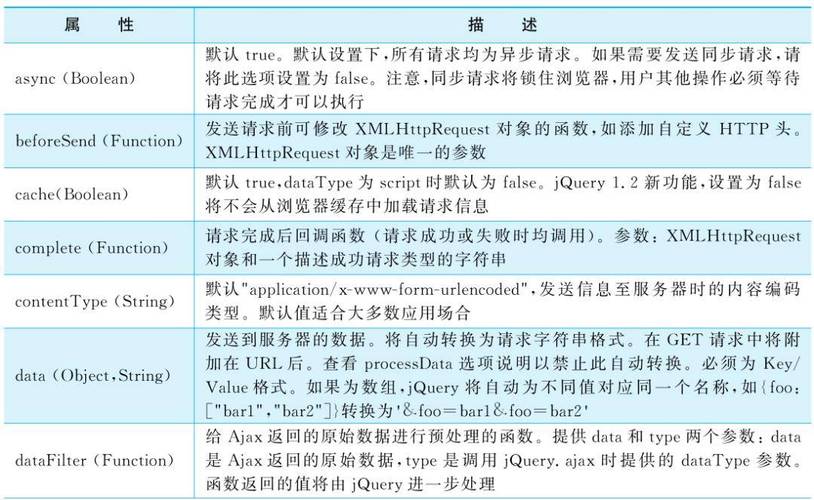
- Open the website you want to scrape in Google Chrome or Firefox.
- Right-click anywhere on the page and select "Inspect" or press
F12(orCtrl+Shift+I/Cmd+Option+I). - Go to the "Network" tab.
Step 2: Reproduce the Action
Now, you need to make the website perform the action that loads the data you want.
- Example 1 (Infinite Scroll): Scroll down the page.
- Example 2 (Filter/Sort): Click a filter button (e.g., "Price: Low to High").
- Example 3 (Search): Type a search query and press Enter.
As you perform the action, watch the Network tab. You will see new entries appear.
Step 3: Identify the Correct Request
In the Network tab, you'll see a list of all the requests made. Your goal is to find the one that returned the data you're interested in.
- Filter the requests: Use the filter box at the top. Type
fetch,XHR, orJS. This will show you only the modern AJAX requests (XMLHttpRequests or Fetch API calls), which is usually what you're looking for. - Inspect the requests: Click on each request that appeared when you performed your action.
- Look at the Headers tab. Check the Request URL, Request Method (GET or POST), and Request Headers (especially things like
User-Agent,Accept,Content-Type, and any API keys). - Look at the Response or Preview tab. This is where you'll see the actual data. If it's formatted and readable (like JSON), you've found the right request!
- Look at the Headers tab. Check the Request URL, Request Method (GET or POST), and Request Headers (especially things like
Step 4: Replicate the Request with Python requests
Now that you have all the information from the request, you can build a Python script to make that same request directly.
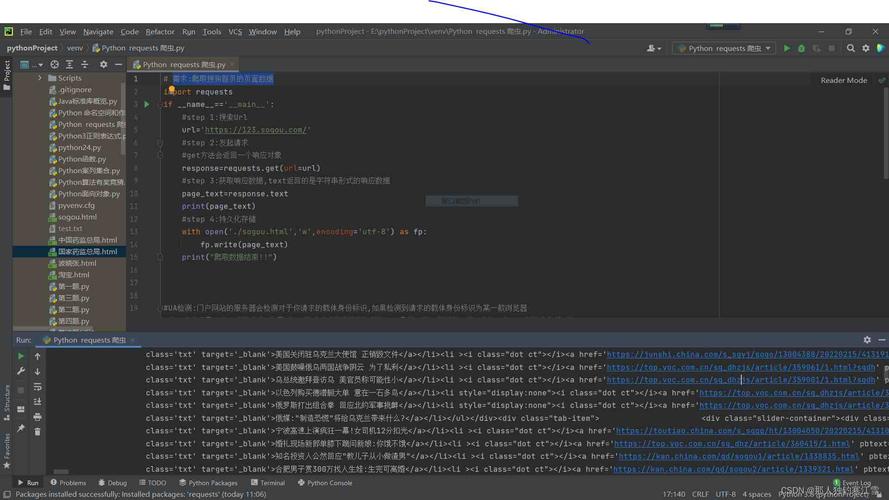
- Use the URL from the "Request URL" field.
- Use the correct HTTP method (GET, POST, etc.).
- Include the necessary headers. You can often copy the headers directly from the "Request Headers" section. The
User-Agentheader is almost always required. - Include any data or parameters. If it's a POST request, the data is often in the "Payload" or "Request Payload" section. For a GET request, parameters are usually in the URL.
Practical Example: Scraping a "Load More" Button
Let's imagine a website that loads a list of products. When you click "Load More," it makes an AJAX request to get the next set of products.
Manual Investigation (Using DevTools)
- You go to
https://example-products.com. - You open DevTools (
F12) and go to the Network tab. - You click the "Load More" button.
- A new request appears in the Network tab, filtered as
XHR. You click on it. - You see the following details:
- Request URL:
https://example-products.com/api/products - Request Method:
GET - Request Headers:
User-Agent:Mozilla/5.0 (Windows NT 10.0; Win64; x64) AppleWebKit/537.36 (KHTML, like Gecko) Chrome/108.0.0.0 Safari/537.36Accept:application/json, text/plain, */*Accept-Language:en-US,en;q=0.9
- Query String Parameters: (This is part of the URL)
page:2limit:20
- Response (Preview): You see a JSON array of product objects.
- Request URL:
Writing the Python Script
Now, we replicate this request using the requests library.
import requests
import json
# The base URL for the API
base_url = "https://example-products.com/api/products"
# The headers we identified in DevTools.
# It's good practice to set a User-Agent to mimic a real browser.
headers = {
    "User-Agent": "Mozilla/5.0 (Windows NT 10.0; Win64; x64) AppleWebKit/537.36 (KHTML, like Gecko) Chrome/108.0.0.0 Safari/537.36",
    "Accept": "application/json, text/plain, */*"
}
# Let's say we want to get the first page (page=1)
# We can pass parameters as a dictionary to the `params` argument.
params = {
    "page": 1,
    "limit": 20
}
print(f"Requesting data from: {base_url} with params: {params}")
try:
    # Make the GET request with the headers and parameters
    response = requests.get(base_url, headers=headers, params=params)
    # Raise an exception if the request was unsuccessful (e.g., 404, 500)
    response.raise_for_status()
    # The response content is in JSON format, so we parse it
    data = response.json()
    # Now we can work with the data
    print("\n--- Successfully retrieved data! ---")
    print(f"Found {len(data)} products.")
    for product in data:
        print(f"- {product.get('name')}: ${product.get('price')}")
except requests.exceptions.RequestException as e:
    print(f"\nAn error occurred: {e}")
Key Considerations and Advanced Topics
-
Authentication: Some AJAX requests require you to be logged in. The easiest way to handle this is to first use
requeststo log in (sending the username/password to the login URL), and then use the samerequests.Sessionobject to make your AJAX requests. The session will automatically handle cookies.with requests.Session() as session: # 1. Log in login_url = "https://example.com/login" login_payload = {"username": "myuser", "password": "mypassword"} session.post(login_url, data=login_payload) # 2. Now make the AJAX request using the same session response = session.get(api_url, headers=headers) data = response.json() -
POST Requests: If the request in DevTools was a
POSTrequest, you'll userequests.post(). The data to be sent is usually in the "Request Payload" section. You can send it using thejsonordataargument.requests.post(url, json=payload_dict, headers=headers)(for JSON payloads)requests.post(url, data=payload_dict, headers=headers)(for form data)
-
Dynamic Content (JavaScript Rendering): Sometimes, the data is so heavily protected or generated by complex JavaScript that
requestscan't get it. In these cases, you need a tool that can run a real browser in the background. The most popular library for this is Selenium. Selenium automates a real web browser (like Chrome), so it can execute the JavaScript just like a user would, and then you can scrape the fully rendered HTML.