Of course! Using Python, OpenCV, and the zbar library is a classic and effective way to build QR code and barcode scanner applications. Here’s a comprehensive guide covering everything from installation to a complete, runnable example.

Overview of the Tools
- Python: The programming language we'll use.
- OpenCV (
cv2): The core computer vision library. We'll use it to capture video from your webcam and to display the results. It also has a built-in QR code detector, butzbaris often considered more robust for a wider variety of barcode types. pyzbar: This is the crucial Python wrapper for the ZBar library. ZBar is a C library for reading barcodes from various sources.pyzbarmakes it incredibly easy to use ZBar's functionality directly in Python.
Step 1: Installation
You need to install three main packages: opencv-python, numpy (which OpenCV depends on), and pyzbar.
Open your terminal or command prompt and run the following command:
pip install opencv-python pyzbar numpy
⚠️ Important Note on ZBar Installation:
The pyzbar library is a wrapper, but it still requires the underlying ZBar shared library to be installed on your system. pip handles this for Windows and macOS, but on Linux, you need to install it separately.
For Ubuntu/Debian:
sudo apt-get update
sudo apt-get install libzbar0
For Fedora/CentOS:
sudo dnf install zbar
For macOS (using Homebrew):
brew install zbar
Step 2: The Basic Code (Webcam Scanner)
This script will open your webcam, scan for any QR codes or barcodes in the video feed, draw a box around them, and print the decoded data.
Create a file named scanner.py and paste the following code:
import cv2
from pyzbar.pyzbar import decode
import numpy as np
# Initialize the webcam
# 0 is the default webcam. If you have multiple, you might need to use 1, 2, etc.
cap = cv2.VideoCapture(0)
if not cap.isOpened():
    print("Error: Could not open webcam.")
    exit()
print("Starting webcam scan. Press 'q' to quit.")
while True:
    # Read a frame from the webcam
    ret, frame = cap.read()
    if not ret:
        print("Error: Failed to capture frame.")
        break
    # --- ZBAR SCANNING ---
    # The decode function finds and decodes barcodes/QR codes in the image
    decoded_objects = decode(frame)
    # --- PROCESSING AND DISPLAY ---
    for obj in decoded_objects:
        # Get the data and type of the barcode
        data = obj.data.decode('utf-8')
        type_ = obj.type
        print(f"Type: {type_}, Data: {data}")
        # Get the coordinates of the barcode's bounding box
        points = obj.polygon
        # If the points do not form a rectangle, find the min area rectangle
        if len(points) > 4:
            hull = cv2.convexHull(np.array([point for point in points], dtype=np.float32))
            points = hull
        # Convert points to a list of tuples
        points = [(int(point[0][0]), int(point[0][1])) for point in points]
        # Draw a polygon around the barcode
        n = len(points)
        for j in range(n):
            cv2.line(frame, points[j], points[(j+1) % n], (0, 255, 0), 3)
        # Put a text label with the decoded data
        cv2.putText(frame, data, points[0], cv2.FONT_HERSHEY_SIMPLEX, 0.9, (0, 0, 255), 2)
    # Display the resulting frame
    cv2.imshow('Barcode/QR Code Scanner', frame)
    # Exit the loop if 'q' is pressed
    if cv2.waitKey(1) & 0xFF == ord('q'):
        break
# Release the webcam and close all OpenCV windows
cap.release()
cv2.destroyAllWindows()
How to Run It
- Save the code as
scanner.py. - Run it from your terminal:
python scanner.py - A window titled "Barcode/QR Code Scanner" will appear, showing your webcam feed.
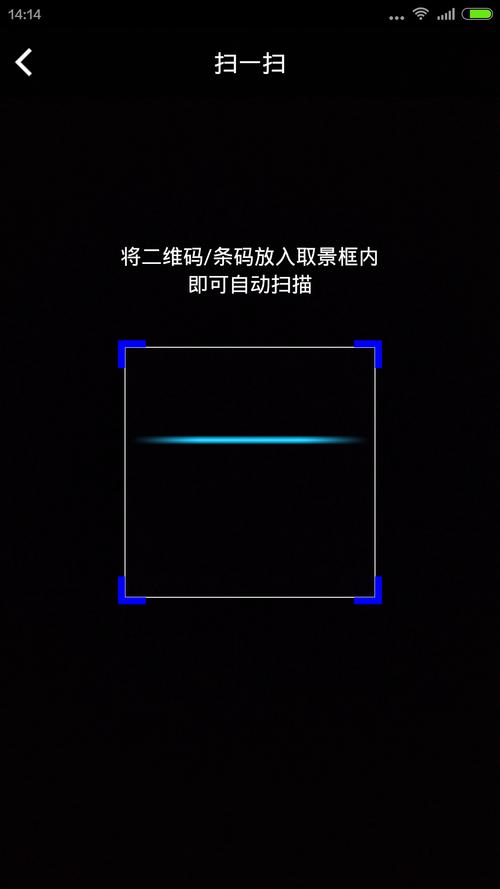
- Point a QR code or barcode (like from a product package) at the camera.
- You will see a green box drawn around it, and the decoded data will be printed in your terminal.
- Press the
qkey to stop the program.
Step 3: Advanced Example - Scanning from an Image File
You can also use this setup to scan a static image. This is great for testing and batch processing.
import cv2
from pyzbar.pyzbar import decode
import numpy as np
# --- Load an image ---
# Make sure you have a QR code image in the same directory, or provide the full path.
# You can download a sample QR code image from the internet.
image_path = 'qrcode.png'
image = cv2.imread(image_path)
if image is None:
    print(f"Error: Could not load image from {image_path}")
    exit()
# --- ZBAR SCANNING ---
decoded_objects = decode(image)
# --- PROCESSING AND DISPLAY ---
if not decoded_objects:
    print("No barcodes/QR codes found in the image.")
else:
    for obj in decoded_objects:
        data = obj.data.decode('utf-8')
        type_ = obj.type
        print(f"Type: {type_}, Data: {data}")
        # Draw a rectangle around the barcode
        points = obj.rect
        cv2.rectangle(image, (points.left, points.top), (points.right, points.bottom), (0, 255, 0), 3)
        # Put a text label
        cv2.putText(image, data, (points.left, points.top - 10), cv2.FONT_HERSHEY_SIMPLEX, 0.9, (0, 0, 255), 2)
# Display the result
cv2.imshow('Image Scanner', image)
cv2.waitKey(0)  # Wait for a key press to close
cv2.destroyAllWindows()
Comparison: pyzbar vs. OpenCV's Built-in QR Decoder
It's useful to know the differences between the two main options in Python.
| Feature | pyzbar (ZBar) |
OpenCV (cv2.barcode_QRCodeDetector) |
|---|---|---|
| Supported Formats | Excellent: Supports a wide range of 1D (EAN, UPC, Code 128, etc.) and 2D (QR, Data Matrix) codes. | Limited: Primarily focused on QR codes. It can sometimes detect other types, but it's not its primary function. |
| Accuracy & Robustness | Generally more robust, especially for 1D barcodes and in difficult conditions (blur, glare). | Good for QR codes, but can be less reliable than zbar for other types or in challenging scenarios. |
| Ease of Use | Very easy. decode(image) returns a list of all found objects. |
Slightly more involved. You create a detector object, then call detectAndDecode which returns the data, points, and decoded info separately. |
| Dependencies | Requires libzbar to be installed on the system (see note above). |
No external dependencies beyond OpenCV itself. |
| Performance | Very fast and efficient. | Also very fast. Performance differences are usually negligible for most applications. |
When to use which?
- Use
pyzbarif: You need to scan any kind of barcode (not just QR codes), or if you find OpenCV's QR detector is not reliable enough for your specific use case. - Use OpenCV's detector if: You only need to scan QR codes and want to minimize external dependencies for your project. It's a great choice if
zbarinstallation is problematic on your system.
Here is how you would use OpenCV's built-in detector for comparison:
import cv2
# Create a QRCodeDetector object
detector = cv2.barcode_QRCodeDetector()
# Read an image
image = cv2.imread('qrcode.png')
if image is None:
    print("Error: Could not load image.")
    exit()
# Detect and decode the QR code
data, points, _ = detector.detectAndDecode(image)
if data:
    print(f"QR Code Data: {data}")
    # Draw the bounding box
    if points is not None:
        points = points.astype(int)
        cv2.polylines(image, [points], True, (0, 255, 0), 2)
        # Put the text
        cv2.putText(image, data, (points[0][0], points[0][1] - 10), cv2.FONT_HERSHEY_SIMPLEX, 0.9, (0, 0, 255), 2)
else:
    print("No QR code detected.")
cv2.imshow('OpenCV QR Scanner', image)
cv2.waitKey(0)
cv2.destroyAllWindows()