Of course! This is a classic combination that has been the foundation of Android development for over a decade. Let's break down what "Java Eclipse Android" means, its history, how it works, and what the modern alternative is.
What is "Java Eclipse Android"?
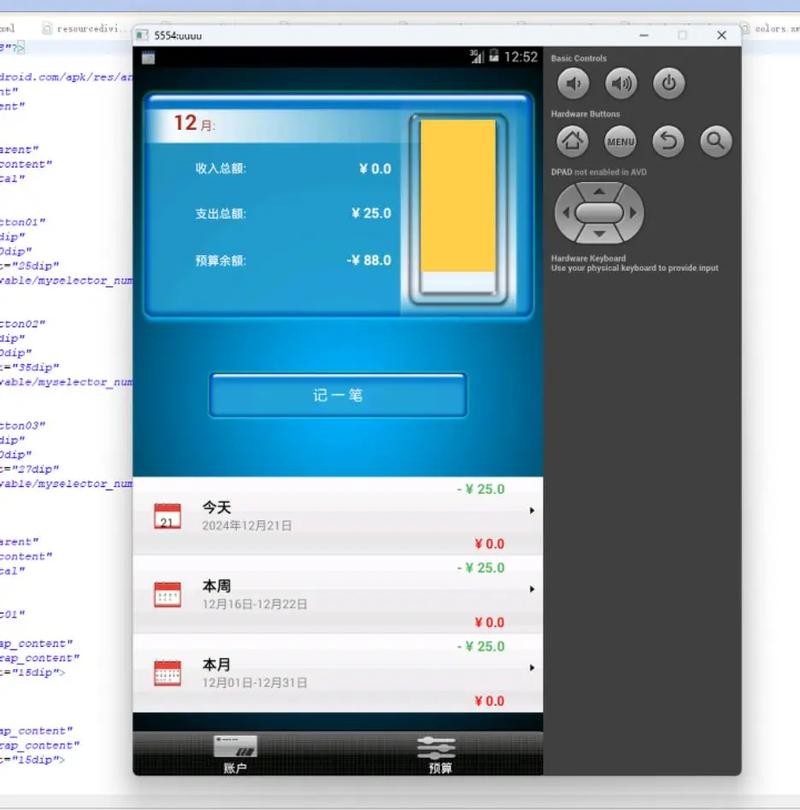
This phrase refers to the original, official method for developing native Android applications using the Java programming language within the Eclipse Integrated Development Environment (IDE).
- Java: The primary programming language for Android from its launch in 2008 until the introduction of Kotlin in 2025. It's a mature, object-oriented, and widely-used language.
- Eclipse: A very popular, open-source IDE, particularly in the enterprise and Java communities. It was known for its powerful features and extensive plugin ecosystem.
- Android: The mobile operating system developed by Google.
The Historical Context: The "Golden Age" (2008-2025)
Before Google officially launched its own IDE (Android Studio), the recommended way to develop for Android was using a combination of tools that worked together within Eclipse.
The Toolchain
You didn't just install Eclipse and start coding. You had to install and configure several key components:
- Eclipse IDE for Java Developers: The base IDE.
- Eclipse Plugin for Android Development Tools (ADT): This was the most crucial part. The ADT plugin transformed the standard Eclipse IDE into a full-fledged Android development environment. It provided:
- A visual layout editor for designing user interfaces (UIs).
- An Android Emulator Manager to create and run virtual devices (AVDs - Android Virtual Devices).
- An "Android Application Project" wizard to set up new projects with the correct folder structure.
- Integration with the Android build system (Ant, later Gradle).
- Debugging tools specifically for Android apps.
- Android Software Development Kit (SDK): This was the core package from Google. It contained:
- The essential libraries and APIs to build Android apps.
- The Android Debug Bridge (ADB), a command-line tool to communicate with an emulator or a physical device.
- Platform-specific tools and system images for emulators.
- Java Development Kit (JDK): Since you were writing Java code, you needed the JDK to compile it into Java bytecode.
The Workflow
- You would write Java code in
.javafiles. - You would design UI layouts using XML files in the
res/layoutdirectory. - The ADT plugin would use the Android SDK and the JDK to build, package, and debug your application.
- You could run your app on an Android Emulator or a connected physical device.
Why Did This Combination Fade Away?
While it was the official toolset for years, "Java + Eclipse" had significant drawbacks that led to its eventual replacement.

- Complex Setup: Getting all the components (Eclipse, ADT, SDK, JDK) to work together was often a headache. Version incompatibilities were common.
- Slow Performance: Eclipse was notorious for being slow and resource-intensive, especially when dealing with large Android projects.
- Buggy Plugin: The ADT plugin, while powerful, was often buggy and didn't always keep pace with the rapid evolution of the Android OS.
- No Integrated Build System: Initially, it used Ant for building, which was verbose and complex. While Gradle was later integrated, the experience wasn't as seamless as it would become in Android Studio.
- Google's Vision: Google wanted a more integrated, streamlined, and "blessed" development environment to ensure a better developer experience and faster adoption of new Android features.
The Modern Replacement: Android Studio
In 2025, Google released Android Studio. It is now the official and recommended IDE for all Android development.
Android Studio is built on top of IntelliJ IDEA, a modern and highly respected IDE. It was designed from the ground up for Android development.
Key Advantages of Android Studio over Eclipse + ADT:
| Feature | Eclipse + ADT (Old Way) | Android Studio (Modern Way) |
|---|---|---|
| Base IDE | Eclipse (General-purpose) | IntelliJ IDEA (Android-focused) |
| Plugin | ADT (Separate install) | Android SDK is built-in |
| Build System | Ant / Gradle (often clunky) | Gradle (First-class citizen) |
| Layout Editor | Basic visual editor | Advanced Layout Editor with ConstraintLayout, theme switching, and preview |
| Emulator | Managed through a separate window | Integrated, faster, and more feature-rich (e.g., "Quick Boot") |
| Performance | Often slow and clunky | Highly optimized and fast |
| Code Analysis | Good, but not as intelligent | Extremely intelligent with advanced refactoring, inspections, and quick fixes |
| Google Integration | Good | Seamless. New templates, components, and updates are delivered directly |
| Language Support | Primarily Java | Java and Kotlin (Kotlin is now the official language) |
Should You Use "Java Eclipse Android" Today?
For almost all new development, the answer is a firm NO.
You should use Android Studio with either Java or, preferably, Kotlin.
When might you still encounter this setup?
- Maintaining a very old, legacy Android project that was originally built in Eclipse and is too complex to migrate.
- Learning about the history of Android development to understand how things have evolved.
- Working in a company with a legacy codebase that hasn't been updated yet (this is increasingly rare).
Getting Started with Modern Android Development (The Right Way)
If you are a beginner or looking to start a new project, here is the correct path today.
Prerequisites:
- A recent version of the JDK (Java Development Kit).
- An Android SDK (this comes bundled with Android Studio).
Step-by-Step Guide:
-
Download Android Studio:
- Go to the official Android Studio download page.
- Download and install it for your operating system (Windows, macOS, or Linux).
-
Install and Set Up:
- Run the installer. It will guide you through the setup process.
- It will offer to download the latest Android SDK, Android Virtual Device (emulator) system images, and other necessary components. This can take a while, so be patient.
-
Create a New Project:
- Open Android Studio.
- Click on "New Project".
- Choose a template (e.g., "Empty Views Activity" is a good starting point).
- Configure your project:
- Name: Your application's name.
- Package name: A unique identifier for your app (e.g.,
com.example.myapp). - Save location: Where to save your project files.
- Language: Choose Kotlin (recommended) or Java.
- Minimum SDK: The oldest version of Android your app will support.
-
Explore the IDE:
- Android Studio will open your new project. Take a moment to explore the different windows:
- Project Pane: Shows your file structure.
- Code Editor: Where you write your Kotlin or Java code.
- Layout Editor: A visual tool to design your app's UI.
- Logcat: Shows system logs and debug messages from your app.
- Build Variants: Allows you to switch between debug and release builds.
- Android Studio will open your new project. Take a moment to explore the different windows:
-
Run Your App:
- Connect an Android device via USB (with USB debugging enabled) OR create a new Android Emulator (AVD).
- Click the green "Run" button (▶) in the toolbar, or press
Shift + F10. - Android Studio will build your app and install it on your chosen device/emulator.
Summary
| Era | Tools | Status | Recommendation |
|---|---|---|---|
| Past (Pre-2025) | Java + Eclipse + ADT | Deprecated | Only for maintaining old legacy projects. |
| Present & Future | Kotlin/Java + Android Studio | Official & Recommended | This is what you should use for all new development. |