Of course! Let's break down Java, SWT, and Eclipse. This is a classic combination that forms the foundation of a powerful desktop application development ecosystem.
The Big Picture: How They Fit Together
Think of it like building a car:
- Java is the engine and chassis. It's the core programming language and the platform (the Java Virtual Machine - JVM) that runs your code. It provides the power and structure.
- SWT (Standard Widget Toolkit) is the body, wheels, and dashboard. It's a library that gives you the pre-built components (like buttons, text boxes, windows) to build the user interface (UI) of your car.
- Eclipse is the car factory and the mechanic's garage. It's a massive, extensible software development environment (IDE) that is itself built using Java and SWT. It provides the tools (compiler, debugger, project management) to build your car (your application) efficiently.
In Detail: What is Each Component?
A. Java
- What it is: A high-level, class-based, object-oriented programming language.
- Key Feature: "Write Once, Run Anywhere" (WORA). Because Java code is compiled into an intermediate format called bytecode, it can run on any device that has a Java Virtual Machine (JVM), regardless of the underlying operating system (Windows, macOS, Linux).
- Role: It's the foundation. You write your application's logic, business rules, and data structures in Java. It handles the "brain" of your application.
B. SWT (Standard Widget Toolkit)
- What it is: A graphical widget toolkit for Java designed to provide efficient, native-platform UI components.
- Key Feature: Native Components. This is SWT's biggest differentiator from other toolkits like Swing. Instead of drawing UI elements itself (like Swing does), SWT uses the native widgets provided by the operating system.
- On Windows, it uses the Windows API.
- On macOS, it uses the Cocoa framework.
- On Linux, it uses GTK+ or Motif.
- Why is this important?
- Look and Feel: Your application looks and feels like a native application on each platform.
- Performance: It often feels faster and more responsive because it's using the OS's own highly optimized code.
- Role: SWT provides the building blocks for your application's user interface. You use it to create windows, buttons, text fields, tables, and all the visual elements that the user interacts with.
- Who created it? IBM, as part of the Eclipse project. It's now open source and managed by the Eclipse Foundation.
C. Eclipse
- What it is: An open-source, multi-language software development environment (IDE).
- Key Feature: Extensibility. Eclipse is built on a plug-in architecture. The core "platform" is minimal, and you add functionality through plug-ins. This is what makes it so powerful.
- How it relates to Java and SWT:
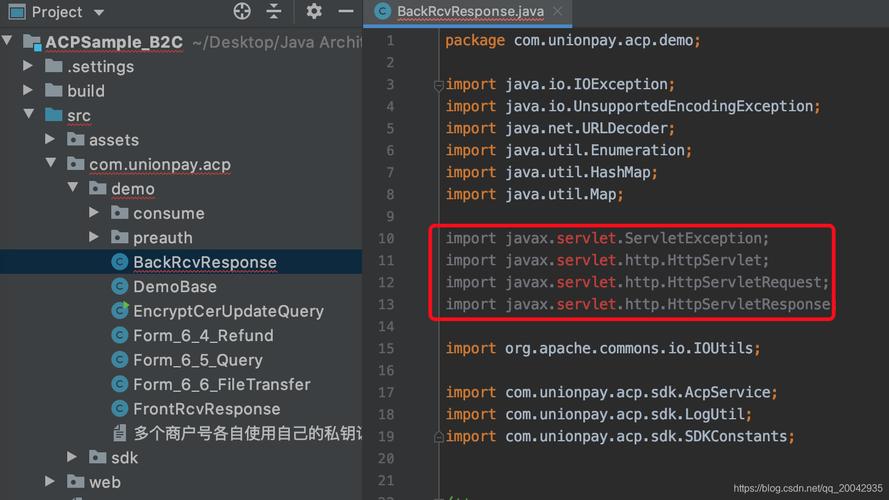
- The Eclipse IDE for Java Developers is itself a Java application.
- It uses SWT to build its own user interface. The windows, menus, editors, and views you see in Eclipse are all SWT widgets.
- Role: Eclipse is the tool you use to write, compile, debug, and manage your Java (and other language) projects. It includes a powerful code editor, a built-in compiler, a debugger, and tools for version control (like Git).
Comparison: SWT vs. Swing (The Other Java UI Toolkit)
When doing Java desktop development, you'll often compare SWT to Swing.
| Feature | SWT (Standard Widget Toolkit) | Swing |
|---|---|---|
| Components | Native. Uses the OS's own widgets. | Pure Java. Draws its own components on a canvas. |
| Look & Feel | Matches the native OS perfectly. | Can be made to look native, but often has a generic "Java" feel. Can be switched programmatically. |
| Performance | Generally faster and more responsive, especially for complex UIs. | Can be slower due to the "painting" overhead. |
| Platform Support | Excellent for Windows, Linux, macOS. | Excellent for all platforms with a JVM. |
| Threading Model | Strict Single-Threaded. UI updates must happen on the UI thread. This is a common pitfall for beginners. | More flexible. The Event Dispatch Thread (EDT) is the standard, but it's less strict than SWT's model. |
| License | Eclipse Public License (EPL), which is business-friendly. | GNU General Public License (GPL), which can have restrictions for commercial software. |
| Richness | Very rich set of components, especially when combined with the Eclipse JFace framework. | Also very rich, with a wide variety of components. |
In short: SWT feels more "at home" on the desktop it's running on, while Swing offers more consistency and flexibility across platforms.
A Simple SWT "Hello World" Example
This code creates a window with a button. When you click the button, it prints to the console.
Prerequisites:
You need the SWT library JAR file. The easiest way is to get it from the Eclipse download page. You can download the "Eclipse IDE for Java Developers" and find the swt.jar in its plugins folder.
import org.eclipse.swt.widgets.Display;
import org.eclipse.swt.widgets.Shell;
import org.eclipse.swt.widgets.Button;
import org.eclipse.swt.SWT;
public class HelloWorldSWT {
    public static void main(String[] args) {
        // 1. Create a new Display (manages the connection between the SWT app and the underlying OS)
        Display display = new Display();
        // 2. Create a new Shell (a top-level window, like an application window)
        Shell shell = new Shell(display);
        shell.setText("My First SWT App"); // Set the window title
        shell.setSize(300, 200);         // Set the window size (width, height)
        // 3. Create a widget (a Button)
        Button button = new Button(shell, SWT.PUSH);
        button.setText("Click Me!");
        button.setBounds(50, 50, 200, 50); // Set position (x, y) and size (width, height)
        // 4. Add a selection listener to the button
        button.addSelectionListener(new org.eclipse.swt.events.SelectionAdapter() {
            public void widgetSelected(org.eclipse.swt.events.SelectionEvent e) {
                System.out.println("Button was clicked!");
            }
        });
        // 5. Open the shell and start the event loop
        shell.open();
        // 6. The event loop: keep the window open and responsive until it's closed
        while (!shell.isDisposed()) {
            if (!display.readAndDispatch()) {
                display.sleep(); // If no events to process, sleep
            }
        }
        // 7. Dispose of the display resources
        display.dispose();
    }
}
To Run This Code:
- Create a new Java project in your IDE (like Eclipse or IntelliJ).
- Add the
swt.jarto your project's classpath. - Paste the code into a
HelloWorldSWT.javafile. - Run it.
Modern Alternatives to SWT
While SWT is still a powerful and valid choice, the landscape of UI development has evolved.
- JavaFX: The official modern UI toolkit from Oracle. It's a successor to Swing and offers rich features like CSS styling, FXML for declarative UI design, hardware-accelerated graphics, and multimedia support. It's now the recommended choice for new Java desktop applications by Oracle.
- LWJGL (Lightweight Java Game Library): Not a traditional UI toolkit, but a popular library for accessing low-level APIs like OpenGL, Vulkan, and OpenAL. It's used for high-performance applications, especially games (e.g., Minecraft uses LWJGL).
- Web Technologies: For many applications, building a web front-end (with HTML, CSS, and JavaScript) and accessing it via a Java backend is a more flexible and maintainable approach. Frameworks like Vaadin and GWT allow you to write Java code that compiles into a web UI.
Summary
| Java | SWT | Eclipse | |
|---|---|---|---|
| What it is | A programming language & runtime platform. | A UI toolkit library for Java. | An IDE for software development. |
| Purpose | Write application logic and run it anywhere. | Build native-looking desktop user interfaces. | Provide tools to write, compile, and debug code. |
| Relationship | The foundation language for SWT and the Eclipse IDE. | The library that Eclipse uses to build its own UI. | The tool that uses Java and SWT to help you build your apps. |