Of course! When it comes to Java development for Android, you have several excellent choices for an IDE (Integrated Development Environment). The landscape has evolved, with Android Studio being the undisputed king, but other options still exist for different needs.
Here’s a comprehensive breakdown of the best Java IDEs for Android development, from the official standard to other popular choices.
Android Studio (The Official & Recommended Choice)
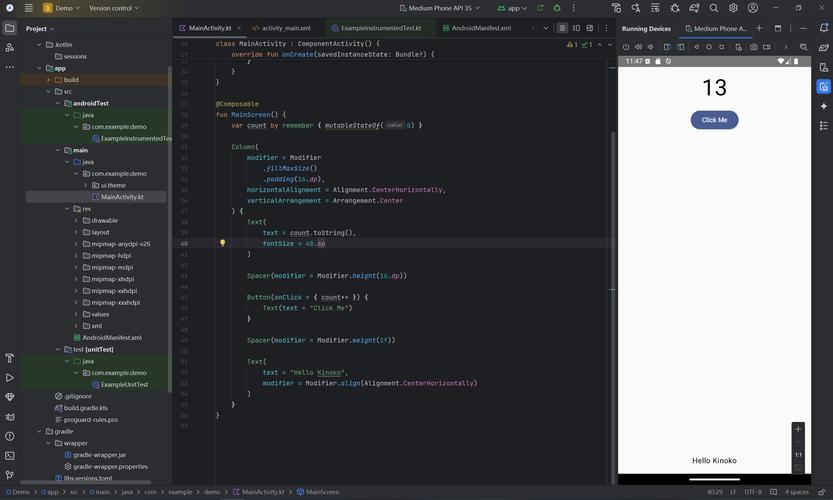
This is Google's official IDE for Android development, built by JetBrains on their IntelliJ IDEA platform. It is the most powerful, feature-rich, and up-to-date tool for the job.
Why it's the best:
- Official Support: Google develops and maintains it. You get the latest Android SDKs, build tools, and platform features first.
- Unmatched Integration: It's deeply integrated with the entire Android ecosystem.
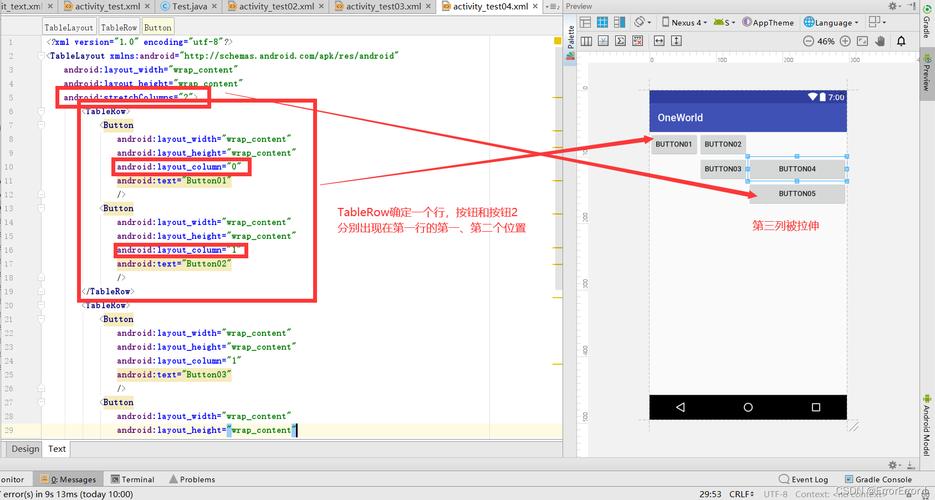
- Layout Editor: A powerful visual editor for designing your app's UI (XML layouts) with drag-and-drop functionality.
- Advanced Emulator: A fast and highly configurable Android Virtual Device (AVD) for testing your app.
- APK Analyzer: Inspect your final APK to understand its size, structure, and dependencies.
- Profiling Tools: Built-in tools for CPU, memory, network, and battery profiling to find and fix performance bottlenecks.
- Intelligent Code Editor: Features like smart code completion, refactoring, and real-time error checking are top-notch.
- Kotlin & Java Support: While Kotlin is now the preferred language, Android Studio has world-class support for both. You can write, debug, and manage Java code perfectly.
- Gradle Integration: Seamless integration with the Gradle build system, which is standard for Android projects.
- Version Control: Excellent built-in support for Git.
Who is it for?
- Everyone. From absolute beginners to professional Android developers building complex, large-scale applications. If you are starting a new Android project, this is the only tool you should consider.
Potential Downsides:
- Resource-Intensive: It can be slow and consume a lot of RAM on older or lower-spec computers.
- Steep Learning Curve: While it's powerful, the sheer number of features and settings can be overwhelming for a complete beginner.
Official Website: https://developer.android.com/studio
IntelliJ IDEA (The Professional Foundation)
Android Studio is essentially a customized version of IntelliJ IDEA Community Edition. If you prefer a more general-purpose IDE that excels at Java and is also fantastic for Android, IntelliJ IDEA is a superb choice.

Why it's great:
- Superior Java Support: Many developers consider IntelliJ IDEA to have the best Java support in the world. Its code analysis, refactoring, and navigation are legendary.
- Cross-Platform: Works seamlessly on Windows, macOS, and Linux.
- Community Edition is Free: The core features for Java development and Android are available in the free Community Edition.
- Highly Customizable: You can tweak every aspect of the IDE to fit your workflow.
Who is it for?
- Developers who work on both Android projects and other Java-based projects (e.g., backend services, desktop apps).
- Developers who want the absolute best Java coding experience and are willing to set up the Android SDK manually.
How to use it for Android:
You need to install the Android SDK separately and configure IntelliJ IDEA to use it. It's a bit more work than with Android Studio but gives you a more "vanilla" IntelliJ experience.
Official Website: https://www.jetbrains.com/idea/
Eclipse with ADT (The Legacy Choice)
Eclipse was the dominant IDE for Android development before Android Studio was introduced. While it's no longer recommended for new projects, you might encounter it in older codebases or specific corporate environments.
Why it was popular:
- Free and Open Source: Like IntelliJ, it was a free, powerful option.
- Large Plugin Ecosystem: The Eclipse Marketplace allows for extensive customization.
Why it's not recommended today:
- Discontinued: Google stopped supporting the Eclipse Android Development Tools (ADT) plugin in 2025.
- Outdated: It lacks the modern features, performance, and integration of Android Studio.
- Fragile Setup: Configuring it for Android development was often more complex and prone to errors.
Who is it for?
- Maintaining or working on very old Android projects that were built with Eclipse.
Visual Studio Code (The Lightweight & Modern Editor)
VS Code is a free, lightweight, and highly extensible source-code editor. It is not a full IDE out-of-the-box, but with the right extensions, it becomes a very capable environment for Android development.
Why it's a good option:
- Lightning Fast: It starts instantly and is very responsive.
- Excellent Java Support: The Extension Pack for Java by Red Hat provides a full Java development experience (debugging, testing, refactoring, etc.).
- Great Git Integration: Arguably the best Git UI available in any editor.
- Cross-Platform: Works everywhere.
How to use it for Android (The Manual Way):
This is the key difference. VS Code does not have a built-in "Android Run" button. You manage your project and build it from the command line using Gradle.
- Install Android SDK and NDK: Download and set up the Android SDK on your system.
- Install Java JDK: Ensure you have a compatible JDK installed.
- Install VS Code Extensions:
- Extension Pack for Java
- Android Keytool (for signing apps)
- Open Your Project: Open your project's root directory (the one with
build.gradle). - Build and Run from Terminal: You'll use the integrated terminal to run Gradle commands:
./gradlew build: To build your project../gradlew installDebug: To install the debug APK on a connected device or emulator../gradlew uninstallDebug: To uninstall the app.
Who is it for?
- Web/Backend Developers: Who are already comfortable with VS Code and want to dabble in Android without switching tools.
- Experts who love the terminal: Who prefer command-line control over GUI automation.
- Users on low-spec machines: Who find Android Studio too slow.
Official Website: https://code.visualstudio.com/
Comparison Table
| Feature | Android Studio | IntelliJ IDEA | Eclipse | Visual Studio Code |
|---|---|---|---|---|
| Primary Use | Android Development | General Java & Android | Legacy Android | Lightweight Editing |
| Official | Yes | No (but from Google's partner) | No | No |
| Ease of Setup | Excellent (All-in-one) | Good (Manual SDK setup) | Good (but outdated) | Manual (Command-line focused) |
| UI/ Layout Editor | Best-in-Class | Good (via Android plugin) | Basic/Outdated | No (Manual XML editing) |
| Emulator Integration | Excellent | Good | Basic | No |
| Java Support | Excellent | Best-in-Class | Good | Excellent (with extensions) |
| Performance | Can be slow | Good | Good | Excellent |
| Learning Curve | Moderate | Moderate | Moderate | Steep (for Android workflow) |
| Price | Free | Free (Community) | Free | Free |
Final Recommendation
- For 99% of developers, especially beginners: Start with Android Studio. It's the official tool, has the best integration, and is designed specifically for Android. The initial setup is easy, and the long-term benefits are immense.
- For a full-stack Java developer: IntelliJ IDEA Community Edition is a fantastic alternative if you want a more general-purpose IDE that still handles Android beautifully.
- For web developers or terminal lovers: Visual Studio Code is a powerful and modern choice, but be prepared to get comfortable with the command line for building and running your app.
- For maintaining old projects: You might be stuck with Eclipse, but try to migrate the project to Android Studio as soon as possible.