Of course! Converting XML to Excel in Python is a common task, and there are several excellent libraries to choose from. The best method depends on the complexity of your XML file.

I'll guide you through the most popular and effective methods, starting with the simplest for well-structured XML and moving to more robust solutions for complex files.
Scenario 1: Simple, Flat XML (Best for pandas)
This is the easiest and most common scenario. Your XML has a repeating structure where each <record> or <item> can be directly mapped to a row in an Excel sheet.
Example XML File (data_simple.xml):
<?xml version="1.0"?>
<root>
  <record>
    <id>1</id>
    <product>Laptop</product>
    <price>1200</price>
  </record>
  <record>
    <id>2</id>
    <product>Mouse</product>
    <price>25</price>
  </record>
  <record>
    <id>3</id>
    <product>Keyboard</product>
    <price>75</price>
  </record>
</root>
Method A: Using pandas (Recommended for Simplicity)
The pandas library is fantastic for this. It can read XML directly if it's structured like our example.
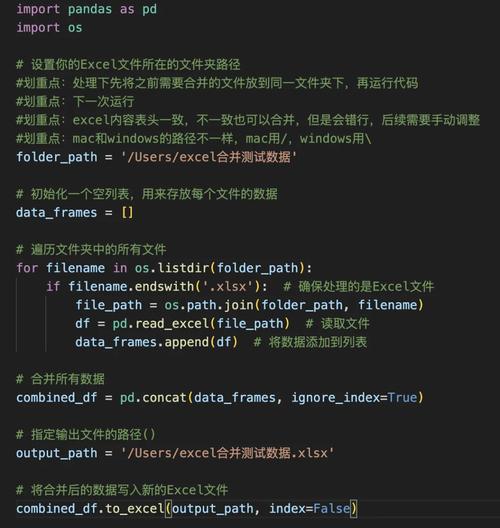
Install pandas and lxml:
lxml is a high-performance XML library that pandas uses under the hood for parsing.
pip install pandas lxml openpyxl
Python Script:
import pandas as pd
# The file path to your XML
xml_file = 'data_simple.xml'
# Read the XML file into a pandas DataFrame
# The 'record' tag is the repeating element that becomes each row.
df = pd.read_xml(xml_file, parser='lxml')
# Display the DataFrame (optional)
print(df)
# Write the DataFrame to an Excel file
# 'index=False' prevents writing the DataFrame index as a column
excel_file = 'output_simple.xlsx'
df.to_excel(excel_file, index=False, engine='openpyxl')
print(f"Successfully converted '{xml_file}' to '{excel_file}'")
Output (output_simple.xlsx):
| id | product | price |
|---|---|---|
| 1 | Laptop | 1200 |
| 2 | Mouse | 25 |
| 3 | Keyboard | 75 |
Scenario 2: Nested or Complex XML (Best for xml.etree.ElementTree)
When your XML has nested elements or attributes, pandas.read_xml() might not work out of the box. In this case, the standard library xml.etree.ElementTree gives you full control.
Example XML File (data_complex.xml):
<?xml version="1.0"?>
<orders>
  <order id="101">
    <customer>
      <name>Alice</name>
      <email>alice@example.com</email>
    </customer>
    <items>
      <item sku="A-123">Laptop</item>
      <item sku="B-456">Mouse</item>
    </items>
  </order>
  <order id="102">
    <customer>
      <name>Bob</name>
      <email>bob@example.com</email>
    </customer>
    <items>
      <item sku="C-789">Keyboard</item>
    </items>
  </order>
</orders>
Method B: Using xml.etree.ElementTree and pandas
We will parse the XML manually, flatten the nested structure, and then use pandas to create the Excel file.
Install libraries:
pip install pandas openpyxl
(Note: lxml is not strictly needed here as we use the built-in ElementTree).
Python Script:
import xml.etree.ElementTree as ET
import pandas as pd
def parse_xml_to_dataframe(xml_file):
    """
    Parses a complex XML file and returns a pandas DataFrame.
    Handles nested elements and attributes.
    """
    tree = ET.parse(xml_file)
    root = tree.getroot()
    all_records = []
    # Iterate over each 'order' tag
    for order in root.findall('order'):
        record = {}
        # Get attributes from the 'order' tag itself
        record['order_id'] = order.get('id')
        # Find child elements
        customer = order.find('customer')
        items = order.find('items')
        if customer is not None:
            record['customer_name'] = customer.find('name').text
            record['customer_email'] = customer.find('email').text
        if items is not None:
            # For multiple items, we'll join them with a separator
            item_texts = [item.text for item in items.findall('item')]
            record['items'] = ", ".join(item_texts)
            # We can also capture attributes if needed
            item_skus = [item.get('sku') for item in items.findall('item')]
            record['item_skus'] = ", ".join(item_skus)
        all_records.append(record)
    return pd.DataFrame(all_records)
# --- Main Execution ---
xml_file = 'data_complex.xml'
df = parse_xml_to_dataframe(xml_file)
print(df)
# Write the DataFrame to an Excel file
excel_file = 'output_complex.xlsx'
df.to_excel(excel_file, index=False, engine='openpyxl')
print(f"Successfully converted '{xml_file}' to '{output_complex.xlsx}'")
Output (output_complex.xlsx):
| order_id | customer_name | customer_email | items | item_skus |
|---|---|---|---|---|
| 101 | Alice | alice@example.com | Laptop, Mouse | A-123, B-456 |
| 102 | Bob | bob@example.com | Keyboard | C-789 |
Summary: Which Method Should I Use?
| Method | Best For | Pros | Cons |
|---|---|---|---|
pandas.read_xml() |
Simple, flat XML with a clear repeating element (e.g., <record>). |
Extremely simple, one line of code to read. | Fails on complex or deeply nested XML. Requires lxml. |
xml.etree.ElementTree |
Complex, nested XML with attributes and varying structures. | Full control over parsing logic, part of Python's standard library. | More code to write, requires manual iteration and data structuring. |
lxml |
Very large XML files or when you need XPath 2.0 support. | High performance, powerful features. | Not in the standard library, can have a steeper learning curve. |
For most day-to-day tasks, start with pandas.read_xml(). If it fails or gives you unwanted results, switch to the xml.etree.ElementTree method for a more robust solution.