
Of course! Writing to a CSV (Comma-Separated Values) file in Python is a common task. The best and most recommended way to do this is by using Python's built-in csv module. It's robust, handles special characters (like commas within your data), and is part of the standard library, so no installation is needed.
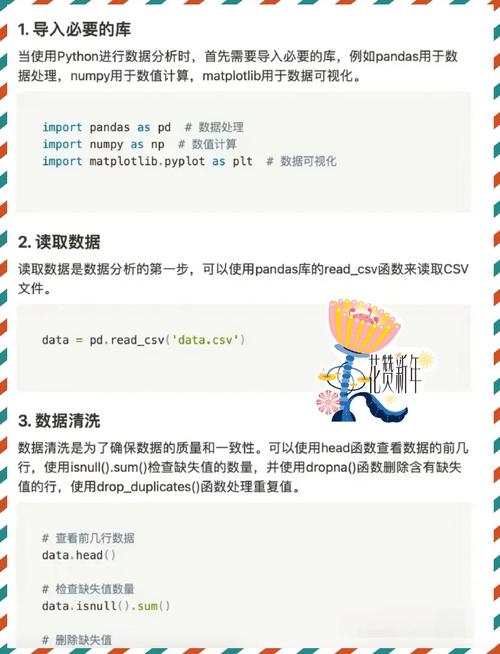
Here’s a complete guide, starting with the basics and moving to more advanced and recommended patterns.
Method 1: The Basic csv.writer (Good for Beginners)
This is the most straightforward approach. You open a file, create a writer object, and use its writerow() method.
Step-by-Step Example
Let's create a CSV file named students.csv with some data.
import csv
# The data you want to write. A list of lists.
# Each inner list represents a row.
data = [
    ["Name", "Age", "City"],
    ["Alice", 30, "New York"],
    ["Bob", 25, "Los Angeles"],
    ["Charlie", 35, "Chicago"]
]
# 1. Open the file in write mode ('w')
#    - newline='' is crucial to prevent extra blank rows between entries.
#    - It's good practice to specify encoding, especially for Windows.
with open('students.csv', 'w', newline='', encoding='utf-8') as file:
    # 2. Create a csv writer object
    writer = csv.writer(file)
    # 3. Write the data to the file
    #    writerow() writes a single row (a list)
    for row in data:
        writer.writerow(row)
print("CSV file 'students.csv' created successfully!")
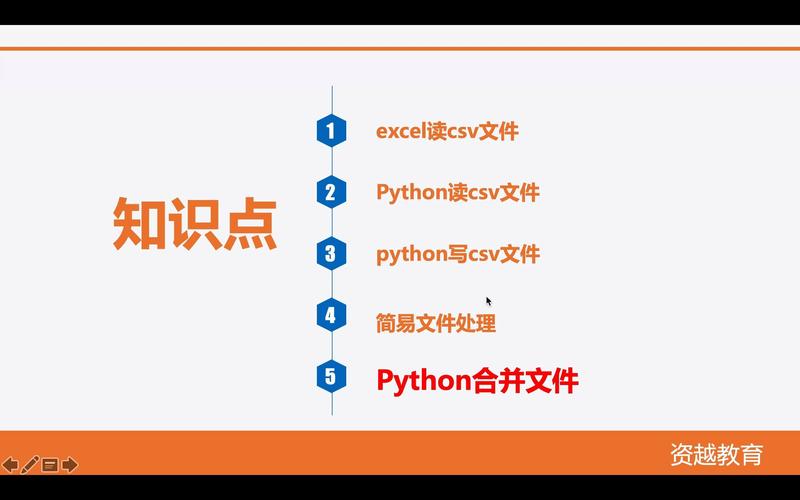
After running this code, students.csv will contain:
Name,Age,City
Alice,30,New York
Bob,25,Los Angeles
Charlie,35,Chicago
Key Points:
with open(...): This is the standard way to handle files in Python. It automatically closes the file for you, even if errors occur.'w'mode: Stands for "write". Warning: This mode will overwrite the file if it already exists. If you want to append to an existing file, use'a'(append) mode.newline='': This is a critical argument when working with thecsvmodule. If you omit it, you'll get a blank line between every row in your output file on some operating systems (like Windows).encoding='utf-8': Ensures your file is saved in a universal format, which is essential for handling different languages and special characters.
Method 2: Writing a Dictionary (More Pythonic & Recommended)
Often, your data is naturally structured as a list of dictionaries. This is where csv.DictWriter shines, as it allows you to write data using dictionary keys as headers.
Step-by-Step Example
Let's write the same student data, but this time using dictionaries.
import csv
# The data you want to write. A list of dictionaries.
# Each dictionary represents a row.
data = [
    {"Name": "Alice", "Age": 30, "City": "New York"},
    {"Name": "Bob", "Age": 25, "City": "Los Angeles"},
    {"Name": "Charlie", "Age": 35, "City": "Chicago"}
]
# Define the column headers (the keys of your dictionaries)
headers = ["Name", "Age", "City"]
# 1. Open the file in write mode
with open('students_dict.csv', 'w', newline='', encoding='utf-8') as file:
    # 2. Create a DictWriter object, specifying the fieldnames (headers)
    writer = csv.DictWriter(file, fieldnames=headers)
    # 3. Write the header row
    writer.writeheader()
    # 4. Write the data rows
    #    writerows() can take a list of dictionaries
    writer.writerows(data)
print("CSV file 'students_dict.csv' created successfully!")
Output (students_dict.csv):
Name,Age,City
Alice,30,New York
Bob,25,Los Angeles
Charlie,35,Chicago
Why DictWriter is often better:
- Readability: The code
writer.writerow({"Name": "Alice", ...})is very clear. - Flexibility: You don't have to worry about the order of columns. The
fieldnamesargument defines the order in the CSV file. - Header Management:
writeheader()is a clean, explicit way to write the column titles.
Method 3: Using Pandas (The Data Science Standard)
If you are doing any kind of data analysis, you are likely already using the Pandas library. It has its own, very simple methods for reading and writing CSVs.
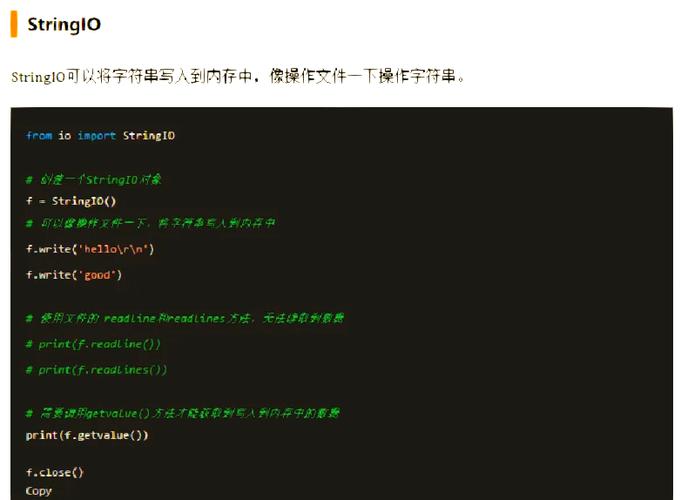
First, you might need to install pandas:
pip install pandas
Step-by-Step Example
Pandas works with a DataFrame, which is a powerful 2D table-like data structure.
import pandas as pd
# The data can be a list of lists or a list of dictionaries
data = [
    {"Name": "Alice", "Age": 30, "City": "New York"},
    {"Name": "Bob", "Age": 25, "City": "Los Angeles"},
    {"Name": "Charlie", "Age": 35, "City": "Chicago"}
]
# 1. Create a DataFrame from the data
df = pd.DataFrame(data)
# 2. Write the DataFrame to a CSV file
#    - index=False prevents pandas from writing the DataFrame index as a column.
#    - header=True is the default, but you can set it to False if you don't need headers.
df.to_csv('students_pandas.csv', index=False, encoding='utf-8')
print("CSV file 'students_pandas.csv' created successfully!")
Output (students_pandas.csv):
Name,Age,City
Alice,30,New York
Bob,25,Los Angeles
Charlie,35,Chicago
Why use Pandas?
- Extremely Simple:
df.to_csv()is one of the easiest functions to use. - Powerful: It's designed for data manipulation, so you can easily filter, sort, or transform your data before saving it.
- Default Handling: It handles many edge cases (like data types) gracefully.
Summary: Which Method Should You Use?
| Method | Best For | Pros | Cons |
|---|---|---|---|
csv.writer |
Simple scripts, writing lists of lists. | Built-in, no dependencies, lightweight. | Less flexible; requires careful column order. |
csv.DictWriter |
Most general-purpose use. Writing structured data (list of dicts). | Pythonic, readable, handles headers well, flexible column order. | Still part of the standard library. |
pandas.DataFrame |
Data analysis, large datasets, complex data manipulation. | Extremely easy, powerful, industry standard for data. | Requires an external library (pip install pandas). Overkill for very simple tasks. |
Recommendation:
- For most day-to-day scripting tasks, use
csv.DictWriter. It's the perfect balance of simplicity and power. - If you're working within a data analysis pipeline or need to perform calculations on your data before saving, use Pandas.











