Of course! "Python serverstatus" can mean a few different things, so I'll provide a comprehensive guide covering the most common interpretations:

- A Simple, Custom Script: A Python script you write from scratch to check the status of a local or remote server.
- Using a Powerful Library: Leveraging a popular library like
psutilto get detailed system information, which is the foundation for most monitoring tools. - Building a Web Dashboard: Creating a simple web server (using Flask) that displays the server status in a browser.
Let's go through each one, starting with the most basic.
The Simple "Is It Up?" Script
This is the most basic interpretation. The goal is to check if a server is responding to network requests (usually on port 80 for HTTP or 22 for SSH). We can use Python's built-in socket library for this.
This script will try to connect to a given host and port. If it succeeds, the server is "up". If it fails, it's "down".
The Code: check_server.py
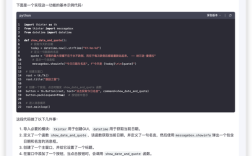
import socket
import sys
def check_server(host, port):
    """
    Attempt to connect to a server at the given host and port.
    Returns True if the connection is successful, False otherwise.
    """
    try:
        # Create a socket object (AF_INET for IPv4, SOCK_STREAM for TCP)
        with socket.socket(socket.AF_INET, socket.SOCK_STREAM) as s:
            # Set a timeout for the connection attempt (e.g., 3 seconds)
            s.settimeout(3)
            # Try to connect to the host and port
            s.connect((host, port))
        print(f"✅ Server {host}:{port} is UP and responding.")
        return True
    except (socket.timeout, ConnectionRefusedError, socket.gaierror) as e:
        # Handle common errors:
        # - socket.timeout: Connection timed out.
        # - ConnectionRefusedError: Server is not listening on the port.
        # - socket.gaierror: Hostname could not be resolved.
        print(f"❌ Server {host}:{port} is DOWN. Reason: {e}")
        return False
    except Exception as e:
        print(f"❌ An unexpected error occurred with {host}:{port}. Reason: {e}")
        return False
if __name__ == "__main__":
    # --- Configuration ---
    # You can change these values or pass them as command-line arguments
    HOST_TO_CHECK = "google.com"  # e.g., "8.8.8.8", "localhost", "your-server.com"
    PORT_TO_CHECK = 80            # Common ports: 80 (HTTP), 443 (HTTPS), 22 (SSH)
    if len(sys.argv) == 3:
        # Allow arguments to be passed from the command line
        HOST_TO_CHECK = sys.argv[1]
        PORT_TO_CHECK = int(sys.argv[2])
    print(f"Checking status of {HOST_TO_CHECK} on port {PORT_TO_CHECK}...")
    is_up = check_server(HOST_TO_CHECK, PORT_TO_CHECK)
    # You can use the return value for automation
    # if not is_up:
    #     sys.exit(1) # Exit with an error code
How to Run It:
-
Save the code as
check_server.py. (图片来源网络,侵删)
 -
Run it from your terminal:
# Check google.com on the default port 80
python check_server.py
# Check a specific host and port
python check_server.py your-server.com 22
# Check your own local web server
python check_server.py localhost 8000
Using the psutil Library for Detailed System Status
For a more meaningful "server status," you need to know about the server's internal health: CPU usage, memory, disk space, network activity, etc. The psutil (process and system utilities) library is perfect for this.
First, you need to install it:
pip install psutil
The Code: system_status.py
This script will print a detailed report of the current system status.

import psutil
import datetime
def get_system_status():
    """Collects and returns various system status metrics."""
    status = {}
    # Boot time
    boot_time_timestamp = psutil.boot_time()
    status['boot_time'] = datetime.datetime.fromtimestamp(boot_time_timestamp).strftime("%Y-%m-%d %H:%M:%S")
    # CPU Information
    status['cpu_usage_percent'] = psutil.cpu_percent(interval=1)
    status['cpu_cores'] = psutil.cpu_count(logical=False)  # Physical cores
    status['cpu_threads'] = psutil.cpu_count(logical=True)   # All threads
    # Memory Information (RAM)
    mem = psutil.virtual_memory()
    status['memory_total_gb'] = round(mem.total / (1024**3), 2)
    status['memory_used_gb'] = round(mem.used / (1024**3), 2)
    status['memory_available_gb'] = round(mem.available / (1024**3), 2)
    status['memory_usage_percent'] = mem.percent
    # Disk Information
    disk = psutil.disk_usage('/')
    status['disk_total_gb'] = round(disk.total / (1024**3), 2)
    status['disk_used_gb'] = round(disk.used / (1024**3), 2)
    status['disk_free_gb'] = round(disk.free / (1024**3), 2)
    status['disk_usage_percent'] = round((disk.used / disk.total) * 100, 2)
    # Network Information
    net_io = psutil.net_io_counters()
    status['network_bytes_sent'] = net_io.bytes_sent
    status['network_bytes_recv'] = net_io.bytes_recv
    return status
def print_status(status):
    """Prints the status in a human-readable format."""
    print("="*40)
    print("      SERVER STATUS REPORT")
    print("="*40)
    print(f"Boot Time: {status['boot_time']}")
    print(f"CPU Usage: {status['cpu_usage_percent']}% ({status['cpu_cores']} cores, {status['cpu_threads']} threads)")
    print(f"Memory Usage: {status['memory_usage_percent']}% ({status['memory_used_gb']} GB / {status['memory_total_gb']} GB)")
    print(f"Disk Usage: {status['disk_usage_percent']}% ({status['disk_used_gb']} GB / {status['disk_total_gb']} GB)")
    print(f"Network - Sent: {status['network_bytes_sent'] / (1024**2):.2f} MB, Recv: {status['network_bytes_recv'] / (1024**2):.2f} MB")
    print("="*40)
if __name__ == "__main__":
    current_status = get_system_status()
    print_status(current_status)
How to Run It:
- Save the code as
system_status.py. - Run it:
python system_status.py
Sample Output:
========================================
      SERVER STATUS REPORT
========================================
Boot Time: 2025-10-27 10:30:15
CPU Usage: 5.1% (4 cores, 8 threads)
Memory Usage: 45.2% (7.81 GB / 17.2 GB)
Disk Usage: 35.6% (250.1 GB / 700.5 GB)
Network - Sent: 125.42 MB, Recv: 512.18 MB
========================================
Building a Live Web Dashboard (Advanced)
The most useful status is one you can view in a browser. We can use the Flask web framework to create a simple dashboard that refreshes automatically.
First, install Flask:
pip install flask
The Code: app.py
This code sets up a web server. The main page () will display the system status generated by psutil.
import psutil
from flask import Flask, render_template_string
app = Flask(__name__)
# HTML template for our dashboard
# The {{ ... }} parts are placeholders that Flask will fill in.
# The <meta http-equiv="refresh" content="5"> tag makes the page reload every 5 seconds.
HTML_TEMPLATE = """
<!DOCTYPE html>
<html>
<head>Server Status Dashboard</title>
    <style>
        body { font-family: sans-serif; margin: 20px; background-color: #f4f4f4; }
        h1 { color: #333; }
        .container { max-width: 800px; margin: auto; background: white; padding: 20px; border-radius: 8px; box-shadow: 0 2px 4px rgba(0,0,0,0.1); }
        .status-grid { display: grid; grid-template-columns: repeat(auto-fit, minmax(200px, 1fr)); gap: 15px; }
        .status-card { border: 1px solid #ddd; padding: 15px; border-radius: 5px; text-align: center; }
        .status-card h3 { margin-top: 0; color: #555; }
        .status-value { font-size: 1.8em; font-weight: bold; color: #007bff; }
        .status-label { font-size: 0.9em; color: #777; }
        .footer { text-align: center; margin-top: 20px; color: #888; font-size: 0.8em; }
    </style>
</head>
<body>
    <div class="container">
        <h1>Server Status Dashboard</h1>
        <div class="status-grid">
            <div class="status-card">
                <h3>CPU Usage</h3>
                <div class="status-value">{{ cpu_percent }}%</div>
                <div class="status-label">{{ cpu_cores }} cores</div>
            </div>
            <div class="status-card">
                <h3>Memory Usage</h3>
                <div class="status-value">{{ memory_percent }}%</div>
                <div class="status-label">{{ memory_used }} GB / {{ memory_total }} GB</div>
            </div>
            <div class="status-card">
                <h3>Disk Usage (/)</h3>
                <div class="status-value">{{ disk_percent }}%</div>
                <div class="status-label">{{ disk_used }} GB / {{ disk_total }} GB</div>
            </div>
            <div class="status-card">
                <h3>Network I/O</h3>
                <div class="status-value">{{ net_sent_mb }} MB</div>
                <div class="status-label">Bytes Sent</div>
            </div>
        </div>
    </div>
    <div class="footer">
        Page refreshes every 5 seconds.
    </div>
</body>
</html>
"""
def get_status_for_dashboard():
    """Gathers status data formatted for the dashboard."""
    data = {}
    # CPU
    data['cpu_percent'] = psutil.cpu_percent(interval=1)
    data['cpu_cores'] = psutil.cpu_count(logical=False)
    # Memory
    mem = psutil.virtual_memory()
    data['memory_percent'] = mem.percent
    data['memory_used'] = round(mem.used / (1024**3), 2)
    data['memory_total'] = round(mem.total / (1024**3), 2)
    # Disk
    disk = psutil.disk_usage('/')
    data['disk_percent'] = round((disk.used / disk.total) * 100, 2)
    data['disk_used'] = round(disk.used / (1024**3), 2)
    data['disk_total'] = round(disk.total / (1024**3), 2)
    # Network
    net_io = psutil.net_io_counters()
    data['net_sent_mb'] = round(net_io.bytes_sent / (1024**2), 2)
    return data
@app.route('/')
def dashboard():
    """Renders the main dashboard page."""
    status_data = get_status_for_dashboard()
    return render_template_string(HTML_TEMPLATE, **status_data)
if __name__ == "__main__":
    # Runs the app on http://127.0.0.1:5000/
    # Use host='0.0.0.0' to make it accessible from other devices on your network
    app.run(host='0.0.0.0', port=5000, debug=True)
How to Run It:
- Save the code as
app.py. - Run it from your terminal:
python app.py
- Open your web browser and go to
http://localhost:5000.
You will see a live-updating dashboard showing your server's CPU, memory, and disk usage!
Summary
| Method | Best For | Key Libraries | Complexity |
|---|---|---|---|
| Simple Script | Basic network checks, quick "is it up?" tests. | socket |
Low |
psutil Script |
Getting detailed system metrics from the command line. | psutil |
Low |
| Web Dashboard | Creating a user-friendly, continuously updating monitoring page. | flask, psutil |
Medium |
For serious server monitoring, you would typically build upon the psutil and Flask concepts, adding features like historical data storage (e.g., in a database), alerting (e.g., sending an email if CPU is too high), and a more polished UI. But these examples provide a fantastic starting point for any Python-based server status project.