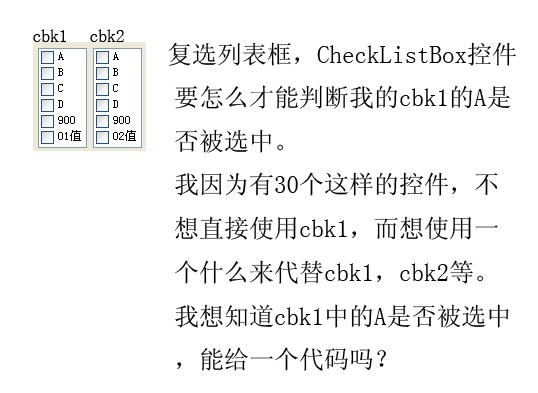
Of course! A "checklist box" in Python is typically a list of items where each item has a checkbox next to it. The standard library doesn't have a single widget called ChecklistBox, but you can easily create one using the built-in Tkinter library.
I'll show you two excellent ways to do this:
- The Modern & Recommended Way: Using
ttk.Treeview(part of the themed Tkinter library). This is the most flexible and standard approach in modern Tkinter. - The Simple & Direct Way: Using a
Framewith a loop ofCheckbuttonwidgets. This is great for simpler cases and is very easy to understand.
Method 1: Using ttk.Treeview (Recommended)
This method creates a scrollable list where each row has a checkbox and a label. It's highly customizable and handles data well.
Why is this method good?
- Scrollable: Works perfectly with scrollbars.
- Single Selection/No Selection: Can be configured to allow selecting zero, one, or multiple rows.
- Clean Data Management: Each row can hold data associated with the item.
- Standard Look and Feel: Uses the modern "themed" widgets.
Complete Code Example
import tkinter as tk
from tkinter import ttk
class ChecklistApp:
    def __init__(self, root):
        self.root = root
        self.root.title("Tkinter Checklist Box (Treeview)")
        self.root.geometry("300x400")
        # --- Data for the checklist ---
        self.checklist_items = [
            {"text": "Learn Python", "checked": True},
            {"text": "Build a GUI App", "checked": False},
            {"text": "Master Tkinter", "checked": True},
            {"text": "Deploy the Application", "checked": False},
            {"text": "Write Documentation", "checked": False},
            {"text": "Take a Break", "checked": True},
        ]
        # --- Create the Treeview ---
        # We need a frame to place the treeview and scrollbar in
        self.tree_frame = ttk.Frame(self.root)
        self.tree_frame.pack(pady=10, padx=10, fill="both", expand=True)
        # Define the columns
        self.tree = ttk.Treeview(self.tree_frame, columns=("checked",), show="tree", selectmode="browse")
        # Hide the non-visible first column (the tree column)
        self.tree.column("#0", width=0, stretch=False)
        self.tree.heading("#0", text="", anchor="w")
        # Configure the visible 'checked' column
        self.tree.column("checked", anchor="w", width=250)
        self.tree.heading("checked", text="Task", anchor="w")
        # Add a vertical scrollbar
        scrollbar = ttk.Scrollbar(self.tree_frame, orient="vertical", command=self.tree.yview)
        self.tree.configure(yscrollcommand=scrollbar.set)
        scrollbar.pack(side="right", fill="y")
        self.tree.pack(side="left", fill="both", expand=True)
        # --- Populate the Treeview with Checkbuttons ---
        self.check_vars = {} # To store the IntVar for each checkbox
        for item in self.checklist_items:
            var = tk.IntVar(value=1 if item["checked"] else 0)
            self.check_vars[item["text"]] = var
            # Create a frame to hold the Checkbutton and label
            frame = ttk.Frame(self.tree)
            frame.pack(fill="x", padx=5, pady=2)
            # Create the Checkbutton
            cb = ttk.Checkbutton(
                frame,
                text=item["text"],
                variable=var,
                command=lambda t=item["text"]: self.on_item_checked(t)
            )
            cb.pack(side="left")
            # Insert the frame into the treeview
            self.tree.insert("", "end", iid=item["text"], values=(item["text"],), open=False)
        # --- Buttons to get results ---
        button_frame = ttk.Frame(self.root)
        button_frame.pack(pady=10)
        ttk.Button(button_frame, text="Get Checked Items", command=self.get_checked_items).pack(side="left", padx=5)
        ttk.Button(button_frame, text="Get All Items", command=self.get_all_items).pack(side="left", padx=5)
    def on_item_checked(self, item_text):
        """Called whenever a checkbox is toggled."""
        # You can add logic here, like enabling/disabling other widgets
        print(f"'{item_text}' checkbox was toggled. State is now: {self.check_vars[item_text].get()}")
        # self.update_item_data(item_text)
    def get_checked_items(self):
        """Prints a list of all checked items."""
        checked_list = [item for item, var in self.check_vars.items() if var.get() == 1]
        print("\nChecked Items:")
        for item in checked_list:
            print(f"- {item}")
        return checked_list
    def get_all_items(self):
        """Prints the state of all items."""
        print("\nAll Items:")
        for item, var in self.check_vars.items():
            status = "Checked" if var.get() == 1 else "Unchecked"
            print(f"- {item}: {status}")
if __name__ == "__main__":
    root = tk.Tk()
    app = ChecklistApp(root)
    root.mainloop()
How to Use This Code:
- Run it: You'll see a window with a list of tasks and checkboxes.
- Toggle Checkboxes: Click the checkboxes to check or uncheck them. The
on_item_checkedmethod will print to the console. - Get Results: Click the "Get Checked Items" button to see a list of all currently checked tasks in the console.
Method 2: Using a Frame and Checkbutton Loop
This approach is more straightforward. You create a Frame and then dynamically add a Checkbutton for each item to it. It's simple but can become less manageable if you need scrolling or more complex interactions.
Why is this method good?
- Simple to Understand: The logic is very direct.
- No Complex Setup: You don't need to understand the
Treeviewwidget. - Good for Short Lists: Perfect if you know the list will never be very long.
Complete Code Example
import tkinter as tk
from tkinter import ttk
class SimpleChecklistApp:
    def __init__(self, root):
        self.root = root
        self.root.title("Simple Tkinter Checklist Box")
        self.root.geometry("300x250")
        # --- Data for the checklist ---
        self.checklist_items = [
            "Apples",
            "Bananas",
            "Cherries",
            "Dates",
            "Elderberries",
            "Figs",
            "Grapes",
        ]
        # --- Create a Frame to hold the Checkbuttons ---
        self.checklist_frame = ttk.Frame(self.root, padding="10")
        self.checklist_frame.pack(fill="both", expand=True)
        # --- Dictionary to hold the IntVar for each Checkbutton ---
        self.check_vars = {}
        # --- Loop through items and create a Checkbutton for each ---
        for item in self.checklist_items:
            var = tk.IntVar()
            self.check_vars[item] = var
            cb = ttk.Checkbutton(
                self.checklist_frame,
                text=item,
                variable=var,
                command=lambda i=item: self.on_item_checked(i)
            )
            cb.pack(anchor="w", pady=2) # 'anchor="w"' aligns to the left
        # --- Button to get results ---
        self.get_button = ttk.Button(self.root, text="Get Selected", command=self.get_checked_items)
        self.get_button.pack(pady=10)
    def on_item_checked(self, item_name):
        """Called whenever a checkbox is toggled."""
        is_checked = self.check_vars[item_name].get()
        print(f"'{item_name}' is now {'checked' if is_checked else 'unchecked'}.")
    def get_checked_items(self):
        """Prints a list of all checked items."""
        checked_list = [item for item, var in self.check_vars.items() if var.get() == 1]
        print("\nSelected items are:")
        for item in checked_list:
            print(f"- {item}")
        return checked_list
if __name__ == "__main__":
    root = tk.Tk()
    app = SimpleChecklistApp(root)
    root.mainloop()
How to Use This Code:
- Run it: You'll see a simple list of fruits with checkboxes.
- Toggle Checkboxes: Click the checkboxes. The
on_item_checkedmethod will print the change to the console. - Get Results: Click the "Get Selected" button to see which fruits you checked.
Comparison and Recommendation
| Feature | Method 1: ttk.Treeview |
Method 2: Frame + Checkbutton |
|---|---|---|
| Complexity | Moderate | Low |
| Scrolling | Excellent (Built-in) | Manual (requires extra code) |
| Data Management | Good (stores data with rows) | Poor (just a list of strings) |
| Flexibility | High (can add more columns, images, etc.) | Low (limited to what a Checkbutton can do) |
| Best For | Applications, longer lists, complex UIs | Simple scripts, short lists, quick prototypes |
Final Recommendation:
For any serious application, use Method 1 with ttk.Treeview. It's the standard, most robust way to create a checklist box in Tkinter. While the setup is slightly more complex, it pays off in the long run with better performance and features.
For a quick script or a very short, fixed list of items, Method 2 is perfectly fine and much faster to write.