Of course! This is a very common and powerful stack for building web applications and services. Here is a comprehensive guide covering the setup, configuration, and best practices for using Nginx as a reverse proxy for Python applications on CentOS.
We will cover two popular Python scenarios:
- A Simple WSGI App (using Gunicorn as the application server).
- A FastAPI App (a modern, high-performance framework).
Overview: The Role of Each Component
- CentOS: The operating system. It provides a stable and secure foundation.
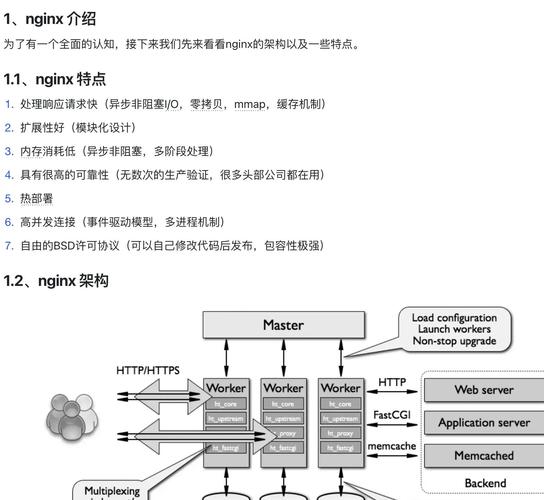
- Nginx (Engine-X): A high-performance, reverse proxy web server. It will:
- Listen for public HTTP/HTTPS traffic on ports 80 and 443.
- Serve static files (CSS, JavaScript, images) directly and very quickly.
- Act as a reverse proxy, forwarding dynamic requests (for your Python app) to the application server.
- Handle SSL/TLS certificate termination for HTTPS.
- Provide load balancing and caching.
- Python Application: Your web application code (e.g., a Flask or FastAPI app). It cannot directly listen on a public port and is not optimized for serving static files.
- Application Server (e.g., Gunicorn, Uvicorn): A piece of software that runs your Python application code, listens on a local network port (e.g., 127.0.0.1:8000), and communicates with Nginx.
Part 1: System Preparation and Installation
First, let's set up a fresh CentOS server and install the necessary dependencies.
Update Your System
sudo dnf update -y
Install EPEL Repository
The Extra Packages for Enterprise Linux (EPEL) repository contains many useful packages not included in the default CentOS repos.
sudo dnf install -y epel-release
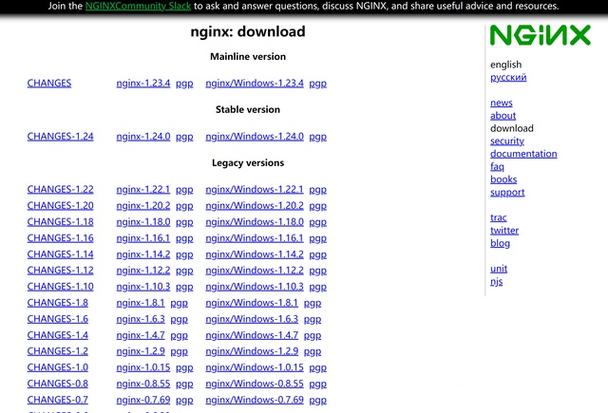
Install Nginx
sudo dnf install -y nginx
Start and enable Nginx to run on boot:
sudo systemctl start nginx
sudo systemctl enable nginx
Check its status:
sudo systemctl status nginx
You can now test your Nginx installation by navigating to your server's IP address in a web browser. You should see the "Welcome to Nginx!" page.
Install Python and a Virtual Environment Tool
It's a best practice to use Python virtual environments to isolate project dependencies.
sudo dnf install -y python3 python3-pip
Install virtualenv, a popular tool for creating isolated environments.
sudo pip3 install virtualenv
Install FirewallD
Ensure your firewall is configured to allow HTTP and HTTPS traffic.
sudo firewall-cmd --permanent --add-service=http
sudo firewall-cmd --permanent --add-service=https
sudo firewall-cmd --reload
Part 2: Creating a Sample Python Application
Let's create a simple "Hello World" application to demonstrate the setup. We'll use a generic WSGI interface, which works for Flask, Django, and other frameworks.
Create Project Directory
mkdir ~/my_python_app
cd ~/my_python_app
Set Up a Virtual Environment
virtualenv venv
source venv/bin/activate
Your shell prompt should now change to show (venv).
Install an Application Server (Gunicorn)
Gunicorn is a robust WSGI HTTP Server for UNIX. It's a great choice for running Python web apps.
pip install gunicorn
Create the Python App File
Create a file named app.py:
nano app.py
Paste the following code into the file. This is a minimal WSGI application.
def application(environ, start_response):
    """A simple WSGI application."""
    status = '200 OK'
    output = b'Hello from Python and Nginx!\n'
    response_headers = [('Content-type', 'text/plain'),
                        ('Content-Length', str(len(output)))]
    start_response(status, response_headers)
    return [output]
Save and exit (Ctrl+X, then Y, then Enter).
Test the Application Locally
Before involving Nginx, let's test if Gunicorn can run our app.
# Run Gunicorn, binding it to port 8000 on localhost
gunicorn --bind 127.0.0.1:8000 app:application
You should see output from Gunicorn indicating it's running. Visit http://YOUR_SERVER_IP:8000 in your browser. You should see "Hello from Python and Nginx!".
To stop Gunicorn, press Ctrl+C.
Part 3: Configuring Nginx as a Reverse Proxy
Now, we'll tell Nginx how to forward requests to our Gunicorn application.
Create a Nginx Configuration File
It's best practice to create a new configuration file for your app instead of modifying the default one.
sudo nano /etc/nginx/conf.d/my_python_app.conf
Add the Following Configuration
Paste this configuration into the file. The comments explain each part.
server {
    listen 80;
    server_name YOUR_SERVER_IP; # Or your domain name if you have one
    # Path to your project's static files
    # It's good practice to serve static files directly with Nginx
    location /static/ {
        alias /home/your_username/my_python_app/static/;
        expires 30d; # Cache static files for 30 days
    }
    # This is the main block for proxying requests to the app
    location / {
        # Pass the request to the Gunicorn server
        proxy_pass http://127.0.0.1:8000;
        # Set headers to properly pass the client information to the app
        proxy_set_header Host $host;
        proxy_set_header X-Real-IP $remote_addr;
        proxy_set_header X-Forwarded-For $proxy_add_x_forwarded_for;
        proxy_set_header X-Forwarded-Proto $scheme;
    }
}
Important: Replace your_username with your actual CentOS username.
Test and Reload Nginx
Test your Nginx configuration for syntax errors:
sudo nginx -t
If it reports syntax is ok and test is successful, reload Nginx to apply the changes:
sudo systemctl reload nginx
Run the Application Server
Now, start Gunicorn in the background. We'll use nohup to keep it running even after you log out of the SSH session.
# Make sure you are in your project directory and venv is active
cd ~/my_python_app
source venv/bin/activate
nohup gunicorn --bind 127.0.0.1:8000 app:application > /dev/null 2>&1 &
You can now visit http://YOUR_SERVER_IP in your browser. Nginx will receive the request and forward it to Gunicorn, which will return the "Hello from Python and Nginx!" message.
Part 4: Managing the Application with Systemd (Recommended)
Running your app with nohup is not ideal. The modern way to manage services on CentOS is with systemd. It will automatically start your app on boot and restart it if it crashes.
Create a systemd Service File
sudo nano /etc/systemd/system/my_python_app.service
Add the Following Service Definition
[Unit]
Description=Gunicorn instance to serve my_python_app
After=network.target
[Service]
User=your_username
Group=your_username
WorkingDirectory=/home/your_username/my_python_app
Environment="PATH=/home/your_username/my_python_app/venv/bin"
ExecStart=/home/your_username/my_python_app/venv/bin/gunicorn --bind 127.0.0.1:8000 app:application
[Install]
WantedBy=multi-user.target
Important:
- Replace
your_usernamewith your actual username. WorkingDirectorymust be your project's root directory.Environmentpoints to thegunicornexecutable inside your virtual environment.ExecStartis the exact command to run your app.
Manage the Service
Now you can use standard systemctl commands to manage your application.
- Start the service:
sudo systemctl start my_python_app
- Enable the service to start on boot:
sudo systemctl enable my_python_app
- Check the status of the service:
sudo systemctl status my_python_app
- View application logs:
journalctl -u my_python_app -f
- Restart the service:
sudo systemctl restart my_python_app
Part 5: Example with FastAPI
The process is almost identical for a modern framework like FastAPI.
Create a FastAPI App
In your project directory (~/my_python_app), create main.py:
nano main.py
from fastapi import FastAPI
app = FastAPI()
@app.get("/")
def read_root():
    return {"Hello": "World from FastAPI!"}
@app.get("/items/{item_id}")
def read_item(item_id: int, q: str | None = None):
    return {"item_id": item_id, "q": q}
Install Uvicorn
FastAPI works best with an ASGI server like Uvicorn.
pip install "uvicorn[standard]"
Update the systemd Service
Edit /etc/systemd/system/my_python_app.service and change the ExecStart line:
# ...
ExecStart=/home/your_username/my_python_app/venv/bin/uvicorn main:app --host 127.0.0.1 --port 8000 --reload
# ...
main:apptells Uvicorn to look for an object namedappin the filemain.py.--reloadis great for development as it automatically restarts the server when you change the code. You should remove it for production.
Restart the Service
sudo systemctl daemon-reload
sudo systemctl restart my_python_app
Now, when you visit http://YOUR_SERVER_IP/docs, you will see the interactive API documentation provided by FastAPI. Nginx is still proxying all requests to Uvicorn.