Of course! Using Python with Selenium to automate web forms is one of its most common and powerful use cases. This guide will walk you through the process step-by-step, from setting up your environment to handling complex form elements.
Table of Contents
- Prerequisites: What you need to install.
- Basic Form Interaction: A simple, complete example.
- Locating Form Elements: The different ways to find elements on the page.
- Handling Different Input Types: Text fields, dropdowns, radio buttons, checkboxes, and file uploads.
- Submitting the Form: Clicking buttons and handling different types of submissions.
- Putting It All Together: A more advanced, realistic example.
- Best Practices: Tips for writing robust and reliable scripts.
Prerequisites
Before you start, make sure you have the following installed:
a) Python If you don't have Python, download it from python.org.
b) Selenium Library Open your terminal or command prompt and install the Selenium package using pip:
pip install selenium
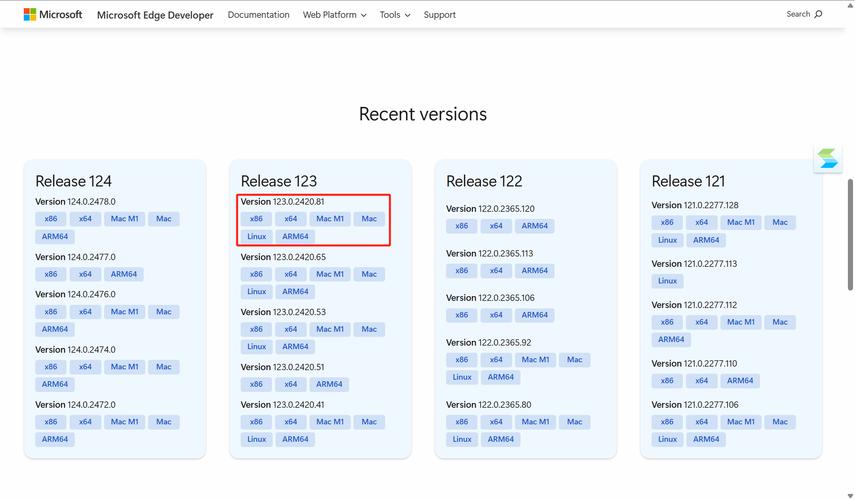
c) WebDriver Selenium needs a "driver" to control a web browser. The driver acts as a bridge between your script and the browser. You need to download the driver that matches the browser you intend to automate.
- Chrome: ChromeDriver
- Firefox: GeckoDriver
- Edge: EdgeDriver
Important: The driver version should match your browser version (e.g., Chrome 120 needs ChromeDriver 120). Place the downloaded chromedriver.exe (or geckodriver.exe) in a known location, or add its directory to your system's PATH.
Basic Form Interaction: A Simple Example
Let's automate a simple form. We'll use a practice form from the internet.
Goal:
- Open a web page.
- Fill in a text field.
- Select a dropdown option.
- Click a submit button.
- Verify the result.
import time
from selenium import webdriver
from selenium.webdriver.common.by import By
from selenium.webdriver.chrome.service import Service
from selenium.webdriver.support.ui import WebDriverWait
from selenium.webdriver.support import expected_conditions as EC
# --- Setup ---
# Replace 'path/to/your/chromedriver' with the actual path to your chromedriver executable
# If chromedriver is in your PATH, you can just use 'ChromeDriverManager().install()'
# from webdriver_manager.chrome import ChromeDriverManager
# service = Service(ChromeDriverManager().install())
# driver = webdriver.Chrome(service=service)
# For simplicity, we'll assume chromedriver is in the same folder or in your PATH
driver = webdriver.Chrome()
try:
    # 1. Navigate to the webpage
    driver.get("https://formy-project.herokuapp.com/form")
    # 2. Find and fill in text fields
    # Using ID (the best way if available)
    first_name = driver.find_element(By.ID, "first-name")
    first_name.send_keys("John")
    last_name = driver.find_element(By.ID, "last-name")
    last_name.send_keys("Doe")
    job_title = driver.find_element(By.ID, "job-title")
    job_title.send_keys("QA Engineer")
    # 3. Find and select a radio button
    # Using XPath
    education_level = driver.find_element(By.XPATH, '//input[@value="high-school"]')
    education_level.click()
    # 4. Find and select a checkbox
    # Using CSS Selector
    sex = driver.find_element(By.CSS_SELECTOR, 'input[value="male"]')
    sex.click()
    # 5. Find and select from a dropdown
    # Using the Select class from the 'support.ui' module
    from selenium.webdriver.support.ui import Select
    years_of_experience = driver.find_element(By.ID, "select-menu")
    select = Select(years_of_experience)
    select.select_by_value('2-4') # Select by value
    # 6. Click the submit button
    # Using a CSS Selector
    submit_button = driver.find_element(By.CSS_SELECTOR, '.btn.btn-lg')
    submit_button.click()
    # 7. Verify the result (Wait for the page to load)
    # Using WebDriverWait for robustness
    wait = WebDriverWait(driver, 10)
    alert = wait.until(EC.visibility_of_element_located((By.CLASS_NAME, "alert")))
    print("Success! Form submitted.")
    print(alert.text)
finally:
    # 8. Close the browser
    # time.sleep(5) # Optional: to see the result before closing
    driver.quit()
Locating Form Elements
Finding the right element is the most critical part. Here are the most common strategies:
| Locator Strategy | Example | When to Use |
|---|---|---|
By.ID |
driver.find_element(By.ID, "username") |
Best choice. IDs are unique and stable. |
By.NAME |
driver.find_element(By.NAME, "q") |
Good for form inputs, as name attributes are designed for form submission. |
By.CLASS_NAME |
driver.find_element(By.CLASS_NAME, "form-control") |
Good for styling-based elements. Can be fragile if classes change. |
By.CSS_SELECTOR |
driver.find_element(By.CSS_SELECTOR, "#id input.class") |
Very powerful and flexible. Can be complex to write. |
By.XPATH |
driver.find_element(By.XPATH, "//div[@id='form']//input") |
Very powerful, can navigate the DOM. Can be brittle. |
By.LINK_TEXT |
driver.find_element(By.LINK_TEXT, "Sign Up") |
Only for finding links. |
By.TAG_NAME |
driver.find_element(By.TAG_NAME, "input") |
Generic, often returns multiple elements. Use with caution. |
Handling Different Input Types
Text Fields (<input type="text">, <textarea>)
Use the .send_keys() method.
element = driver.find_element(By.ID, "username")
element.send_keys("my_user")
Dropdowns (<select>)
Use the Select class from selenium.webdriver.support.ui. It provides helpful methods.
from selenium.webdriver.support.ui import Select
dropdown = driver.find_element(By.ID, "country-select")
select = Select(dropdown)
# Ways to select an option:
select.select_by_visible_text("Canada") # Best if the text is stable
select.select_by_value("ca")           # Best if the value is stable
select.select_by_index(2)              # Selects the 3rd option (index starts at 0)
Radio Buttons (<input type="radio">)
Find the specific radio button element and click it. Use a unique locator like an ID or a specific XPath.
# Best if each radio has a unique ID
driver.find_element(By.ID, "option-yes").click()
# Or use a more specific XPath
driver.find_element(By.XPATH, "//input[@value='yes' and @name='confirmation']").click()
Checkboxes (<input type="checkbox">)
Similar to radio buttons, find the specific element and click it.
# Check a box
driver.find_element(By.ID, "newsletter-subscribe").click()
# Uncheck a box (if it's already checked)
# You need to check its state first
checkbox = driver.find_element(By.ID, "newsletter-subscribe")
if checkbox.is_selected():
    checkbox.click()
File Upload (<input type="file">)
This is special. You don't interact with the file dialog. Instead, you use .send_keys() to send the file's path directly to the hidden file input element.
import os
# Get the absolute path of the file
file_path = os.path.abspath("my_resume.pdf")
# Find the file input element
file_input = driver.find_element(By.ID, "resume-upload")
# Send the file path to the element
file_input.send_keys(file_path)
Submitting the Form
You have two main ways to submit a form:
a) Click the Submit Button This is the most common and explicit method.
submit_button = driver.find_element(By.CSS_SELECTOR, "button[type='submit']")
submit_button.click()
b) Use the .submit() Method on a Form Element
This can be more elegant if you have a reference to the <form> tag itself.
# Find the form element
form = driver.find_element(By.ID, "registration-form")
# Submit the form directly
form.submit()
Putting It All Together: A More Advanced Example
This example incorporates explicit waits, which are crucial for building reliable scripts that don't break if the page loads slowly.
import time
from selenium import webdriver
from selenium.webdriver.common.by import By