Of course! Using StringIO with Python's Pillow (PIL) library is a very common and powerful technique. It allows you to handle image data directly in memory without ever saving it to a temporary file on your disk. This is extremely useful for web applications, data processing pipelines, and any scenario where disk I/O is a bottleneck or undesirable.

Here’s a complete guide covering the most common use cases.
The Core Concept
- Image in Memory: You have an image object (a
PIL.Image.Imageinstance). - In-Memory Bytes: You want to convert this image object into a sequence of bytes (like a JPEG or PNG file) in memory.
io.BytesIO: This is an in-memory binary buffer. It acts just like a file, but it's stored in RAM. You can write bytes to it and read bytes from it.- The Workflow:
- Open a
BytesIObuffer. - Use Pillow's
Image.save()method to save the image data into theBytesIObuffer. - The
BytesIOobject now contains the raw image bytes. - You can pass this buffer to other libraries (like
requeststo upload an image, orFlaskto send it in an HTTP response) or seek back to the beginning to read the bytes.
- Open a
Key Use Case 1: Converting an Image to Bytes (e.g., for an API)
This is the most frequent use case. You have an image and you need to get its byte representation.
from PIL import Image
import io
# 1. Load an image (or create one)
# Let's create a simple image for this example
img = Image.new('RGB', (200, 50), color = 'red')
text_img = Image.new('RGB', (200, 50), color = 'blue')
from PIL import ImageDraw, ImageFont
d = ImageDraw.Draw(text_img)
try:
    # Use a default font if possible
    d.text((10,10), "Hello PIL", fill=(255,255,0))
except OSError:
    # Fallback if no default font is found
    d.text((10,10), "Hello PIL", fill=(255,255,0))
# 2. Create an in-memory binary stream
byte_stream = io.BytesIO()
# 3. Save the image to the stream in a specific format (e.g., JPEG)
# The format is inferred from the file extension in the 'format' parameter.
# You can also specify it directly.
img.save(byte_stream, format='JPEG')
text_img.save(byte_stream, format='PNG')
# At this point, the image data is in the byte_stream object.
# The buffer's "cursor" is at the end of the data.
# 4. Get the byte data
# You must seek to the beginning of the stream before reading.
byte_stream.seek(0)
image_bytes = byte_stream.getvalue()
# 5. Clean up the buffer
byte_stream.close()
# Now you can use image_bytes, for example, to print its length
# or send it in an HTTP response.
print(f"The image is {len(image_bytes)} bytes long.")
print(f"First 20 bytes: {image_bytes[:20]}")
Key Use Case 2: Loading an Image from Bytes
This is the reverse operation. You have the bytes of an image (e.g., from a database, an API response, or a file upload) and you want to open it with Pillow.
from PIL import Image
import io
# Let's use the 'image_bytes' variable from the previous example
# For this standalone example, we'll create some bytes again.
img = Image.new('RGB', (100, 100), color='green')
byte_stream = io.BytesIO()
img.save(byte_stream, format='PNG')
image_bytes = byte_stream.getvalue()
byte_stream.close()
# --- Start of the new scenario ---
# Imagine you only have 'image_bytes' and want to load it.
# 1. Create a new in-memory binary stream from the bytes
byte_stream_from_bytes = io.BytesIO(image_bytes)
# 2. Open the image from the stream using Image.open()
# Pillow is smart enough to detect the image format from the byte stream itself.
img_from_bytes = Image.open(byte_stream_from_bytes)
# 3. Now you can use the image object as you normally would
print(f"Image mode: {img_from_bytes.mode}")
print(f"Image size: {img_from_bytes.size}")
img_from_bytes.show() # This will display the image
# The stream will be closed automatically when the 'with' block exits,
# or you can close it manually.
byte_stream_from_bytes.close()
Key Use Case 3: Resizing an Image from a Web URL (Without Saving a File)
This is a classic web development task. You want to fetch an image from a URL, resize it, and serve it, all without touching the disk.
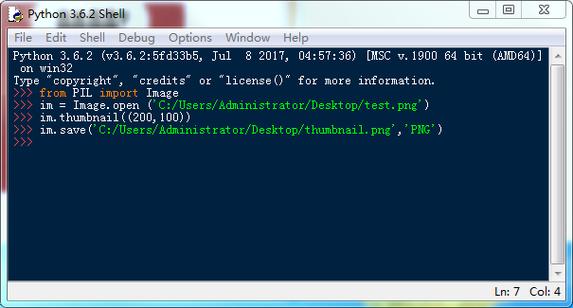
import requests
from PIL import Image
import io
def fetch_and_resize_image(url, size=(300, 200)):
    """
    Fetches an image from a URL, resizes it, and returns the image bytes.
    """
    try:
        # 1. Fetch the image data from the URL
        response = requests.get(url, stream=True, timeout=10)
        response.raise_for_status()  # Raise an exception for bad status codes (4xx or 5xx)
        # 2. Open the image directly from the response content (which is bytes)
        #    We use a BytesIO object as a bridge between the downloaded bytes and Pillow.
        img = Image.open(io.BytesIO(response.content))
        # 3. Resize the image
        img_resized = img.resize(size)
        # 4. Save the resized image to a new in-memory stream
        byte_stream = io.BytesIO()
        img_resized.save(byte_stream, format='JPEG') # Or 'PNG', etc.
        # 5. Get the bytes and reset the stream's cursor
        byte_stream.seek(0)
        image_bytes = byte_stream.getvalue()
        byte_stream.close()
        return image_bytes
    except requests.exceptions.RequestException as e:
        print(f"Error fetching image: {e}")
        return None
    except IOError as e:
        print(f"Error opening or processing image: {e}")
        return None
# --- Example Usage ---
# Using a sample image from a placeholder service
image_url = "https://via.placeholder.com/600x400.png/00FF00/FFFFFF?text=Pillow+Example"
resized_image_bytes = fetch_and_resize_image(image_url, size=(150, 100))
if resized_image_bytes:
    print(f"Successfully resized image. New size: {len(resized_image_bytes)} bytes.")
    # In a real web app (like Flask), you would now return this:
    # from flask import Response
    # return Response(resized_image_bytes, mimetype='image/jpeg')
Key Use Case 4: Image to Base64 String (and back)
Base64 is a common way to embed small images directly in HTML, CSS, or JSON. StringIO provides a clean way to do this.
from PIL import Image
import io
import base64
# --- Image to Base64 ---
img = Image.new('L', (64, 64), color=128) # 'L' is for grayscale
# 1. Save image to BytesIO buffer
buffer = io.BytesIO()
img.save(buffer, format='PNG')
# 2. Get bytes and encode them to Base64
image_bytes = buffer.getvalue()
base64_str = base64.b64encode(image_bytes).decode('utf-8')
# Add the data URL prefix for use in HTML
data_url = f"data:image/png;base64,{base64_str}"
print(f"Base64 Data URL (first 50 chars): {data_url[:50]}...")
buffer.close()
# --- Base64 String back to Image ---
# This is useful when you receive a base64 encoded image from a web form.
# 1. Decode the Base64 string back to bytes
image_bytes_from_base64 = base64.b64decode(base64_str)
# 2. Open the image from the bytes using BytesIO
buffer_from_base64 = io.BytesIO(image_bytes_from_base64)
img_from_base64 = Image.open(buffer_from_base64)
print(f"Image loaded from Base64. Mode: {img_from_base64.mode}, Size: {img_from_base64.size}")
# Cleanup
buffer_from_base64.close()
Summary: io.StringIO vs. io.BytesIO
It's a common point of confusion. For images, you almost always want io.BytesIO.
| Feature | io.StringIO |
io.BytesIO |
|---|---|---|
| Purpose | In-memory text buffer (Unicode strings). | In-memory binary buffer (bytes). |
| Data Type | Works with str. |
Works with bytes. |
| Use with Pillow | Incorrect. Pillow's save() method expects a binary stream to write image bytes to. |
Correct. This is the standard and required way to handle image data in memory. |
| Example | sio = io.StringIO(); sio.write("hello"); text = sio.getvalue() |
bio = io.BytesIO(); bio.write(b"hello"); data = bio.getvalue() |
Final Tip: For managing resources, it's good practice to use a with statement, as BytesIO objects support the context manager protocol. This ensures the buffer is always closed, even if errors occur.
with io.BytesIO() as byte_stream:
    img.save(byte_stream, format='JPEG')
    byte_stream.seek(0)
    # do something with byte_stream
# The byte_stream is automatically closed here