Of course! Using a Python action in an Oozie workflow is a common and powerful way to execute custom scripts. This guide will walk you through everything you need to know, from the basic concepts to a complete, working example.
Core Concepts
When you use a Python action in Oozie, you are essentially telling Oozie to:
- Prepare a Node: Oozie creates a working directory on the machine where the action will run (the YARN Application Master).
- Upload Files: It uploads all the files you've specified (your Python script, any
.pydependencies, data files, etc.) into that working directory. - Execute the Command: It runs a shell command on that machine. The default command for a
pythonaction ispython <main-script.py> <args...>. - Capture Output: It captures the
stdoutandstderrof your script. If the script exits with a non-zero code, Oozie considers the action to have failed.
Key Oozie XML Elements for a Python Action
Here are the main XML tags you'll use inside the <workflow-app>:
<action name="...">: Defines a single step in your workflow.<python>: The specific action type for running a Python script.name: A descriptive name for the action.main: (Required) The path to your main Python script. This path is relative to the workflow'sapp.path.python: (Optional) The path to the Python interpreter on the cluster nodes (e.g.,/usr/bin/python3). If omitted, it defaults topython.
<file>: (Crucial) Specifies a file that needs to be uploaded to the working directory. You must include your main script and any other.pyfiles it imports.<arg>: Passes a command-line argument to your Python script.<capture-output>: Captures thestdoutof your script and makes it available to subsequent actions via${wf:actionData('action_name')}.<ok to="...">: The name of the workflow node to transition to if the action succeeds (exit code 0).<error to="...">: The name of the workflow node to transition to if the action fails (exit code non-zero).
Complete Step-by-Step Example
Let's create a simple workflow that runs a Python script to process a file.
Step 1: The Python Script (process_data.py)
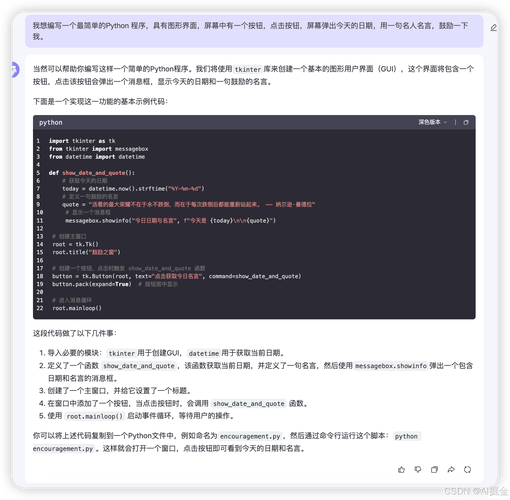
This script will take an input file and an output directory as arguments, read the file, and write a processed version. It will also print a value to stdout that we'll capture.
Directory Structure:
my_oozie_project/
├── lib/
│   └── my_helper.py      # A dependency
├── process_data.py       # The main Python script
└── workflow.xml          # The Oozie workflow definition
lib/my_helper.py
# A simple helper module to be imported
def process_line(line):
    """A simple processing function."""
    return line.strip().upper()
process_data.py
#!/usr/bin/env python
import sys
import os
# This import works because Oozie puts 'my_helper.py' in the same directory
from my_helper import process_line
def main():
    # Oozie passes arguments via sys.argv
    # sys.argv[0] is the script name itself
    input_file_path = sys.argv[1]
    output_dir = sys.argv[2]
    print(f"INFO: Starting processing. Input: {input_file_path}, Output: {output_dir}")
    # Ensure the output directory exists
    if not os.path.exists(output_dir):
        os.makedirs(output_dir)
    output_file_path = os.path.join(output_dir, "processed_data.txt")
    try:
        with open(input_file_path, 'r') as infile, open(output_file_path, 'w') as outfile:
            for line in infile:
                processed_line = process_line(line)
                outfile.write(processed_line + "\n")
        # Print a key-value pair to stdout. This will be captured by <capture-output>
        print("status=SUCCESS")
        print(f"output_file={output_file_path}")
    except Exception as e:
        # Print an error message to stderr
        print(f"ERROR: Failed to process file. {e}", file=sys.stderr)
        sys.exit(1) # Exit with a non-zero code to fail the Oozie action
if __name__ == "__main__":
    main()
Step 2: The Oozie Workflow (workflow.xml)
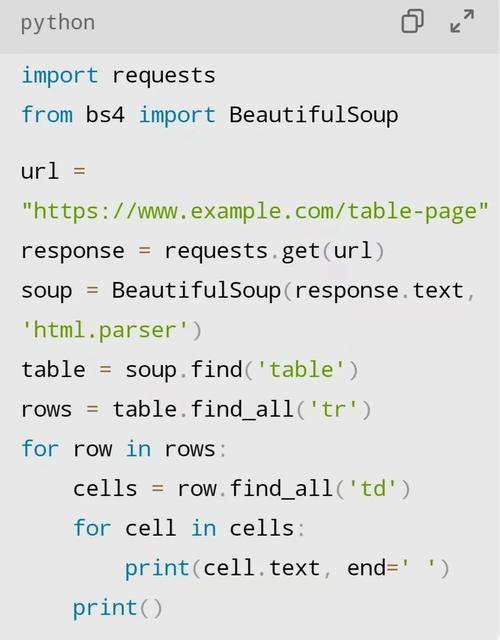
This XML file defines the workflow. It tells Oozie to run our Python script.
workflow.xml
<workflow-app name="python-action-demo" xmlns="uri:oozie:workflow:0.5">
    <start to="run-python-script"/>
    <!-- This is our Python action -->
    <action name="run-python-script">
        <python>
            <name>Python Data Processor</name>
            <main>process_data.py</main>
            <!-- Optional: specify a python interpreter if not 'python' -->
            <!-- <python>/usr/bin/python3</python> -->
            <!-- Files to be uploaded to the working directory -->
            <file>process_data.py</file>
            <file>lib/my_helper.py</file>
            <!-- Command-line arguments for the script -->
            <arg>${inputData}</arg>         <!-- Will be passed as the first argument -->
            <arg>${outputDir}</arg>         <!-- Will be passed as the second argument -->
            <!-- Capture the output of the script -->
            <capture-output/>
        </python>
        <!-- Define what to do on success or failure -->
        <ok to="end-workflow"/>
        <error to="fail-workflow"/>
    </action>
    <!-- Success end node -->
    <kill name="fail-workflow">
        <message>Python action failed, error message[${wf:errorMessage(wf:lastErrorNode())}]</message>
    </kill>
    <end name="end-workflow"/>
    <!-- Failure end node -->
    <kill name="fail-workflow">
        <message>Python action failed, error message[${wf:errorMessage(wf:lastErrorNode())}]</message>
    </kill>
    <end name="end-workflow"/>
</workflow-app>
Note: I've included <kill> and <end> nodes for both success and failure to make the example runnable. A typical workflow would have one of each.
Step 3: Prepare the Job Directory on HDFS
Oozie needs to find your workflow definition and all its dependencies (like the Python files) in HDFS.
-
Create a directory on HDFS for your application:
hdfs dfs -mkdir -p /user/<your-username>/oozie_app/python_demo
-
Upload the files:
# Upload the workflow definition
hdfs dfs -put workflow.xml /user/<your-username>/oozie_app/python_demo/
# Create a 'lib' directory in HDFS and upload the Python files
hdfs dfs -mkdir -p /user/<your-username>/oozie_app/python_demo/lib
hdfs dfs -put process_data.py /user/<your-username>/oozie_app/python_demo/
hdfs dfs -put lib/my_helper.py /user/<your-username>/oozie_app/python_demo/lib/
Step 4: Prepare Input Data
Let's create a sample input file and upload it.
-
Create a local input file:
echo -e "hello world\nfoo bar\nbaz qux" > my_input.txt
-
Upload it to HDFS:
hdfs dfs -mkdir -p /user/<your-username>/oozie_data
hdfs dfs -put my_input.txt /user/<your-username>/oozie_data/
Step 5: Submit the Oozie Job
You'll need a properties file to define the variables and the queue.
job.properties
# Name of your Oozie job
oozie.wf.application.path=hdfs:///user/<your-username>/oozie_app/python_demo
# Input data file path
inputData=/user/<your-username>/oozie_data/my_input.txt
# Output directory path (will be created by the script)
outputDir=/user/<your-username>/oozie_data/output
# Oozie queue
oozie.use.system.libpath=true
oozie.job.queue.name=default
Submit the job:
oozie job -oozie https://<your-oozie-server>:11000/oozie -config job.properties -run
Step 6: Check the Results
-
Check the Oozie job status:
oozie job -info <job-id>
-
Check the output directory in HDFS:
hdfs dfs -cat /user/<your-username>/oozie_data/output/processed_data.txt
You should see:
HELLO WORLD FOO BAR BAZ QUX -
Check the Oozie action logs for the captured output: You can see the captured output in the Oozie web console or by using the Oozie CLI. The
status=SUCCESSandoutput_file=...lines printed by the script will be available for other actions to consume if needed.
Advanced Topics & Best Practices
Using Virtual Environments (venv)
If your script has complex dependencies (e.g., pandas, numpy), you should use a Python virtual environment.
-
Locally:
- Create a virtual environment:
python3 -m venv my_venv - Activate it:
source my_venv/bin/activate - Install your packages:
pip install pandas - Zip the entire
my_venvdirectory:zip -r venv.zip my_venv/
- Create a virtual environment:
-
In Oozie:
- Upload
venv.zipto HDFS. - Modify your
<python>action to unzip it and run the correct Python executable from within the environment.
<action name="run-python-with-venv">
    <shell xmlns="uri:oozie:shell-action:0.2">
        <job-tracker>${jobTracker}</job-tracker>
        <name-node>${nameNode}</name-node>
        <exec>bash</exec>
        <argument>-c</argument>
        <argument>
            #!/bin/bash
            set -x
            # Unzip the venv
            unzip -q venv.zip
            # Run the script using the python from the venv
            ./my_venv/bin/python process_data.py inputData outputDir
        </argument>
        <file>process_data.py</file>
        <file>venv.zip#venv.zip</file> <!-- The '#' tells Oozie to rename it on upload -->
        ...
    </shell>
    ...
</action>
Note: This often requires using a
<shell>action instead of a<python>action, as it gives you more control over the execution environment. - Upload
Using Conda Environments
For more complex dependency management, Conda is an excellent choice. The process is similar to using venv: you would package the Conda environment (e.g., as a .tar.gz file) and then extract and activate it within a <shell> action before running your Python script.