Of course! Here’s a comprehensive guide to using Python in CityEngine, covering the core concepts, use cases, and practical examples.
What is CityEngine Python?
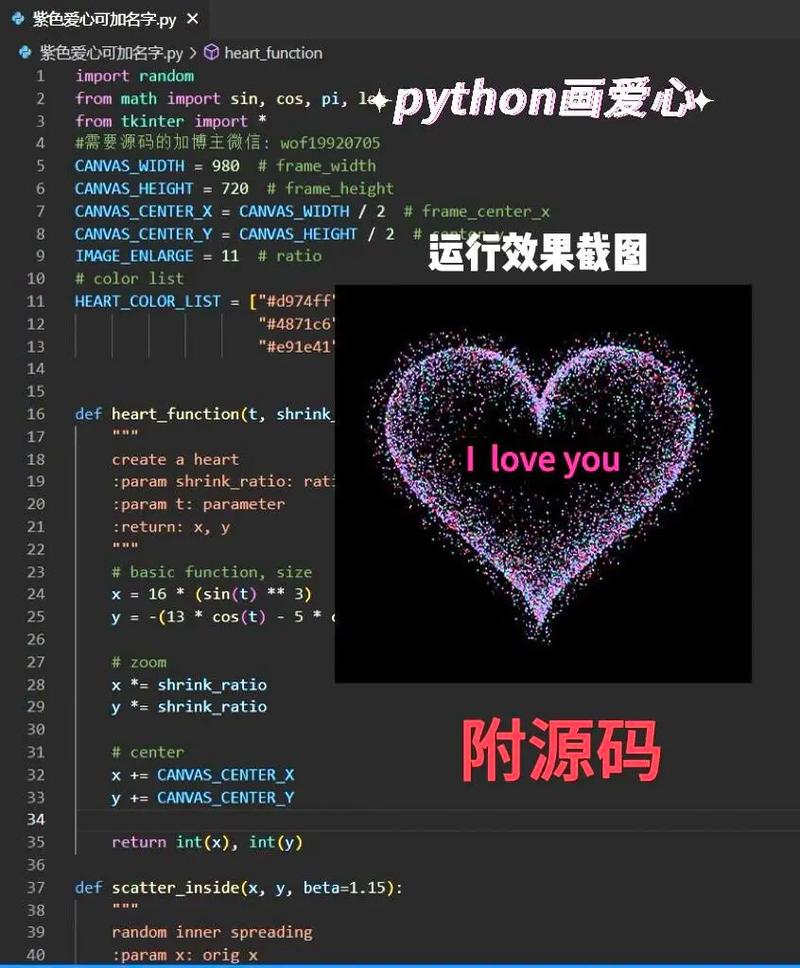
CityEngine Python is a powerful scripting interface built directly into Esri's CityEngine. It allows you to automate tasks, create custom procedural rules, and interact with the CityEngine scene programmatically. Think of it as giving you the keys to the entire CityEngine engine, rather than just using the graphical user interface (GUI).
The Python interpreter in CityEngine is based on Python 3 and comes with a rich library of modules specifically designed for 3D modeling, GIS data handling, and scene manipulation.
Why Use Python in CityEngine?
Using Python opens up a world of possibilities that are difficult or impossible to achieve with the GUI alone:
- Automation: Repetitive tasks can be scripted in minutes.
- Example: Import hundreds of shapefiles, generate models for each, and export them all to a single glTF file with a single script.
- Procedural Rule Creation: Go beyond the standard CGA rule language.
- Example: Use Python to generate a complex, randomized building footprint based on external data (e.g., population density, land value) before the CGA rule even starts.
- Custom Tools & UI: Create your own tools and user interfaces.
- Example: Build a custom dockable window in CityEngine with buttons and sliders to control specific parameters of your generation rules, making them easier for non-technical users to manage.
- Data Integration: Seamlessly connect CityEngine to external data sources.
- Example: Fetch real-time traffic data from a web API and use it to dynamically change the color of roads in your 3D scene.
- Batch Processing: Process entire datasets without manual intervention.
- Example: Run a generation script on a nightly basis to update a 3D city model with new building footprints from a geodatabase.
The Two Main Ways to Use Python in CityEngine
There are two primary contexts for writing and running Python scripts in CityEngine:

The Interactive Python Console
This is the best place for learning, testing commands, and quick, one-off tasks.
- How to open: Go to
Window > Python Console. - What it is: A live interpreter that is directly connected to your open CityEngine scene. You can type commands and see the results instantly.
- Use Cases:
- Selecting an object in the 3D viewport and typing
print(selection.name())to see its name. - Quickly changing the color of all selected shapes:
for s in selection: s.color = (1, 0, 0). - Exploring the CityEngine API by typing
dir(ce)to see all available modules.
- Selecting an object in the 3D viewport and typing
Python Script Files (.py)
This is how you create reusable, complex scripts and tools.
- How to run: You can run them from the
File > Run Script...menu, assign them to buttons in the UI, or call them from other scripts. - What it is: A text file containing a sequence of Python commands.
- Use Cases:
- A script to automate the import of lot shapes and building generation.
- A custom tool that creates a new street network based on user input.
- A script to export all models in a scene to a specific format.
Key CityEngine Python Modules
The power of CityEngine Python comes from its specialized modules. The most important one is ce, which is the main entry point to the CityEngine API.
The ce Module
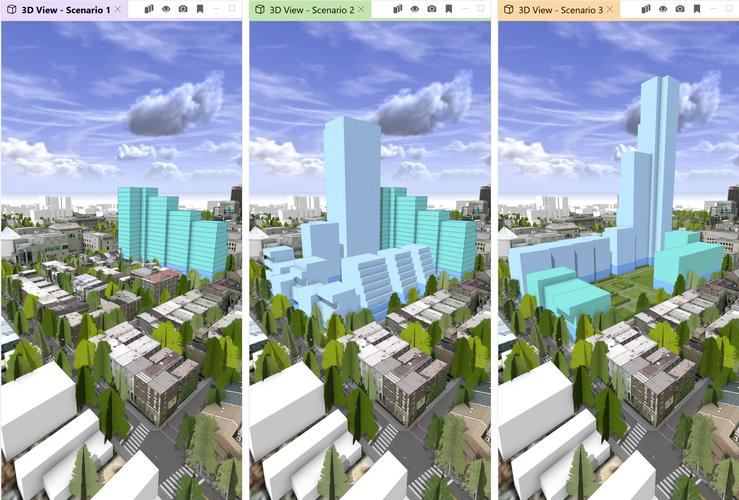
The ce module is your gateway to everything. It's organized into submodules that mirror the structure of the CityEngine application.
| Submodule | Purpose | Common Classes/Functions |
|---|---|---|
ce.scene |
Interact with the 3D scene, objects, and selections. | Scene, Object, Shape, Graph |
ce.utils |
General utility functions. | utils (for file dialogs, paths) |
ce.toolextension |
Crucial for creating custom tools. Allows you to create UI elements like windows, buttons, and text fields. | ToolExtension, Window, Button, Slider |
ce.project |
Manage CityEngine projects and files. | Project, FileIO |
ce.geometry |
Create and manipulate 3D geometry. | Geometry, Vertex, Polygon |
ce.brush |
Access and modify the terrain brush. | Brush |
Practical Examples
Let's walk through some common tasks.
Example 1: Selecting Objects and Printing Their Info
This script demonstrates basic scene interaction. It gets the current selection and prints the name and type of each selected object.
# Import the scene module
import ce.scene
# Get the current scene
scene = ce.scene.get()
# Get the current selection in the scene
selection = scene.getSelection()
# Check if anything is selected
if not selection.empty():
    print(f"Found {selection.size()} selected objects.")
    # Loop through each selected object
    for i in range(selection.size()):
        obj = selection.get(i)
        # Get the object's name and type
        name = obj.name()
        obj_type = obj.type()
        print(f"  - Object {i+1}: Name='{name}', Type='{obj_type}'")
else:
    print("No objects are selected.")
Example 2: Creating a Custom Tool (UI + Logic)
This is a more advanced example. We will create a simple tool that adds a cube to the scene when you click a button.
- Create a new Python script file (e.g.,
add_cube_tool.py). - Paste the following code into it:
import ce.toolextension
import ce.scene
import ce.geometry
# Define a class for our tool window
class AddCubeWindow(ce.toolextension.Window):
    def __init__(self, tool):
        # Call the parent constructor
        ce.toolextension.Window.__init__(self, tool, "Add Cube Tool")
        # Create a button
        self.button = ce.toolextension.Button(self, "Add Cube to Scene")
        # Connect the button's 'clicked' signal to our function
        self.button.clicked.connect(self.on_button_clicked)
        # Add the button to the window's layout
        self.addWidget(self.button)
    def on_button_clicked(self):
        """This function is called when the button is clicked."""
        print("Button clicked! Adding a cube...")
        # Get the current scene
        scene = ce.scene.get()
        # Create a new geometry object (a cube)
        # The createCube function takes the center point and size
        center = ce.scene.get().getCenter() # Get center of current view/selection
        cube_geom = ce.geometry.createCube(center, 10.0)
        # Create a new scene object from the geometry
        cube_obj = scene.createGeometryObject(cube_geom)
        # Give the new object a name
        cube_obj.setName("MyPythonCube")
        print("Cube added successfully.")
# Define the main tool class
class AddCubeTool(ce.toolextension.ToolExtension):
    def __init__(self):
        ce.toolextension.ToolExtension.__init__(self, "AddCubeTool")
        # Create an instance of our window
        self.window = AddCubeWindow(self)
    def setup(self):
        """This is called when the tool is activated."""
        print("Add Cube Tool activated.")
        # Show the window when the tool is activated
        self.window.show()
    def cleanup(self):
        """This is called when the tool is deactivated."""
        print("Add Cube Tool deactivated.")
        # Hide the window when the tool is deactivated
        self.window.hide()
# This is the entry point for the tool
# It creates an instance of the tool and registers it with CityEngine
tool = AddCubeTool()
- Run the script: In CityEngine, go to
File > Run Script...and selectadd_cube_tool.py. - Use the tool: A new tool named "Add Cube Tool" will appear in your toolbar. Click it to open the window, then click the "Add Cube to Scene" button to add a cube.
Essential Tips & Best Practices
- Use the Console: Before writing a long script, test individual commands in the Python Console. It's much faster for debugging.
- Read the Documentation: Esri's official documentation for the CityEngine SDK is the best resource. It details every class, function, and argument.
- CityEngine Python API Documentation (Note: While the C++ API is linked, the Python objects and methods are named identically, making it an excellent reference).
- Leverage CGA: Remember that Python and CGA work best together. Use Python for the heavy lifting of data preparation, object creation, and scene management. Use CGA for the detailed, shape-specific procedural modeling. A common workflow is:
- Python: Read lots from a GIS file.
- Python: Create a building
Objectfor each lot. - CGA: Attach your
Building.cgarule to the new object to generate the 3D model.
- Error Handling: Wrap your code in
try...exceptblocks to handle errors gracefully, especially when dealing with file I/O or user input.
try:
    # Code that might fail
    file = open("my_data.txt", "r")
    data = file.read()
except FileNotFoundError:
    print("Error: The file was not found.")
except Exception as e:
    print(f"An unexpected error occurred: {e}")
finally:
    # This block always runs
    if 'file' in locals():
file.close()