Of course! The term "Python AudioRobot" is exciting and open to many interpretations. It could mean:

- A Robot that Listens and Reacts: A physical robot (like a Raspberry Pi-powered car or a robotic arm) that uses Python to process audio commands (e.g., "move forward," "turn left," "grab").
- A Software Robot for Audio Tasks: A script or application that automates complex audio workflows, like batch processing, noise reduction, or generating sound effects.
- An AI-Powered Assistant: A program that can transcribe speech, summarize meetings, or even generate audio content.
Let's build a Project for each interpretation, starting with the most common and accessible one: a Software Robot for Audio Tasks.
Project 1: The Audio Processing Robot (Software)
This robot will automate a common audio task: taking a long audio file (like a podcast or lecture) and automatically splitting it into individual tracks based on silence. This is perfect for creating chapters or separating speakers.
The Goal
Create a Python script (audio_robot.py) that:
- Takes an audio file (e.g.,
input.mp3) as input. - Analyzes the audio to detect periods of silence.
- Splits the audio at these silent points.
- Saves each segment as a new, numbered file (e.g.,
segment_01.mp3,segment_02.mp3).
Prerequisites
You'll need to install a few Python libraries. Open your terminal or command prompt and run:
pip install pydub
pip install ffmpeg-python
Important: pydub requires FFmpeg to be installed on your system.
- Windows: Download from the official FFmpeg website and add the
binfolder to your system's PATH. - macOS:
brew install ffmpeg - Linux (Debian/Ubuntu):
sudo apt update && sudo apt install ffmpeg
The Code (audio_robot.py)
This script is a powerful robot because it can handle .mp3, .wav, .flac, and many other formats automatically.
import os
from pydub import AudioSegment
from pydub.silence import split_on_silence
def split_audio_on_silence(audio_path, output_folder="output_segments", silence_thresh=-40, min_silence_len=500):
    """
    Splits an audio file into smaller chunks based on silence.
    Args:
        audio_path (str): Path to the input audio file.
        output_folder (str): Folder to save the segmented audio files.
        silence_thresh (int): The threshold (in dBFS) below which audio is considered silence.
        min_silence_len (int): The minimum duration (in ms) of a silence chunk to be used for splitting.
    """
    print(f"🤖 Audio Robot Activated! Processing: {audio_path}")
    # Create the output directory if it doesn't exist
    if not os.path.exists(output_folder):
        os.makedirs(output_folder)
        print(f"✅ Created output directory: {output_folder}")
    try:
        # Load the audio file
        sound = AudioSegment.from_file(audio_path)
        print(f"📁 Audio file loaded. Duration: {len(sound) / 1000:.2f} seconds")
        # Split the audio where silence is 500ms or longer and silence is below -40dBFS
        print("🔍 Detecting silence and splitting audio...")
        audio_chunks = split_on_silence(
            sound,
            min_silence_len=min_silence_len,
            silence_thresh=silence_thresh,
            keep_silence=100  # Keep 100ms of silence at the beginning and end of chunks
        )
        print(f"✅ Found {len(audio_chunks)} segments.")
        # Export the chunks as individual files
        for i, chunk in enumerate(audio_chunks):
            output_file = os.path.join(output_folder, f"segment_{i+1:02d}.mp3")
            print(f"💾 Exporting segment {i+1} to {output_file}")
            # You can change the format to "wav" if you prefer
            chunk.export(output_file, format="mp3")
        print("🎉 Task complete! All segments have been saved.")
    except Exception as e:
        print(f"❌ An error occurred: {e}")
if __name__ == "__main__":
    # --- CONFIGURATION ---
    # Replace with the path to your audio file
    input_audio_file = "my_podcast.mp3"
    # You might need to adjust these values for your audio
    silence_threshold = -42  # dBFS (more negative is more silent)
    min_silence_duration = 800 # ms
    # --- RUN THE ROBOT ---
    split_audio_on_silence(
        input_audio_file,
        silence_thresh=silence_threshold,
        min_silence_len=min_silence_duration
    )
How to Use
- Save the code as
audio_robot.py. - Place an audio file (e.g.,
my_podcast.mp3) in the same directory. - Adjust the
silence_thresholdandmin_silence_durationin theif __name__ == "__main__":block if needed. - Run the script from your terminal:
python audio_robot.py - A new folder named
output_segmentswill be created with all the split audio files.
Project 2: The Voice-Controlled Physical Robot (Hardware)
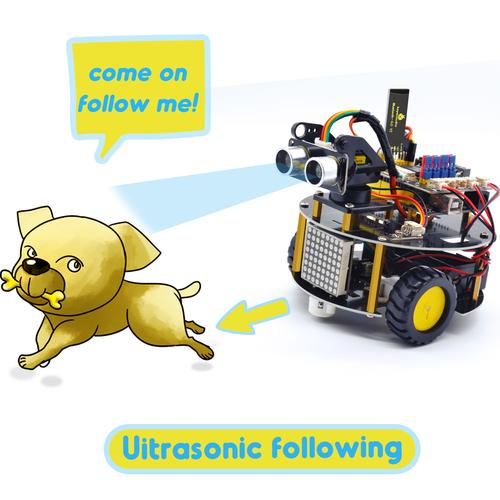
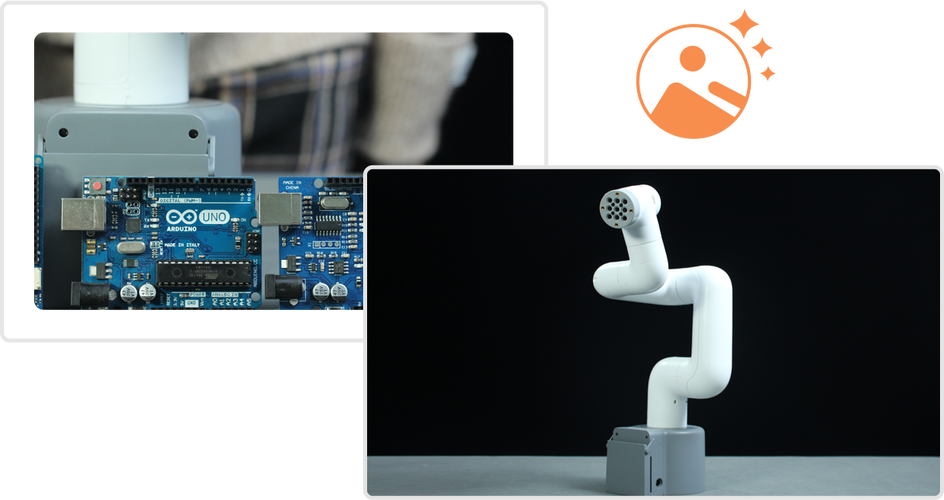
This is a more advanced project that combines Python with hardware. We'll build a simple robot car that moves based on spoken commands.
The Goal
Create a robot car that listens for commands like "forward," "backward," "left," and "right" and moves accordingly.
Prerequisites
- Hardware:
- Raspberry Pi (any model with WiFi/bluetooth)
- L298N Motor Driver Board
- DC Motors & Wheels (or a chassis kit)
- Power source (e.g., a 9V battery pack or 4xAA battery pack)
- Jumper wires
- Software:
- Python 3 on the Raspberry Pi.
- Libraries:
pyaudio,speech_recognition,gpiozero.
Hardware Setup (Simplified):
Connect the motors to the L298N board, and the L298N control pins to the Raspberry Pi's GPIO pins (e.g., forward_pin=17, backward_pin=18, etc.). There are many excellent tutorials for this online.
The Code (voice_robot.py)
This script will run on the Raspberry Pi.
import speech_recognition as sr
from gpiozero import Robot
# --- CONFIGURATION ---
# Adjust these pins to match your wiring
ROBOT = Robot(left=(17, 18), right=(22, 23))
# Initialize the recognizer
recognizer = sr.Recognizer()
def listen_for_command():
    """Listens for a voice command using the microphone."""
    with sr.Microphone() as source:
        print("🤖 Audio Robot Listening... Say a command (e.g., 'forward', 'stop')")
        recognizer.adjust_for_ambient_noise(source, duration=1)
        audio = recognizer.listen(source, timeout=5, phrase_time_limit=3)
    try:
        print("🔍 Recognizing speech...")
        # Use Google's speech recognition (requires internet)
        command = recognizer.recognize_google(audio).lower()
        print(f"✅ You said: '{command}'")
        return command
    except sr.UnknownValueError:
        print("❌ Sorry, I could not understand the audio.")
        return None
    except sr.RequestError as e:
        print(f"❌ Error with the speech recognition service; {e}")
        return None
def execute_command(command):
    """Moves the robot based on the spoken command."""
    if "forward" in command:
        print("🚀 Moving forward...")
        ROBOT.forward()
    elif "backward" in command:
        print("🔙 Moving backward...")
        ROBOT.backward()
    elif "left" in command:
        print("⬅️ Turning left...")
        ROBOT.left()
    elif "right" in command:
        print("➡️ Turning right...")
        ROBOT.right()
    elif "stop" in command:
        print("🛑 Stopping...")
        ROBOT.stop()
    else:
        print("❓ Unknown command.")
# --- MAIN LOOP ---
if __name__ == "__main__":
    print("Voice-Controlled Robot Activated!")
    while True:
        command = listen_for_command()
        if command:
            execute_command(command)
        # A small delay to prevent the loop from running too fast
        # You can remove this if you want instant reactions
        # import time
        # time.sleep(1)
How to Use
- Set up the Raspberry Pi and the hardware as described.
- Install the libraries:
pip install SpeechRecognition pyaudio gpiozero. - Save the code as
voice_robot.pyon the Raspberry Pi. - Run the script:
python voice_robot.py. - Speak clearly into the microphone. The robot will move!
Project 3: The AI Audio Assistant (AI/ML)
This robot uses AI to understand and transcribe spoken language. It's the foundation for more complex assistants.
The Goal
Create a script that records audio from your microphone and transcribes it into text, saving it to a file.
Prerequisites
- A microphone.
- Python 3.
- The
openailibrary (for Whisper, which is very powerful and free to use).
pip install openai
You will need an API key from OpenAI. You can get one for free from the OpenAI Platform.
The Code (transcription_robot.py)
import openai
import os
import pyaudio
import wave
import tempfile
# --- CONFIGURATION ---
# Set your OpenAI API Key
# It's best to use an environment variable for this
openai.api_key = os.getenv("OPENAI_API_KEY")
# If you don't use an env var, you can paste it here (not recommended for security)
# openai.api_key = "sk-..."
# Audio recording settings
FORMAT = pyaudio.paInt16
CHANNELS = 1
RATE = 16000
CHUNK = 1024
RECORD_SECONDS = 10 # Record for 10 seconds at a time
def record_audio(filename):
    """Records audio from the microphone and saves it to a WAV file."""
    print("🎤 Recording... Speak now.")
    audio = pyaudio.PyAudio()
    stream = audio.open(format=FORMAT, channels=CHANNELS,
                        rate=RATE, input=True,
                        frames_per_buffer=CHUNK)
    frames = []
    for _ in range(0, int(RATE / CHUNK * RECORD_SECONDS)):
        data = stream.read(CHUNK)
        frames.append(data)
    print("✅ Finished recording.")
    stream.stop_stream()
    stream.close()
    audio.terminate()
    # Save the recorded audio to a temporary file
    with wave.open(filename, 'wb') as wf:
        wf.setnchannels(CHANNELS)
        wf.setsampwidth(audio.get_sample_size(FORMAT))
        wf.setframerate(RATE)
        wf.writeframes(b''.join(frames))
    return filename
def transcribe_audio(audio_file_path):
    """Uses OpenAI's Whisper model to transcribe audio."""
    try:
        with open(audio_file_path, "rb") as audio_file:
            transcript = openai.Audio.transcribe("whisper-1", audio_file)
        return transcript['text']
    except Exception as e:
        print(f"❌ Error during transcription: {e}")
        return None
# --- MAIN LOOP ---
if __name__ == "__main__":
    if not openai.api_key:
        print("❌ Please set your OPENAI_API_KEY environment variable.")
    else:
        print("🤖 AI Transcription Robot Activated!")
        with tempfile.NamedTemporaryFile(suffix=".wav", delete=True) as tmp_file:
            while True:
                # 1. Record audio
                audio_file = record_audio(tmp_file.name)
                # 2. Transcribe audio
                transcription = transcribe_audio(audio_file)
                if transcription:
                    print("\n--- Transcription ---")
                    print(transcription)
                    print("---------------------\n")
                    # You can save this to a log file here
                    # with open("transcript_log.txt", "a") as f:
                    #     f.write(transcription + "\n")
                # Ask the user if they want to continue
                user_input = input("Press Enter to record again, or type 'q' to quit: ")
                if user_input.lower() == 'q':
                    break
How to Use
- Set your
OPENAI_API_KEY. - Save the code as
transcription_robot.py. - Run the script:
python transcription_robot.py. - Speak for 10 seconds. The script will print the transcription. Press Enter to record again.
Summary
| Project Type | Core Concept | Key Libraries | Complexity |
|---|---|---|---|
| Software Robot | Automating audio file manipulation | pydub |
Low |
| Physical Robot | Listening and controlling hardware | speech_recognition, gpiozero |
Medium |
| AI Assistant | Understanding and transcribing speech | openai |
Medium-High |
You can combine these ideas! For example, you could use the AI Assistant to transcribe a meeting, then use the Software Robot to split the audio into who spoke when, and finally save a summary text file. The possibilities are endless!