Of course! The import pdb statement in Python is your gateway to the built-in Python Debugger. It's an incredibly powerful tool for understanding what your code is actually doing versus what you think it's doing.
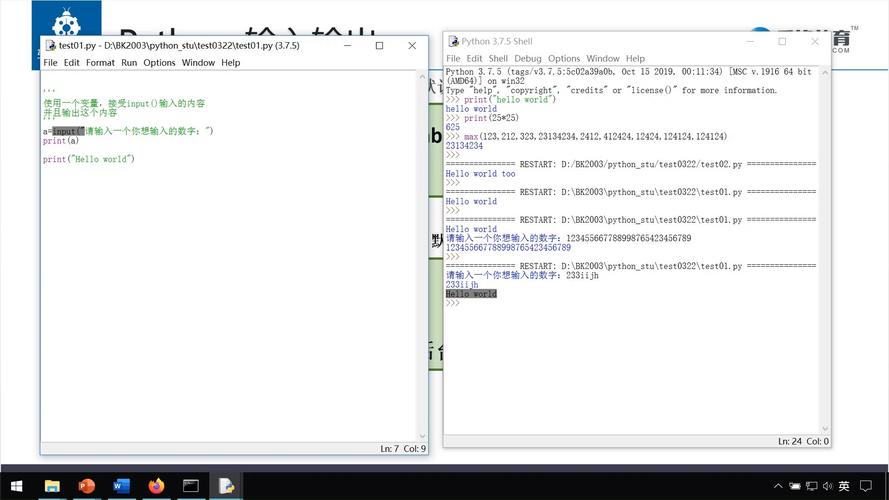
Instead of just print() statements scattered throughout your code, pdb allows you to pause your program's execution and inspect its state interactively.
The Core Idea: The Breakpoint
The most common way to use pdb is by setting a breakpoint. A breakpoint is a marker in your code that tells the debugger to stop and wait for your commands.
You set a breakpoint using pdb.set_trace().
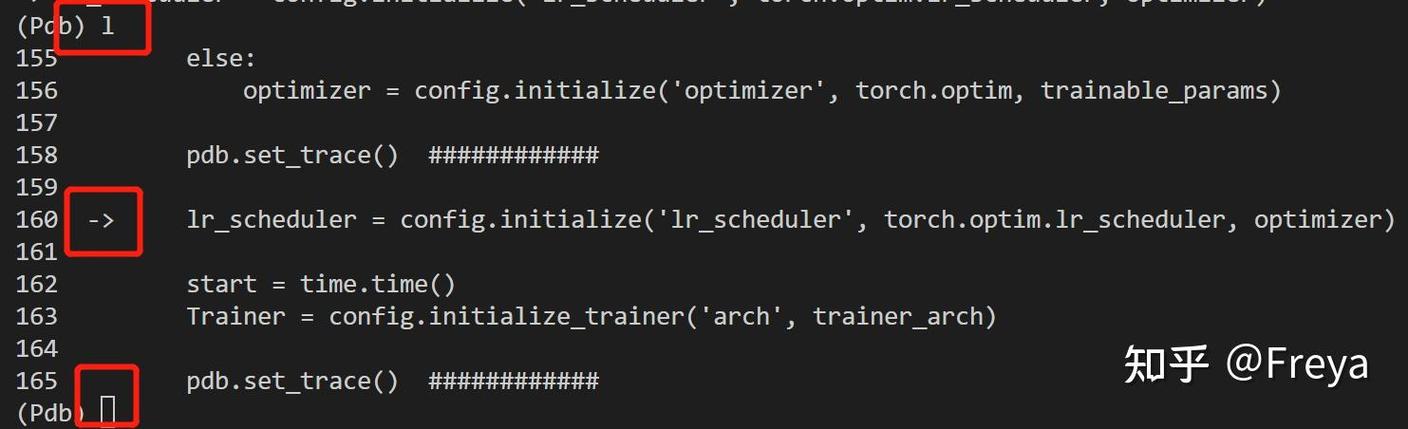
When the execution line reaches pdb.set_trace(), your program will pause and drop you into a (Pdb) prompt. From here, you can issue commands to inspect variables, step through your code line-by-line, and continue execution.
How to Use It: A Step-by-Step Example
Let's imagine you have a function that's supposed to calculate the average of a list of numbers, but it's not working correctly.
The "Buggy" Code (buggy_code.py)
# buggy_code.py
def calculate_average(numbers):
    """Calculates the average of a list of numbers."""
    print(f"Inside calculate_average with numbers: {numbers}")
    total = 0
    for i, num in enumerate(numbers):
        total += num
        print(f"Step {i}: Added {num}, total is now {total}")
    # Let's pretend we made a mistake here
    average = total / len(numbers) - 1  # Oops, why did I subtract 1?
    return average
if __name__ == "__main__":
    my_numbers = [10, 20, 30, 40]
    result = calculate_average(my_numbers)
    print(f"The final average is: {result}") # This will print 25, but we expect 25.0 and the logic is wrong
If you run this, you get:
Inside calculate_average with numbers: [10, 20, 30, 40]
Step 0: Added 10, total is now 10
Step 1: Added 20, total is now 30
Step 2: Added 30, total is now 60
Step 3: Added 40, total is now 100
The final average is: 25
The result is 25, which is an integer, but more importantly, the logic of subtracting 1 is incorrect. Let's use pdb to find out what's happening.
The Debugged Code
Let's modify the code to add a breakpoint right before we calculate the average.
# debugged_code.py
import pdb  # 1. Import the debugger
def calculate_average(numbers):
    """Calculates the average of a list of numbers."""
    print(f"Inside calculate_average with numbers: {numbers}")
    total = 0
    for i, num in enumerate(numbers):
        total += num
        print(f"Step {i}: Added {num}, total is now {total}")
    # 2. Set a breakpoint here
    pdb.set_trace()
    average = total / len(numbers) - 1
    return average
if __name__ == "__main__":
    my_numbers = [10, 20, 30, 40]
    result = calculate_average(my_numbers)
    print(f"The final average is: {result}")
Running the Debugger
Now, run the script from your terminal:
python debugged_code.py
The program will run normally until it hits pdb.set_trace(). At that point, it will pause and you'll see the (Pdb) prompt.
Inside calculate_average with numbers: [10, 20, 30, 40]
Step 0: Added 10, total is now 10
Step 1: Added 20, total is now 30
Step 2: Added 30, total is now 60
Step 3: Added 40, total is now 100
--Return--
> /path/to/your/debugged_code.py(13)<module>()->None
-> average = total / len(numbers) - 1
(Pdb)
The debugger shows you the exact line of code it's about to execute. Now you can start inspecting the program's state.
Common pdb Commands
At the (Pdb) prompt, you can type these essential commands:
| Command | Shorthand | Action |
|---|---|---|
help |
h |
Shows a list of available commands. help <command> gives help for a specific command. |
next |
n |
Execute the current line and move to the next one in the current function. |
step |
s |
Execute the current line. If the line calls a function, step into that function. |
continue |
c |
Continue execution until the next breakpoint or the program finishes. |
list |
l |
Show the source code around the current line. |
print <variable> |
p <variable> |
Print the value of a variable. |
pp <variable> |
pp <variable> |
"Pretty-print" a variable, useful for complex data structures like lists/dicts. |
quit |
q |
Exit the debugger and terminate the program. |
where |
w |
Show the stack trace (where you are in the call stack). |
break <line> |
b <line> |
Set a breakpoint at a specific line number. |
Continuing Our Debugging Session
Let's use these commands to find our bug.
-
Inspect the variables. We suspect
totalandlen(numbers)are key.(Pdb) p total 100 (Pdb) p len(numbers) 4 (Pdb) p total / len(numbers) 25.0
Aha! The correct average is
0. We can see that the lineaverage = total / len(numbers) - 1is definitely wrong. -
Exit the debugger. Now that we've found the problem, we can stop.
(Pdb) q
The program will terminate. You've now identified the bug without having to re-run the script multiple times with different print() statements.
Modern Alternatives: breakpoint() and IDEs
While import pdb; pdb.set_trace() is the classic method, there are more modern and convenient ways.
A) The breakpoint() Built-in (Python 3.7+)
Since Python 3.7, there is a built-in breakpoint() function. It's the recommended way to set breakpoints today.
How it works:
breakpoint() does exactly the same thing as pdb.set_trace() by default. It's cleaner and more standard.
Example:
# No need to import pdb!
def calculate_average(numbers):
    # ... code ...
    # Set a breakpoint here
    breakpoint() # Much cleaner!
    # ... rest of the code ...
Superpower: Environment Variables
The real power of breakpoint() is that you can control which debugger it uses with an environment variable. This lets you switch between pdb, pudb (a visual debugger), or even remote debuggers without changing your code.
# Use the standard pdb debugger (this is the default)
export PYTHONBREAKPOINT=pdb.set_trace
# Use the excellent pudb visual debugger (requires pip install pudb)
export PYTHONBREAKPOINT=pudb.set_trace
# Or disable all breakpoints entirely
export PYTHONBREAKPOINT=
B) IDE Debuggers (PyCharm, VS Code, etc.)
Most modern Python IDEs have their own powerful graphical debuggers. These are often the most user-friendly option.
How they work:
- You set breakpoints by clicking in the gutter (the gray area next to the line numbers) in your editor.
- You run your code in "Debug Mode" (usually a "bug" icon or a menu option).
- The IDE stops at your breakpoint and shows you a dedicated debug view with:
- Variables Panel: See all your local and global variables in a tree view.
- Watches Panel: Add specific variables to watch as you step through code.
- Call Stack Panel: See the function call hierarchy.
- Debug Controls: Buttons for Step Over, Step Into, Continue, etc.
This visual approach is often faster and less error-prone than typing commands at a (Pdb) prompt.
Summary: When to Use What
| Method | Best For... |
|---|---|
import pdb; pdb.set_trace() |
Quick and dirty debugging in scripts. Works everywhere, even on remote servers. |
breakpoint() |
The modern, standard way. Cleaner syntax and configurable via environment variables. This is the recommended approach for new code. |
| IDE Debugger | Complex projects, long debugging sessions, and visual learners. Provides the most comprehensive and user-friendly experience. |