Of course! Here is a comprehensive guide on how to manage Java on Ubuntu using apt-get. This covers the modern apt command, which is the recommended replacement for the older apt-get.
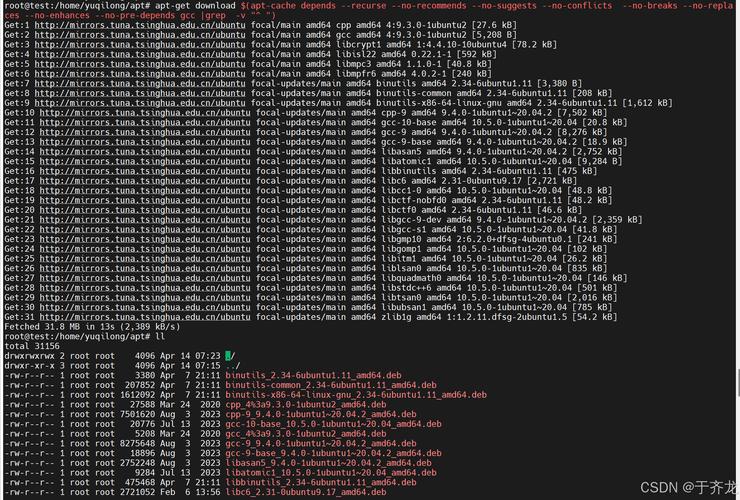
The Modern Way: Using the apt Command
The apt command is the preferred tool for package management on modern Ubuntu systems. It's a user-friendly front-end for apt-get and apt-cache.
Step 1: Update Your Package List
Before installing any new software, it's crucial to update your local package list to ensure you're getting the latest versions.
sudo apt update
Step 2: Find Available Java Versions
Ubuntu's default repositories often contain multiple versions of Java (OpenJDK). You can list all available Java packages using the search command.
apt search openjdk
This will show you a long list of packages. Look for packages that match the pattern openjdk-<version>-jdk or openjdk-<version>-jre.
-jdk: The Java Development Kit. This includes the JRE (Java Runtime Environment) plus the tools needed for development, like the compiler (javac) and debugger. This is what most developers need.-jre: The Java Runtime Environment. This is only for running Java applications. It does not include the compiler.-headless: A minimal JRE for server environments where you don't need GUI components (like AWT or Swing).
Example Output: You'll see packages like:
openjdk-8-jdkopenjdk-11-jdkopenjdk-17-jdkopenjdk-21-jdk
Step 3: Install Java
Choose the version you want to install. For example, to install the latest Long-Term Support (LTS) version, which is OpenJDK 17, you would run:
sudo apt install openjdk-17-jdk
During the installation, apt might ask you to confirm the installation size and proceed. Press Y and Enter.
Alternative: Install the Default JDK If you just need a working JDK and don't care about the specific version, you can install the default one. This is often a good choice for beginners.
sudo apt install default-jdk
This will typically install the latest LTS version available in your Ubuntu repository's "main" section.
Step 4: Verify the Installation
After the installation is complete, you should verify that Java is correctly installed and configured.
Check the Java Version
This command will show you the version of the default java command.
java -version
You should see output similar to this, confirming the version you installed:
openjdk version "17.0.10" 2025-01-16
OpenJDK Runtime Environment (build 17.0.10+7-Ubuntu-120.04.2)
OpenJDK 64-Bit Server VM (build 17.0.10+7-Ubuntu-120.04.2, mixed mode, sharing)
Check the Compiler
Make sure the javac compiler is also available.
javac -version
Output should be:
javac 17.0.10Find the Installation Path
The update-java-alternatives tool is useful for managing multiple Java installations on Ubuntu.
sudo update-java-alternatives --list
This will list all installed Java versions and their symbolic links. The output might look like this:
java-1.8.0-openjdk-amd64 1081 /usr/lib/jvm/java-1.8.0-openjdk-amd64
java-11-openjdk-amd64     1112 /usr/lib/jvm/java-11-openjdk-amd64
java-17-openjdk-amd64     1173 /usr/lib/jvm/java-17-openjdk-amd64
Step 5: Switching Between Java Versions (Very Important!)
What if you need to use Java 8 for one project and Java 17 for another? You can easily switch between installed versions.
Method A: Using update-java-alternatives (The Ubuntu Way)
-
List available versions (as shown in the previous step):
sudo update-java-alternatives --list
-
Set the default version. Let's say you want to switch to Java 11. Use the name from the list (without the path).
sudo update-java-alternatives --set java-11-openjdk-amd64
-
Verify the switch:
java -version
# Should now show Java 11
Method B: Using apt to Install Multiple Versions
You can have multiple versions installed simultaneously. apt is smart enough to handle this.
-
Install another version, for example, Java 8:
sudo apt install openjdk-8-jdk
-
Use the
update-java-alternativescommand (as shown in Method A) to switch between them.
Advanced: Using apt-get (The Classic Way)
While apt is recommended, you might encounter scripts or documentation that use apt-get. The commands are very similar.
| Command | apt (Modern) |
apt-get (Classic) |
Description |
|---|---|---|---|
| Update list | sudo apt update |
sudo apt-get update |
Downloads package information from all configured sources. |
| Install package | sudo apt install <package> |
sudo apt-get install <package> |
Installs or upgrades a package. |
| Remove package | sudo apt remove <package> |
sudo apt-get remove <package> |
Removes a package but leaves configuration files. |
| Purge package | sudo apt purge <package> |
sudo apt-get purge <package> |
Removes a package and its configuration files. |
| Upgrade all | sudo apt upgrade |
sudo apt-get upgrade |
Upgrades all installed packages to their newest versions. |
| Full upgrade | sudo apt full-upgrade |
sudo apt-get dist-upgrade |
Upgrades packages, handling changing dependencies. |
| Search | apt search <term> |
apt-cache search <term> |
Searches for packages matching a term. |
Example using apt-get:
# Update the list
sudo apt-get update
# Install OpenJDK 17
sudo apt-get install openjdk-17-jdk
# Verify
java -version
Summary
| Task | Recommended Command |
|---|---|
| Update package list | sudo apt update |
| Find Java packages | apt search openjdk |
| Install a JDK | sudo apt install openjdk-<version>-jdk |
| Verify installation | java -version |
| Switch Java versions | sudo update-java-alternatives --set <java-name> |