Of course! When you say "Python Windows Shell," it can mean a few different things. I'll cover the most common interpretations, from the most basic to the more advanced.
Here’s a breakdown of the different "shells" or environments you can use for Python on Windows.
The Python Interactive Interpreter (The Classic Shell)
This is the most fundamental "shell." It's a command-line program that starts with >>> and lets you execute Python code line by line. It's great for quick tests, debugging, and learning Python syntax.
How to Open It:
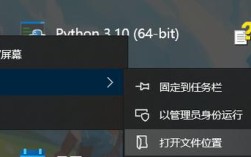
- Method 1 (Recommended): Open the Windows Start Menu, type
PythonorIDLE, and select the "Python (command line)" or "IDLE (Python GUI)" application. IDLE is a simple IDE that opens a shell-like window. - Method 2: Open a standard Command Prompt (
cmd) or PowerShell and typepythonorpython3.
Example Session:
C:\Users\YourUser> python
Python 3.10.4 (tags/v3.10.4:9d38120, Mar 23 2025, 23:13:41) [MSC v.1929 64 bit (AMD64)] on win32
Type "help", "copyright", "credits" or "license" for more information.
>>> print("Hello, Windows Shell!")
Hello, Windows Shell!
>>> 2 + 2
4
>>> my_variable = "test"
>>> my_variable
'test'
>>> exit()
C:\Users\YourUser>
Windows Command Prompt (cmd.exe) with Python
This is the standard Windows command-line tool. You don't run Python inside of it, but rather you use it to execute your Python scripts and manage your Python environment.
How to Use It:
- Open Command Prompt: Search for
cmdin the Start Menu. - Run a Python Script: Navigate to the directory where your
.pyfile is located using thecd(change directory) command.
Example:
Let's say you have a file named hello.py with the following content:
# hello.py
import datetime
import platform
import os
print("Hello from a Python script!")
print(f"Current OS: {platform.system()}")
print(f"Python Version: {platform.python_version()}")
print(f"Current Working Directory: {os.getcwd()}")
print(f"Today's Date: {datetime.date.today()}")
Now, in your Command Prompt:
# 1. Navigate to the file's directory
C:\Users\YourUser> cd Desktop\PythonProjects
# 2. Run the script
C:\Users\YourUser\Desktop\PythonProjects> python hello.py
# 3. See the output
Hello from a Python script!
Current OS: Windows
Python Version: 3.10.4
Current Working Directory: C:\Users\YourUser\Desktop\PythonProjects
Today's Date: 2025-10-27
Windows PowerShell (The Modern Shell)
PowerShell is a more powerful and modern command-line shell and scripting language from Microsoft. It's superior to cmd.exe for system administration and automation. You use it in the same way you use the Command Prompt to run Python scripts.
How to Use It:
- Open PowerShell: Search for
PowerShellin the Start Menu. - Run a Python Script: The process is identical to using
cmd.exe.
Example:
# 1. Navigate to the file's directory (PowerShell uses 'cd' too)
PS C:\Users\YourUser> cd Desktop\PythonProjects
# 2. Run the script
PS C:\Users\YourUser\Desktop\PythonProjects> python hello.py
# 3. See the output
Hello from a Python script!
Current OS: Windows
Python Version: 3.10.4
Current Working Directory: C:\Users\YourUser\Desktop\PythonProjects
Today's Date: 2025-10-27
PowerShell's Advantage: You can easily get information about your Python installation.
# Get a list of all Python versions installed on your system
Get-Command python -All
# See the full path to the Python executable
(Get-Command python).Source
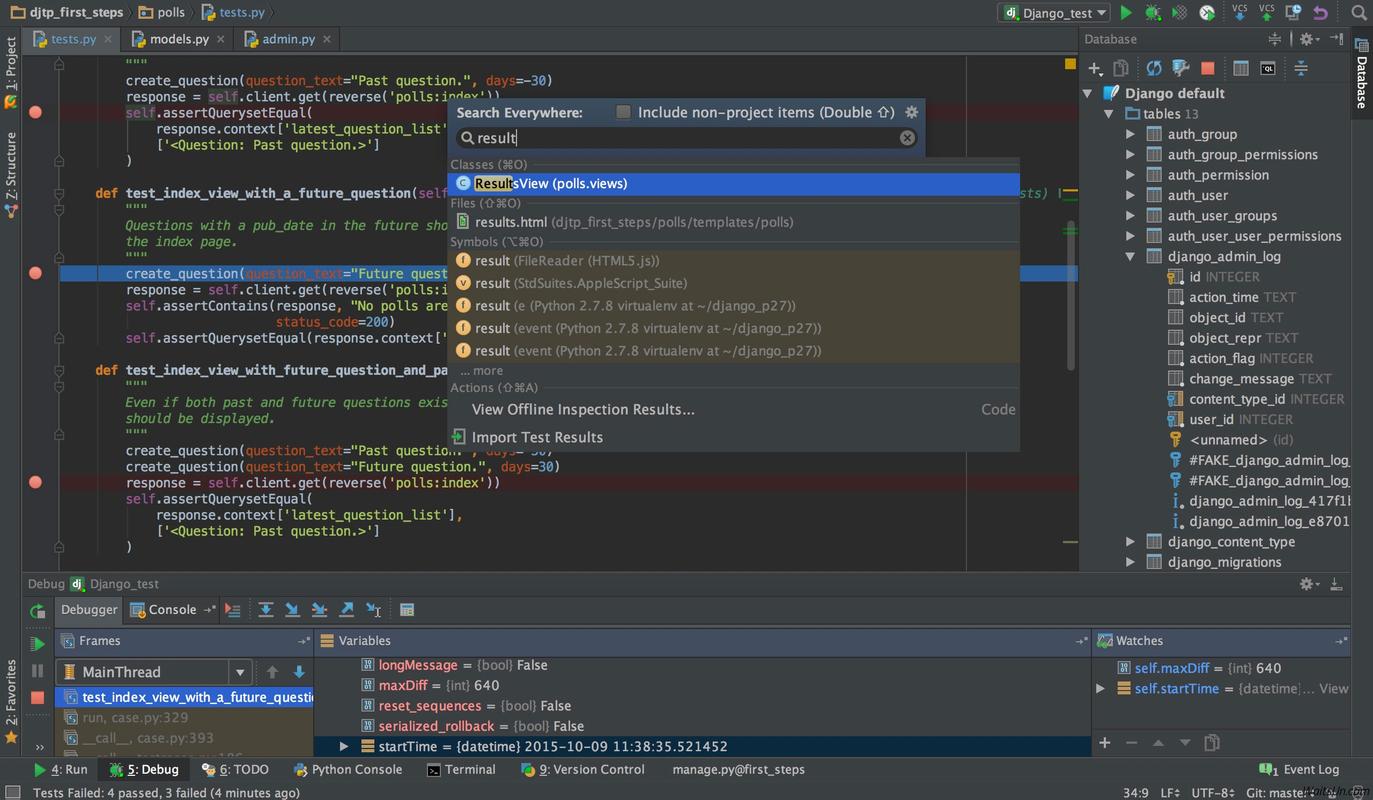
Integrated Development Environments (IDEs) with Integrated Shells
These are full-fledged applications that provide a rich environment for writing, running, and debugging Python code. They all have an embedded terminal/shell, which is often the most convenient way to work.
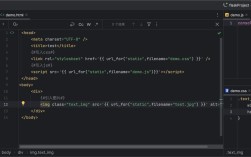
a) Visual Studio Code (VS Code) - Highly Recommended
VS Code is a free, lightweight, and extremely powerful code editor. Its Python extension turns it into a full-featured IDE.
- Key Feature: The Integrated Terminal. VS Code has a built-in terminal at the bottom that you can switch between PowerShell, Command Prompt, or even Git Bash.
- How to Run Code:
- Install VS Code.
- Install the official Python extension from the marketplace.
- Open your folder containing your Python file.
- Open the terminal (View > Terminal or `Ctrl+``).
- The terminal will open inside VS Code, right in your project's directory. You can simply type
python hello.pyto run it. - You can also run code directly by right-clicking in the editor and selecting "Run Python File in Terminal".
b) PyCharm
PyCharm is a dedicated Python IDE, available in a free "Community" edition and a paid "Professional" edition.
- Key Feature: The Run Tool Window. PyCharm has its own sophisticated tool window for running scripts, managing environments, and viewing output.
- How to Run Code:
- Open your project in PyCharm.
- Right-click on a Python file in the editor.
- Select "Run 'your_file_name'". The output will appear in a dedicated "Run" window at the bottom.
Advanced: Creating a Custom Python Shell
For more advanced applications, you can embed a Python interpreter directly into your own Windows application (e.g., a GUI app made with Tkinter, PyQt, or WxPython). This allows you to give your users an interactive Python prompt within your program.
This is a complex topic, but the key module for this is the code module.
Example of a simple, interactive loop in a script:
import code
import readline  # This allows for command history and line editing in the console
# A dictionary to act as the local namespace for the shell
local_vars = {
    "my_var": "Hello from the custom shell!",
    "version": 1.0
}
print("Welcome to the Custom Python Shell!")
print("Type 'exit()' or press Ctrl+Z (then Enter) to quit.")
print("-" * 30)
# Start the interactive console
code.interact(local=local_vars, banner=">>> ")
Summary & Recommendation
| Tool | Best For | Pros | Cons |
|---|---|---|---|
| Python Interpreter | Quick tests, learning syntax, debugging | Simple, always available, no setup needed | Not for writing full scripts, no history by default |
| Command Prompt (cmd) | Simple script execution, basic automation | Built into Windows, familiar to many users | Less powerful than PowerShell, clunky syntax |
| PowerShell | System administration, advanced automation | Extremely powerful, object-oriented, great for scripting | Steeper learning curve than cmd |
| VS Code | General-purpose development (Recommended) | Free, lightweight, excellent debugging, integrated terminal, massive extension library | Requires initial setup of extensions |
| PyCharm | Serious, large-scale Python projects | Powerful debugger, excellent project management, smart refactoring | Can be resource-heavy, "heavier" than VS Code |
| Custom Shell | Embedding Python into another application | Full control over the user experience | Very complex to implement correctly |
For most users, especially beginners and developers, I strongly recommend using an IDE like Visual Studio Code. It gives you the best of all worlds: a powerful editor, a debugger, and an integrated shell, all in one free and flexible package.