Of course! Here is a comprehensive guide to the ArcGIS API for Java, covering its purpose, key components, how to get started, and best practices.
What is the ArcGIS API for Java?
The ArcGIS API for Java is a powerful library from Esri that allows developers to build rich, interactive, and data-driven mapping applications using the Java programming language. It's designed to integrate with the ArcGIS Platform, enabling you to consume and work with a vast ecosystem of mapping, geospatial, and location services.
The primary goal of this API is to bring the power of ArcGIS to desktop and web applications built with Java.
Key Use Cases
Developers use the ArcGIS API for Java to create applications for:
- Desktop GIS Applications: Building custom desktop tools for data editing, spatial analysis, and map visualization (e.g., a utility company's asset management application).
- Server-Side Web Applications: Generating dynamic maps, performing geoprocessing tasks, or analyzing data on a server before sending the results to a client (e.g., a web service that calculates the best route for a delivery fleet).
- Location Analytics: Integrating maps and spatial analysis into business intelligence dashboards and enterprise applications.
- Data Management: Creating tools for managing, validating, and publishing geospatial data.
Core Concepts and Architecture
The API is built around a few fundamental concepts:
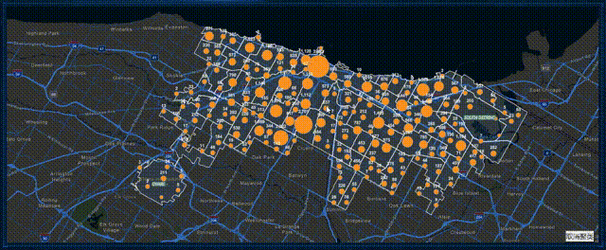
- Map: The central component of your application. It holds all the operational layers, a basemap, and a set of map properties (like initial extent and spatial reference).
- Map View: The user interface component that displays the
Map. It handles all user interactions like panning, zooming, and selecting features. You can have multiple views of the same map. - Operational Layers: These are the layers of data you add on top of the basemap. The API supports several types:
- FeatureLayer: For displaying vector data (points, lines, polygons) from a feature service. This is the most common layer type for interactive data.
- ArcGISMapImageLayer: For displaying data from a map service, which can be pre-rendered raster tiles or vector data.
- TiledLayer: For displaying cached map services (e.g., basemaps like Topographic or Streets).
- WMSLayer: For connecting to OGC Web Map Services.
- GeoProcesssingLayer: To display the results of a geoprocessing task.
- Geometries & Graphics: Represents the shapes in your map.
- Geometry: The fundamental spatial objects like
Point,Polyline, andPolygon. They have a spatial reference. - Graphic: A geometry with additional visual properties (symbol, color) and attributes. Graphics are temporary and are added directly to the map view for things like highlights, temporary markers, or drawing tools.
- Geometry: The fundamental spatial objects like
- Symbol: Defines how a geometry or graphic is rendered on the map (e.g., a red circle for a point, a blue line for a river).
- Task: A class for performing a specific operation against a service.
- GeocodeTask: For finding locations from addresses.
- GeometryService: For operations like buffering, simplifying, or projecting geometries.
- GeoprocessingTask: For executing complex models and tools.
How to Get Started (A Simple "Hello World" Example)
This example will create a simple JavaFX application that displays a map of the world.
Prerequisites
- Java Development Kit (JDK): Version 8 or newer.
- An IDE: IntelliJ IDEA or Eclipse are popular choices.
- Maven or Gradle: To manage project dependencies.
Step 1: Set Up Your Project (using Maven)
In your pom.xml file, add the ArcGIS API for Java dependency. You'll also need JavaFX dependencies.
<dependencies>
    <!-- ArcGIS API for Java -->
    <dependency>
        <groupId>com.esri.arcgisruntime</groupId>
        <artifactId>arcgis-java</artifactId>
        <version>200.2.0</version> <!-- Check for the latest version -->
    </dependency>
    <!-- JavaFX dependencies (for a desktop app) -->
    <dependency>
        <groupId>org.openjfx</groupId>
        <artifactId>javafx-controls</artifactId>
        <version>17</version>
    </dependency>
    <dependency>
        <groupId>org.openjfx</groupId>
        <artifactId>javafx-fxml</artifactId>
        <version>17</version>
    </dependency>
</dependencies>
Step 2: Write the Java Code
Create a Java class (e.g., SimpleMap.java).
import javafx.application.Application;
import javafx.scene.Scene;
import javafx.scene.layout.StackPane;
import javafx.stage.Stage;
import com.esri.arcgisruntime.ArcGISRuntimeEnvironment;
import com.esri.arcgisruntime.mapping.ArcGISMap;
import com.esri.arcgisruntime.mapping.BasemapStyle;
import com.esri.arcgisruntime.mapping.view.MapView;
public class SimpleMap extends Application {
    private MapView mapView;
    @Override
    public void start(Stage stage) throws Exception {
        // Set your API key (obtained from your ArcGIS Developer account)
        // ArcGISRuntimeEnvironment.setApiKey("YOUR_API_KEY");
        // 1. Create a stack pane as the root
        StackPane stackPane = new StackPane();
        // 2. Create a MapView
        mapView = new MapView();
        // 3. Create a Map with a topographic basemap
        ArcGISMap map = new ArcGISMap(BasemapStyle.ARCGIS_TOPOGRAPHIC);
        // 4. Set the map to the map view
        mapView.setMap(map);
        // 5. Add the map view to the stack pane
        stackPane.getChildren().add(mapView);
        // 6. Create a scene and add the stack pane
        Scene scene = new Scene(stackPane, 800, 600);
        // 7. Add the scene to the stage and show it
        stage.setTitle("ArcGIS API for Java - Simple Map");
        stage.setScene(scene);
        stage.show();
        // Ensure the map view is disposed of when the window is closed
        stage.setOnCloseRequest(e -> {
            if (mapView != null) {
                mapView.dispose();
            }
        });
    }
    public static void main(String[] args) {
        launch(args);
    }
}
Step 3: Run the Application
Run the main method in your IDE. You should see a window displaying a topographic map of the world.
Key Features and Functionality
The API is not just for displaying maps. Here are some of its core features:
Working with Data
- Feature Layers: Connect to feature services hosted on ArcGIS Online, ArcGIS Enterprise, or other servers. You can query, select, and display features.
- Querying: Use
QueryParametersto select features based on attributes or location. - Identify: Click on the map to get information about a feature.
Visualization
- Renderers: Apply a
Rendererto aFeatureLayerto style all features in that layer based on an attribute (e.g., color-code cities by population). - Symbols: Use a wide variety of
Symbolclasses (SimpleMarkerSymbol,SimpleLineSymbol,SimpleFillSymbol,TextSymbol) to customize the look of your graphics and features. - Heatmaps: Visualize point density using
HeatmapRenderer.
Analysis
- Geoprocessing: Execute complex analysis tools (e.g., buffer, overlay, network analysis) by submitting a job to a geoprocessing service.
- Geometry Services: Perform geometric operations like buffering a point or projecting a coordinate from one spatial reference to another.
- Network Analysis: Solve routing (find the best path), service area (find areas reachable within a certain time/distance), and location-allocation problems.
Popups
When you click on a feature, a Popup can be displayed showing its attributes. You can customize the content, title, and fields of the popup to create informative popups for your users.
Best Practices
- Dispose of MapView: This is the most important rule. The
MapViewmanages native resources. You must callmapView.dispose()when your application is closing or the view is no longer needed to prevent memory leaks. - Use Asynchronous Operations: Many tasks like loading a layer or running a geoprocess are network-bound and can take time. The API uses
ListenableFuturefor these operations. Always handle the result in theonSuccesscallback and check for exceptions inonFailure. Do not block the UI thread. - API Key Management: Secure your API key. It's best to use it on the server-side for secure services or set user-level restrictions in your ArcGIS Developer account to prevent misuse.
- Layer Caching: For layers that don't change often, using a cached service (
ArcGISMapImageLayerorTiledLayer) will result in much better performance than a dynamicFeatureLayer. - Handle Authentication: If you need to access secured content (your own private services), use the
AuthenticationManagerwith anCredential(e.g., username/password, OAuth token).
API Key vs. Named User
- API Key: A simple, long-lasting string token used to authenticate your application. It's great for public-facing apps and accessing public/basemap content. You can set usage limits.
- Named User: A specific user account (often with an ArcGIS organizational subscription). You would use this for applications that need to access the user's private content or perform actions on their behalf. This requires a more complex OAuth 2.0 authentication flow.
Resources
- Esri ArcGIS API for Java Documentation: The official source for tutorials, API references, and sample code.
- ArcGIS for Java Developers GitHub: A repository with hundreds of complete, runnable sample applications demonstrating every feature of the API.
- Esri Community Forums: The best place to ask questions and get help from other developers and Esri staff.