Of course! The ArcGIS API for Java is a powerful toolkit for integrating Esri's mapping and GIS capabilities into Java-based desktop and server applications. It allows developers to build applications that can visualize, analyze, and manage geographic data.
Here’s a comprehensive breakdown of the ArcGIS API for Java, covering its components, use cases, getting started, and key features.
What is the ArcGIS API for Java?
It's a library of Java classes and methods that acts as a bridge between your Java application and Esri's GIS services and data sources. You can use it to:
- Display Maps: Create interactive 2D and 3D maps.
- Visualize Data: Render points, lines, polygons, rasters, and 3D objects on a map.
- Perform Analysis: Run geoprocessing tools, solve network analysis problems (e.g., find the best route), and perform spatial queries.
- Manage Data: Query, edit, and manage features in databases or web services.
- Integrate with ArcGIS Online/Enterprise: Connect to and leverage data and services from the ArcGIS platform.
Core Components of the API
The API is structured around a few key components:
a) MapView
This is the primary control for displaying a map. It's a JavaFX component that you can add to your application's user interface. It handles all the map rendering, panning, zooming, and user interaction.
b) Map and Basemap
Mapobject: Represents the collection of operational data layers in your map.Basemapobject: Provides the foundation of your map (e.g., topographic, streets, imagery). You can use the basemaps provided by Esri or create your own.
c) Layer
A Layer represents a dataset and how it's displayed on the map. Common layer types include:
ArcGISMapImageLayer: Displays map content from a map service (e.g., cached or dynamic).FeatureLayer: Displays vector data (points, lines, polygons) from a feature service. This is the most common layer type for editing and query.WmsLayer: Connects to and displays data from OGC Web Map Services (WMS).TiledLayer: Displays pre-rendered map tiles for fast performance.
d) Geoprocessing
This component allows you to execute geoprocessing tools (e.g., buffer, intersect, overlay) from your Java application. You can run tools from your ArcGIS Enterprise portal or from a local server.
e) `Geometry**
The API includes a robust set of classes for representing and working with geographic shapes:
PointPolylinePolygonEnvelope(a rectangle)Multipoint
f) Symbol
Symbols define how geographic features are rendered on the map.
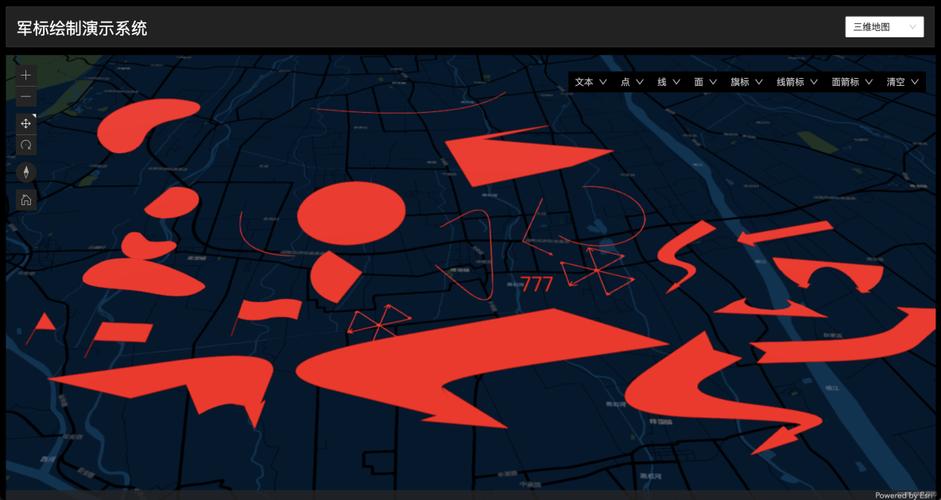
SimpleMarkerSymbol(for points)SimpleLineSymbol(for lines)SimpleFillSymbol(for polygons)Renderer: A collection of symbols and rules that are applied to a layer based on attribute values (e.g., color-code cities by population).
Use Cases (When to Use It)
The ArcGIS API for Java is ideal for:
- Desktop GIS Applications: Building custom desktop tools for data editing, field data collection, or complex spatial analysis.
- Server-Side Geoprocessing: Creating Java services that run heavy-duty geoprocessing tasks in the background without a user interface.
- JEE Web Applications: Integrating mapping capabilities into Java Enterprise Edition (JEE) web applications.
- 3D Visualization: Developing desktop applications for visualizing and analyzing data in 3D (e.g., city planning, subsurface modeling).
How to Get Started (A Simple Example)
Here’s a step-by-step guide to creating a simple JavaFX application that displays a map.
Prerequisites
- Java Development Kit (JDK): Version 8 or newer.
- An IDE: IntelliJ IDEA or Eclipse are popular choices.
- Maven or Gradle: To manage project dependencies.
Step 1: Set Up Your Project (using Maven)
In your pom.xml file, add the ArcGIS API for Java dependency.
<dependencies>
    <!-- ArcGIS API for Java -->
    <dependency>
        <groupId>com.esri.arcgisruntime</groupId>
        <artifactId>arcgis-java</artifactId>
        <version>200.2.0</version> <!-- Check for the latest version -->
    </dependency>
    <!-- JavaFX dependencies (for the UI) -->
    <dependency>
        <groupId>org.openjfx</groupId>
        <artifactId>javafx-controls</artifactId>
        <version>17</version>
    </dependency>
    <dependency>
        <groupId>org.openjfx</groupId>
        <artifactId>javafx-fxml</artifactId>
        <version>17</version>
    </dependency>
</dependencies>
Step 2: Write the Java Code
Create a Java class that extends javafx.application.Application.
import javafx.application.Application;
import javafx.scene.Scene;
import javafx.scene.layout.StackPane;
import javafx.stage.Stage;
import com.esri.arcgisruntime.ArcGISRuntimeEnvironment;
import com.esri.arcgisruntime.mapping.ArcGISMap;
import com.esri.arcgisruntime.mapping.BasemapStyle;
import com.esri.arcgisruntime.mapping.view.MapView;
public class SimpleMapApp extends Application {
    private MapView mapView;
    @Override
    public void start(Stage stage) throws Exception {
        // 1. Authenticate with your ArcGIS account
        // Replace "YOUR_API_KEY" with your actual key from your ArcGIS Developer account
        ArcGISRuntimeEnvironment.setApiKey("YOUR_API_KEY");
        // 2. Create a stack pane to hold the map view
        StackPane stackPane = new StackPane();
        // 3. Create a map with a topographic basemap
        ArcGISMap map = new ArcGISMap(BasemapStyle.ARCGIS_TOPOGRAPHIC);
        // 4. Create a map view and set the map to it
        mapView = new MapView();
        mapView.setMap(map);
        // 5. Add the map view to the stack pane
        stackPane.getChildren().add(mapView);
        // 6. Create a scene and add the stack pane
        Scene scene = new Scene(stackPane, 800, 600);
        // 7. Add the scene to the stage and show it
        stage.setTitle("ArcGIS API for Java: Simple Map");
        stage.setScene(scene);
        stage.show();
    }
    @Override
    public void stop() throws Exception {
        // Release all resources when the application closes
        if (mapView != null) {
            mapView.dispose();
        }
    }
    public static void main(String[] args) {
        launch(args);
    }
}
Step 3: Run the Application
- Get an API key from the ArcGIS Developer website.
- Replace
"YOUR_API_KEY"in the code with your key. - Run the
mainmethod. A window should appear displaying a world topographic map.
Key Features and Advanced Topics
- Authentication: The API supports various authentication methods:
- API Key: Simple, used for public or internal applications.
- OAuth 2.0: For secure, user-based authentication (e.g., logging in with ArcGIS Online credentials).
- Integrated Windows Authentication (IWA): For on-premise ArcGIS Enterprise portals.
- 2D and 3D: The API has dedicated
MapViewandSceneViewcontrols for 2D mapping and 3D scene visualization, respectively. - Feature Table & Feature Editor: You can connect to a
ServiceFeatureTableto query, add, update, and delete features in a feature service. This makes building editing tools straightforward. - GeometryEngine: A powerful utility class for performing geometric operations (e.g.,
buffer,union,intersection,distance). - Offline Maps: You can take maps and data offline using
OfflineMapTaskandGenerateOfflineMapJob, allowing your application to work in the field without an internet connection.
Important Considerations
-
ArcGIS API for Java vs. ArcGIS Runtime SDK for Java:
- ArcGIS API for Java: This is the older, original API. It's primarily used for Swing/AWT applications and is now considered legacy. You should not start new projects with this.
- ArcGIS Runtime SDK for Java: This is the current, modern SDK. It's what the example above uses. It's based on JavaFX, is cross-platform, and is actively developed. It supports a much wider range of features, including 3D. Always use the ArcGIS Runtime SDK for Java for new development.
-
Licensing: Your API key determines the level of functionality you can access. A free key provides access to Esri's world basemaps and some services, while a paid key unlocks premium capabilities and higher service limits.
-
Community and Resources:
- Esri Documentation: The best place to start. ArcGIS Runtime SDK for Java documentation
- Esri GitHub Repositories: Find sample code and contribute to the community. Esri/arcgis-runtime-java-samples
- GeoNet: Esri's professional network for asking questions and connecting with other developers. GeoNet ArcGIS Runtime Space