Of course! Let's dive into creating a GUI with Python's built-in tkinter library. I'll guide you from the basics to building a practical, interactive application.
What is Tkinter?
tkinter (short for "Tk interface") is Python's standard and most popular GUI library. It's a wrapper around the Tk GUI toolkit, which is native to many operating systems (Windows, macOS, Linux). This means a tkinter application will look and feel like a normal application on each platform.
The Core Concept: The Main Window
Every tkinter application starts with one main thing: a window. This window is the foundation upon which you'll place all other widgets (buttons, labels, text boxes, etc.).
Key Concepts:
- Widget: Any GUI element (button, label, etc.).
- Main Window (
Tk): The top-level container that holds all other widgets. - Geometry Managers: These control how widgets are positioned within their parent container. We'll focus on
pack()andgrid().
Your First "Hello, World!" GUI
This is the simplest possible tkinter application. It creates a window with a title and a label.
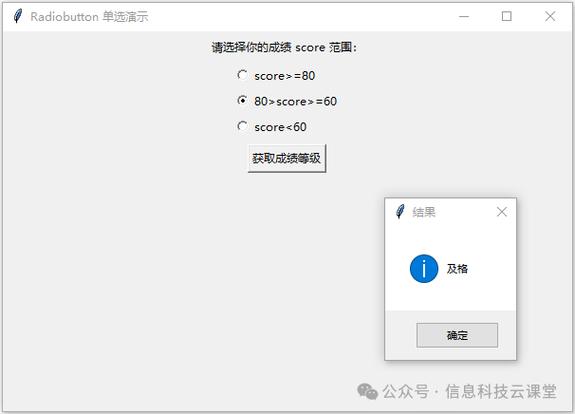
import tkinter as tk
# 1. Create the main window
# The 'root' variable is the main window of our application.
root = tk.Tk()
# 2. Configure the window"My First GUI")
root.geometry("400x300") # Set the window size (width x height)
# 3. Create a widget (a Label in this case)
# The first argument 'root' tells the Label to place itself inside the main window.
# 'text' is the content of the label.
hello_label = tk.Label(root, text="Hello, World!", font=("Arial", 24))
# 4. Place the widget in the window
# .pack() is a geometry manager that places widgets in a block, one after another.
hello_label.pack(pady=20, padx=20) # Add some padding for visual appeal
# 5. Start the application's main loop
# This line keeps the window open and listens for events (like button clicks).
root.mainloop()
To run this:
- Save the code as a Python file (e.g.,
app.py). - Run it from your terminal:
python app.py
You should see a window appear!
Common Widgets
Let's explore the most frequently used widgets.
| Widget | Class | Purpose | Example |
|---|---|---|---|
| Label | tk.Label |
Displays text or an image. | tk.Label(root, text="Name:") |
| Button | tk.Button |
A clickable button that triggers an action. | tk.Button(root, text="Click Me") |
| Entry | tk.Entry |
A single-line text input field. | tk.Entry(root) |
| Text | tk.Text |
A multi-line text area for input or display. | tk.Text(root, height=10, width=30) |
| Frame | tk.Frame |
A container widget used to group other widgets. | tk.Frame(root) |
| Checkbutton | tk.Checkbutton |
A checkbox that can be on or off. | tk.Checkbutton(root, text="Enable Feature") |
| Radiobutton | tk.Radiobutton |
A radio button, used to select one option from a group. | tk.Radiobutton(root, text="Option 1") |
Building a Practical Application: A Simple Greeting App
Let's combine what we've learned to build a more interactive app. This app will have:
- A label for a name input.
- An entry field for the user to type their name.
- A button to trigger the greeting.
- A label to display the result.
import tkinter as tk
from tkinter import messagebox
# --- Functions ---
def show_greeting():
    """This function is called when the button is clicked."""
    name = name_entry.get()  # Get the text from the Entry widget
    if name:
        # Update the text of the result_label
        result_label.config(text=f"Hello, {name}! Welcome to Tkinter.")
    else:
        # Show a message box if the name is empty
        messagebox.showwarning("Input Error", "Please enter your name.")
# --- Create the Main Window ---
root = tk.Tk()"Greeting App")
root.geometry("500x250")
root.resizable(False, False) # Prevent the window from being resized
# --- Create Widgets ---
# 1. Frame to hold the input elements (optional, but good for organization)
input_frame = tk.Frame(root, padx=10, pady=10)
input_frame.pack(pady=10)
# 2. Label for the name entry
name_label = tk.Label(input_frame, text="Enter your name:", font=("Helvetica", 12))
name_label.grid(row=0, column=0, sticky="w") # Use grid for precise positioning
# 3. Entry widget for the name
name_entry = tk.Entry(input_frame, font=("Helvetica", 12), width=20)
name_entry.grid(row=0, column=1, padx=5, pady=5)
name_entry.focus() # Set focus to this widget on startup
# 4. Button to trigger the greeting
greet_button = tk.Button(input_frame, text="Greet Me", command=show_greeting, bg="blue", fg="white", font=("Helvetica", 10, "bold"))
greet_button.grid(row=1, column=0, columnspan=2, pady=10) # columnspan=2 makes the button span two columns
# 5. Label to display the result
result_label = tk.Label(root, text="", font=("Helvetica", 14), fg="green")
result_label.pack(pady=10)
# --- Start the Application's Main Loop ---
root.mainloop()
Code Breakdown:
-
Function
show_greeting():- This function is linked to our button.
command=show_greetingtells the button to call this function when clicked. name_entry.get()retrieves the current text from theEntrywidget.result_label.config(...)changes the properties of an existing widget. Here, we update itstext.messagebox.showwarning(...)is a simple pop-up dialog for errors or warnings.
- This function is linked to our button.
-
Geometry Managers:
- We use
.pack()for the main layout because it's simple for stacking elements vertically. - We use
.grid()inside theinput_framefor precise, table-like layout.rowandcolumndefine the position.sticky="w""sticks" the widget to the west (left) side of its grid cell.
- We use
Geometry Managers in Detail
Understanding how to position widgets is key to a good GUI.
.pack() - Simple Packing
- How it works: Places widgets in a block, either vertically or horizontally.
- Pros: Simple, great for quick layouts.
- Cons: Less control over precise positioning.
# Pack widgets vertically from top to bottom
label1 = tk.Label(root, text="Top", bg="red")
label1.pack()
label2 = tk.Label(root, text="Middle", bg="green")
label2.pack()
label3 = tk.Label(root, text="Bottom", bg="blue")
label3.pack()
.grid() - Table-like Grid
- How it works: Divides the parent container into a grid of rows and columns. Widgets are placed in specific cells.
- Pros: Excellent for forms and structured layouts.
- Cons: Can be complex if you have many rows/columns.
# Create a form using grid
tk.Label(root, text="Username:").grid(row=0, column=0, padx=5, pady=5, sticky="e")
tk.Entry(root).grid(row=0, column=1, padx=5, pady=5)
tk.Label(root, text="Password:").grid(row=1, column=0, padx=5, pady=5, sticky="e")
tk.Entry(root, show="*").grid(row=1, column=1, padx=5, pady=5)
# sticky="e" sticks the label to the East (right) side of its cell
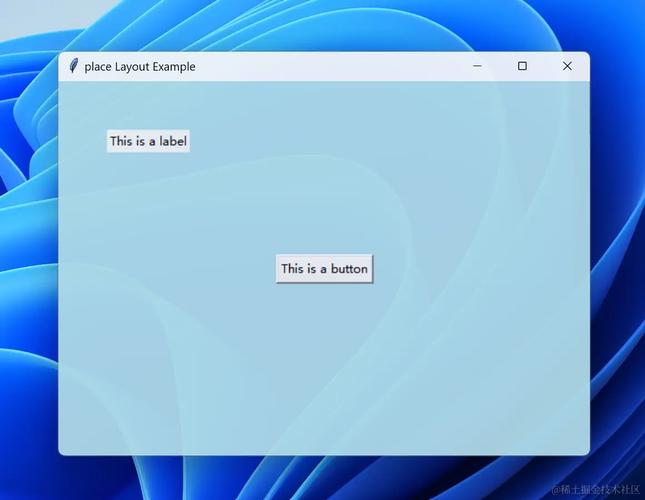
.place() - Absolute Positioning
- How it works: Places widgets at an exact
(x, y)coordinate relative to the parent window. - Pros: Total control over positioning.
- Cons: Not flexible. The layout won't resize well if the window is resized. Use with caution.
# Place a button at exact coordinates (x=50, y=100)
button = tk.Button(root, text="Placed Button")
button.place(x=50, y=100)
Next Steps and Advanced Topics
Once you're comfortable with the basics, you can explore more advanced features:
-
Customization: Use
cget()andconfig()to change widget properties like colors (bg,fg), fonts (font), and borders (relief,borderwidth). -
Event Handling: Bind functions to more complex events like key presses (
<Key>) or mouse movements (<Motion>). -
ttkWidgets:tkinter.ttk(themed Tk) provides widgets that look more modern and native to the operating system. It's often recommended over the classic widgets.from tkinter import ttk my_button = ttk.Button(root, text="A Modern Button")
-
Using Images: You can display images (
.png,.gif, etc.) in labels or buttons using thePillowlibrary (pip install Pillow). -
Object-Oriented Programming (OOP): For larger applications, it's highly recommended to structure your code using classes. This makes it much more organized and maintainable.
# A simple OOP example
class App:
    def __init__(self, root):
        self.root = root
        self.root.title("OOP App")
        self.label = tk.Label(self.root, text="This is an OOP App")
        self.label.pack()
if __name__ == "__main__":
    root = tk.Tk()
    app = App(root)
    root.mainloop()
Official Resources
- Python
tkinterDocumentation: https://docs.python.org/3/library/tkinter.html (The ultimate reference) - Tkinter 8.5 Reference: A fantastic, easy-to-read online book for all widgets and methods. http://effbot.org/tkinterbook/
Start with simple apps, experiment with different widgets and geometry managers, and you'll be building powerful desktop applications in no time