Of course! The term "Python Windows tab" can mean a few different things, depending on what you're trying to do. I'll cover the most common interpretations, from the simplest to the more advanced.
Here’s a breakdown of the most likely meanings:
- The Most Common: Using Tabs in a Tkinter Application (The GUI Library)
- Running Python Code in a Windows Terminal (Command Prompt or PowerShell)
- Automating Web Browser Tabs with Selenium
- Using Tabs in a Jupyter Notebook or VS Code
Creating Tabs in a Python GUI (Tkinter)
This is the most direct answer to "Python Windows tab". If you want to create a graphical application with a tabbed interface, the standard library tkinter has a widget called ttk.Notebook specifically for this.
A Notebook acts like a tabbed folder, and you add "tabs" (called frames) to it.
Simple Tkinter Tab Example
This code will create a window with two tabs. Each tab will have its own label and button.
import tkinter as tk
from tkinter import ttk
# --- Create the main window ---
root = tk.Tk()"Python Tabbed Window")
root.geometry("400x250") # Set the window size
# --- Create a Notebook (the tabbed interface) ---
notebook = ttk.Notebook(root)
# --- Create the frames (the content for each tab) ---
# Tab 1
tab1 = ttk.Frame(notebook)
tab1.pack(fill="both", expand=True)
# Tab 2
tab2 = ttk.Frame(notebook)
tab2.pack(fill="both", expand=True)
# --- Add content to each tab ---
# Content for Tab 1
label1 = ttk.Label(tab1, text="This is the first tab!", font=("Arial", 14))
label1.pack(pady=20)
button1 = ttk.Button(tab1, text="Click Me on Tab 1")
button1.pack()
# Content for Tab 2
label2 = ttk.Label(tab2, text="This is the second tab!", font=("Arial", 14))
label2.pack(pady=20)
button2 = ttk.Button(tab2, text="Click Me on Tab 2")
button2.pack()
# --- Add the tabs to the Notebook ---
# You can add text, an image, or both
notebook.add(tab1, text="Tab One")
notebook.add(tab2, text="Tab Two")
# --- Run the application ---
root.mainloop()
To run this:
- Save the code as a file (e.g.,
app.py). - Open a command prompt or PowerShell.
- Navigate to the directory where you saved the file.
- Run the command:
python app.py
You will see a window with two tabs.
Running Python in a Windows Terminal (Command Prompt/PowerShell)
Sometimes "tab" is used informally to mean a "command prompt window" or a "terminal". If you want to run Python scripts from the command line, here's how.
Opening a Terminal
- Command Prompt: Press
Win + R, typecmd, and press Enter. - PowerShell (Recommended): Press
Win + Xand choose "Windows PowerShell" or "Terminal".
Basic Terminal Commands for Python
-
Check your Python version:
python --version
(If you have both Python 2 and 3, you might need
python3 --version). -
Run a Python script: Let's say you have a file named
hello.pywith this content:# hello.py print("Hello from a Python script!") print("Current working directory:", __file__)In your terminal, navigate to the file's directory and run it:
# First, navigate to the file's location (example)
cd C:\Users\YourUser\Documents
# Then run the script
python hello.py
-
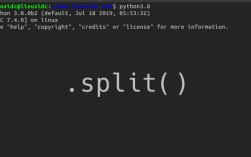
The Python Interactive Interpreter: Just typing
pythonand pressing Enter will open the interactive shell, where you can run Python code line by line.python >>> print("Hello, world!") Hello, world! >>> exit()
Automating Web Browser Tabs with Selenium
If you mean "tabs" as in web browser tabs (like in Chrome or Firefox), you can automate them using the selenium library.
This is useful for web scraping, testing, or automating repetitive tasks.
Example: Opening a New Tab and Switching to It
First, you need to install Selenium and a WebDriver.
pip install selenium
You also need to download the WebDriver for your browser (e.g., chromedriver for Chrome) and make sure it's in your system's PATH.
from selenium import webdriver
from selenium.webdriver.common.keys import Keys
import time
# --- Setup the WebDriver ---
# Make sure you have the correct driver for your browser (e.g., chromedriver)
# and it's in your system's PATH.
driver = webdriver.Chrome()
try:
    # 1. Open the first website in the first tab
    driver.get("https://www.python.org")
    print(f"Opened first tab: {driver.title}")
    # 2. Open a new tab using keyboard shortcuts
    # This simulates pressing Ctrl+T (or Cmd+T on Mac)
    driver.find_element("tag name", "body").send_keys(Keys.CONTROL + 't')
    time.sleep(2) # Wait for the new tab to open
    # 3. Switch to the newly opened tab
    # The new tab is the last one in the list of windows
    driver.switch_to.window(driver.window_handles[-1])
    print(f"Switched to tab: {driver.title}")
    # 4. Navigate to a new URL in the second tab
    driver.get("https://www.github.com")
    print(f"Navigated second tab to: {driver.title}")
    time.sleep(3)
    # 5. Go back to the first tab
    driver.switch_to.window(driver.window_handles[0])
    print(f"Switched back to first tab: {driver.title}")
finally:
    # 6. Close the browser
    driver.quit()
    print("Browser closed.")
Using Tabs in a Jupyter Notebook or VS Code
If you're a data scientist or developer, you might be working in an environment that already uses tabs.
- Jupyter Notebook/Lab: Each cell can be thought of as a "tab" of executable code. You can run them in any order.
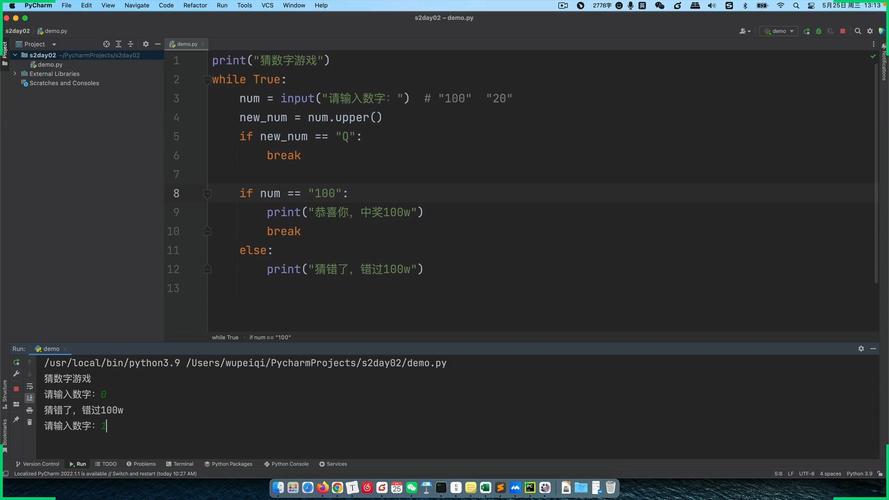
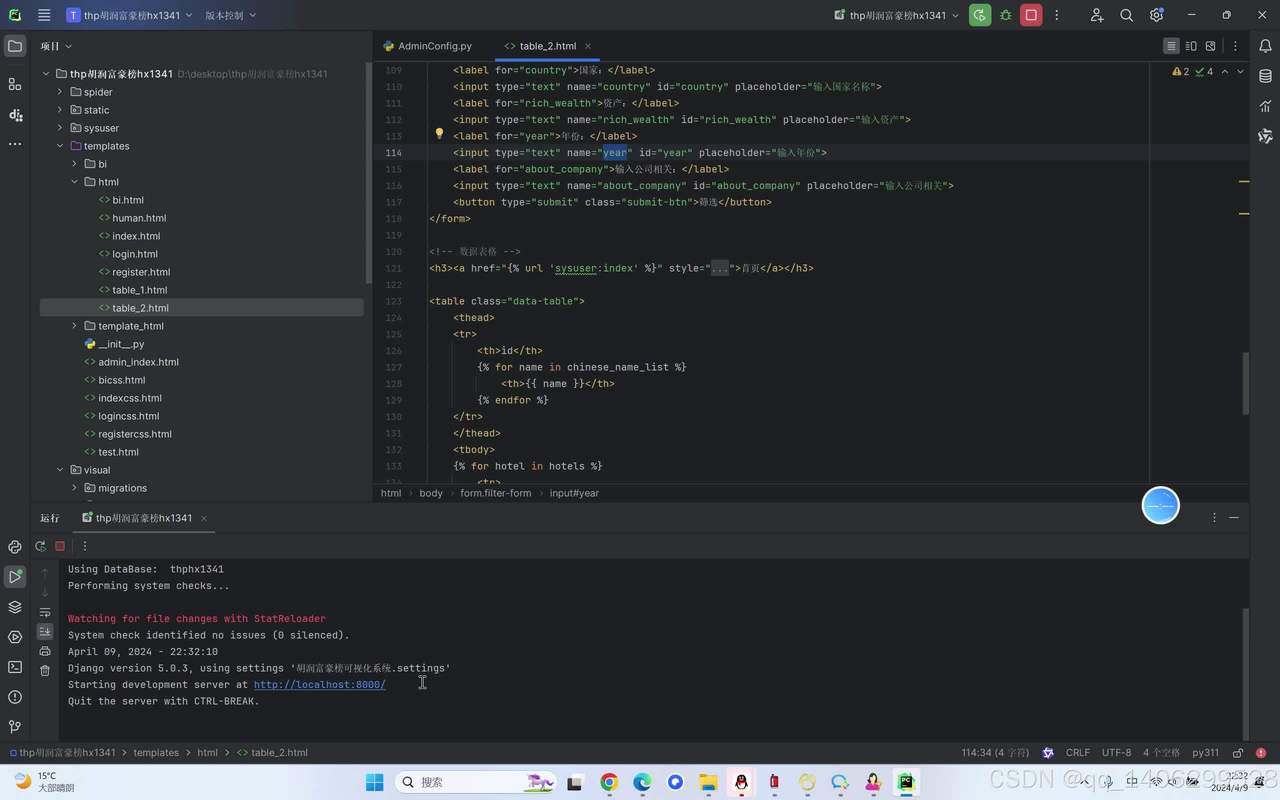
- Visual Studio Code (VS Code): This is a powerful code editor that uses tabs to manage different files. You can open multiple Python files in separate tabs within the same window. It also has a built-in terminal that you can open in a new tab (
Ctrl + \).
Summary
| If you want to... | The tool/library is... | Example Use Case |
|---|---|---|
| Create a tabbed GUI window | tkinter.ttk.Notebook |
Building a settings dialog with multiple pages. |
| Run a Python script in a command prompt | Windows Terminal | Automating file tasks, running a web server. |
| Automate web browser tabs | selenium |
Scraping data from multiple pages in parallel. |
| Manage multiple Python code files | VS Code / IDE | Writing a large application with many modules. |