Of course! Using OpenCV with a Kinect sensor in Python is a classic and powerful combination for 3D computer vision. Here’s a comprehensive guide covering the concepts, setup, and code examples.
The Big Picture: Kinect, OpenCV, and Python
A Kinect sensor (specifically the Kinect for Windows v2) has two main cameras you'll use with OpenCV:
- RGB Camera: A standard 1080p color camera.
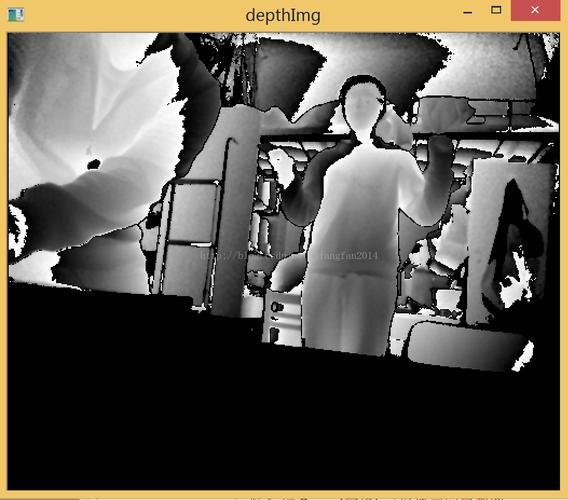
- Depth Camera: An infrared sensor that creates a "depth map," where each pixel's value represents the distance from the sensor.
The magic happens when you align these two images so you can get the 3D coordinates of every point in the color image. This is called RGB-D (RGB-Depth) imaging.
There are two primary ways to connect a Kinect to Python:
- Using the Official Kinect SDK: This is the most robust method. It requires a Windows PC and provides access to the official, high-quality drivers and libraries from Microsoft.
- Using
libfreenect2: This is a cross-platform open-source driver. It's great for Linux and macOS but can be more complex to set up.
This guide will focus on the recommended method using the official SDK, as it's more reliable and provides better performance.
Method 1: Using the Official Kinect SDK (Recommended for Windows)
This approach uses the pykinect library, which is a Python wrapper for the official Microsoft Kinect for Windows SDK v2.
Step 1: Hardware and OS Prerequisites
- Kinect Sensor: A Kinect for Windows v2 or an Xbox One Kinect.
- Power Adapter: The Kinect requires its own power adapter, not just USB.
- USB 3.0 Port: The Kinect v2 requires a USB 3.0 port. It will not work reliably on USB 2.0.
- Operating System: Windows 10 or Windows 11.
Step 2: Install the Official Kinect SDK
- Go to the official Microsoft Kinect for Windows SDK 2.0 download page.
- Download and run the installer. This will install the necessary drivers and libraries on your system.
Step 3: Install the Python Wrapper (pykinect)
The easiest way to install the wrapper is using pip. Open a command prompt or PowerShell and run:
pip install pykinect
Step 4: Run Your First Python Script
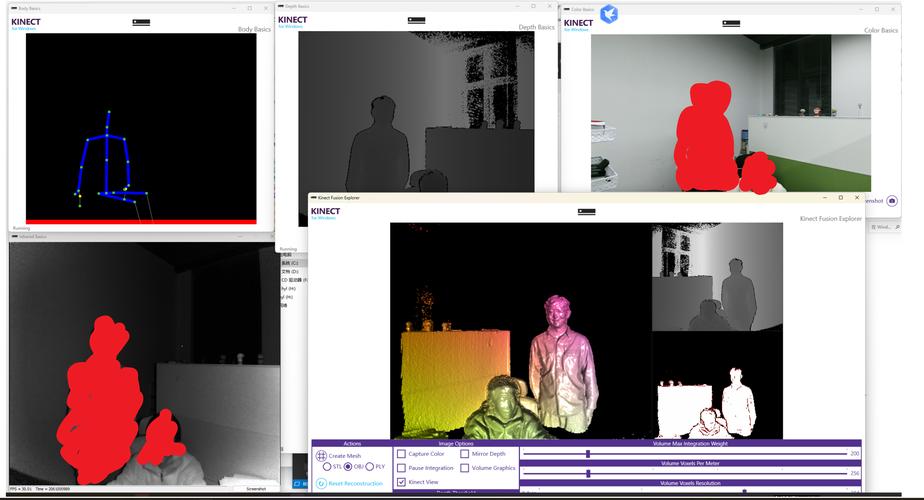
Let's start by capturing and displaying the RGB and Depth streams side-by-side.
Important: The pykinect library requires you to run your script as an Administrator. Right-click on your Python IDE (e.g., VS Code, PyCharm) or the command prompt and select "Run as administrator".
import cv2
import numpy as np
from pykinect2 import PyKinectV2
from pykinect2.PyKinectV2 import _PyKinectV2 as c_kinect
from pykinect2 import PyKinectRuntime
from pykinect2 import PyKinectBodyFrame
import pygame
# --- Initialization ---
pygame.init()
# Create a PyKinectRuntime object
# This will initialize the Kinect sensor and get frames
kinect = PyKinectRuntime.PyKinectRuntime(PyKinectV2.FrameType_Color | PyKinectV2.FrameType_Depth)
# Set up the display window
# Get the size of the color frame
color_frame = kinect.get_last_color_frame()
if color_frame is None:
    print("Could not get color frame. Exiting.")
    exit()
height, width = kinect.color_frame_desc.Height, kinect.color_frame_desc.Width
screen = pygame.display.set_mode((width * 2, height)) # Double width to show RGB and Depth
pygame.display.set_caption('Kinect RGB + Depth with OpenCV')
# --- Main Loop ---
running = True
clock = pygame.time.Clock()
while running:
    for event in pygame.event.get():
        if event.type == pygame.QUIT:
            running = False
    # --- Get Frames from Kinect ---
    # Get color frame
    if not kinect.has_new_color_frame():
        continue
    color_frame = kinect.get_last_color_frame()
    color_frame = color_frame.reshape((height, width, 4)).astype(np.uint8) # BGRA format
    # Get depth frame
    if not kinect.has_new_depth_frame():
        continue
    depth_frame = kinect.get_last_depth_frame()
    depth_frame = depth_frame.reshape((height, width)).astype(np.uint16) # 16-bit depth values
    # --- Process Frames with OpenCV ---
    # 1. Process Color Frame
    # Convert from BGRA (from Kinect) to BGR (for OpenCV)
    color_bgr = color_frame[:, :, :3]
    # 2. Process Depth Frame
    # The raw depth is a 16-bit array. We need to map it to 8-bit for display.
    # The depth map is a 16-bit unsigned integer where the value is the distance in millimeters.
    # We can normalize it to 0-255 for visualization.
    # A common trick is to use a colormap for better visualization.
    depth_colormap = cv2.applyColorMap(
        cv2.convertScaleAbs(depth_frame, alpha=0.03),
        cv2.COLORMAP_JET
    )
    # --- Display on Pygame Surface ---
    # Convert OpenCV BGR images to RGB for Pygame
    color_rgb = cv2.cvtColor(color_bgr, cv2.COLOR_BGR2RGB)
    depth_colormap_rgb = cv2.cvtColor(depth_colormap, cv2.COLOR_BGR2RGB)
    # Create Pygame surfaces from the NumPy arrays
    color_surface = pygame.surfarray.make_surface(color_rgb.swapaxes(0, 1))
    depth_surface = pygame.surfarray.make_surface(depth_colormap_rgb.swapaxes(0, 1))
    # Blit the surfaces onto the screen
    screen.blit(color_surface, (0, 0))
    screen.blit(depth_surface, (width, 0))
    pygame.display.flip()
    # Cap the frame rate
    clock.tick(30)
# --- Cleanup ---
kinect.close()
pygame.quit()
print("Exited successfully.")
What this code does:
- Initializes the Kinect to get both Color and Depth frames.
- Enters a loop, waiting for new frames from both streams.
- Gets the raw frame data as NumPy arrays.
- Color: Converts from BGRA to BGR, which is standard for OpenCV.
- Depth: Takes the 16-bit depth map, normalizes it, and applies a color map (JET) so you can see distances more easily (blue = far, red = near).
- Converts the OpenCV images to the format Pygame needs (RGB) and displays them side-by-side.
Advanced: Aligning Depth and Color Images
A key task is to get the 3D coordinates (X, Y, Z) for every pixel in the color image. To do this, you must align the depth image to the color image's perspective. The Kinect SDK provides a function for this.
The pykinect library gives us access to the depth_frame_to_color_camera function.
# ... (inside the main loop, after getting depth_frame)
# --- Align Depth to Color Camera ---
# This is the crucial step for getting 3D points from the color image's pixels.
# It returns a new depth frame that is aligned to the color camera's resolution and perspective.
# It also returns a boolean mask indicating which pixels are valid (i.e., not occluded).
aligned_depth_frame, _ = kinect.depth_frame_to_color_camera(depth_frame)
# Now, you can work with aligned_depth_frame as if it were the same size and perspective as the color image.
# For example, to get the depth of the pixel at (color_x, color_y):
color_x, color_y = 320, 240 # Center of the image
depth_at_pixel = aligned_depth_frame[color_y, color_x]
if depth_at_pixel > 0: # 0 means "no depth"
    print(f"Depth at pixel ({color_x}, {color_y}) is: {depth_at_pixel} mm")
Method 2: Using libfreenect2 (Cross-Platform)
This is a great alternative if you're on Linux or macOS, or prefer open-source software.
Step 1: Install libfreenect2
This is the most complex part. The installation depends on your OS.
- General Instructions: Follow the official libfreenect2 installation guide. It involves installing dependencies like
libusb,glfw3,GLU, etc. - Linux (Ubuntu/Debian):
sudo apt-get install libfreenect2-dev - macOS (Homebrew):
brew install libfreenect2
Step 2: Install the Python Wrapper (freenect2)
pip install freenect2
Step 3: Run a Simple Script
This script is much simpler because the `freen