Of course! In Python, when you talk about a "panedwidget," you're almost certainly referring to a Paneled Window or Splitter Widget. This is a fundamental UI component used to create resizable sections within a window.
The most common use case is a text editor with a resizable pane separating the code from a preview pane, or a file manager with a resizable split between a folder tree and the file list.
Let's break down how to create and use paned widgets using the three most popular Python GUI toolkits: Tkinter, PyQt/PySide, and wxPython.
Tkinter (tkinter.PanedWindow)
Tkinter's PanedWindow is the direct equivalent. It's a container that holds two or more "panes" (which are just other Tkinter widgets), and the user can drag a separator between them to resize them.
Key Features:
orient: Set to'horizontal'or'vertical'.add(widget): Adds a widget to the paned window.forget(widget): Removes a widget from the paned window.
Example: A simple vertical paned window
This example creates a window with a top pane for a label and a bottom pane for a text entry field.
import tkinter as tk
from tkinter import ttk
# --- Main Application ---
root = tk.Tk()"Tkinter PanedWindow Example")
root.geometry("400x300")
# --- Create the PanedWindow ---
# orient='vertical' creates a top/bottom split
paned_window = tk.PanedWindow(root, orient=tk.VERTICAL, sashwidth=5, bg="gray")
paned_window.pack(fill=tk.BOTH, expand=True)
# --- Create the Widgets (Panes) ---
# Top Pane: A label
top_frame = ttk.Frame(paned_window, padding=20)
top_label = ttk.Label(top_frame, text="This is the TOP pane.", font=('Helvetica', 14))
top_label.pack()
paned_window.add(top_frame, weight=1) # weight=1 allows this pane to grow
# Bottom Pane: A text entry
bottom_frame = ttk.Frame(paned_window, padding=20)
bottom_entry = ttk.Entry(bottom_frame, font=('Helvetica', 12))
bottom_entry.pack(fill=tk.BOTH, expand=True)
paned_window.add(bottom_frame, weight=1) # weight=1 allows this pane to grow
# --- Start the application ---
root.mainloop()
Explanation:
- We create a
PanedWindowwithorient=tk.VERTICALfor a vertical split. - We create two
Framewidgets. It's good practice to put your content inside a frame first, as you can then easily add more widgets to that pane later. - We add each frame to the
paned_windowusingpaned_window.add(). - The
weight=1option is important. It tells the paned window that both frames are equally important for resizing when the main window is resized. If you set one toweight=2, it would get twice as much space as the other when the window is resized.
PyQt / PySide (QSplitter)
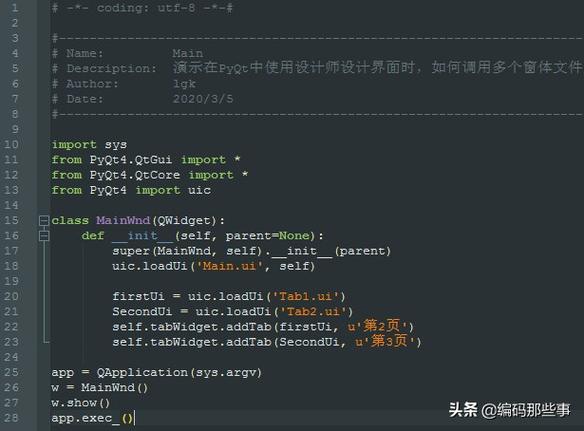
PyQt and PySide use the QSplitter widget, which is very powerful and common. It can hold any Qt widget and is highly customizable.
Key Features:
setOrientation(Qt.Horizontal | Qt.Vertical): Sets the orientation.addWidget(widget): Adds a widget to the splitter.setStretchFactor(index, stretch): Controls how much a widget grows when the splitter is resized. This is the PyQt equivalent of Tkinter'sweight.setChildrenCollapsible(True/False): Determines if a pane can be collapsed entirely by dragging the splitter all the way.
Example: A horizontal paned window
This example creates a window with a left pane for a list and a right pane for a label.
# You can use PyQt6 or PySide6. The code is nearly identical.
# Let's use PySide6 for this example.
from PySide6.QtWidgets import QApplication, QMainWindow, QWidget, QVBoxLayout, QSplitter, QListWidget, QLabel
from PySide6.QtCore import Qt
class MainWindow(QMainWindow):
    def __init__(self):
        super().__init__()
        self.setWindowTitle("PySide6 QSplitter Example")
        self.setGeometry(100, 100, 800, 600)
        # --- Central Widget and Layout ---
        central_widget = QWidget()
        self.setCentralWidget(central_widget)
        layout = QVBoxLayout(central_widget)
        # --- Create the QSplitter ---
        # Qt.Horizontal creates a left/right split
        splitter = QSplitter(Qt.Horizontal)
        # --- Create the Widgets (Panes) ---
        # Left Pane: A list widget
        list_widget = QListWidget()
        list_widget.addItems(["Item 1", "Item 2", "Item 3", "A much longer item to show scrolling"])
        # Right Pane: A label
        label = QLabel("This is the RIGHT pane.\nResize the window or drag the splitter bar!")
        label.setAlignment(Qt.AlignCenter)
        label.setStyleSheet("background-color: #f0f0f0; border: 1px solid #ccc; padding: 10px;")
        # --- Add widgets to the splitter ---
        splitter.addWidget(list_widget)
        splitter.addWidget(label)
        # --- Set the stretch factors ---
        # The first argument is the widget's index (0 for the first widget added)
        # The second is the stretch factor. 1 means equal importance.
        splitter.setStretchFactor(0, 1)
        splitter.setStretchFactor(1, 2) # The label will get 2x the space
        # --- Add the splitter to the main layout ---
        layout.addWidget(splitter)
if __name__ == "__main__":
    app = QApplication([])
    window = MainWindow()
    window.show()
    app.exec()
Explanation:
- We create a
QSplitterand set its orientation toQt.Horizontal. - We add our
QListWidgetandQLabelto the splitter. setStretchFactor(0, 1)applies to the first widget (list_widget), andsetStretchFactor(1, 2)applies to the second (label). This means the label will take up twice as much horizontal space as the list when the window is resized.- Finally, we add the
splitteritself to the window's main layout.
wxPython (wx.SplitterWindow)
wxPython's wx.SplitterWindow is another robust implementation. It's managed slightly differently, often by subclassing it or using specific methods to initialize the panes.
Key Features:
SplitterWindow(parent, id, style=wx.SP_3D|wx.SP_LIVE_UPDATE): The constructor.SplitVertically()/SplitHorizontally(): These methods initialize the splitter with its first two panes.Initialize(pane): Use this if you only have one pane initially and want to add the second one later.Unsplit(pane): Removes a pane, collapsing the splitter.
Example: A vertical paned window
This example creates a window with a top pane for a TextCtrl and a bottom pane for a Panel with a button.
import wx
class MyFrame(wx.Frame):
    def __init__(self, *args, **kwargs):
        super(MyFrame, self).__init__(*args, **kwargs)
        self.InitUI()
    def InitUI(self):
        self.SetTitle("wxPython SplitterWindow Example")
        self.SetSize((600, 400))
        # --- Create the SplitterWindow ---
        # We use a style for a 3D look and live updating
        splitter = wx.SplitterWindow(self, style=wx.SP_3D | wx.SP_LIVE_UPDATE)
        # --- Create the Widgets (Panes) ---
        # Top Pane: A text control
        self.top_pane = wx.TextCtrl(splitter, style=wx.TE_MULTILINE)
        self.top_pane.SetValue("This is the TOP pane.\nYou can type here.")
        # Bottom Pane: A panel with a button
        self.bottom_pane = wx.Panel(splitter)
        bottom_sizer = wx.BoxSizer(wx.VERTICAL)
        btn = wx.Button(self.bottom_pane, label="Button in Bottom Pane")
        bottom_sizer.Add(btn, 0, wx.ALL | wx.ALIGN_CENTER, 10)
        self.bottom_pane.SetSizer(bottom_sizer)
        # --- Split the window vertically ---
        # The first argument is the top/left pane, the second is the bottom/right pane
        splitter.SplitVertically(self.top_pane, self.bottom_pane, -100) # -100 is the initial sash position
        # Optional: Set a minimum pane size
        splitter.SetMinimumPaneSize(100)
class MyApp(wx.App):
    def OnInit(self):
        frame = MyFrame(None)
        frame.Show()
        return True
if __name__ == "__main__":
    app = MyApp()
    app.MainLoop()
Explanation:
- We create a
wx.SplitterWindow. - We create the widgets that will go into each pane. Notice the bottom pane is a
wx.Panel, which is a common container for other controls. - We use the
SplitVertically()method to initialize the splitter with our two panes. The third argument,-100, sets the initial position of the splitter bar from the left/top. SetMinimumPaneSize(100)prevents the user from making a pane smaller than 100 pixels, which is very useful for usability.
Summary and Recommendation
| Feature | Tkinter (PanedWindow) |
PyQt/PySide (QSplitter) |
wxPython (SplitterWindow) |
|---|---|---|---|
| Widget Name | PanedWindow |
QSplitter |
SplitterWindow |
| Orientation | orient='horizontal' |
setOrientation(Qt.Horizontal) |
SplitHorizontally() / SplitVertically() |
| Resizing Logic | add(widget, weight=N) |
setStretchFactor(index, stretch) |
SetMinimumPaneSize(size) |
| Philosophy | Simple, part of the core library. | Powerful, object-oriented, part of a rich framework. | Native look-and-feel, event-driven. |
| Best For | Simple scripts, beginners, quick prototyping. | Complex desktop applications, professional software. | Applications that need to look and feel like a native app on Windows, macOS, or Linux. |
Recommendation:
- For beginners or quick scripts, Tkinter is perfectly fine and gets the job done with minimal setup.
- For serious, feature-rich applications, PyQt or PySide are generally the preferred choice due to their powerful signal/slot mechanism, excellent documentation, and modern features.
- If your top priority is a native platform look and feel, wxPython is an excellent, though sometimes slightly more complex, option.