Of course. The urllib.error.URLError: <urlopen error [Errno 10060] A connection attempt failed> is a very common error when working with network requests in Python. Let's break down exactly what it means and how to fix it.

What Error 10060 Really Means
Error 10060 is a Windows Socket Error with the message: "A connection attempt failed because the connected party did not properly respond after a period of time, or established connection failed because connected host has failed to respond."
In simple terms, your Python script tried to make a network connection (like a phone call), but the other end of the line never picked up. The script waited for a response for a certain amount of time (the timeout), and when nothing happened, it gave up and raised this error.
This is almost always a network-level issue, not a Python code syntax error. The problem lies between your computer and the server you are trying to reach.
Common Causes and How to Fix Them
Here is a checklist of the most common causes, starting with the most frequent.
Firewall or Antivirus Software
This is the #1 culprit. Your computer's firewall or a third-party antivirus program (like Norton, McAfee, Avast, etc.) is often configured to block outgoing connections, especially from scripts it doesn't recognize.
How to Fix:
- Temporarily disable your firewall and antivirus, then run your script again. If it works, you've found the problem.
- Add an exception to your firewall/antivirus for your Python executable (
python.exe) or for your specific script. This is the recommended permanent solution.
Proxy Server
If you are on a corporate or school network, you might be required to route your traffic through a proxy server. If your Python environment isn't configured to use this proxy, the connection will fail.
How to Fix: You can configure the proxy directly in your code.
import urllib.request
import urllib.error
proxy_address = "http://your.proxy.address:8080" # Get this from your network admin
# Create a proxy handler
proxy_handler = urllib.request.ProxyHandler({'http': proxy_address, 'https': proxy_address})
# Install the opener
opener = urllib.request.build_opener(proxy_handler)
urllib.request.install_opener(opener)
try:
    # Now your request will use the proxy
    with urllib.request.urlopen('http://example.com', timeout=10) as response:
        print("Successfully connected!")
        print(response.read().decode('utf-8'))
except urllib.error.URLError as e:
    print(f"URLError: {e.reason}")
except Exception as e:
    print(f"An error occurred: {e}")
Incorrect URL or Hostname Down
It's possible the server you're trying to reach is offline, the domain name has changed, or you have a typo in the URL.
How to Fix:
- Copy the URL from your Python code and paste it directly into your web browser (like Chrome or Firefox).
- If the browser also can't load the page, the problem is with the target server, not your script. Check if the website is down using a service like Down For Everyone Or Just Me.
No Internet Connection
This is a simple one, but easy to overlook. Make sure your computer is actually connected to the internet.
How to Fix:
- Open a browser and try visiting any website (like
google.comorexample.com). If that fails, you have a general connectivity problem.
Timeout Issues
The server you are connecting to might be very slow or overloaded, causing it to take longer to respond than Python's default timeout. By default, urlopen might wait only a few seconds.
How to Fix:
Increase the timeout parameter in your urlopen call. The value is in seconds.
import urllib.request
import urllib.error
url = 'http://example.com' # Replace with your URL
try:
    # Increase timeout to 30 seconds
    with urllib.request.urlopen(url, timeout=30) as response:
        print("Successfully connected!")
        print(response.read().decode('utf-8'))
except urllib.error.URLError as e:
    print(f"URLError: {e.reason}")
except Exception as e:
    print(f"An error occurred: {e}")
A More Robust Solution: Using the requests Library
While urllib is built-in, the requests library is much more user-friendly and handles many of these issues (like retries and better session management) more gracefully. It's the de-facto standard for HTTP requests in Python.
First, install it:
pip install requests
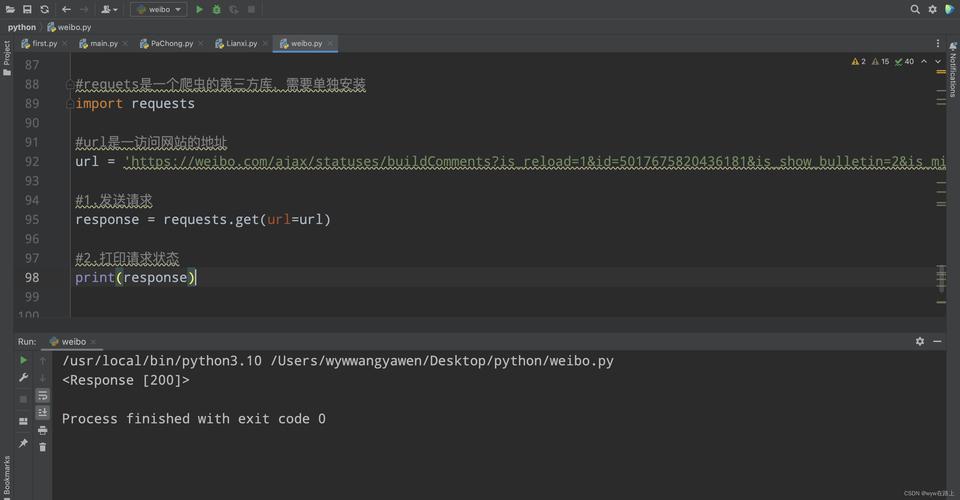
Here is how you would write the same code with requests, which includes a timeout by default and gives clearer error messages.
import requests
from requests.exceptions import RequestException
url = 'http://example.com' # Replace with your URL
try:
    # The 'timeout' parameter is crucial here.
    # It will raise a requests.exceptions.Timeout if the server doesn't respond in time.
    response = requests.get(url, timeout=10) # 10 second timeout
    # If the request was successful, this line will be reached.
    # The 'raise_for_status()' method will raise an HTTPError for bad responses (4xx or 5xx).
    response.raise_for_status()
    print("Successfully connected!")
    print(response.text)
except requests.exceptions.Timeout:
    print("Error: The request timed out.")
except requests.exceptions.ConnectionError:
    print("Error: Failed to establish a connection. This is the 10060 equivalent.")
except RequestException as e:
    # This will catch other requests-related errors
    print(f"An error occurred: {e}")
except Exception as e:
    # Catch any other unexpected errors
    print(f"An unexpected error occurred: {e}")
Summary Checklist for Error 10060
- Test the URL in your browser. Is the website even up?
- Check your internet connection. Can you browse other sites?
- Disable your firewall/antivirus temporarily. Does the script work? If yes, add an exception.
- Are you on a corporate network? You might need to configure a proxy.
- Increase the
timeoutin yoururlopenorrequests.get()call. - Consider switching to the
requestslibrary for cleaner, more robust code.