Of course! Creating an RTMP player in Python involves a few key components because Python's standard libraries don't have native RTMP support. You'll need a specialized library to handle the RTMP protocol and a GUI framework to display the video.
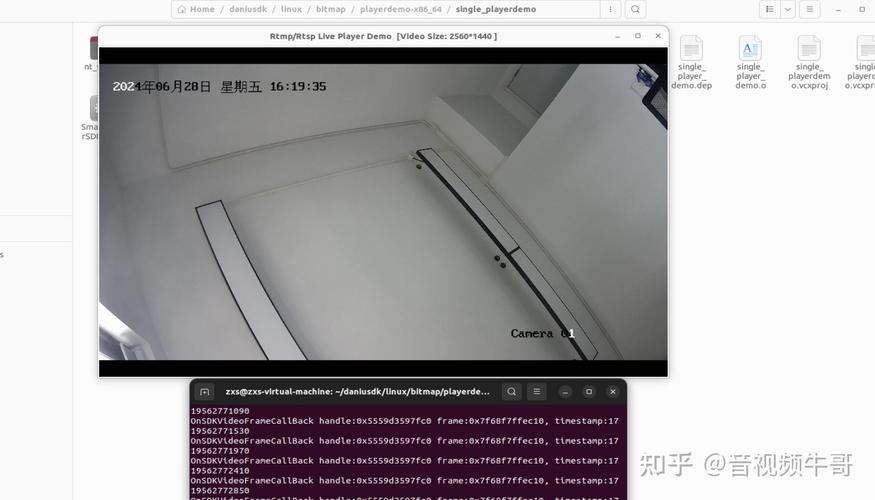
Here’s a complete guide covering the concepts, required libraries, and two practical examples: a simple command-line player and a more advanced GUI player using Tkinter.
The Core Concept: How It Works
An RTMP player in Python isn't a single program but a combination of:
- An RTMP Client Library: This library connects to the RTMP server, negotiates the connection, and handles the streaming data. The most popular and reliable library for this in Python is
python-librtmp. - A Media Decoder: The raw data from RTMP is a compressed video/audio stream. It needs to be decoded into frames that a display can understand.
OpenCVis perfect for this, as it can read from network streams and decode many formats on the fly. - A Display/GUI Framework: This is what the user sees. You can use a simple command-line interface, a window from a GUI library like Tkinter, PyQt, or even a web framework like Flask for a browser-based player.
Required Libraries
You'll need to install a few packages. Open your terminal or command prompt and run:
# For RTMP connection handling
pip install python-librtmp
# For video decoding and display (highly recommended)
pip install opencv-python
# For a graphical user interface (GUI)
pip install tk
Note on python-librtmp: This library can sometimes be tricky to install on certain operating systems (especially Windows) because it requires a C compiler. If pip install fails, you might need to install a C compiler like build-essential (on Debian/Ubuntu) or "Microsoft C++ Build Tools" (on Windows) first.
Example 1: Simple Command-Line RTMP Player
This example is great for understanding the basic flow without the complexity of a GUI. It will play the stream and print the current frame rate to the console.
import cv2
import rtmp
def play_rtmp_stream(rtmp_url):
    """
    Connects to an RTMP stream and plays it using OpenCV.
    Press 'q' to quit.
    """
    print(f"Connecting to RTMP stream: {rtmp_url}")
    # The RTMP library is used to parse the URL and provide more info
    # but OpenCV can often connect directly to the URL.
    try:
        # Create a VideoCapture object
        # RTMP URLs can often be used directly with OpenCV's VideoCapture
        cap = cv2.VideoCapture(rtmp_url)
        if not cap.isOpened():
            print("Error: Could not open video stream.")
            return
        print("Stream opened successfully. Press 'q' to quit.")
        while True:
            # Read a frame from the stream
            ret, frame = cap.read()
            if not ret:
                print("Stream ended or error reading frame.")
                break
            # Display the frame
            cv2.imshow('RTMP Stream', frame)
            # Check for 'q' key press to quit
            if cv2.waitKey(1) & 0xFF == ord('q'):
                print("Quitting...")
                break
    except Exception as e:
        print(f"An error occurred: {e}")
    finally:
        # Release resources
        if 'cap' in locals() and cap.isOpened():
            cap.release()
        cv2.destroyAllWindows()
        print("Player closed.")
if __name__ == "__main__":
    # --- REPLACE WITH YOUR RTMP URL ---
    # Example URL (replace with your own)
    # rtmp_url = "rtmp://live.twitch.tv/app/YOUR_STREAM_KEY"
    # A public test stream (may or may not be available)
    rtmp_url = "rtmp://184.72.239.149/vod/mp4:bigbuckbunny_115k.mov"
    play_rtmp_stream(rtmp_url)
How to Run:
- Save the code as
simple_player.py. - Replace
rtmp_urlwith your actual RTMP stream URL. - Run from the terminal:
python simple_player.py - A window will appear showing the video. Press 'q' to close it.
Example 2: Advanced GUI Player with Tkinter and Playback Controls
This is a much more practical example. It uses Tkinter to create a proper window with playback controls (Play, Pause, Stop). It uses threading to keep the GUI responsive while the video is playing.
import cv2
import tkinter as tk
from tkinter import ttk
from PIL import Image, ImageTk
import threading
import queue
class RTMPPlayer:
    def __init__(self, root):
        self.root = root
        self.root.title("Python RTMP Player")
        self.root.geometry("800x600")
        self.rtmp_url = "" # Will be set by the user
        self.is_playing = False
        self.cap = None
        self.current_frame = None
        # Use a queue to safely pass frames between the video thread and the main GUI thread
        self.frame_queue = queue.Queue(maxsize=2)
        # --- GUI Elements ---
        self.create_widgets()
        # Start the GUI update loop
        self.update_frame()
    def create_widgets(self):
        # URL Entry
        url_frame = ttk.Frame(self.root, padding="10")
        url_frame.pack(fill=tk.X)
        ttk.Label(url_frame, text="RTMP URL:").pack(side=tk.LEFT, padx=5)
        self.url_entry = ttk.Entry(url_frame)
        self.url_entry.pack(side=tk.LEFT, fill=tk.X, expand=True, padx=5)
        # Pre-fill with an example URL
        self.url_entry.insert(0, "rtmp://184.72.239.149/vod/mp4:bigbuckbunny_115k.mov")
        # Control Buttons
        control_frame = ttk.Frame(self.root, padding="10")
        control_frame.pack(fill=tk.X)
        self.play_button = ttk.Button(control_frame, text="Play", command=self.play)
        self.play_button.pack(side=tk.LEFT, padx=5)
        self.pause_button = ttk.Button(control_frame, text="Pause", command=self.pause, state=tk.DISABLED)
        self.pause_button.pack(side=tk.LEFT, padx=5)
        self.stop_button = ttk.Button(control_frame, text="Stop", command=self.stop, state=tk.DISABLED)
        self.stop_button.pack(side=tk.LEFT, padx=5)
        # Video Display Label
        self.video_label = ttk.Label(self.root)
        self.video_label.pack(fill=tk.BOTH, expand=True, padx=10, pady=10)
    def play(self):
        if not self.is_playing:
            self.rtmp_url = self.url_entry.get()
            if not self.rtmp_url:
                print("Please enter an RTMP URL.")
                return
            self.is_playing = True
            self.play_button.config(state=tk.DISABLED)
            self.pause_button.config(state=tk.NORMAL)
            self.stop_button.config(state=tk.NORMAL)
            # Start video playback in a separate thread to avoid freezing the GUI
            self.video_thread = threading.Thread(target=self.video_loop, daemon=True)
            self.video_thread.start()
    def pause(self):
        # Pausing with OpenCV is tricky; we just stop reading frames.
        # For a true pause, you'd need to store frames.
        self.is_playing = False
        self.play_button.config(state=tk.NORMAL)
        self.pause_button.config(state=tk.DISABLED)
    def stop(self):
        self.is_playing = False
        # Clear the queue to discard any pending frames
        while not self.frame_queue.empty():
            try:
                self.frame_queue.get_nowait()
            except queue.Empty:
                break
        if self.cap and self.cap.isOpened():
            self.cap.release()
        self.play_button.config(state=tk.NORMAL)
        self.pause_button.config(state=tk.DISABLED)
        self.stop_button.config(state=tk.DISABLED)
        # Clear the display
        self.video_label.config(image='')
    def video_loop(self):
        """This function runs in a separate thread."""
        self.cap = cv2.VideoCapture(self.rtmp_url)
        if not self.cap.isOpened():
            print("Error: Could not open video stream.")
            self.root.after(0, self.stop) # Call stop in the main thread
            return
        while self.is_playing:
            ret, frame = self.cap.read()
            if not ret:
                print("Stream ended or error reading frame.")
                self.root.after(0, self.stop) # Call stop in the main thread
                break
            # Convert the frame to RGB (PIL uses RGB, OpenCV uses BGR)
            frame_rgb = cv2.cvtColor(frame, cv2.COLOR_BGR2RGB)
            # Put the frame into the queue for the main thread to process
            # If the queue is full, discard the oldest frame to prevent lag
            if self.frame_queue.full():
                try:
                    self.frame_queue.get_nowait()
                except queue.Empty:
                    pass
            self.frame_queue.put(frame_rgb)
        if self.cap.isOpened():
            self.cap.release()
    def update_frame(self):
        """This function runs in the main GUI thread."""
        if not self.frame_queue.empty():
            try:
                # Get the latest frame from the queue
                frame = self.frame_queue.get_nowait()
                # Resize frame to fit the label while maintaining aspect ratio
                h, w, ch = frame.shape
                label_width = self.video_label.winfo_width()
                label_height = self.video_label.winfo_height()
                if label_width > 1 and label_height > 1: # Ensure label is rendered
                    # Calculate scaling
                    scale = min(label_width / w, label_height / h)
                    new_w = int(w * scale)
                    new_h = int(h * scale)
                    # Resize frame
                    img = Image.fromarray(frame)
                    img = img.resize((new_w, new_h), Image.Resampling.LANCZOS)
                    # Convert to PhotoImage and display
                    photo = ImageTk.PhotoImage(image=img)
                    self.video_label.config(image=photo)
                    self.video_label.image = photo # Keep a reference to prevent garbage collection
            except queue.Empty:
                pass # No new frame in the queue, do nothing
        # Schedule this function to run again
        self.root.after(30, self.update_frame) # ~33 FPS
if __name__ == "__main__":
    root = tk.Tk()
    app = RTMPPlayer(root)
    root.mainloop()
How to Run:
- Save the code as
advanced_player.py. - Make sure you have
Pillowinstalled:pip install Pillow(it's used for image conversion in Tkinter). - Run from the terminal:
python advanced_player.py - A window will appear. Enter an RTMP URL and click "Play".
Troubleshooting and Common Issues
-
Error: Could not open video stream.- URL is wrong: Double-check your RTMP URL. It's case-sensitive.
- Network issues: You can't reach the server. Check your internet connection and firewall.
- Server is offline: The stream might not be active at the moment.
- Codec issues: The server might be using a video/audio codec that OpenCV doesn't support (e.g., HEVC/H.265). This is a common limitation. The
python-librtmplibrary can help identify the stream metadata, but OpenCV is the bottleneck for decoding.
-
Installation Problems with
python-librtmp- As mentioned, this library can be finicky. If
pip installfails, search for your specific OS and error message. The solution usually involves installing a C development environment first.
- As mentioned, this library can be finicky. If
-
High Latency
- RTMP is designed for low latency, but it can still have a few seconds of delay. This delay is inherent to the protocol and buffering.
- The player itself adds minimal latency, but the network path and server configuration are the main factors.
-
No Sound
- Both
python-librtmpandOpenCVprimarily handle video. Extracting and playing audio from an RTMP stream in Python is significantly more complex and requires libraries likeffmpeg-pythonorpyav. Most simple players are video-only.
- Both