Of course! "Copy screen" in Python can mean a few different things. I'll cover the most common interpretations:

- Copying the Screen to an Image File (Screenshot): This is the most frequent request. It captures your entire screen or a specific window and saves it as an image (like a PNG or JPG).
- Copying Text from the Screen (OCR): This involves using Optical Character Recognition to read text that is visible on your screen, even if you can't select it with your mouse.
- Accessing the Screen's Pixel Data: This is a lower-level approach where you get the raw color data of every pixel on the screen, useful for things like computer vision or pixel-perfect automation.
I'll provide code examples for each, starting with the most common one.
Taking a Screenshot (Copying to an Image File)
This is the easiest and most common task. The best library for this is Pillow (a friendly fork of PIL), which provides a simple, cross-platform solution.
Step 1: Install the Library
Open your terminal or command prompt and run:
pip install Pillow
Step 2: Python Code
This code will capture the entire primary monitor and save it as screenshot.png.
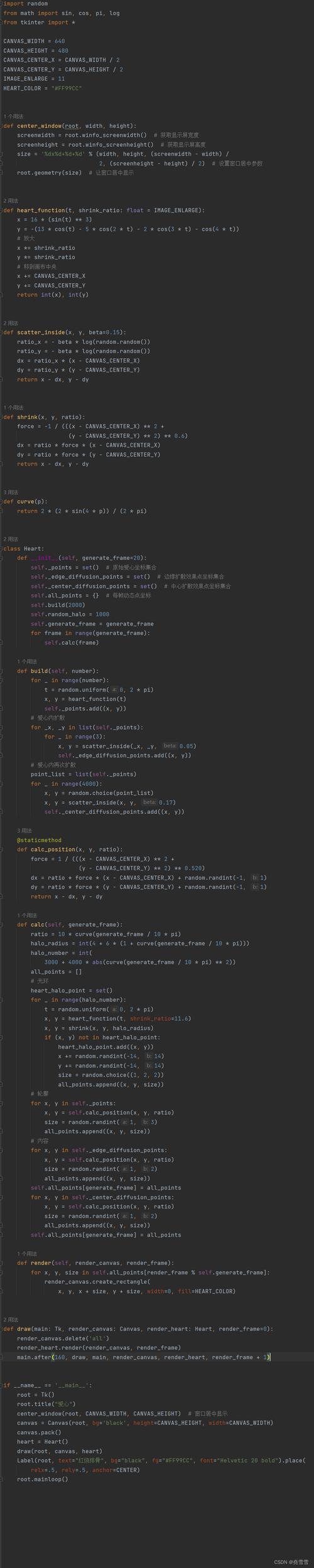
import pyautogui
try:
    # Take a screenshot
    screenshot = pyautogui.screenshot()
    # Save the screenshot to a file
    screenshot.save("screenshot.png")
    print("Screenshot saved as screenshot.png")
except Exception as e:
    print(f"An error occurred: {e}")
Explanation:
import pyautogui: This library is a powerhouse for GUI automation and screen interaction.pyautogui.screenshot(): This function takes a screenshot of the entire primary monitor and returns it as aPillow(PIL) image object.screenshot.save("screenshot.png"): The image object has a.save()method to save it to a file in various formats (PNG, JPG, BMP, etc.).
Advanced Screenshot Options
pyautogui is very flexible. You can easily capture a specific region of the screen.
Capturing a Specific Region (Window or Area)
You can define a region using a tuple (left, top, width, height).
import pyautogui
# Define the region to capture (left, top, width, height)
# For example, a 400x300 box starting at coordinates (100, 50)
region = (100, 50, 400, 300)
try:
    # Take a screenshot of the specified region
    screenshot = pyautogui.screenshot(region=region)
    # Save the region screenshot
    screenshot.save("region_screenshot.png")
    print("Region screenshot saved as region_screenshot.png")
except Exception as e:
    print(f"An error occurred: {e}")
Finding a Window and Capturing It
To capture a specific application window (like your browser or a game), you can use the pygetwindow library.
Step 1: Install pygetwindow

pip install pygetwindow
Step 2: Python Code
import pyautogui
import pygetwindow as gw
# Find the window by its title
# Note: You might need to change "Calculator" to the title of your target window
try:
    window = gw.getWindowsWithTitle("Calculator")[0]
    if window:
        # Activate the window (bring it to the front)
        window.activate()
        # Get the window's coordinates and size
        left = window.left
        top = window.top
        width = window.width
        height = window.height
        region = (left, top, width, height)
        # Take the screenshot of the window
        screenshot = pyautogui.screenshot(region=region)
        # Save the screenshot
        screenshot.save("window_screenshot.png")
        print(f"Window '{window.title}' screenshot saved as window_screenshot.png")
    else:
        print("Window not found.")
except Exception as e:
    print(f"An error occurred: {e}")
Copying Text from the Screen (OCR)
This is useful for extracting text from images, PDFs, or any part of your screen that you can't highlight. The best library for this is pytesseract.
Step 1: Install Tesseract OCR Engine
pytesseract is a Python wrapper for Google's Tesseract-OCR engine. You need to install the engine itself first.
- Windows: Download the installer from the Tesseract at UB Mannheim page. During installation, make sure to note the installation path (e.g.,
C:\Program Files\Tesseract-OCR) and add it to your system's PATH environment variable. - macOS: Use Homebrew:
brew install tesseract - Linux (Debian/Ubuntu): Use APT:
sudo apt update && sudo apt install tesseract-ocr
Step 2: Install the Python Library
pip install pytesseract Pillow
Step 3: Python Code
This code will take a screenshot of a specific area and then extract all visible text from it.
import pyautogui
import pytesseract
from PIL import Image
# You might need to specify the Tesseract path if it's not in your system's PATH
# Example for Windows:
# pytesseract.pytesseract.tesseract_cmd = r'C:\Program Files\Tesseract-OCR\tesseract.exe'
# Define the region of the screen to read text from
# For example, a 600x200 area starting at (500, 300)
region = (500, 300, 600, 200)
try:
    # 1. Take a screenshot of the region
    screenshot = pyautogui.screenshot(region=region)
    screenshot.save("ocr_area.png") # Optional: save to see what we're reading
    # 2. Use pytesseract to extract text from the image
    text = pytesseract.image_to_string(screenshot)
    print("--- Extracted Text ---")
    print(text)
    print("----------------------")
except Exception as e:
    print(f"An error occurred: {e}")
Accessing the Screen's Raw Pixel Data
This is a more advanced technique. Instead of getting an image file, you get a list of all the pixel colors. This is useful for things like color detection, finding a specific pixel, or simple computer vision.
Step 1: Install numpy for efficiency
Handling millions of pixels is much faster with numpy.
pip install numpy pyautogui
Step 2: Python Code
This code gets the pixel color at a specific coordinate and then gets the pixel data for a small region.
import pyautogui
import numpy as np
# --- Get the color of a single pixel ---
try:
    # Get the pixel color at the coordinates (x, y)
    # Returns an (R, G, B) tuple
    pixel_color = pyautogui.pixel(100, 200)
    print(f"Pixel color at (100, 200): {pixel_color}")
    # You can also check if a pixel matches a specific color
    if pixel_color == (255, 255, 255): # White
        print("The pixel is white!")
    else:
        print("The pixel is not white.")
except pyautogui.ImageNotFoundException:
    print("The coordinates are out of bounds.")
except Exception as e:
    print(f"An error occurred: {e}")
# --- Get the pixel data for a region ---
try:
    # Define a small region to get pixel data from
    region = (50, 50, 10, 10) # left, top, width, height
    # Get the screenshot as a Pillow Image
    screenshot = pyautogui.screenshot(region=region)
    # Convert the Pillow Image to a NumPy array
    # This gives you a 3D array: (height, width, color_channels)
    pixel_array = np.array(screenshot)
    print("\n--- Pixel Data for Region ---")
    print(f"Shape of the pixel array: {pixel_array.shape}")
    print("This means it's a 10x10 image with 3 color channels (R, G, B).")
    print("\nPixel data for the top-left 2x2 area:")
    print(pixel_array[:2, :2])
    print("-----------------------------")
except Exception as e:
    print(f"An error occurred: {e}")
Summary: Which one should you use?
| Goal | Recommended Library(s) | Why |
|---|---|---|
| Take a full screen or region screenshot | Pillow (via pyautogui) |
Simple, reliable, cross-platform, and the standard for this task. |
| Copy text visible on the screen | pytesseract, Pillow |
It's the standard for Optical Character Recognition (OCR). |
| Get raw pixel data for analysis | pyautogui, numpy |
Gives you direct access to the screen's buffer for advanced tasks. |