Of course! Setting up a LAMP (Linux, Apache, MySQL, Python) stack on Ubuntu is a common and powerful combination. This guide will walk you through installing and configuring each component, and then how to use them together.
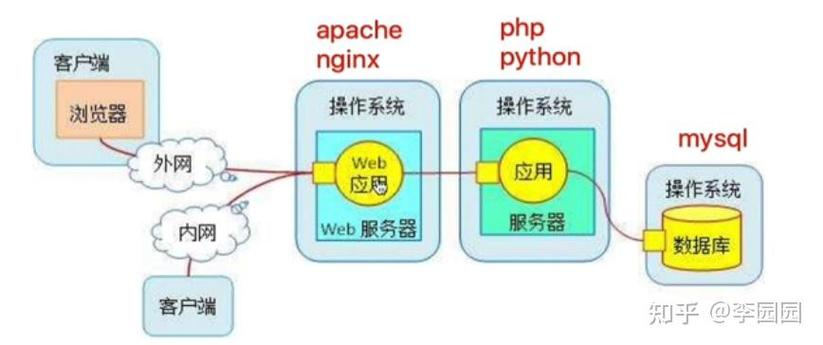
We'll break it down into clear steps.
Overview of the Stack
- Linux: The operating system. We'll use Ubuntu.
- Apache: The web server. It will serve your files and listen for requests.
- MariaDB: The database server. It's a popular, community-developed fork of MySQL. We'll use it to store application data.
- Python: The programming language. We'll set up a way for Apache to execute Python scripts to create dynamic websites.
Prerequisites
- A fresh installation of Ubuntu 22.04 LTS (or another recent version).
- A user account with
sudo(administrator) privileges. - An internet connection.
Step 1: Update Your System
First, it's always a good practice to update your package list and upgrade your installed packages to their latest versions.
Open a terminal and run:
sudo apt update
sudo apt upgrade -y
Step 2: Install the Apache Web Server
Apache is one of the most popular web servers in the world.

-
Install Apache:
sudo apt install apache2 -y
-
Verify the Installation: Apache starts automatically after installation. You can check its status:
sudo systemctl status apache2
You should see
active (running)in the output. -
Test in Your Browser: Open a web browser and navigate to your server's IP address or domain name.
 (图片来源网络,侵删)
# Find your server's IP address hostname -I
You should see the default Ubuntu Apache page, which confirms it's working correctly.
Step 3: Install MariaDB (The "M" in LAMP)
MariaDB is a robust, open-source relational database system.
-
Install MariaDB Server:
sudo apt install mariadb-server -y
-
Secure the Installation: Run the security script to set a root password, remove anonymous users, disallow remote root login, and remove test databases. It's highly recommended to do this.
sudo mysql_secure_installation
You will be prompted with a series of questions. Here's a good guide for answering:
- Enter current password for root (enter for none): Press Enter, as there's no password by default.
- Switch to unix_socket authentication [Y/n]:
Y(This allows root login viasudo). - Set root password? [Y/n]:
Yand then set a strong password. - Remove anonymous users? [Y/n]:
Y - Disallow root login remotely? [Y/n]:
Y - Remove test database and access to it? [Y/n]:
Y - Reload privilege tables now? [Y/n]:
Y
-
Verify the Installation: Log in to the MariaDB shell:
sudo mysql -u root -p
Enter the password you just set. You should see a
MariaDB [(none)]>prompt. Typeexitto leave the shell.
Step 4: Install Python and the Apache Module
Now for the "P" in LAMP. We need to install Python and a module that allows Apache to execute Python code.
-
Install Python: Ubuntu 22.04 comes with Python 3.9 pre-installed. You can verify this:
python3 --version
If it's not installed, or if you need a different version, you can install it like this:
sudo apt install python3 python3-pip -y
python3-pipis the package installer for Python 3, which we'll need later. -
Install
mod_wsgi: This is the crucial Apache module that acts as a gateway between your Apache server and your Python application. It allows Apache to host Python-based web applications like Django or Flask.sudo apt install libapache2-mod-wsgi-py3 -y
-
Enable the Module: The package usually enables the module automatically, but you can ensure it's enabled:
sudo a2enmod wsgi
Then, restart Apache to apply the changes:
sudo systemctl restart apache2
Step 5: Putting It All Together - A Simple Python Web App
Now let's create a simple "Hello World" application to see everything working in harmony. We'll use the Flask micro-framework, which is perfect for this.
-
Install Flask: Use
pipto install Flask:pip3 install Flask
-
Create a Project Directory: It's good practice to keep your web apps in
/var/www/.sudo mkdir /var/www/my-python-app
-
Set Permissions: Give your regular user ownership of the directory so you can work in it without
sudo.# Replace 'your_user' with your actual username sudo chown -R $USER:$USER /var/www/my-python-app
-
Create the Python Application File: Create a file named
app.pyinside your new directory.nano /var/www/my-python-app/app.py
Paste the following code into the file and save it (
Ctrl+X, thenY, thenEnter).from flask import Flask # Create the Flask application object app = Flask(__name__) # Define a route for the root URL ('/') @app.route('/') def hello(): return "Hello from a Python web app on Ubuntu LAMP!" if __name__ == '__main__': # This line is for development only. # For production, a proper WSGI server like Gunicorn should be used. app.run(debug=True) -
Create the WSGI File: The
mod_wsgimodule needs a specific entry point to your application. Create a file namedapp.wsgi.nano /var/www/my-python-app/app.wsgi
Paste the following code into the file and save it.
import sys
# Add the project directory to the Python path
sys.path.insert(0, '/var/www/my-python-app')
# Import the Flask application object from app.py
from app import app as application
# For some configurations, you might need to set the FLASK_APP variable
# application.config['APPLICATION_ROOT'] = '/'
-
Create an Apache Virtual Host: This tells Apache which directory and configuration to use for your new app. Create a new virtual host file:
sudo nano /etc/apache2/sites-available/python-app.conf
Paste the following configuration. Be sure to replace
your_server_ipwith your server's actual IP address.<VirtualHost *:80> ServerName your_server_ip ServerAdmin webmaster@localhost DocumentRoot /var/www/my-python-app WSGIDaemonProcess python-app python-home=/var/www/my-python-app/venv WSGIScriptAlias / /var/www/my-python-app/app.wsgi <Directory /var/www/my-python-app> WSGIProcessGroup python-app WSGIApplicationGroup %{GLOBAL} Require all granted </Directory> ErrorLog ${APACHE_LOG_DIR}/error.log CustomLog ${APACHE_LOG_DIR}/access.log combined </VirtualHost>Note: The
python-homedirective points to a Python virtual environment. It's a best practice to use one, but for this simple example, we can omit it. The above config is a good starting point. If you run into issues, you can remove theWSGIDaemonProcessandWSGIProcessGrouplines. -
Enable the New Site: Disable the default Apache site and enable your new one.
sudo a2dissite 000-default.conf
sudo a2ensite python-app.conf
-
Test and Restart Apache: Check your Apache configuration for syntax errors:
sudo apache2ctl configtest
If it returns
Syntax OK, restart Apache to load the new configuration:sudo systemctl restart apache2
-
See the Result: Open your web browser and navigate to your server's IP address.
http://your_server_ipYou should see the message: "Hello from a Python web app on Ubuntu LAMP!"
Congratulations! You have successfully set up a LAMP stack with Python on Ubuntu and are serving a dynamic Python web application.