Of course! Here is a comprehensive guide to implementing user authentication in Django, covering the built-in system, best practices, and common scenarios.

This guide is structured for clarity, starting with the simplest method and moving to more advanced, production-ready approaches.
The Quick & Easy Way: Using Django's Built-in auth Views
For most basic projects, Django's built-in authentication views are the fastest way to get a login, logout, and password reset system running.
Step 1: Configure urls.py
First, you need to include Django's built-in authentication URLs in your main project's urls.py.
# your_project/urls.py
from django.contrib import admin
from django.urls import path, include
urlpatterns = [
    path('admin/', admin.site.urls),
    path('', include('your_app.urls')),  # Your app's URLs
    path('accounts/', include('django.contrib.auth.urls')), # Add this line
]
This line (path('accounts/', include('django.contrib.auth.urls'))) automatically includes a set of pre-configured URLs for login, logout, password change, etc. They will be available under the /accounts/ path.
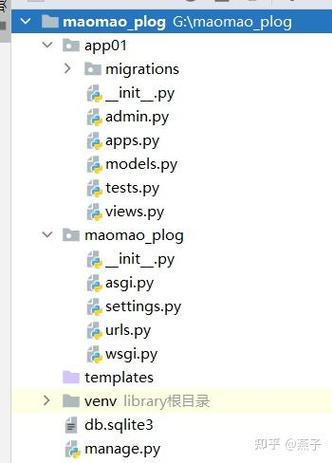
accounts/login/-> The login pageaccounts/logout/-> The logout pageaccounts/password_change/-> Change password- ...and more.
Step 2: Create Login and Logout Templates
Django's built-in views expect templates with specific names and context variables.
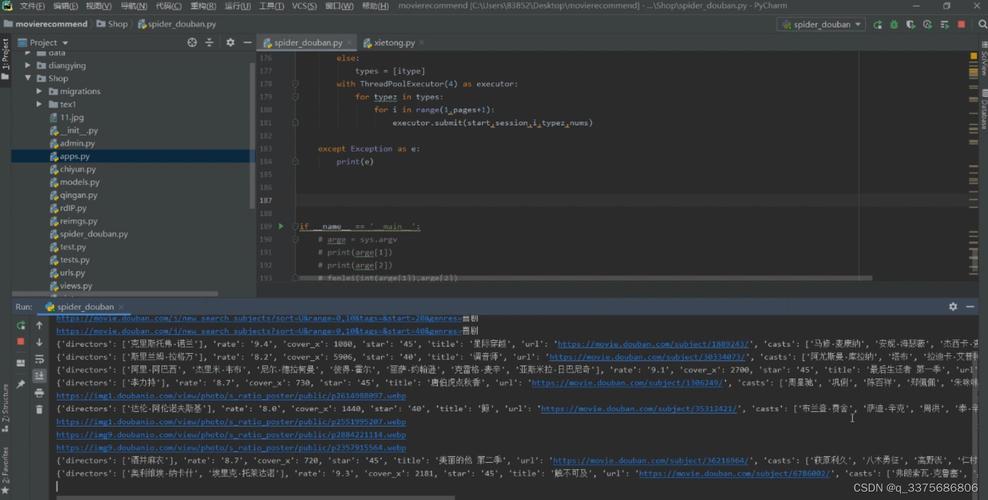
Create the directory structure: templates/registration/
Inside your app's templates directory, create a new directory called registration. This is the default location Django looks for these templates.
your_app/
└── templates/
    └── registration/
        ├── base.html         (Optional, but recommended)
        ├── login.html
        └── logged_out.html   (For a nice "you have been logged out" page)
templates/registration/login.html
This template must contain a <form> that POSTs to the same URL. Django automatically provides the form variable and the next GET parameter (which redirects the user after a successful login).
{% extends "registration/base.html" %}
{% block content %}
<h2>Log In</h2>
<form method="post">
  {% csrf_token %}
  <!-- Display form errors if any -->
  {% if form.errors %}
    <p>Your username and password didn't match. Please try again.</p>
  {% endif %}
  <div class="form-group">
    <label for="id_username">Username:</label>
    {{ form.username }}
  </div>
  <div class="form-group">
    <label for="id_password">Password:</label>
    {{ form.password }}
  </div>
  <button type="submit" class="btn btn-primary">Log In</button>
</form>
<p><a href="{% url 'password_reset' %}">Forgot Password?</a></p>
{% endblock %}
templates/registration/logged_out.html
A simple page to confirm the user has been logged out.
{% extends "registration/base.html" %}
{% block content %}
<h2>Logged Out</h2>
<p>You have been successfully logged out. You can <a href="{% url 'login' %}">log in again</a>.</p>
{% endblock %}
Step 3: Create a View to Protect
Now, let's create a view that only logged-in users can access.
# your_app/views.py
from django.shortcuts import render
from django.contrib.auth.decorators import login_required
@login_required
def secret_page(request):
    """
    This view can only be accessed by users who are logged in.
    If a non-authenticated user tries to access it, Django will
    automatically redirect them to the login page defined in
    settings.LOGIN_URL.
    """
    return render(request, 'secret_page.html')
Important: For the @login_required decorator to work, you must set LOGIN_URL in your project's settings.py.
# your_project/settings.py
LOGIN_URL = '/accounts/login/' # The URL of your login page
Step 4: Add the Protected View to urls.py
Finally, add a URL pattern for your protected view.
# your_app/urls.py
from django.urls import path
from . import views
urlpatterns = [
    # ... other urls
    path('secret/', views.secret_page, name='secret_page'),
]
Now, when a user tries to visit /secret/, they will be redirected to /accounts/login/. After they log in, they will be sent to /secret/.
The Manual & Flexible Way: Creating Your Own Login View
This method gives you full control over the process. It's useful when you need custom logic, like logging in with an email instead of a username.
Step 1: Create the View
Create a view in your_app/views.py that handles both the GET (displaying the form) and POST (processing the login) requests.
# your_app/views.py
from django.shortcuts import render, redirect
from django.contrib.auth import authenticate, login
from django.contrib import messages
def custom_login(request):
    if request.method == 'POST':
        username = request.POST['username']
        password = request.POST['password']
        # The 'auth.authenticate' function checks the credentials
        user = authenticate(request, username=username, password=password)
        if user is not None:
            # The 'auth.login' function logs the user in
            # and creates a session for them.
            login(request, user)
            # Redirect to the 'next' page if it exists, otherwise to the homepage
            next_url = request.GET.get('next')
            if next_url:
                return redirect(next_url)
            else:
                return redirect('home') # Replace 'home' with your URL name
        else:
            # If credentials are invalid, show an error message
            messages.error(request, 'Invalid username or password.')
    # If it's a GET request or login failed, render the login page
    return render(request, 'registration/login.html')
Step 2: Create the Template
The template is very similar to the one before, but it doesn't rely on the form variable. You have to create the input fields manually.
<!-- templates/registration/login.html -->
{% extends "registration/base.html" %}
{% block content %}
<h2>Log In</h2>
{% if messages %}
    {% for message in messages %}
        <div class="alert alert-{{ message.tags }}">
            {{ message }}
        </div>
    {% endfor %}
{% endif %}
<form method="post">
  {% csrf_token %}
  <div class="form-group">
    <label for="id_username">Username:</label>
    <input type="text" name="username" class="form-control" id="id_username" required>
  </div>
  <div class="form-group">
    <label for="id_password">Password:</label>
    <input type="password" name="password" class="form-control" id="id_password" required>
  </div>
  <button type="submit" class="btn btn-primary">Log In</button>
</form>
{% endblock %}
Step 3: Create the URL Pattern
Point a URL to your custom view.
# your_app/urls.py
from django.urls import path
from . import views
urlpatterns = [
    # ... other urls
    path('login/', views.custom_login, name='custom_login'),
]
Best Practices & Advanced Topics
Logging Out
Logging out is simple. Use Django's built-in logout view and template.
urls.py
# your_project/urls.py
# Make sure you have 'django.contrib.auth.urls' included
path('accounts/', include('django.contrib.auth.urls')),
templates/registration/logged_out.html
Create this file as described in section 1.2.
Using the UserCreationForm for Registration
Django provides a form for creating new users.
views.py
from django.shortcuts import render, redirect
from django.contrib.auth.forms import UserCreationForm
from django.contrib import messages
def register(request):
    if request.method == 'POST':
        form = UserCreationForm(request.POST)
        if form.is_valid():
            form.save()
            username = form.cleaned_data.get('username')
            messages.success(request, f'Account created for {username}! You can now log in.')
            return redirect('login')
    else:
        form = UserCreationForm()
    return render(request, 'registration/register.html', {'form': form})
templates/registration/register.html
{% extends "registration/base.html" %}
{% block content %}
<h2>Register</h2>
<form method="post">
  {% csrf_token %}
  {{ form.as_p }} <!-- Renders form fields as paragraphs -->
  <button type="submit" class="btn btn-primary">Register</button>
</form>
{% endblock %}
urls.py
# your_app/urls.py
from django.urls import path
from . import views
urlpatterns = [
    # ... other urls
    path('register/', views.register, name='register'),
]
Using LoginRequiredMixin in Class-Based Views (CBVs)
If you use Class-Based Views, LoginRequiredMixin is the preferred way to protect them.
# your_app/views.py
from django.views.generic import TemplateView
from django.contrib.auth.mixins import LoginRequiredMixin
class SecretPageView(LoginRequiredMixin, TemplateView):
    template_name = 'secret_page.html'
    # Optional: redirect URL if user is not authenticated
    # The default is settings.LOGIN_URL
    login_url = '/accounts/login/'
    redirect_field_name = 'next' # The name of the GET parameter for the redirect
Summary: Which Method to Use?
| Method | Pros | Cons | Best For |
|---|---|---|---|
Built-in auth Views |
- Extremely fast to set up. - Handles all the logic for you. |
- Less flexible. - Template names and URLs are fixed. |
Quick prototypes, simple sites, or when you don't need custom logic. |
Manual View (login) |
- Full control over the process. - Flexible (e.g., email login). |
- More code to write. - You must handle errors and redirects. |
Custom authentication logic, integrating with other systems, learning. |
LoginRequiredMixin (CBVs) |
- Clean, declarative way to protect CBVs. | - Only works with Class-Based Views. | Almost all CBVs that require authentication. |
For most new projects, start with the built-in auth views. They are robust, secure, and save you a lot of time. Only build your own if you have a specific requirement they don't meet.